


Client Resources: Review Generation
Learn how to create and share client review assets, including custom posters, QR codes, direct review links, private feedback, and review tool settings.
Review Generation helps you create client-ready assets that encourage customers to leave reviews. You can create posters, download QR codes, open direct review links, and customize how customers provide ratings and feedback.
Access Review Generation
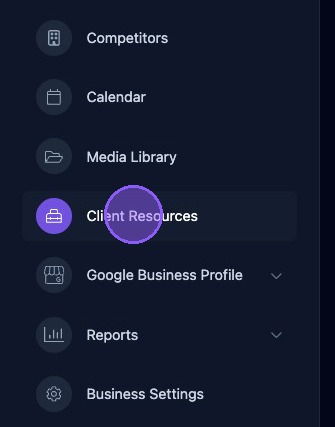
To access Review Generation, click Client Resources in the business navigator.
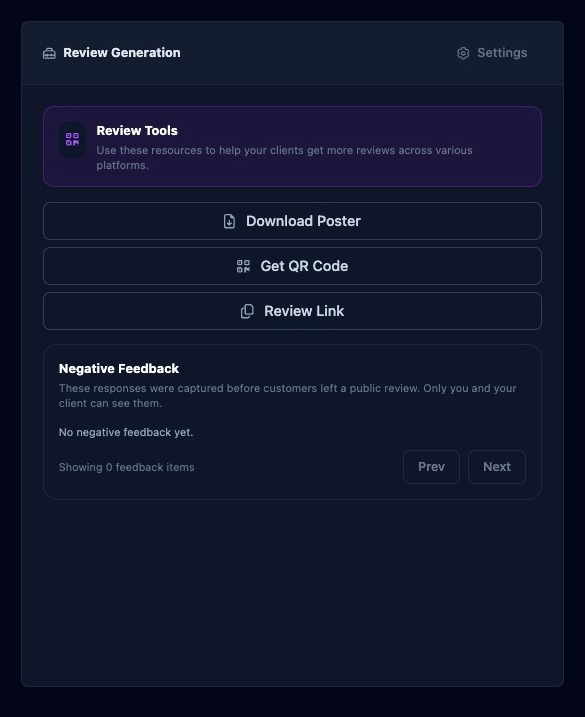
The Review Generation page includes buttons for:
- Settings: Adjust review tool settings.
- Download Poster: Create a customizable PDF poster for requesting customer reviews.
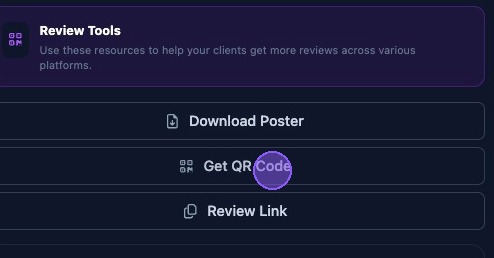
- Get QR Code: Download a PNG QR code image for review requests.
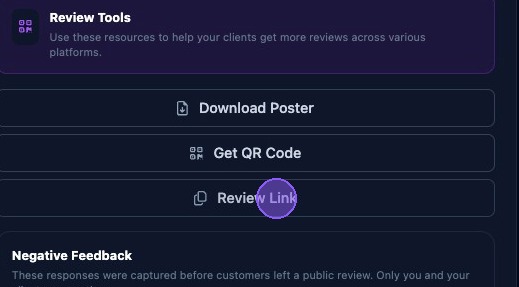
- Review Link: Open the client's review website in a separate browser window.
Client Review Poster
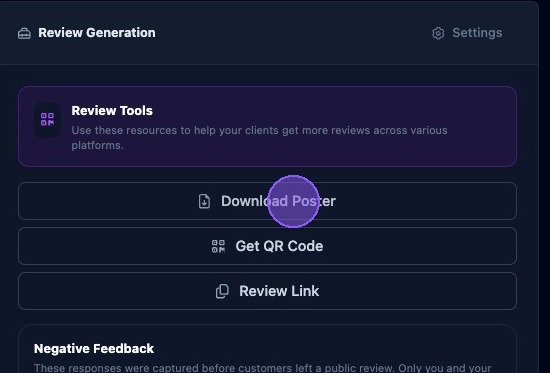
To create and customize a downloadable client review poster, click Download Poster.
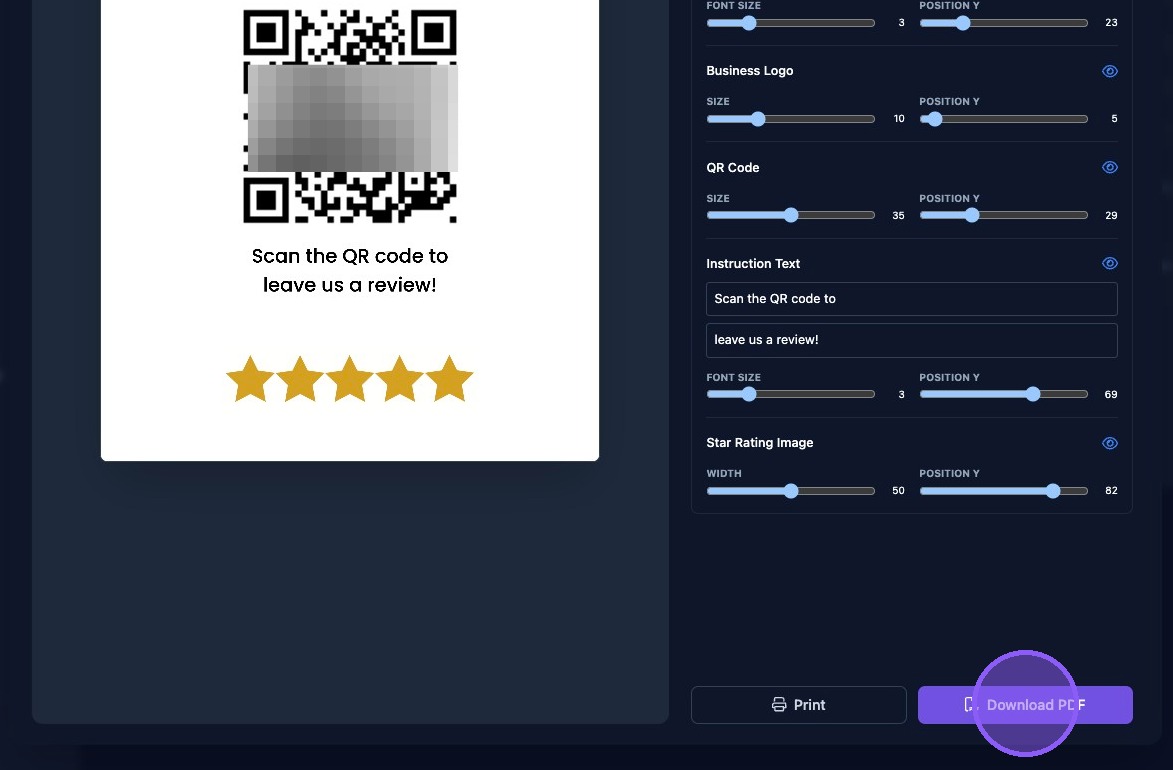
The poster editor opens in a pop-up window. From here, you can create and customize the client's review poster.
Poster controls include:
- Auto-align: Automatically aligns poster elements to the center.
- Reset: Returns all poster elements to their default values.
- QR Code Link: Sets the QR code destination to the Review Tool, Google Review, or Google Profile.
- General Elements: Lets you show or hide poster elements using the eye icon.
General poster elements include:
- Business Name Text: Defaults to the business name, but can be edited. You can adjust font size and vertical position.
- Business Logo: Allows logo size and vertical position adjustments.
- QR Code: Allows QR code size and vertical position adjustments.
- Instruction Text: Provides two instruction text lines with font size and vertical position controls.
- Star Rating Image: Displays a star rating graphic and allows size and vertical position adjustments.
When finished, choose one of the following options:
- Click Download PDF to download a PDF file of the poster.
- Click Print to print a copy.
- Click X to cancel and exit the poster editor.
Poster settings are not saved. Download or print the poster once it looks correct.
Access QR Code
Click Get QR Code to open a pop-up window with the review QR code.
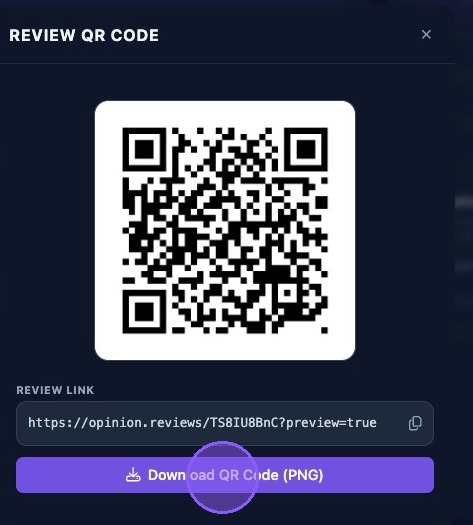
The Review QR Code window provides:
- A copyable link to the client's review tool web page.
- A button to download the QR code as a PNG image.
- An X button to exit the window.
Review Link
Click Review Link to open a new browser window with the client's review tool web page.
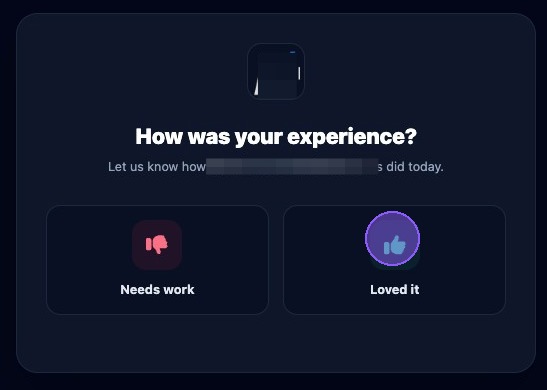
A new browser window opens with the fully functioning review link.
Negative Feedback
The Negative Feedback section displays responses captured before customers leave a public review. Only you and your client can see this feedback. Use Next and Prev to cycle through responses. The total number of responses is also displayed.
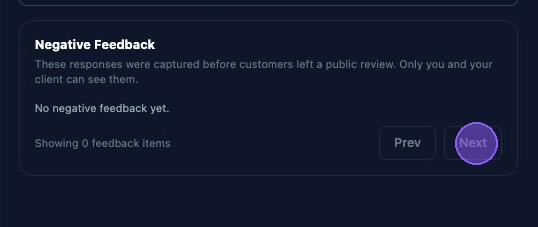
Review private negative feedback regularly. It can reveal service issues before they become public reviews and gives the client a chance to follow up with customers directly.
Review Tool Settings
Click Settings to open the Review Tool Settings pop-up window.
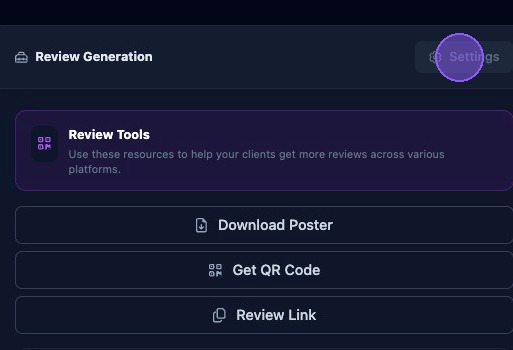
Review Tool Settings contains two main areas:
- Rating Selector: Choose how customers rate their experience before being guided to Google. Options include happy and sad faces, thumbs up and thumbs down, or a star selector.
- Suggestion Options: Configure the options shown to customers before a review is generated.
In Suggestion Options, you can:
- Enter a suggestion in the text field and click Add.
- Delete a suggestion by clicking the X at the end of the option.
- Click Regenerate with AI to replace the existing suggestions with new AI-generated suggestions.
Click Save Changes when finished. Click Cancel or the X to exit without saving.
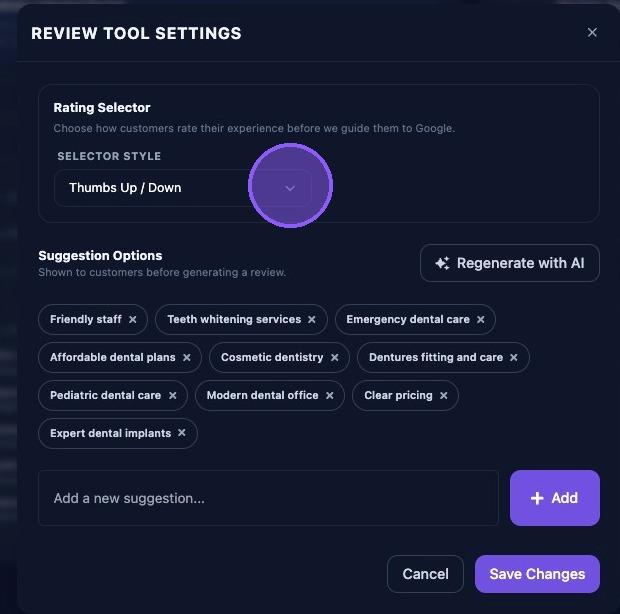
Choose the rating selector and suggestion prompts that best match the client's brand voice. After updating settings, open the Review Link to confirm the customer experience looks correct.