


Reports: Accessing Past Reports
Learn how to find, preview, download, and verify previously generated client reports without rebuilding them.
Report Overview
Reports are the primary client-facing deliverable in the dashboard. They combine Google Business Profile performance, keyword visibility, competitor movement, and website analytics into branded PDFs and image-based report artifacts.
Reports are commonly used for weekly executive summaries, monthly comprehensive reports, and internal audits.
The two main report types are Summary and Comprehensive. Summary reports are shorter and focused on key metrics, making them useful weekly or bi-weekly. Comprehensive reports are longer and include more sections, making them useful monthly or quarterly.
- Use Summary reports weekly.
- Use Comprehensive reports monthly.
- Always confirm branding is configured before sending reports to clients.
- Review the preview before enabling scheduled delivery.
- Schedule weekly summaries on Monday mornings when possible.
- Schedule monthly comprehensive reports on the first day of the month when possible.
- Review high-stakes client reports before sending them.
Reports pull data from multiple sources, including Google Business Profile performance, local keyword maps, competitor data, website analytics, and Search Console when connected.
If a critical data source is missing, the report may fail or require review before delivery.
Reviewing Past Reports
Click Reports to access the dropdown menu, then select All Reports.
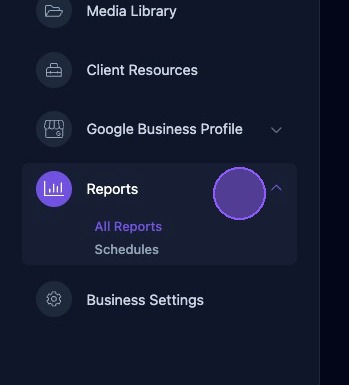
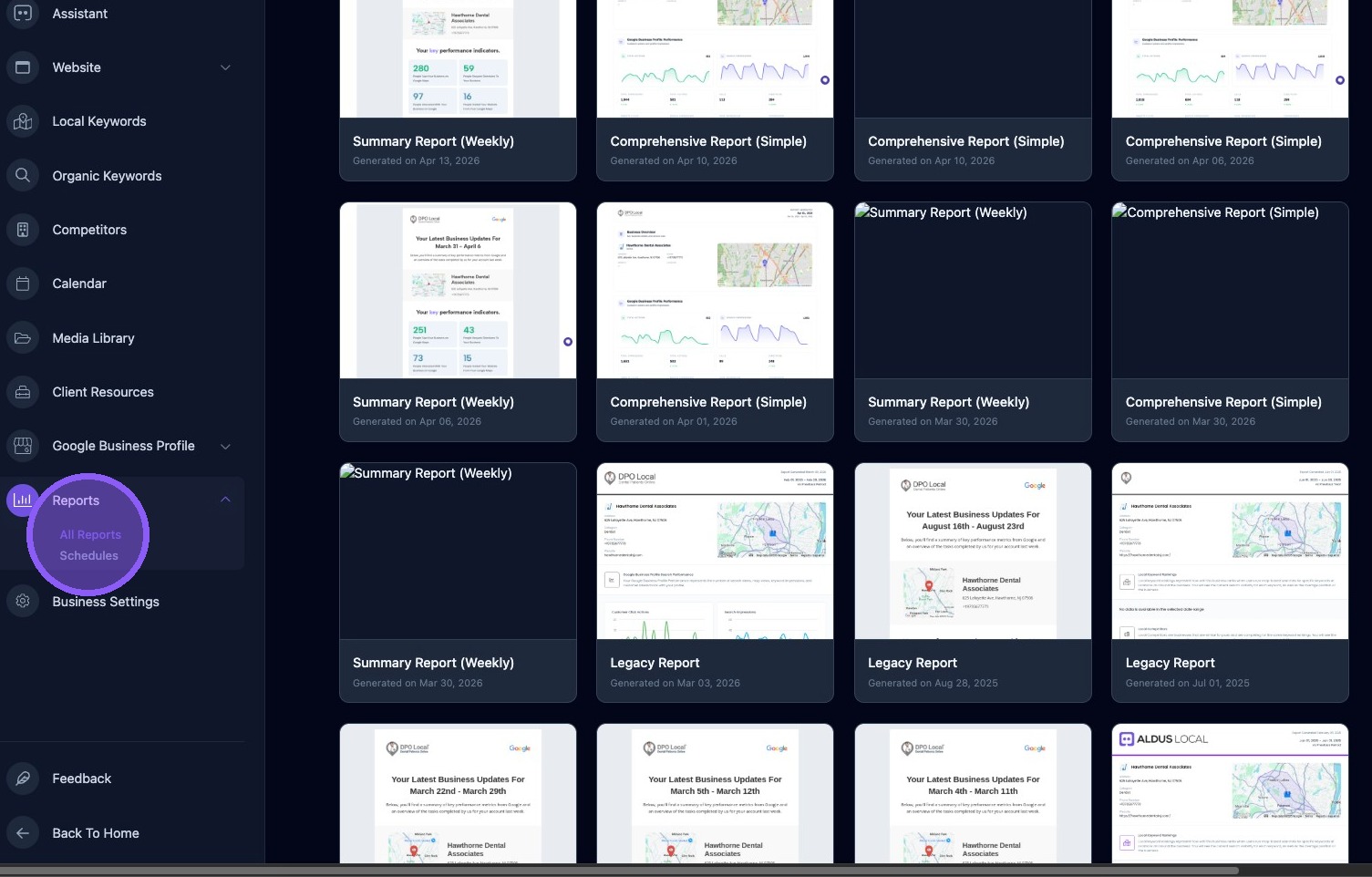
Click All Reports to open the Reports Overview page. This page lists all generated reports for the business.
Use this page to review past reports, open previews, download report artifacts, and confirm that scheduled reports were generated correctly.
Each report card includes:
- A report name based on report type, such as Summary, Comprehensive, or Legacy.
- The schedule type, such as weekly, monthly, quarterly, or simple.
- The date the report was generated.
- Status, when displayed.
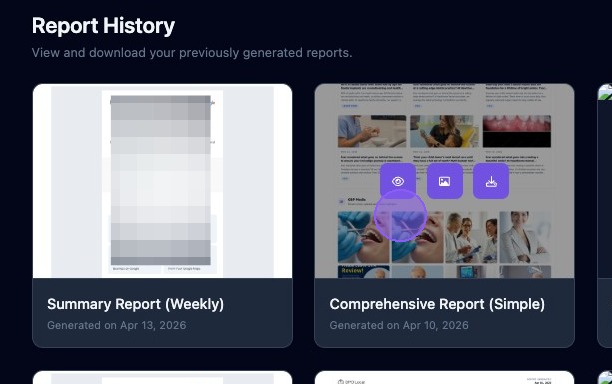
- Preview and download action buttons that appear when hovering over the report.
To access, review, print, or download a past report, hover over the report thumbnail card. Three action buttons appear:
- Click the eye icon to open and preview the report as a web page.
- Click the image icon to open the report as an image file.
- Click the download icon to open the full report in a PDF editor.
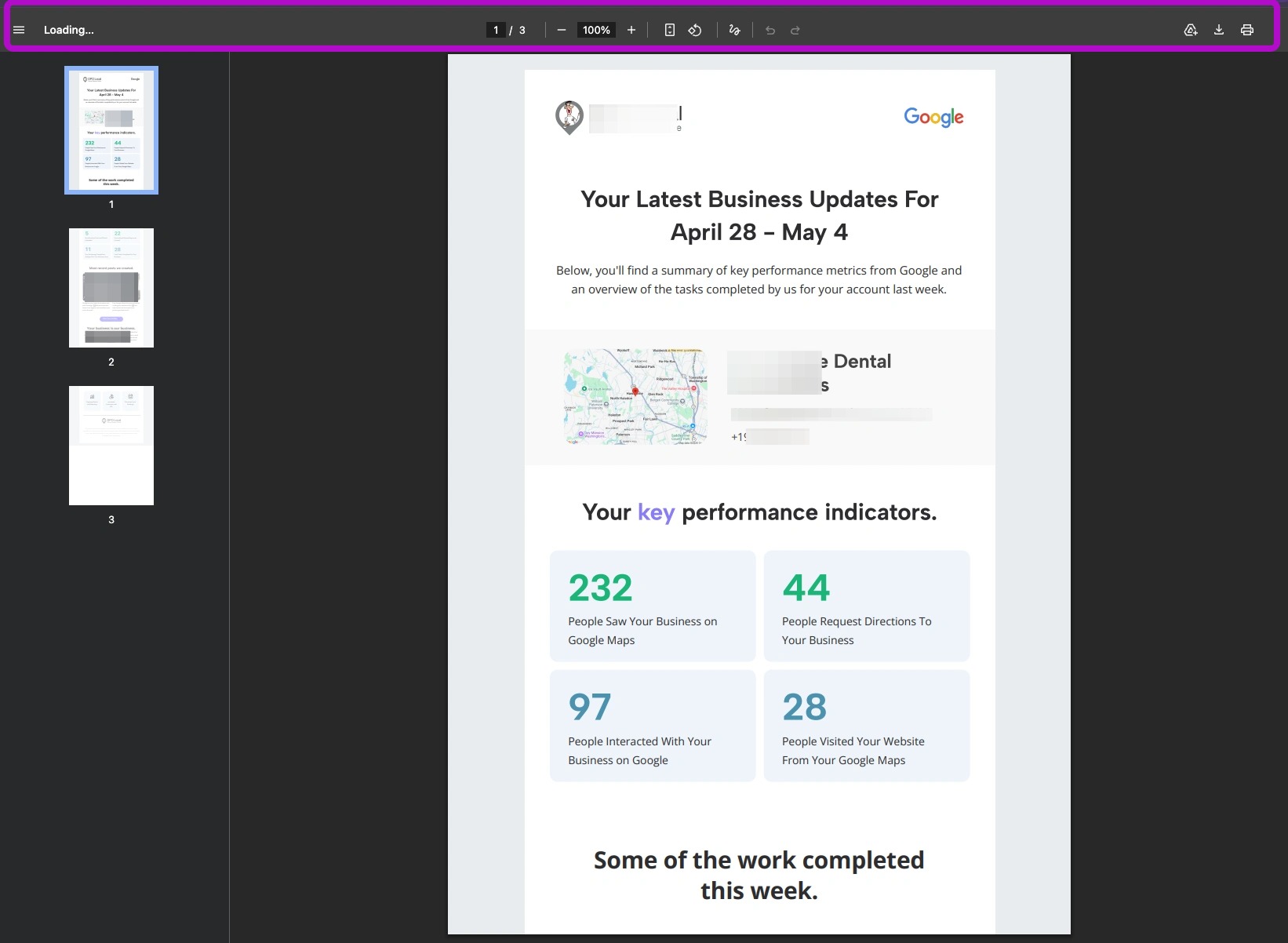
Opening a Report in a PDF Editor
The full downloaded report opens in a PDF editor. From the PDF editor, you can use standard PDF actions, including:
- Download a PDF copy of the report.
- Save the report directly to Google Drive.
- Print the report.
- Zoom in, zoom out, fit to page, or rotate the report.
- Annotate the report using PDF drawing tools.
- View the report as one page or two side-by-side pages.
- Present the report as a slideshow.
- View PDF document properties.
- Show or hide page thumbnails in the side panel.
Always review at least one report each week, verify scheduled reports use the expected date range, and generate a new report after updating branding to confirm it renders correctly.
To confirm a report generated correctly, check that:
- The title and business name are correct.
- Branding, including logo and colors, appears correctly.
- Google Business Profile performance metrics are populated.
- Keyword visibility data is present.
- Charts display for the correct date range.
If expected metrics, screenshots, or PDFs are missing, check the related data run or report generation status for errors.
Each report may include a PDF file, image files for each page, and stored metadata about the run time and inputs. These artifacts are used in the Reports list, client portal, and email attachments.