


Reports: Managing and Reviewing Reports
Learn how to find, preview, schedule, run, edit, and manage client-ready reports from the Reports & Schedules page.
The Reports & Schedules page provides client-friendly report templates and automated delivery schedules. Use it to streamline report delivery and review past report runs.
Accessing Reports & Schedules
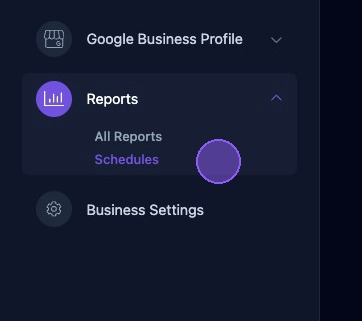
To access reports, click Schedules under Reports in the business dashboard.
Navigating Reports
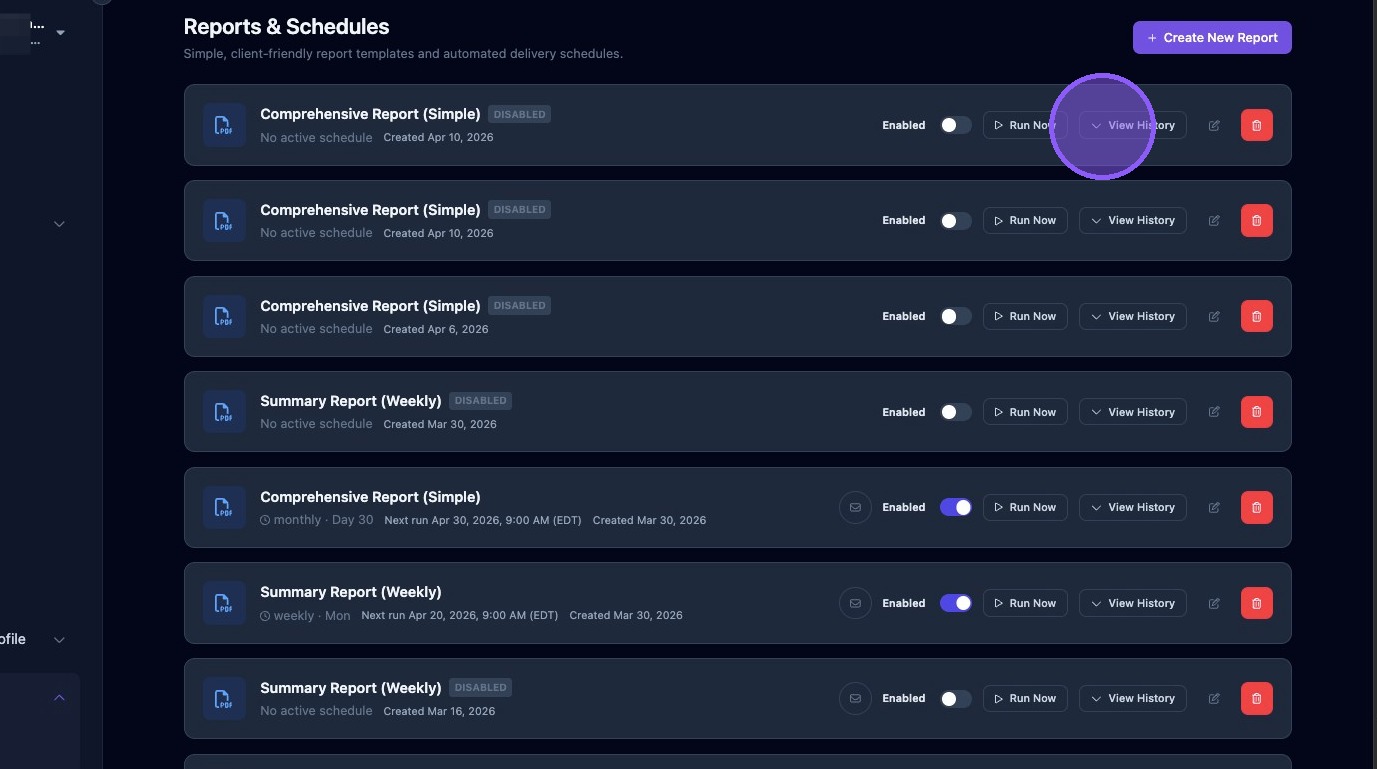
The page displays a list of report templates and automated delivery schedules. Each report shows the date it was created, report type, enabled status, schedule details, and the next scheduled run date and time.
If an email icon is present, hover over it to display the automated email settings, including recipients, reply-to address, and BCC recipients.
To expand and view past report runs, click anywhere on a report in the list, or click the View History dropdown arrow.
To close the history list, click the report again or click the Hide History dropdown arrow.
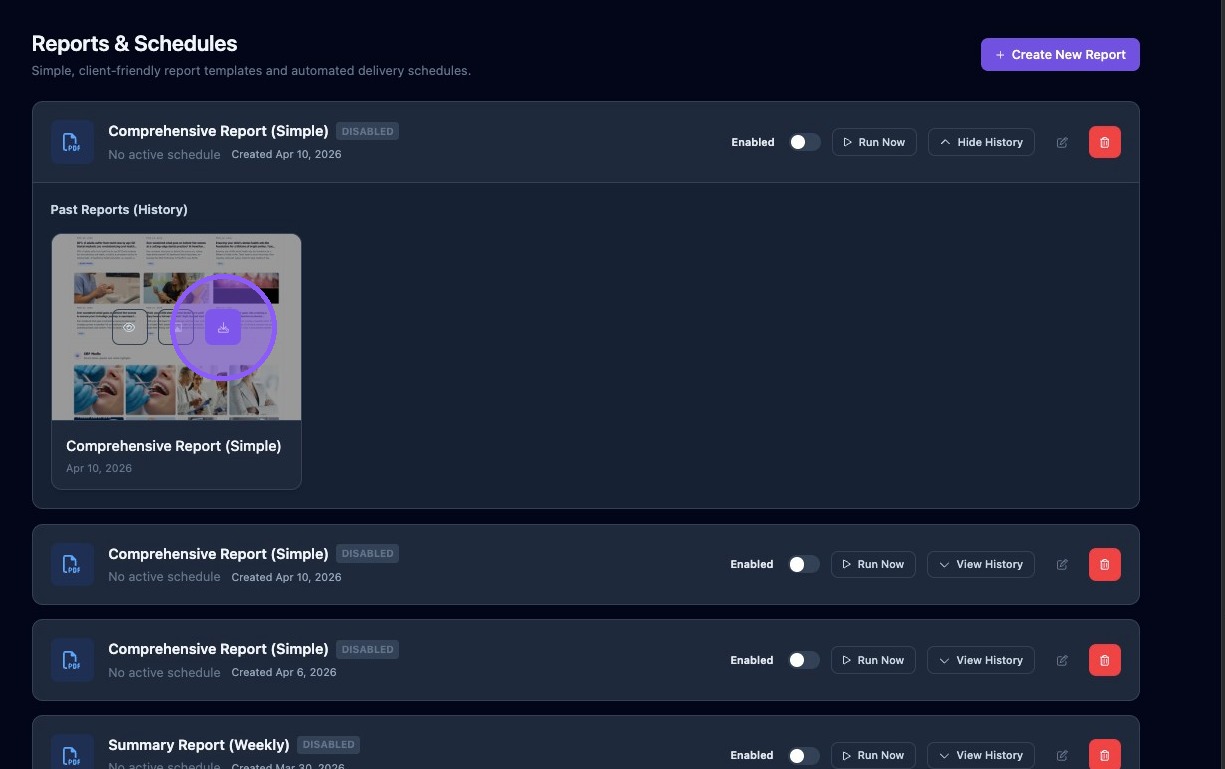
When a report is expanded, a card appears for each past report run. Each card shows a thumbnail of the report, the report name, and the date it was run.
Hover over a card to reveal a download button that lets you open the selected report in a PDF editor.
Additional buttons allow you to view the report online or download a screenshot of the report.
Enabling Report Scheduling
Click the Enabled toggle to enable or disable scheduling for a report.
Schedules can be toggled on and off without deleting them:
- If the Enabled toggle is on, the scheduler will run the report at the next scheduled run time.
- If the Enabled toggle is off, the scheduler will ignore that report schedule.


Disable a report schedule when you want to pause delivery temporarily. Delete the report only when you are sure the schedule and template are no longer needed.
Deleting a Report
To delete a report, click the red trash can icon on the right side of the report row.

Deleting a report removes the schedule from the list. Use the Enabled toggle instead if you only need to pause scheduled delivery.
Running a Report
Click Run Now to immediately run the report.

Editing a Report
Click the edit button, shown as a document icon, to edit a report. This opens the Report Builder, where you can update the report template.

Review the report history before editing or deleting a schedule. This helps confirm what has already been delivered and whether the current template is still needed.