


Keywords: Search Grid Maps
Learn how to use Search Grid Maps to review exact local ranking performance across a geographic grid, compare competitors, replay historical runs, and share map insights.
Search Grid Maps show ranking positions across a grid of geographic points. They provide the most detailed view of local keyword performance for your business and its competitors.
Accessing the Search Grid Maps
Search Grid Maps can be accessed from the Local Keywords section. Expand the selected keyword, then click the thumbnail of the selected run in the history section.
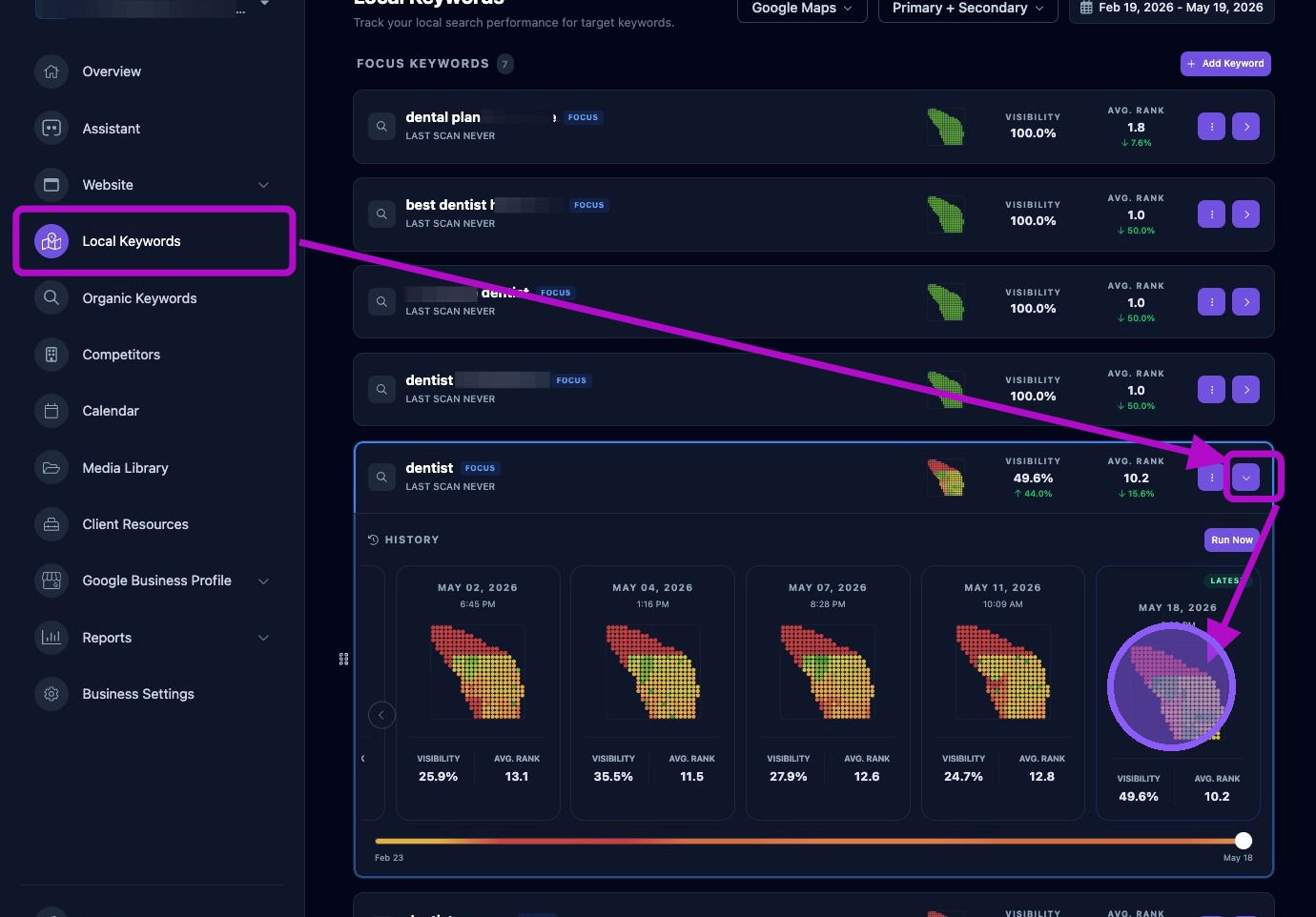
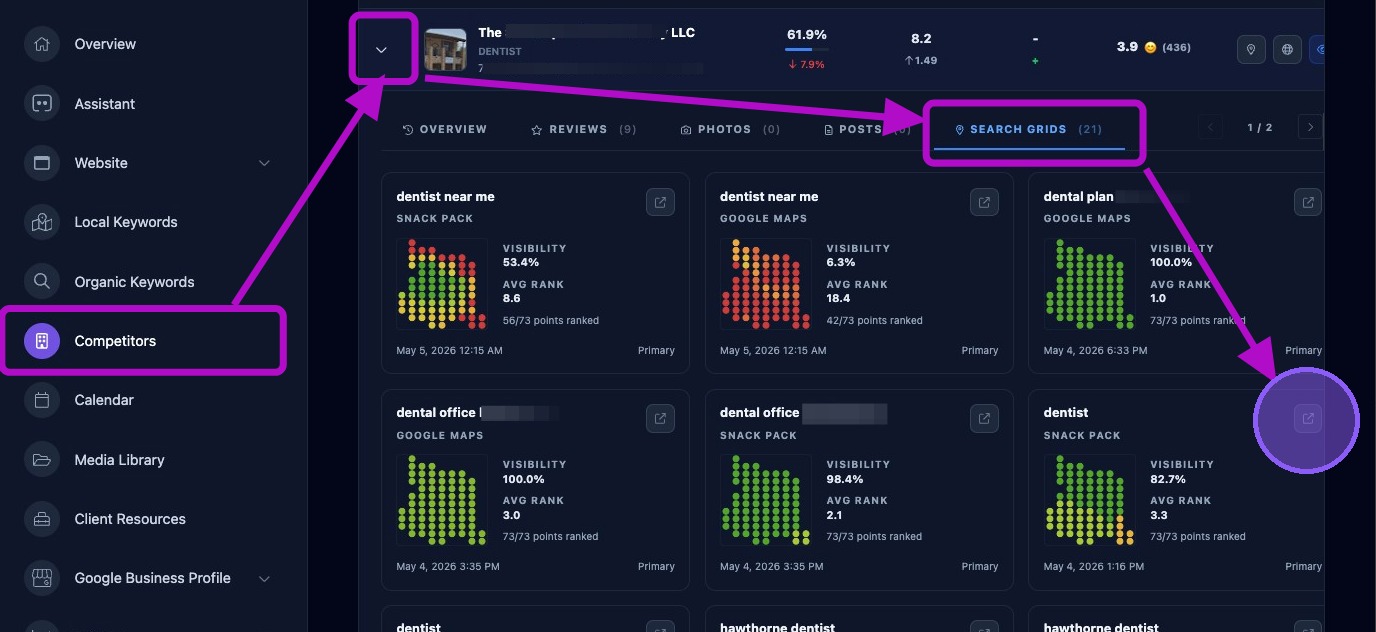
Search Grid Maps can also be accessed from the Competitors section. Expand a competitor in the list, click the Search Grids tab, then click the expand icon in the upper-right corner of the selected keyword.
Navigating the Search Grid Map View Page
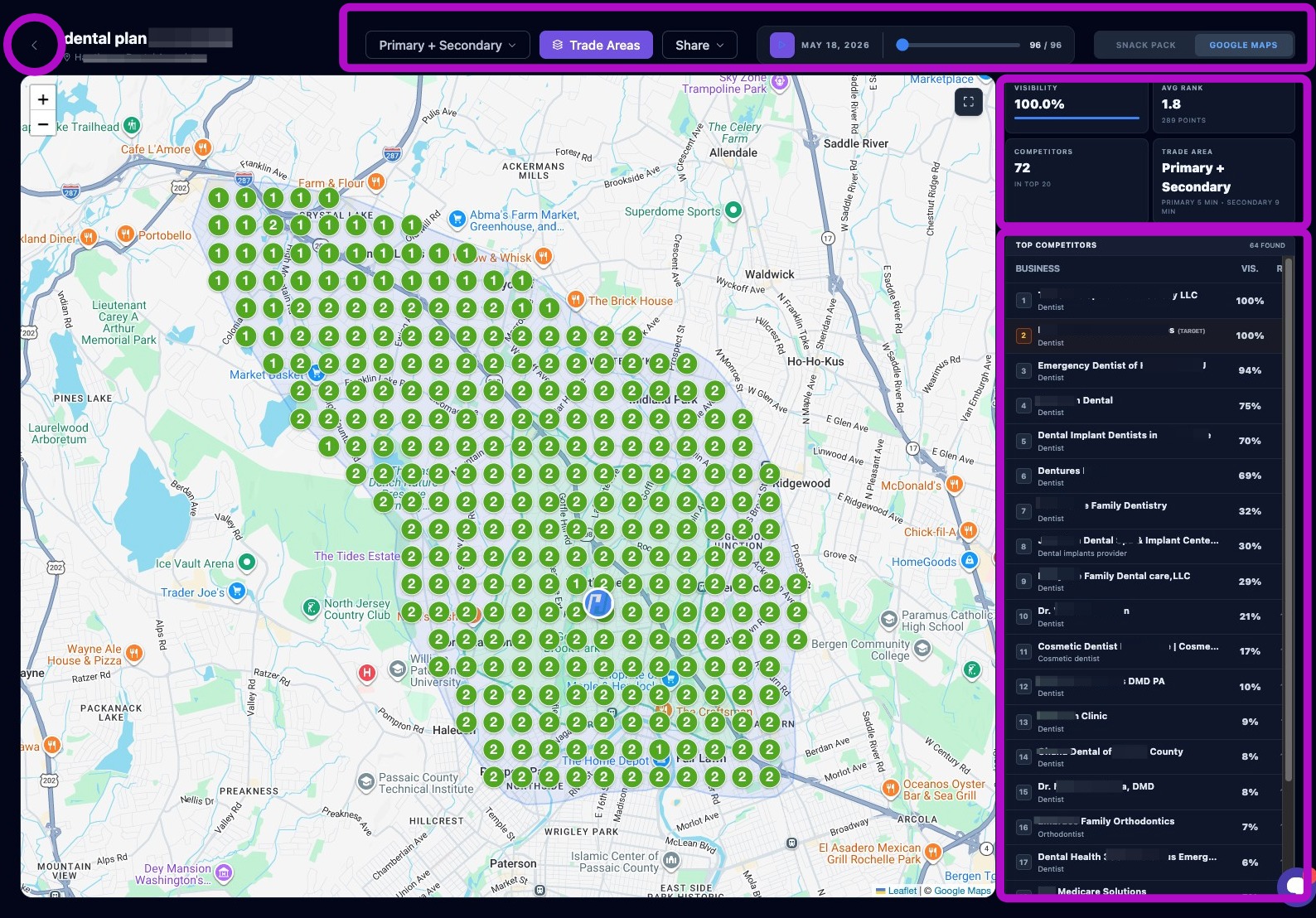
The Search Grid Map page contains several sections.
The top area contains controls for sharing, map engine selection, and trade area selection. Next to the selected keyword in the upper-left corner is a back button that returns you to the Local Keywords or Competitors section.
The largest section contains the keyword search map with ranking points, the target business pin, competitor pins, and trade area overlays.
The right side contains metrics based on the selected controls, followed by a competitor list.
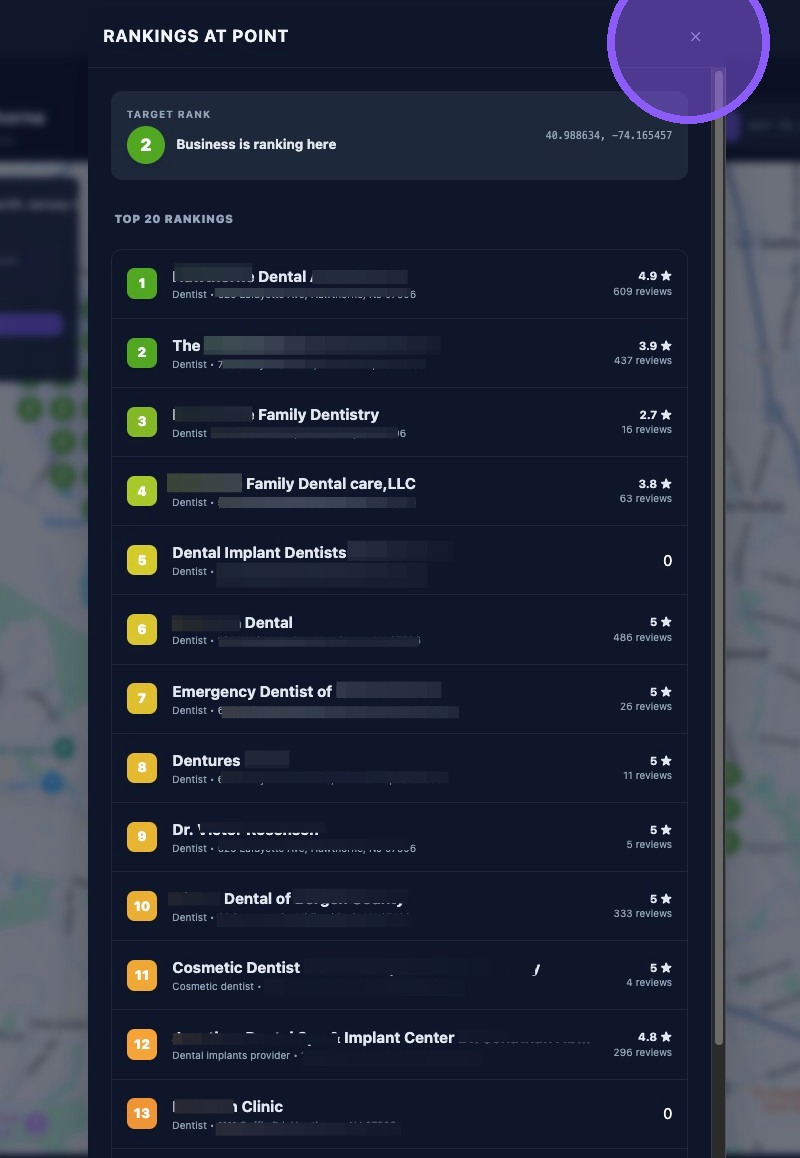
Whenever a keyword map is displayed for your client or a focused competitor, click any point on the map to see the rankings for your client and all competitors at that exact map point. Click the X to close the window.
Search Grid Map Controls
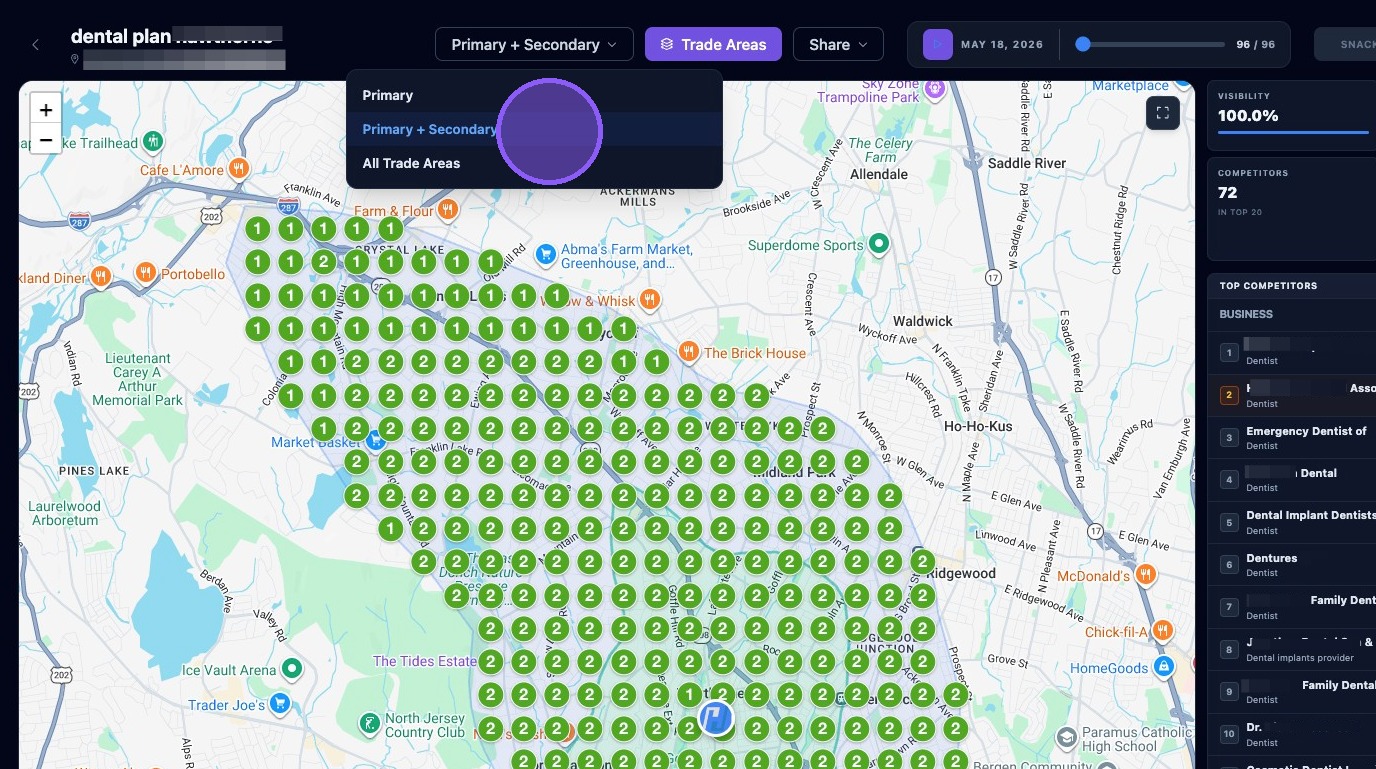
Change the displayed trade area by clicking the first dropdown menu. Options include Primary, Primary + Secondary, and All Trade Areas. Changing the trade area updates the map and data.
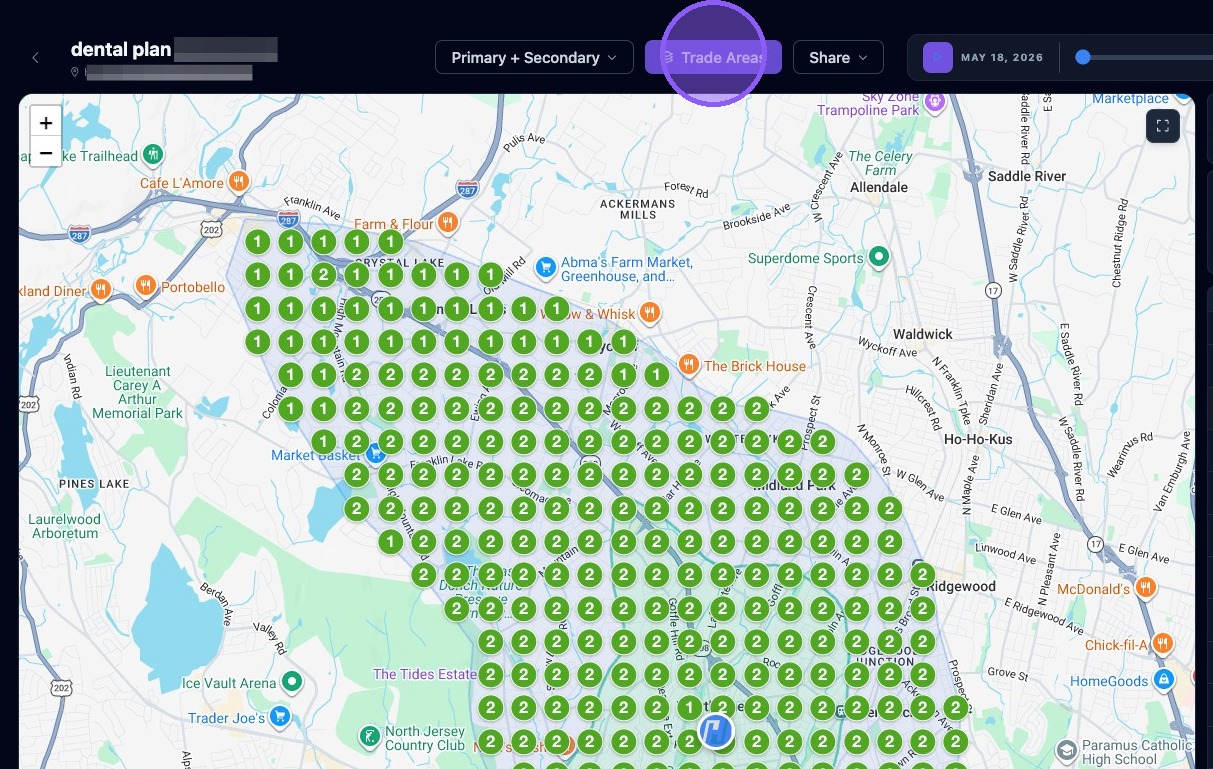
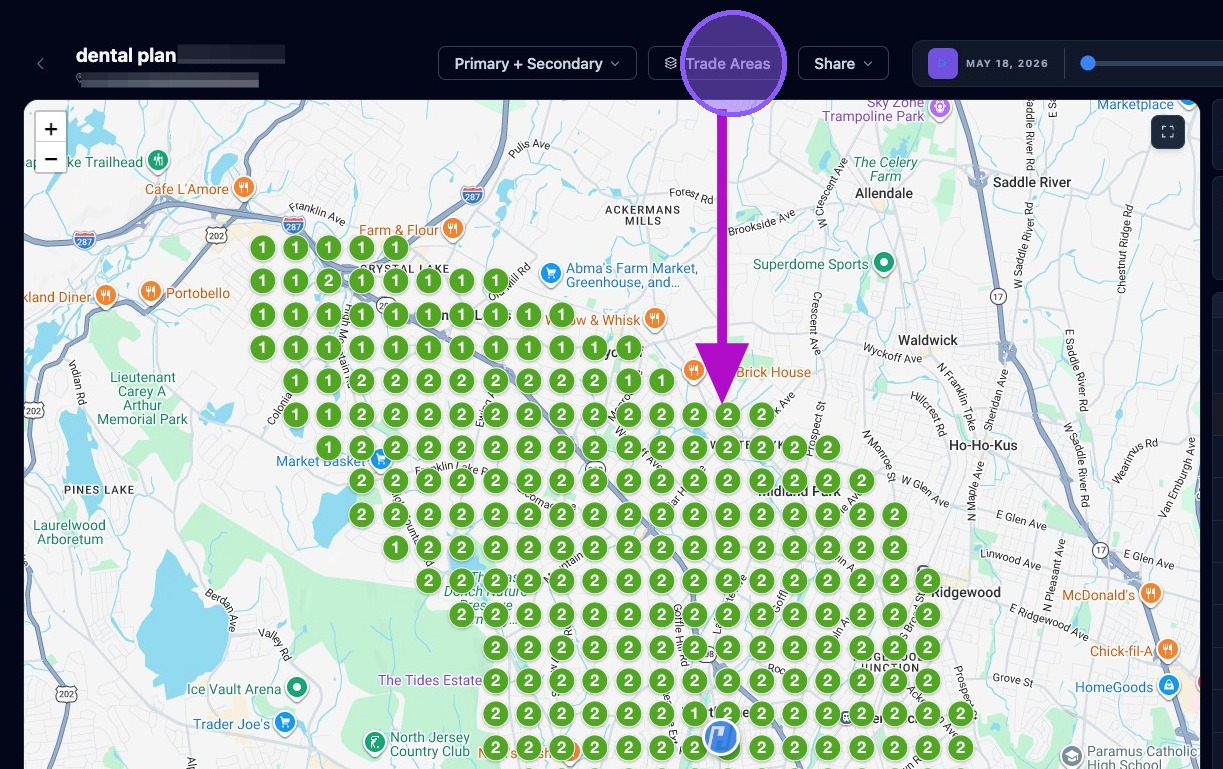
The map can show trade area overlays by default. Toggle them on or off by clicking Trade Areas. Your preference is saved locally in the browser.
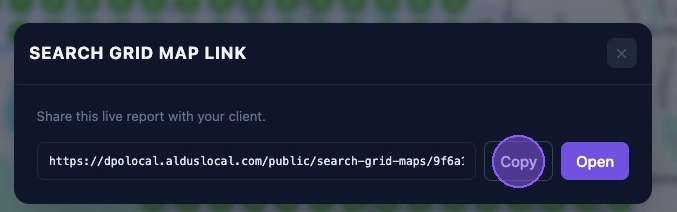
Click the Share dropdown menu to share the report with your client or others. You can share a link, a PDF version, or an image.
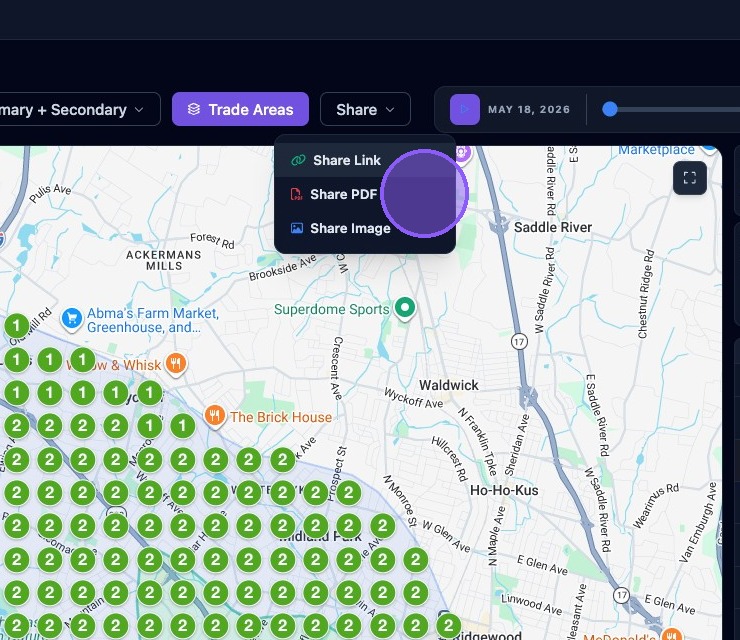
Depending on the selected sharing option, a pop-up window will appear. This example shows the share link option.
The next two controls provide a historical view of keyword runs. The slider represents the run history. To the right of the slider, two numbers are displayed: the first is the currently selected run, and the second is the total number of runs.
The slider defaults to the run that was selected when opening the Search Grid Map. The date of the selected run is shown to the left of the slider. When the slider is all the way to the left, it represents the most recent run.
To view an animated slideshow, move the slider to the right for the desired number of runs and click the play button. Allow time for the data to load. Selecting many runs may take longer. The map and data for each date display briefly before cycling to the next run.
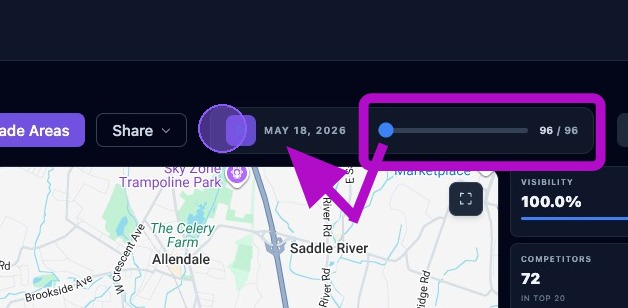
Historical playback can take time to load when many runs are selected. For faster review, start with a smaller number of runs and increase the range only when needed.
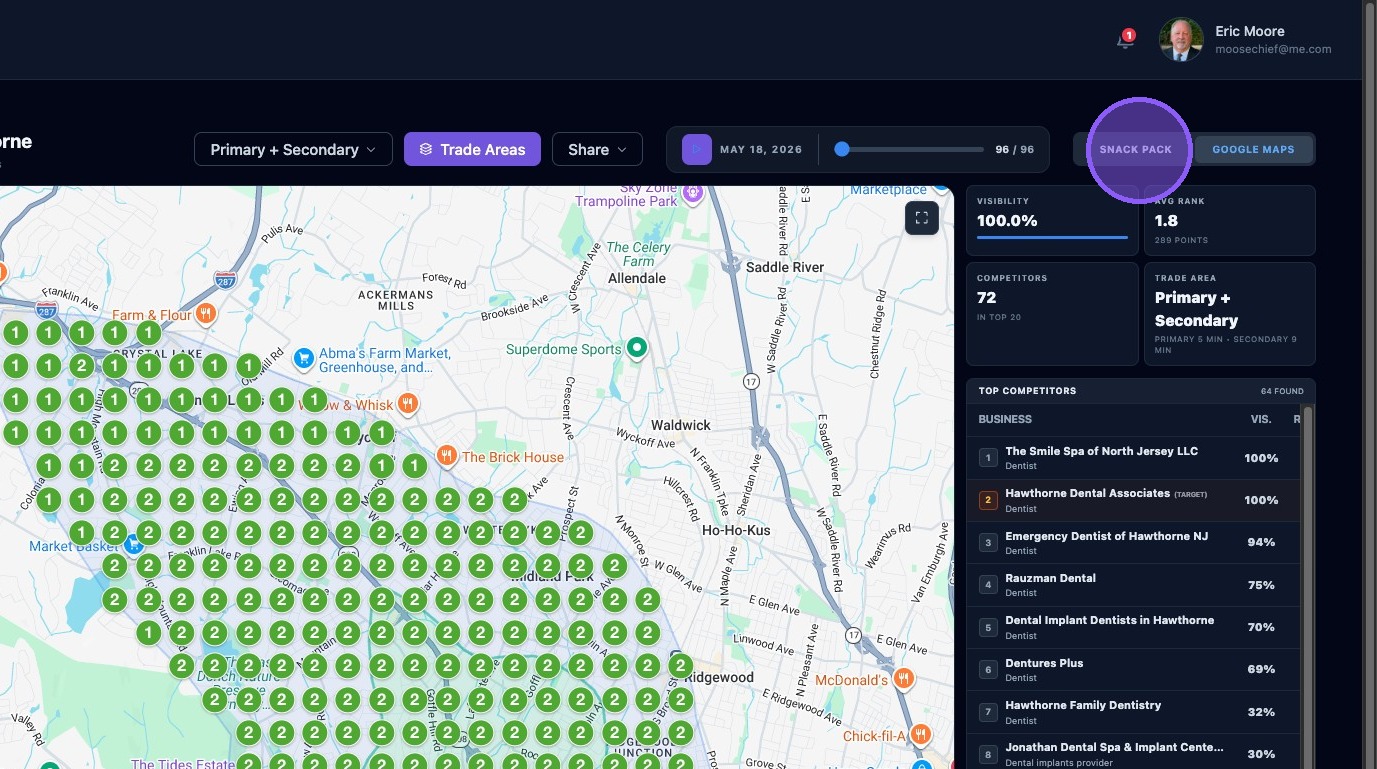
Use the map engine selector to switch between Google Maps and Snack Pack.
If a competitor is focused and does not exist on the other engine, focus mode will clear and a notice will appear.
Focusing a Competitor
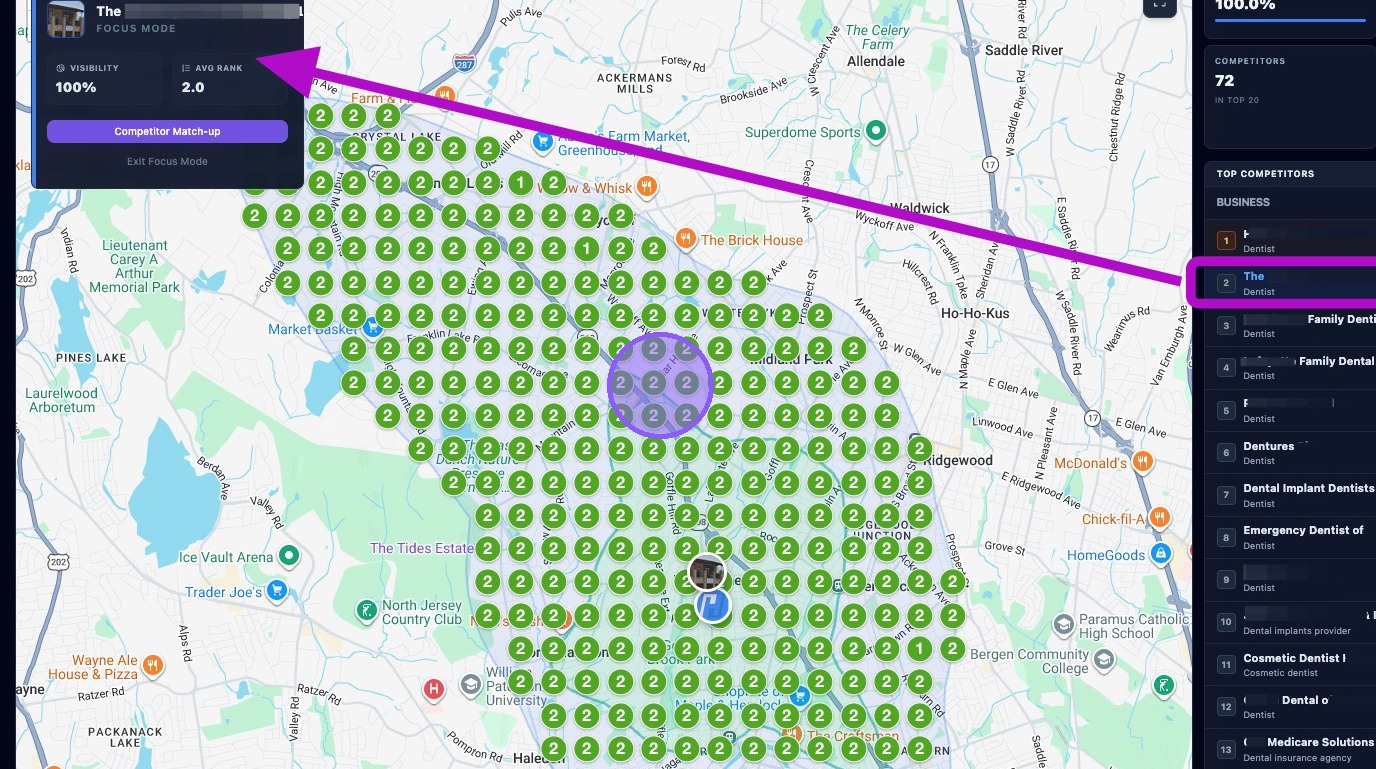
To enter focus mode for a competitor, click a competitor in the list on the right.
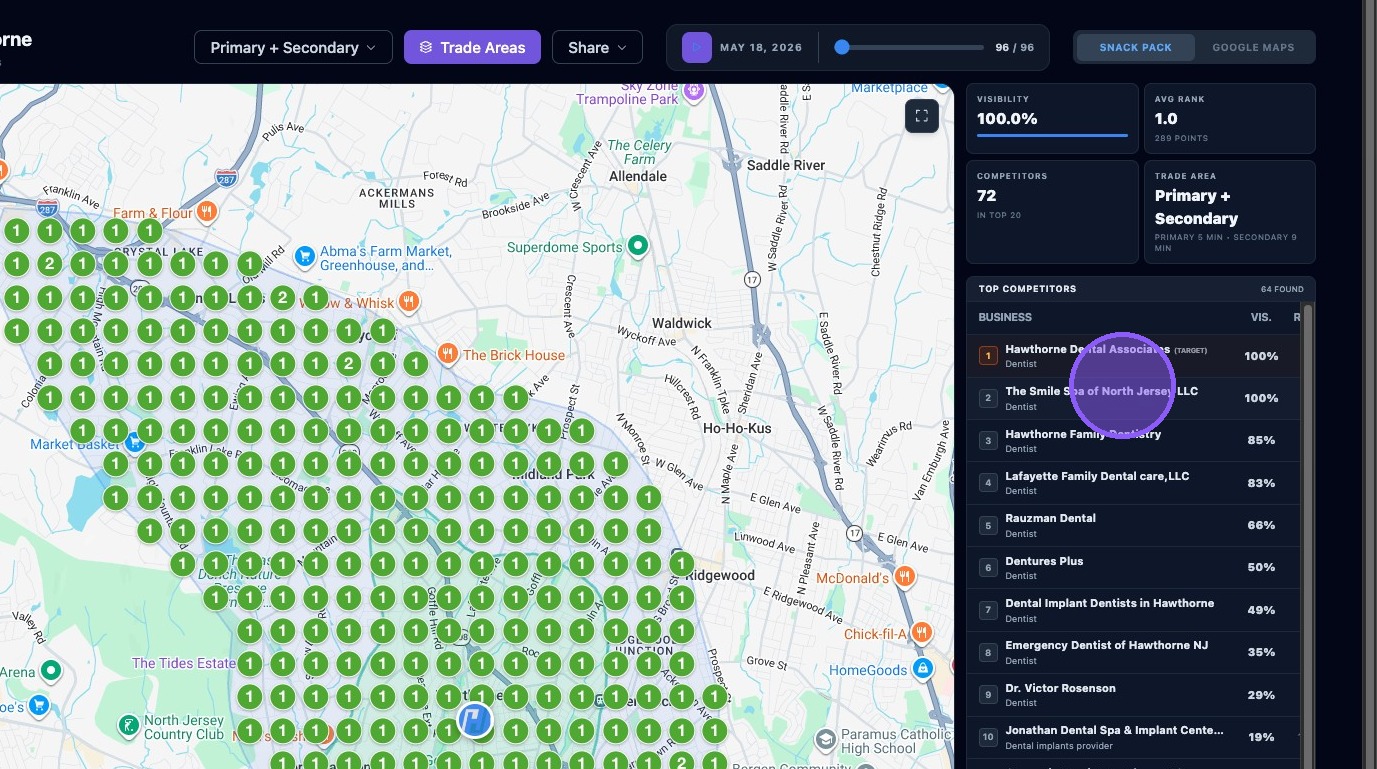
The map opens a competitor pop-up with the competitor's visibility score and average ranking. The map also displays the competitor pin and highlights their ranking points.
Use the controls above the map to review different metrics for the competitor. The map remains in Focus Mode until you click Exit Focus Mode in the pop-up window.
Comparison Matchup
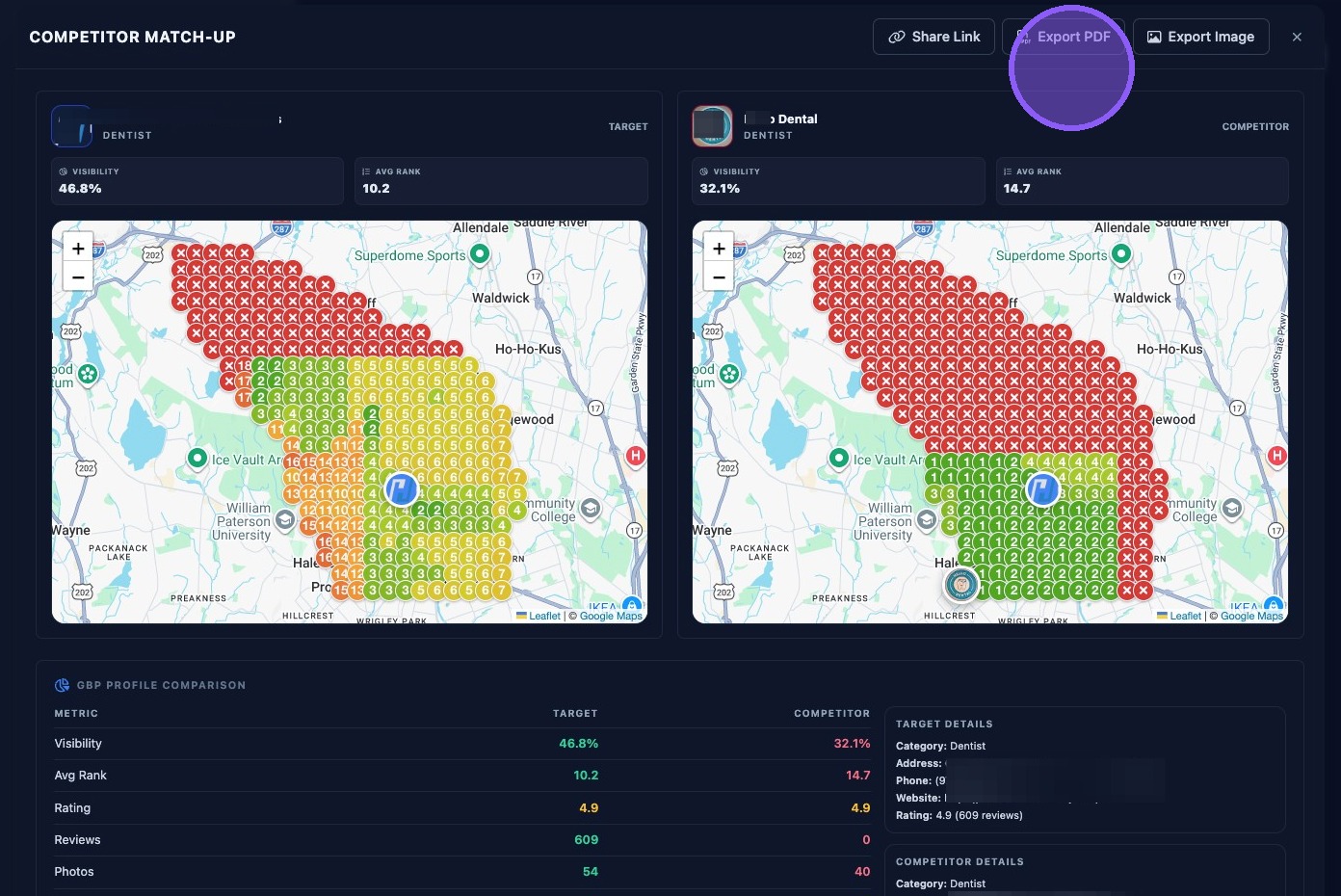
To compare your client side-by-side with the selected competitor, click Competitor Match-up. A new window opens with comparisons between the client and competitor, including visibility, average rank, rating, number of reviews, photos, posts, and other details.
Side-by-side heat maps are also displayed for the selected keyword. Use the links above the comparison to share it with your client as a link, PDF, or image.
Click the X in the upper-right corner when finished to return to where you left off.
Use Search Grid Maps to identify where visibility is strongest or weakest. Focus on ranking gaps by trade area, compare top competitors, and use matchup views when explaining local SEO opportunities to clients.