


Keywords: Competitors
Learn how to review competitors that rank alongside your business for tracked keywords, compare visibility trends, and inspect competitor profiles, reviews, photos, posts, and search grid maps.
The Competitors page shows businesses that rank alongside your business for tracked keywords. You can review competitor rankings, visibility changes, and trends derived from search grid maps.
To get complete keyword data, the business should have a defined trade area, local keywords configured, search grid maps run at least once, and Search Console linked for organic keywords.
Use this page to identify top competitors, compare their trends against your business, and inform category, service, and content updates.
The default competitor list displays twenty competitors. To show more, scroll to the bottom of the competitor list and click Show More Competitors. Twenty additional competitors are added each time, and loading may take a few seconds.
Accessing the Competitors Page
Navigate to the Competitors section.
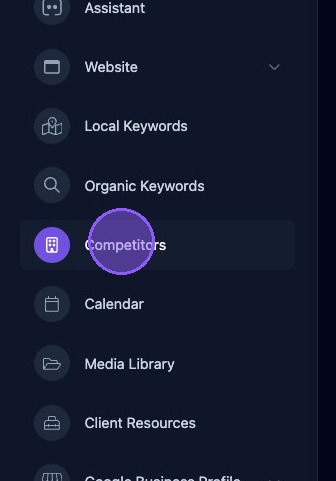
Navigating the Competitors Page
The Competitors page provides competitive analysis across Local, Organic, and Google Business Profile performance through three main sections:
- Competitor Snapshot.
- Competitor Map.
- Competitor Listing.
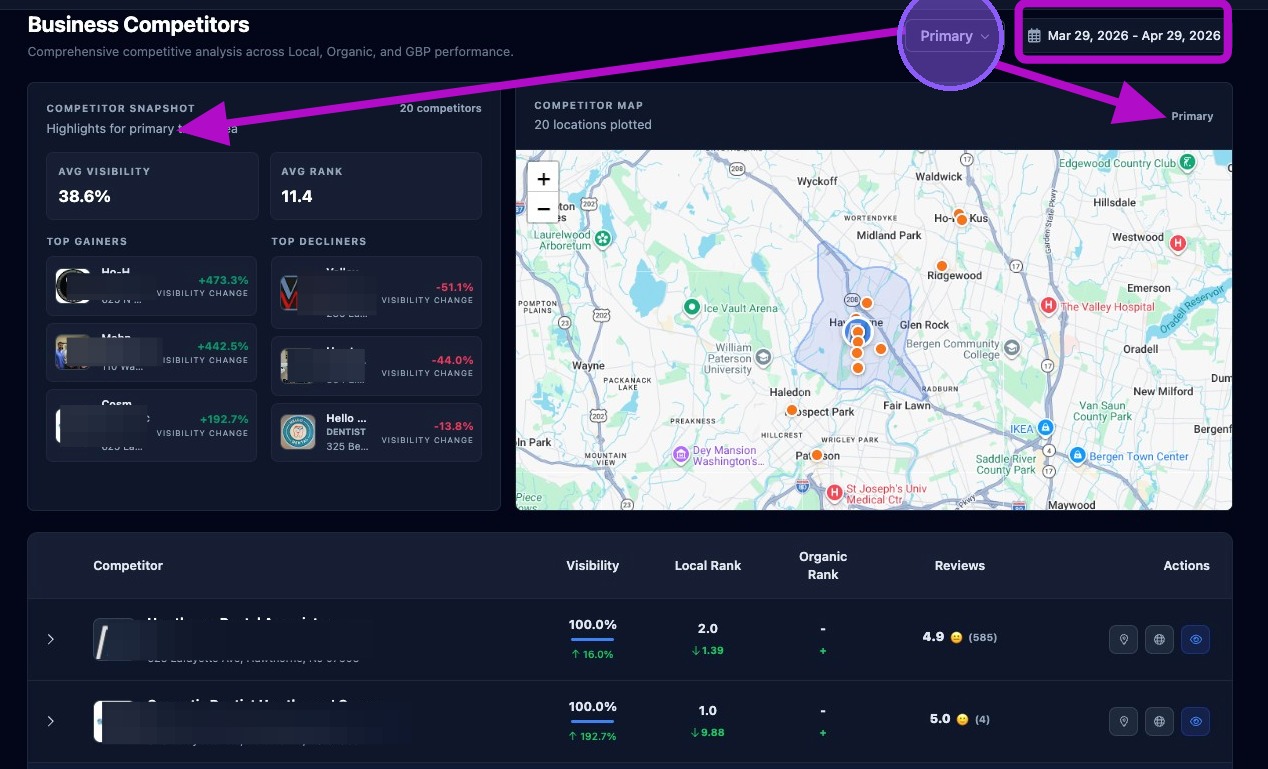
There are two main controls:
- Trade area filter: Choose Primary only, Primary + Secondary, or All Trade Areas. Use Primary + Secondary for most reporting because it aligns with how clients usually expect their core service area to behave.
- Date range selector: Filters which historical items are shown. By default, the system shows the last three months. Click the date to change the date range.
These controls affect the map preview, the indicator above the map, the visibility score and text in the snapshot panel, and the average rank.
If you change the trade area filter or date range and the history does not refresh, collapse and re-expand the competitor or keyword section to reload the data.
Competitor Snapshot Section
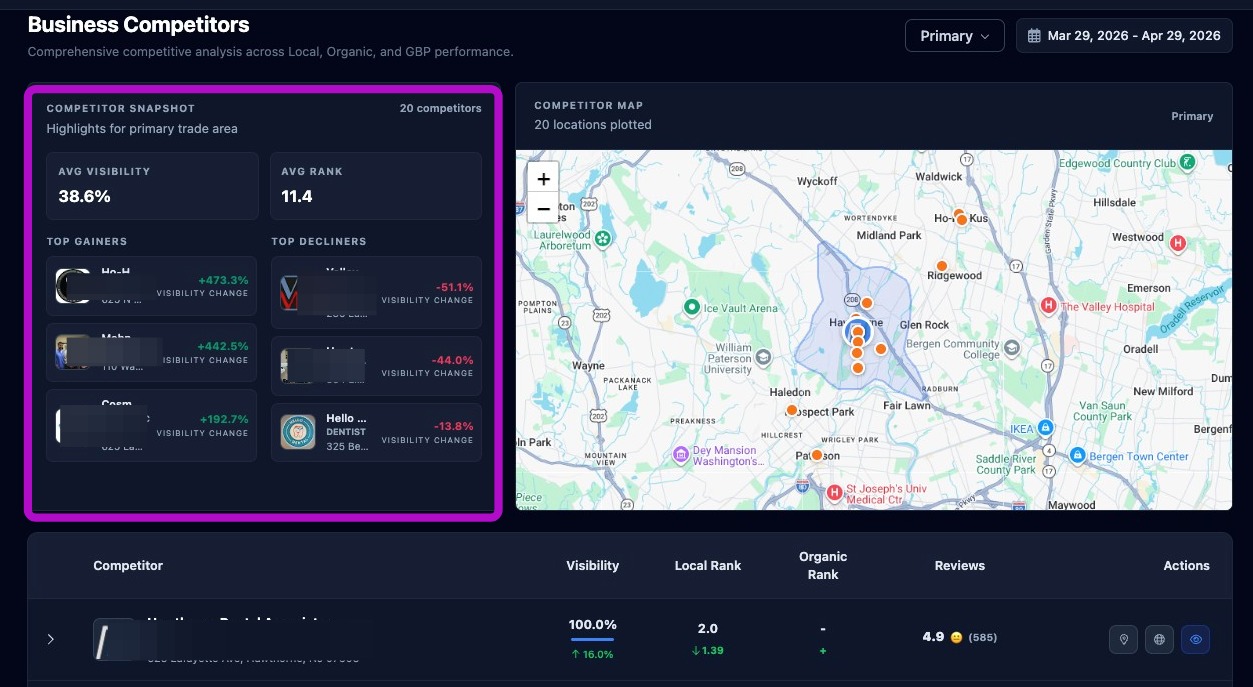
The Competitor Snapshot section provides brief highlights for the chosen trade area, including:
- Total number of competitors in the selected trade area.
- Average visibility score.
- Average rank.
- Top three trending visibility gainers by percentage, shown in green.
- Top three trending visibility decliners by percentage, shown in red.
Competitor Map Section
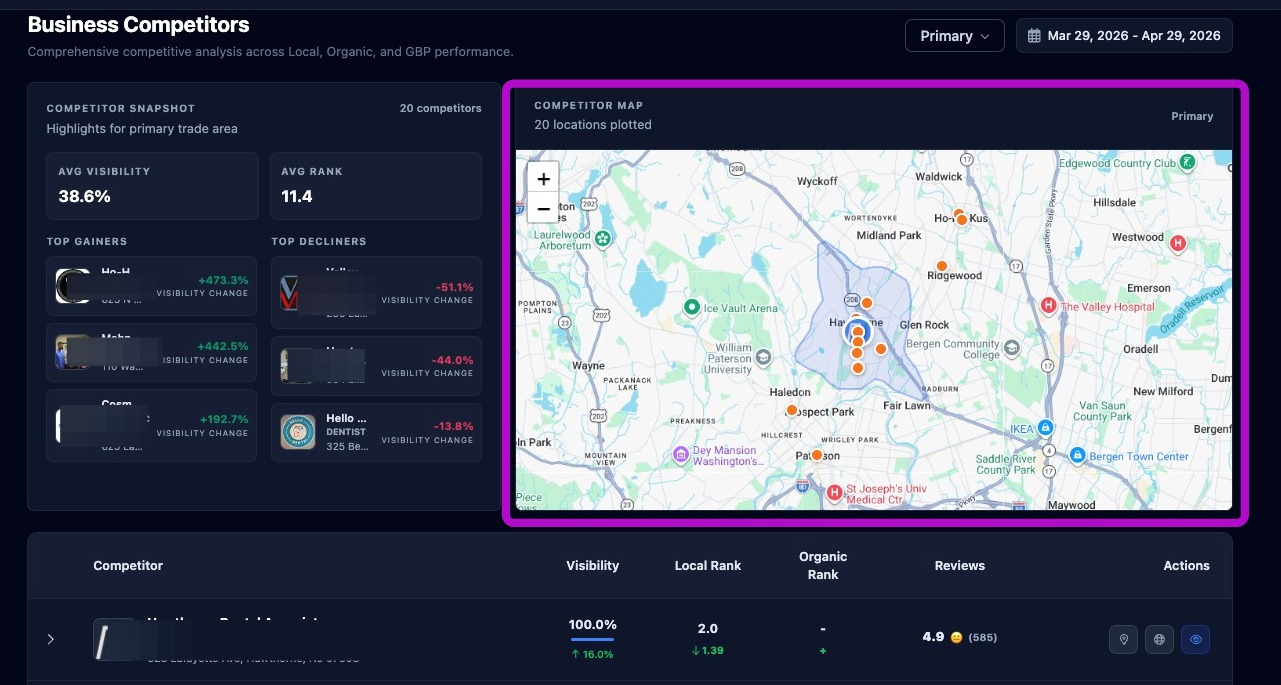
The Competitor Map section:
- Displays trade area overlays based on the selected trade area.
- Shows total competitors and selected trade area above the map.
- Maps competitors in the chosen trade area with pins.
- Displays the competitor name when hovering over a pin.
- Allows you to zoom in, zoom out, pan, and move around the map.
Competitor List
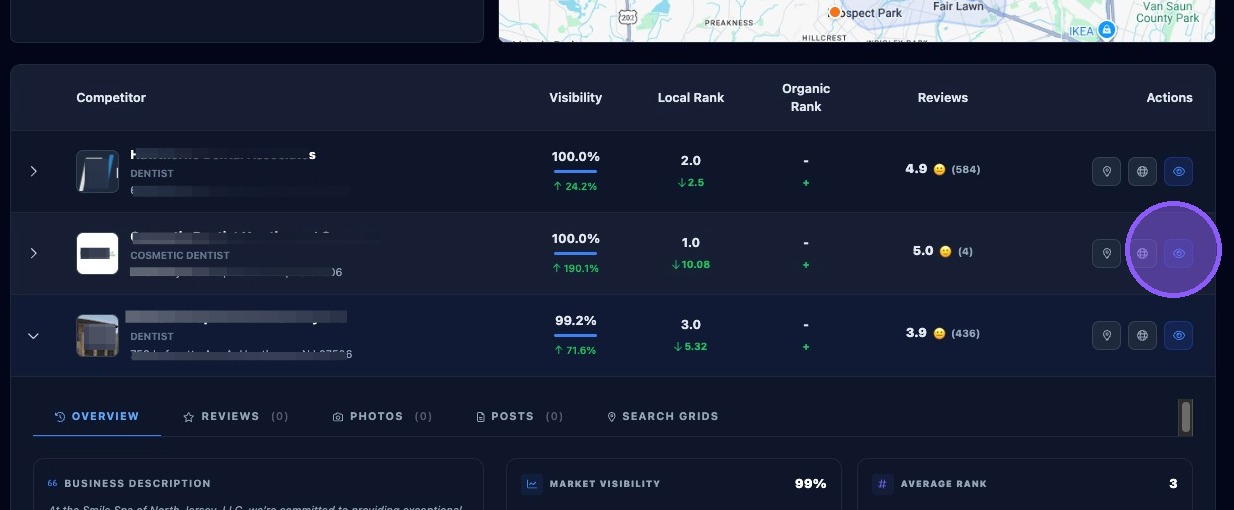
The Competitor list displays competitors from the selected trade area. Each competitor entry displays:
- Name, address, and logo.
- Visibility score with percentage trend up, shown in green, or down, shown in red.
- Local rank with rank point increase, shown in green, or decrease, shown in red.
- Organic rank.
- Review average and total number of reviews.
- Three action buttons:
- View on Google Maps, shown as a map pin icon, opens the competitor's Google Maps listing in a new browser tab.
- View Website, shown as a globe icon, opens the competitor's website home page in a new browser tab.
- Expand, shown as an eye icon or arrow, opens or closes the competitor's detailed metrics.
Your client business appears at the top of the competitor list for easy comparison.
Revealing Competitor Metrics
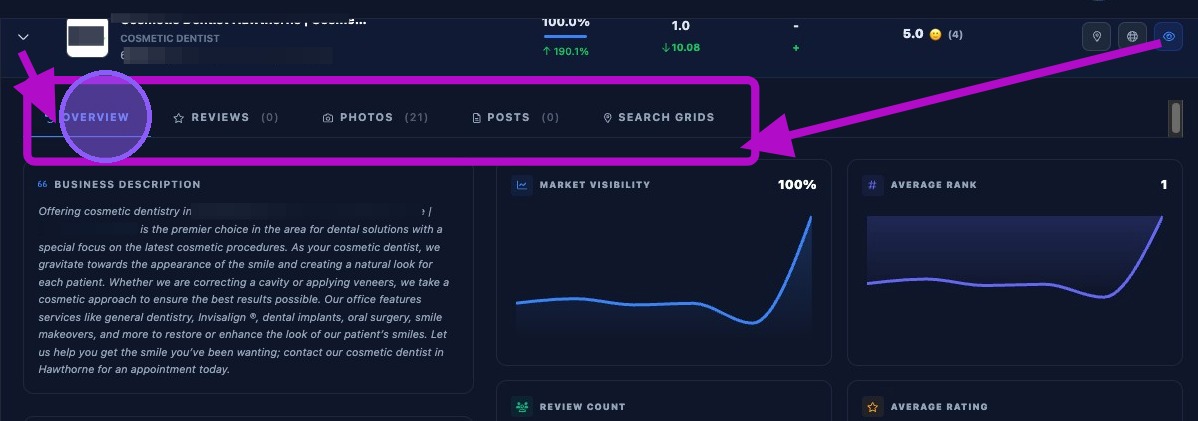
Open a competitor's information by clicking the arrow next to the competitor name or clicking the eye icon. This opens a dropdown of metrics and data presented in five tabs:
- Overview.
- Reviews.
- Photos.
- Posts.
- Search Grids.
Competitor Metrics: Overview
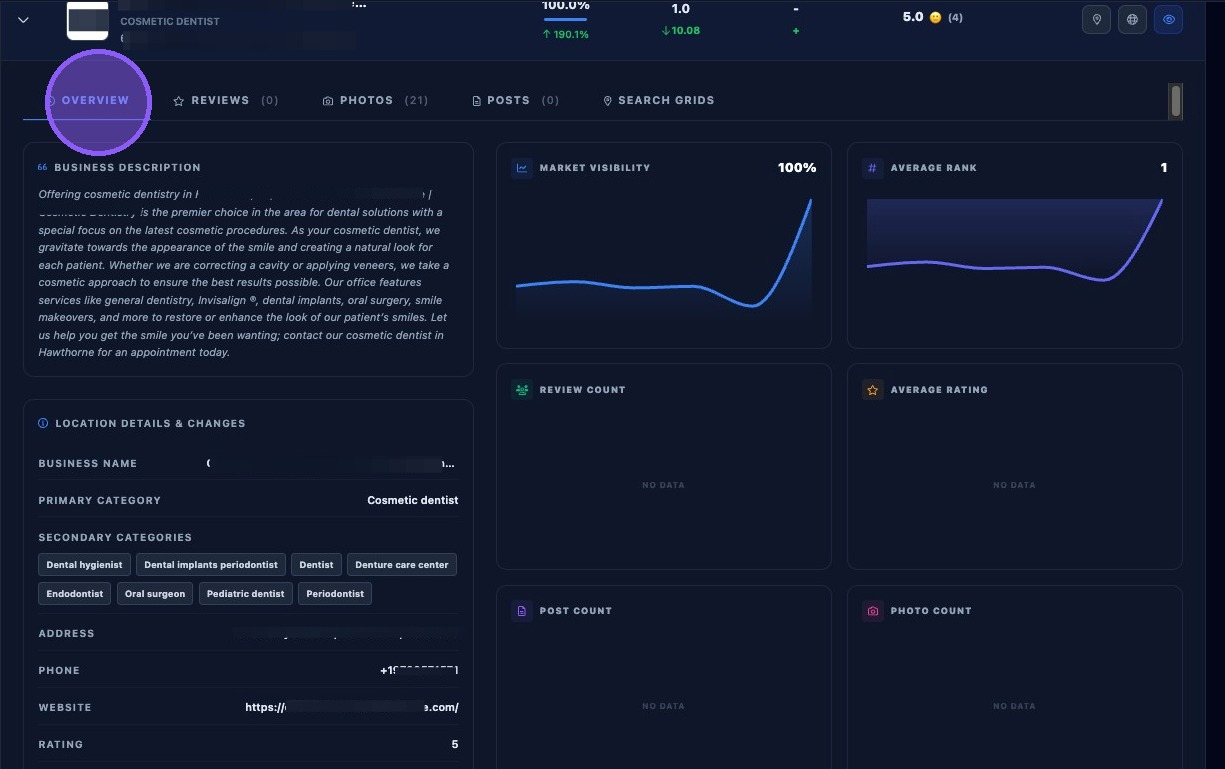
The Overview tab contains competitor information based on the selected trade area and date range, including:
- Business description.
- Business name, address, phone, and website.
- Primary category and secondary categories.
- Rating and reviews.
- Available services.
- Charts, when available, for market visibility, average rank, review count, average rating, post count, and photo count.
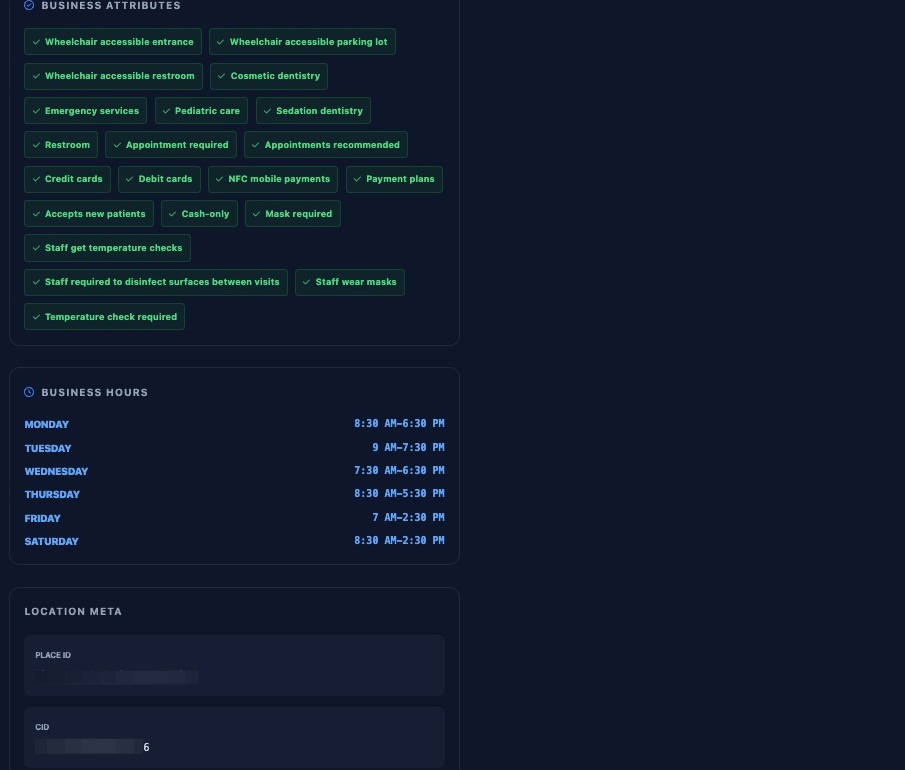
- Business attributes.
- Business hours.
- Location metadata, including Place ID and CID.
Continue reviewing the Overview tab to see additional competitor details and supporting metrics.
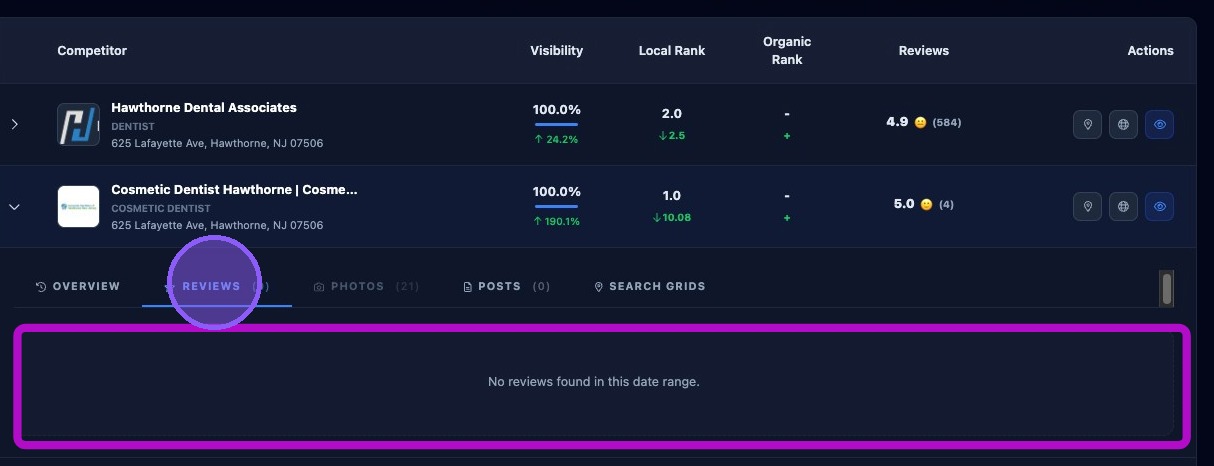
Competitor Metrics: Reviews
The Reviews tab shows the latest reviews, when available, posted during the selected date range.
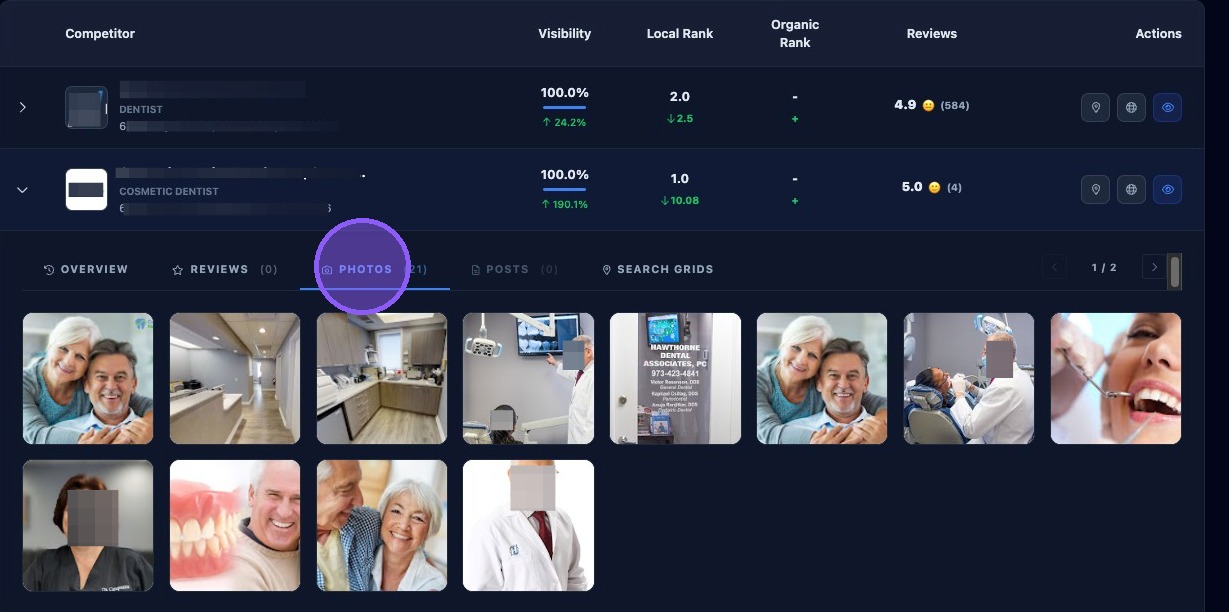
Competitor Metrics: Photos
The Photos tab shows photos, when available, posted to the competitor's Google Business Profile.
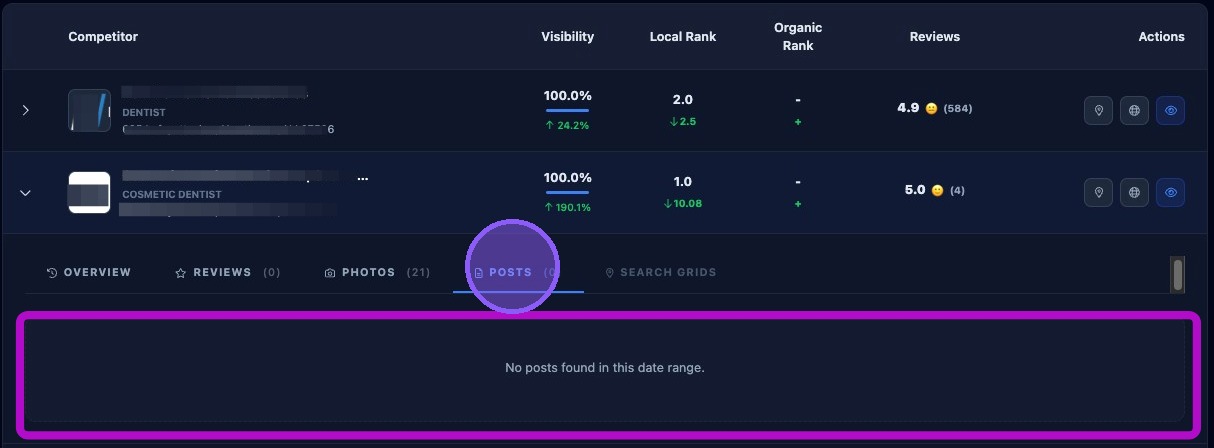
Competitor Metrics: Posts
The Posts tab shows the latest posts, when available, submitted during the selected date range.
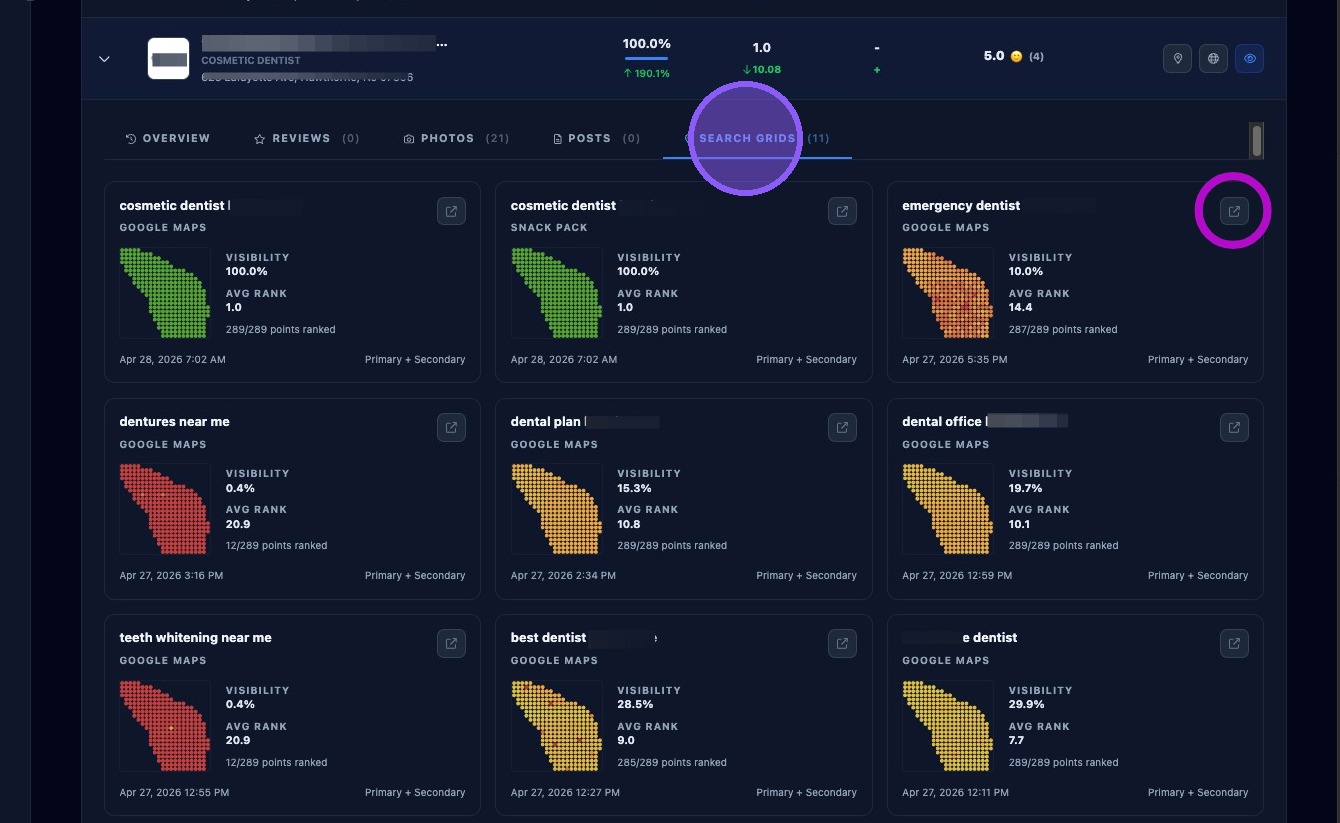
Competitor Metrics: Search Grids
The Search Grids tab shows the latest keyword search grid results on map cards. Each grid map card displays:
- Keyword.
- Type, such as Google Maps or Snack Pack.
- Visibility score.
- Average rank.
- Number of ranked points out of total points.
- Date the grid map was run.
- Trade area, such as Primary, Primary + Secondary, or All Trade Areas.
Each map also contains an expand button in the upper-right corner. Clicking it opens the Aldus Local Search Grid Maps dashboard for that keyword in a new browser tab for deeper analysis and comparison.
Use competitor insights to prioritize the highest-impact local SEO actions. Review rank 1–3 competitors first, compare their categories and services against your client, and use Search Grid maps to identify where visibility gaps are strongest.