


Keywords: Organic Keywords
Learn how to monitor organic keyword rankings, review visibility trends, manage tracked keywords, and compare performance across search engines, devices, pages, and competitors.
Organic Keywords track a client's website rankings and visibility in traditional search results, not map rankings. This data comes from Search Console, so it is only available when Search Console is linked in settings.
Organic keyword data is also used for organic keyword metrics in reports and to support service or content suggestions.
Accessing Organic Keywords
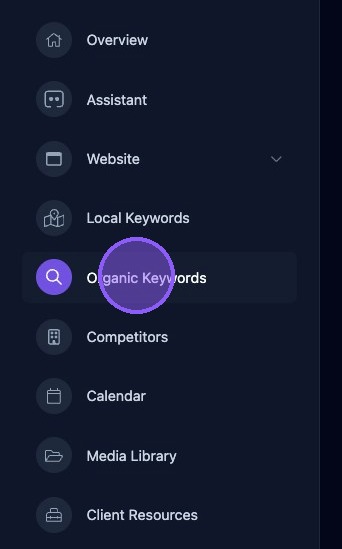
Click Organic Keywords in the business dashboard to get started.
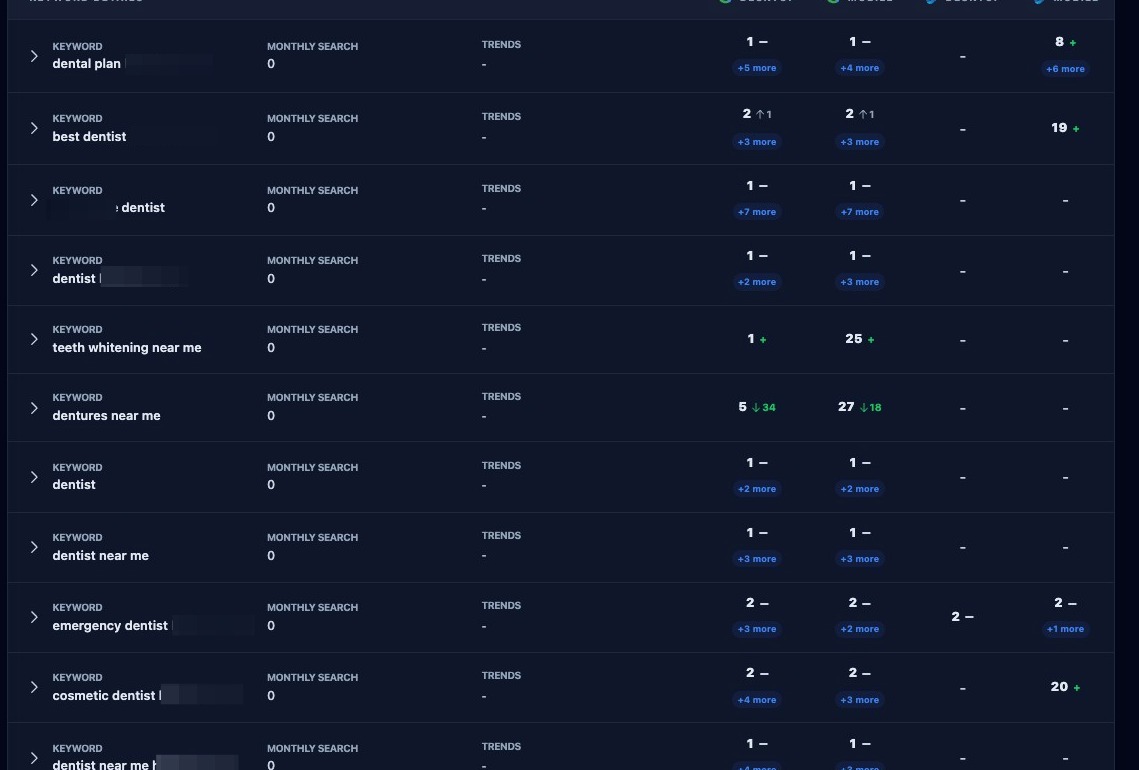
The Organic Keywords page provides a list of the client's website organic search metrics for the selected date range. Each keyword displays monthly search metrics and ranking trends broken down by search method: Google desktop, Google mobile, Bing desktop, and Bing mobile.
Organic Keywords Date Range
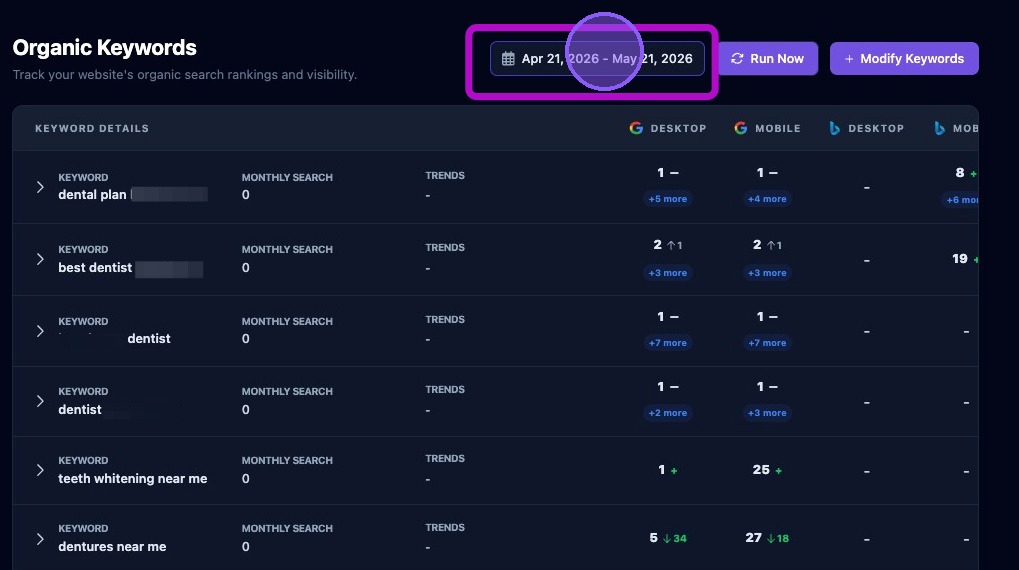
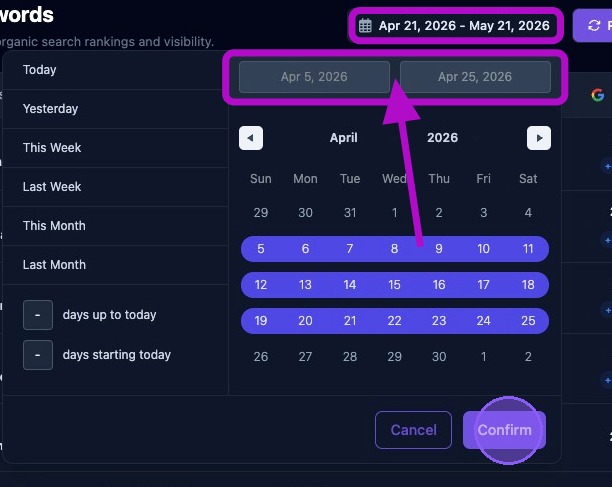
At the top of the page are three controls. The first control is the organic keyword date range. The date range selector filters which historical searches are shown. By default, the system shows the last month. To choose a new date range, click the current date range to open the date selector.
Available preset range options include:
- Today.
- Yesterday.
- This Week, from Sunday through the current day of the week.
- This Month, from the first day of the month through today.
- Last Month, covering the full previous month.
To use a custom range, choose from these options:
- Enter a number of days prior to today to create a range ending today.
- Click a day in the calendar as a start or end date, then drag forward or backward to select a range.
- Hold the Shift key and click another date to select a range.
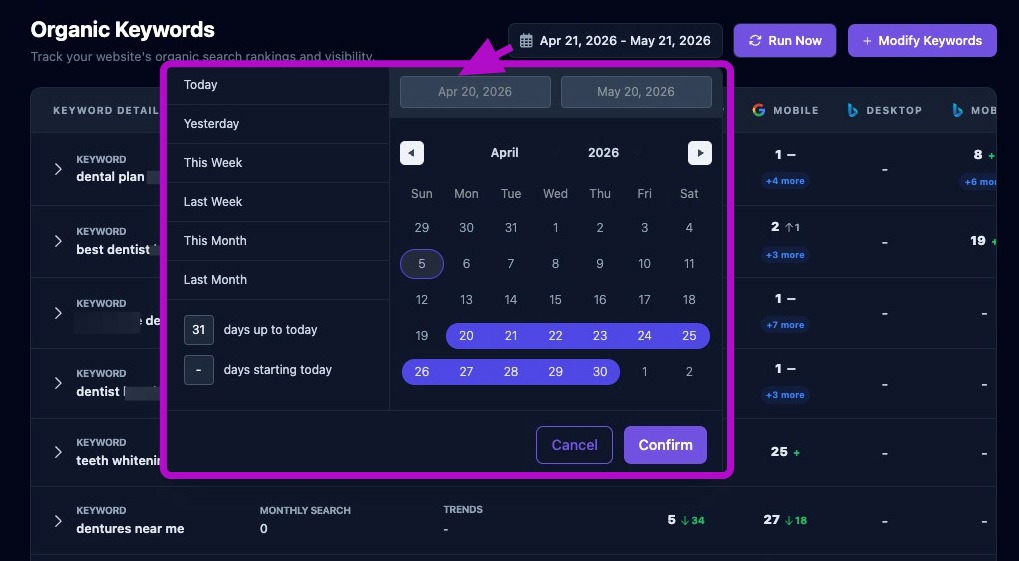
Check the newly selected date range just above the calendar, below the previous date range displayed above the selector window.
Click Confirm to update all Organic Keyword data for the new date range. Click Cancel to return without updating the date range.
Organic Keywords Run Now
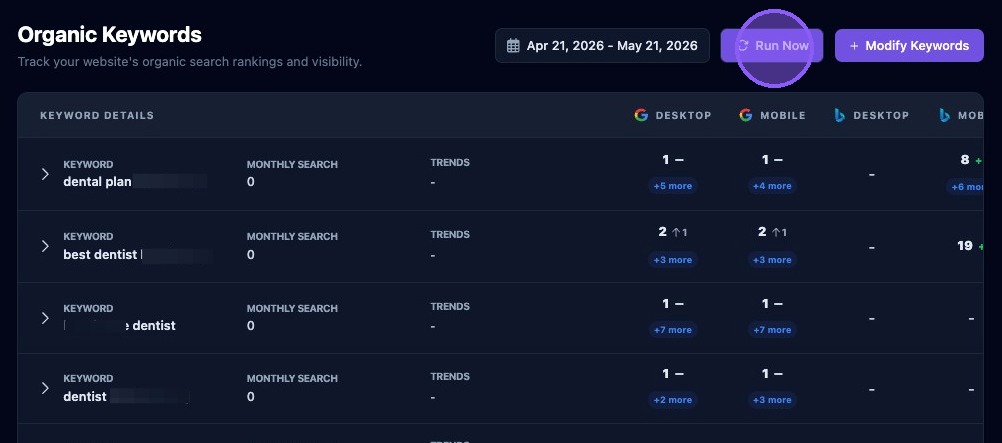
The second control is the Run Now button. Click it to immediately perform an organic keyword search.
Modifying Organic Keywords
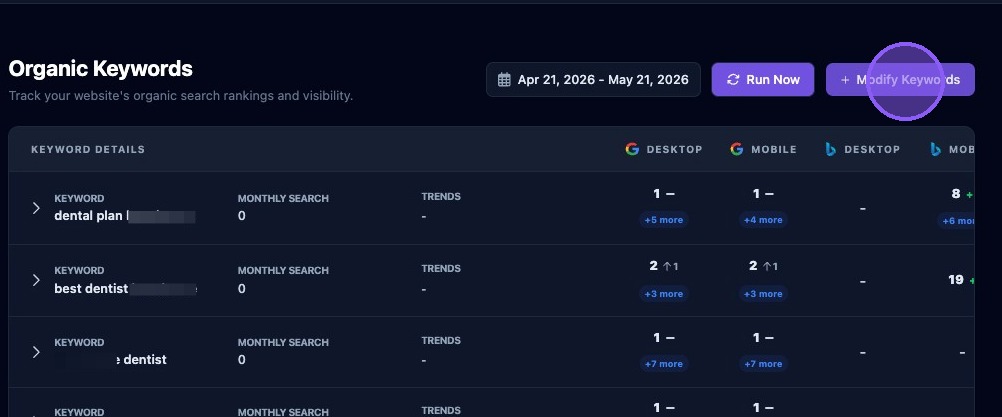
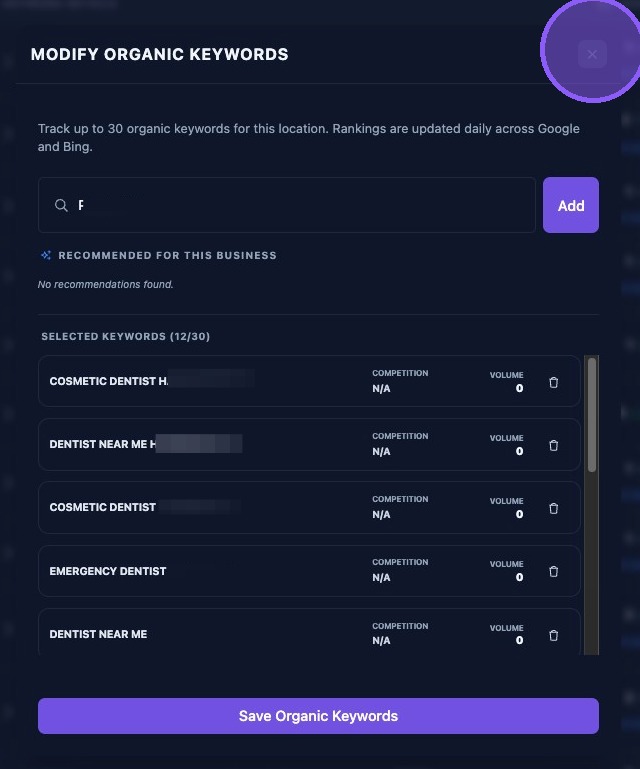
The third control allows you to add, remove, or edit organic keywords. Click Modify Keywords to access the current keyword list.
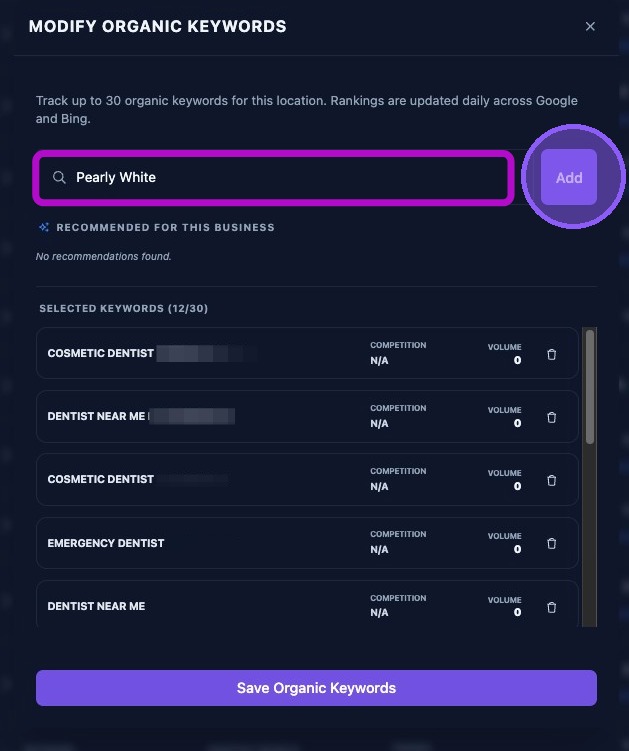
To add a new organic keyword, type the keyword into the text field and click Add. The keyword will appear in the selected keyword list below.
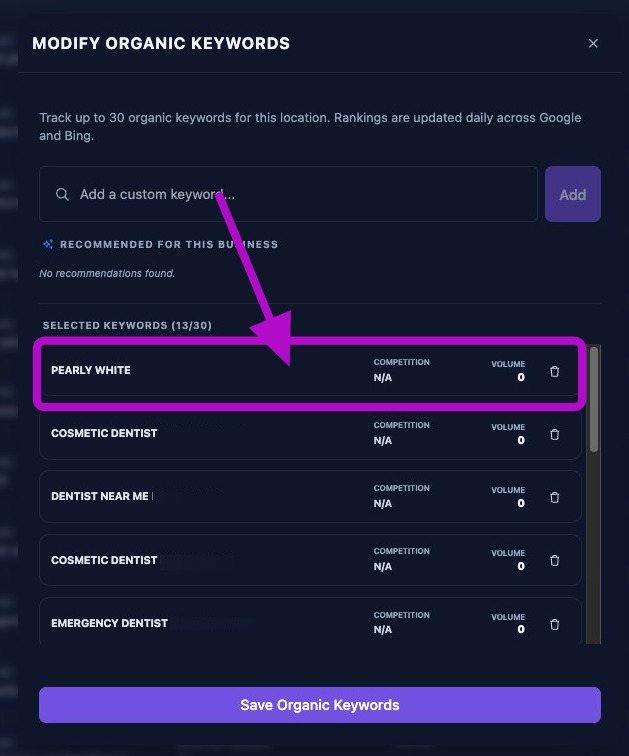
When adding organic keywords, use phrases that reflect actual search intent. Keep the list manageable, ideally between 10 and 30 keywords.
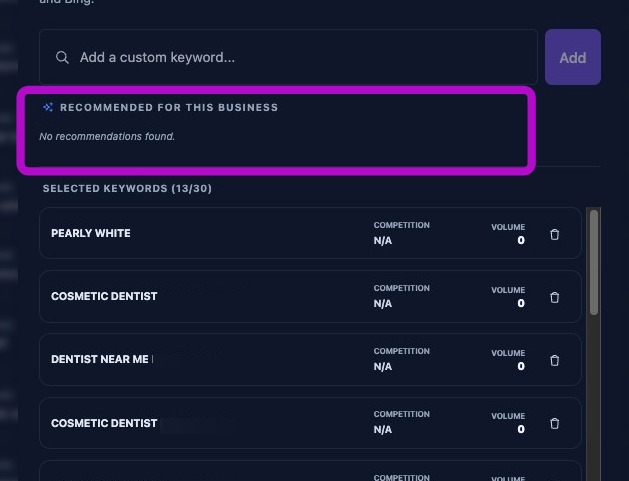
If the system has recommended organic keywords to add, they will appear directly below the text box.
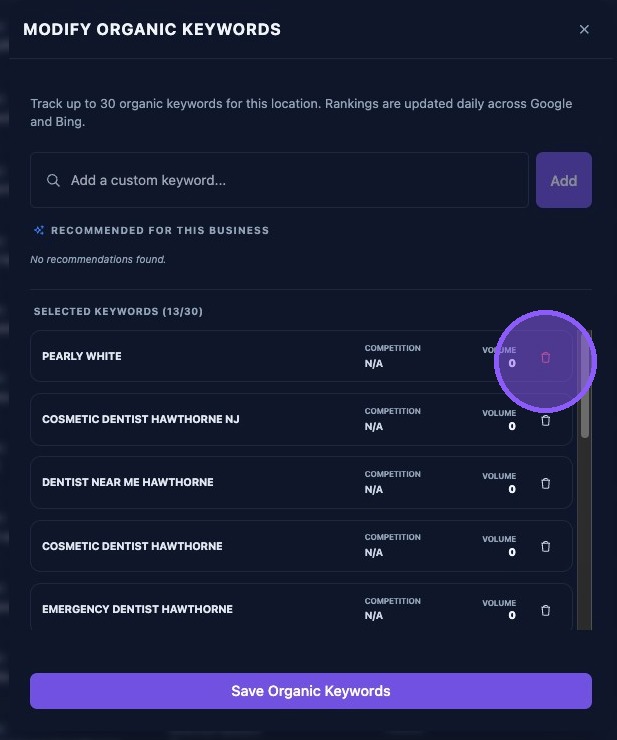
To delete an organic keyword from the selected list, click the trash can icon next to the keyword name. The keyword will be removed from the list.
To edit an existing organic keyword, delete the current keyword and add the corrected version as a new keyword.
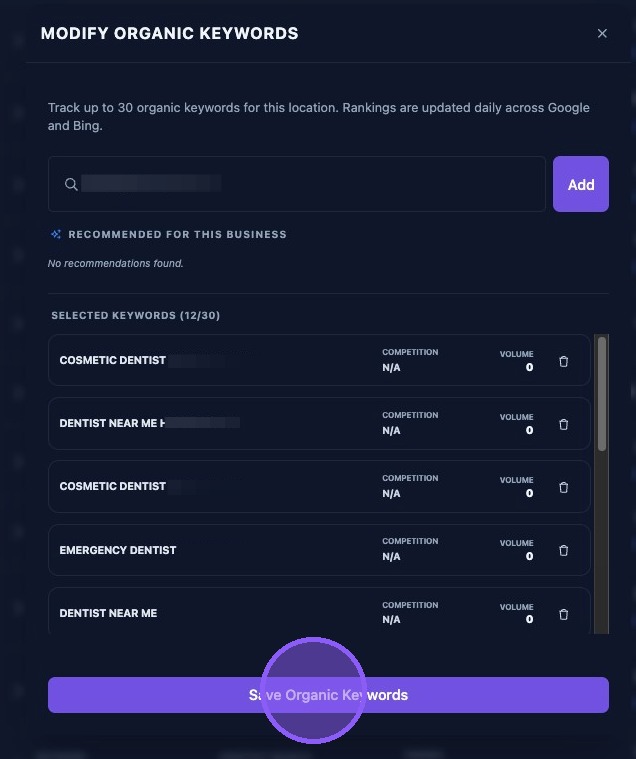
Click Save Organic Keywords to keep the changes, or click the X to close the window without saving changes.
Expanding Additional Webpage Rankings
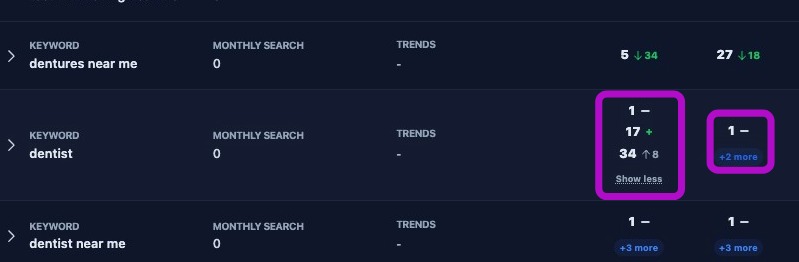
When more than one webpage appears in a scan for the selected keyword, a button appears below the ranking for that scan type. Click the + More button to expand the section and reveal additional page rankings and trends. Click Show less to collapse the additional rankings.
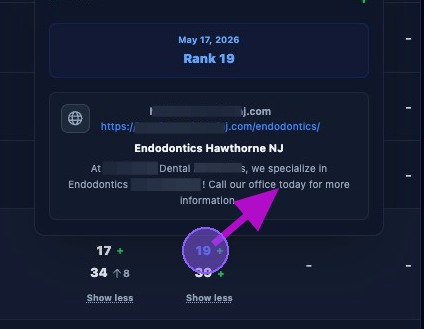
Hover over one of the page rankings to display the scan date, the keyword ranking for that webpage, the home page, the ranked page URL, and a brief description from that page.
Expanding an Organic Keyword
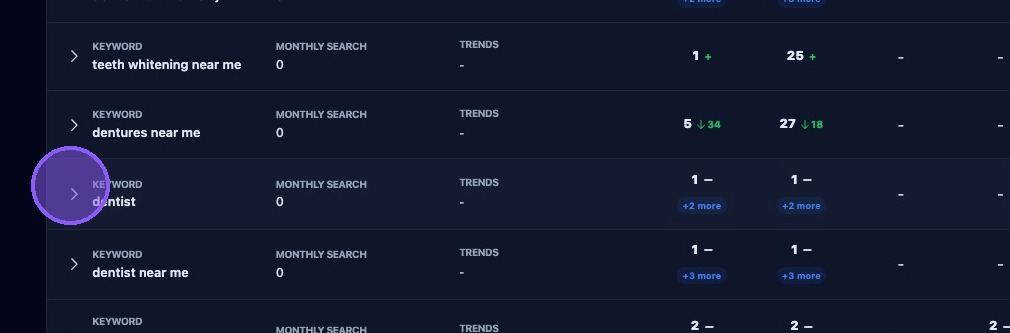
To expand an organic keyword, click the dropdown arrow next to the keyword or click anywhere within the keyword row.
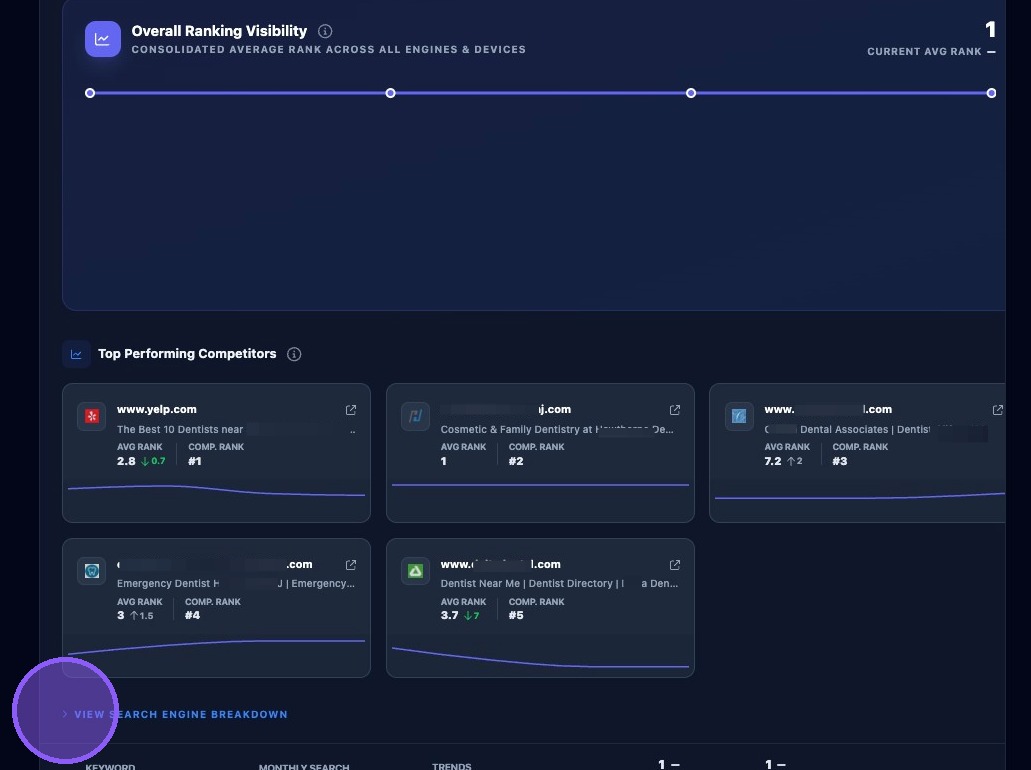
The expanded keyword view provides a graph of overall ranking visibility based on the selected date range. This graph shows a consolidated average ranking across all active search engines and device types.
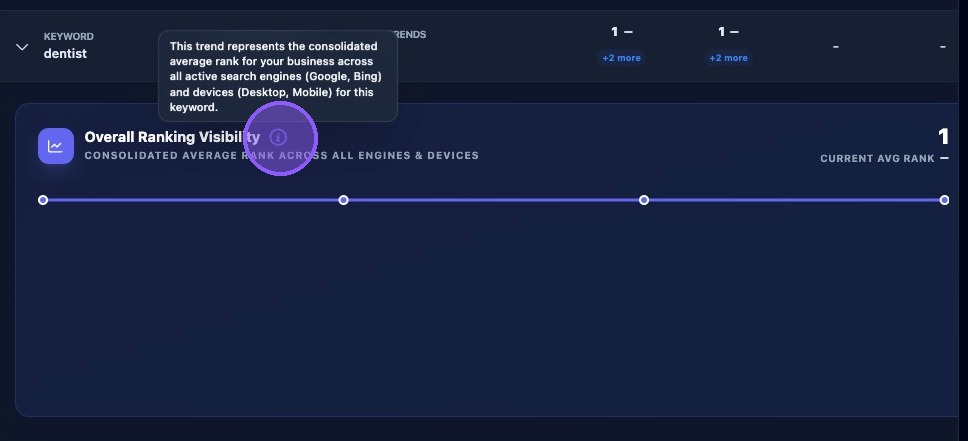
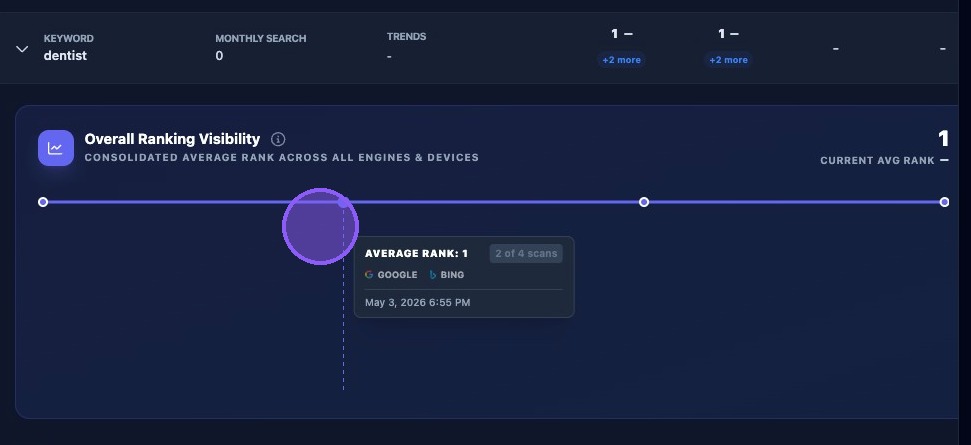
Each dot on the graph represents the average ranking for each scan date within the selected date range. Hover over a dot to view the scan date, average rank, search engines used, and how many scan types were included in the rating, such as Google desktop, Google mobile, Bing desktop, and Bing mobile.
Top Performing Competitors
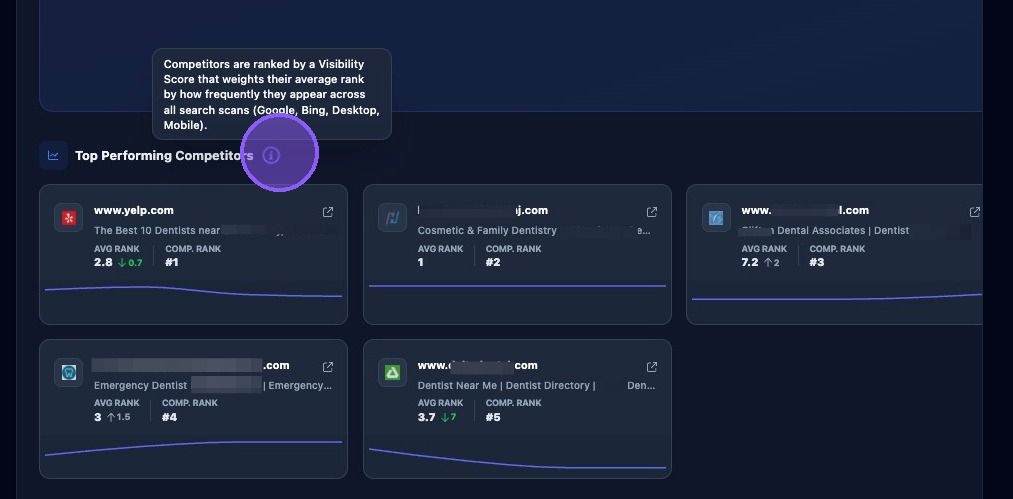
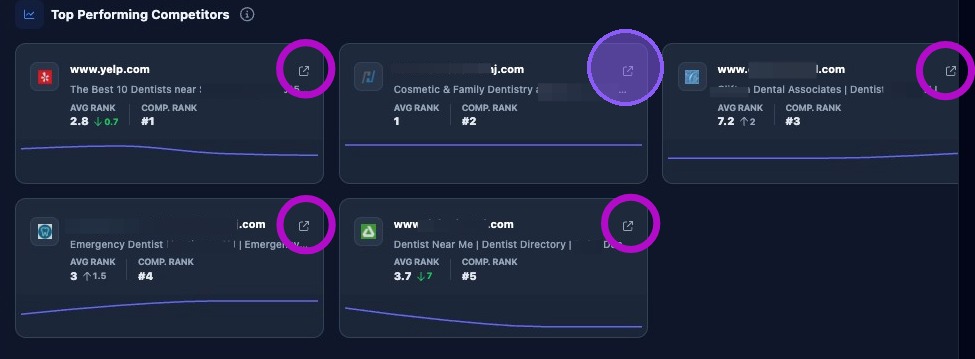
Below the graph is a list of the top five performing competitors for the keyword. Competitors are ranked by a visibility score that weighs their average rank by how frequently they appear across all search scans. Each competitor listing displays the competitor's average rank and trend, their ranking as a top competitor, a brief title of the scanned competitor webpage, and a quick link to their webpage. Each competitor also includes a ranking trend chart with additional hover details.
Click the quick link to open the competitor's webpage for the selected keyword in a new browser window.
Search Engine Breakdown
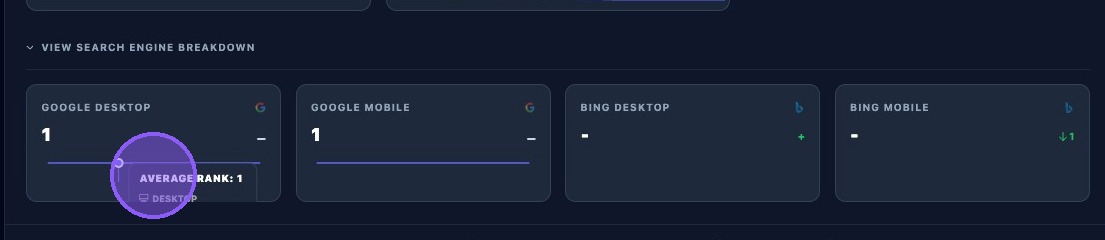
To view the search engine breakdown for a keyword, click the dropdown menu while in the expanded keyword view.
The search engine breakdown displays the four scan types and provides the ranking, ranking trend, and chart for each type.
Use Organic Keywords to identify which pages and competitors are winning in traditional search. Review competitor pages and ranking breakdowns before making content updates or service recommendations.