


Keywords: Local Keywords
Learn how to manage local keywords, review map ranking history, add and organize keywords, run new scans, and filter ranking data for client-ready local SEO reporting.
Local Keywords are the primary way Aldus Local measures map rankings. Each keyword has its own search grid map history, showing where the business ranks geographically over time.
Accessing Local Keywords
Navigate to the client dashboard and click Local Keywords.
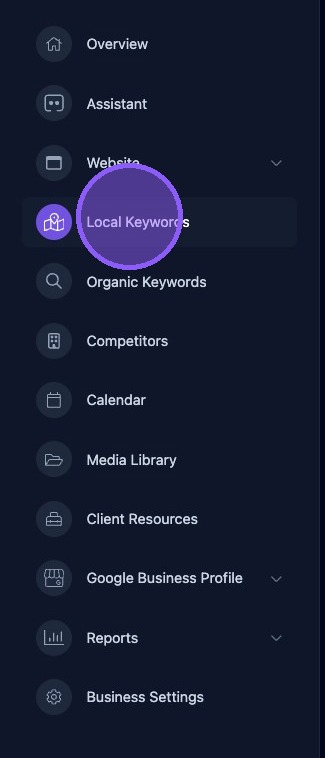
Navigating the Local Keywords Section
The Local Keywords section contains all keywords for the client, sorted into Focus Keywords and Tracked Keywords. Each keyword displays its visibility percentage, latest map thumbnail, average rank, rank trend percentage, keyword type, and last scan date.
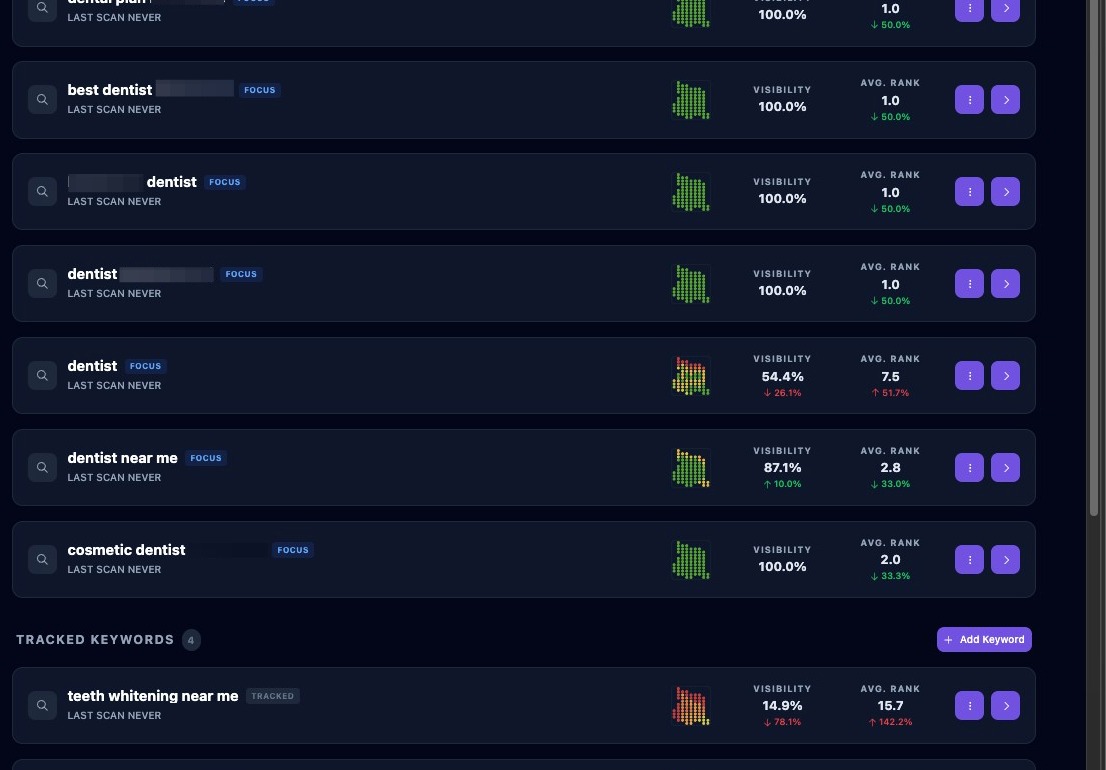
Rearrange Keywords
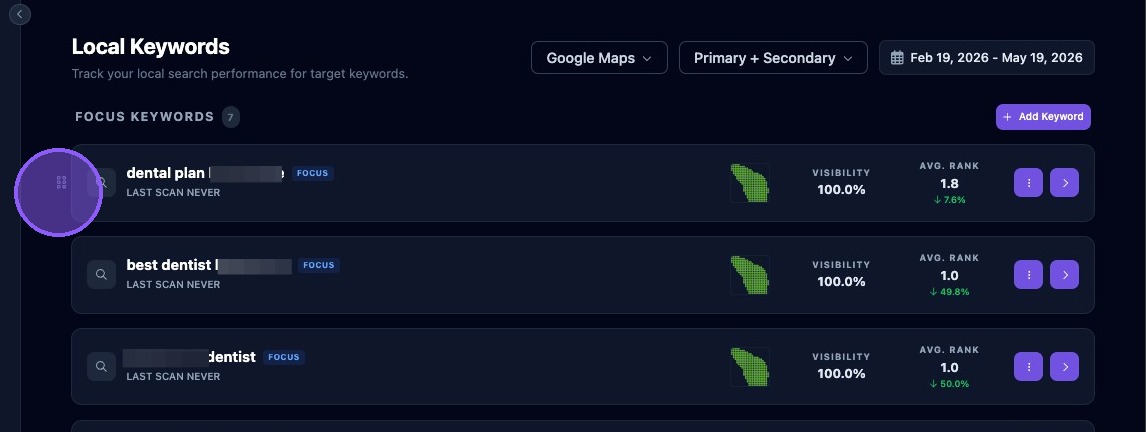
To change the order of keywords, hover over a keyword until the six-dot drag icon appears to the left. Then grab the icon and move the keyword up or down in the list.
Adding Keywords
You can add Focus or Tracked keywords by clicking Add Keyword at the top of either section.
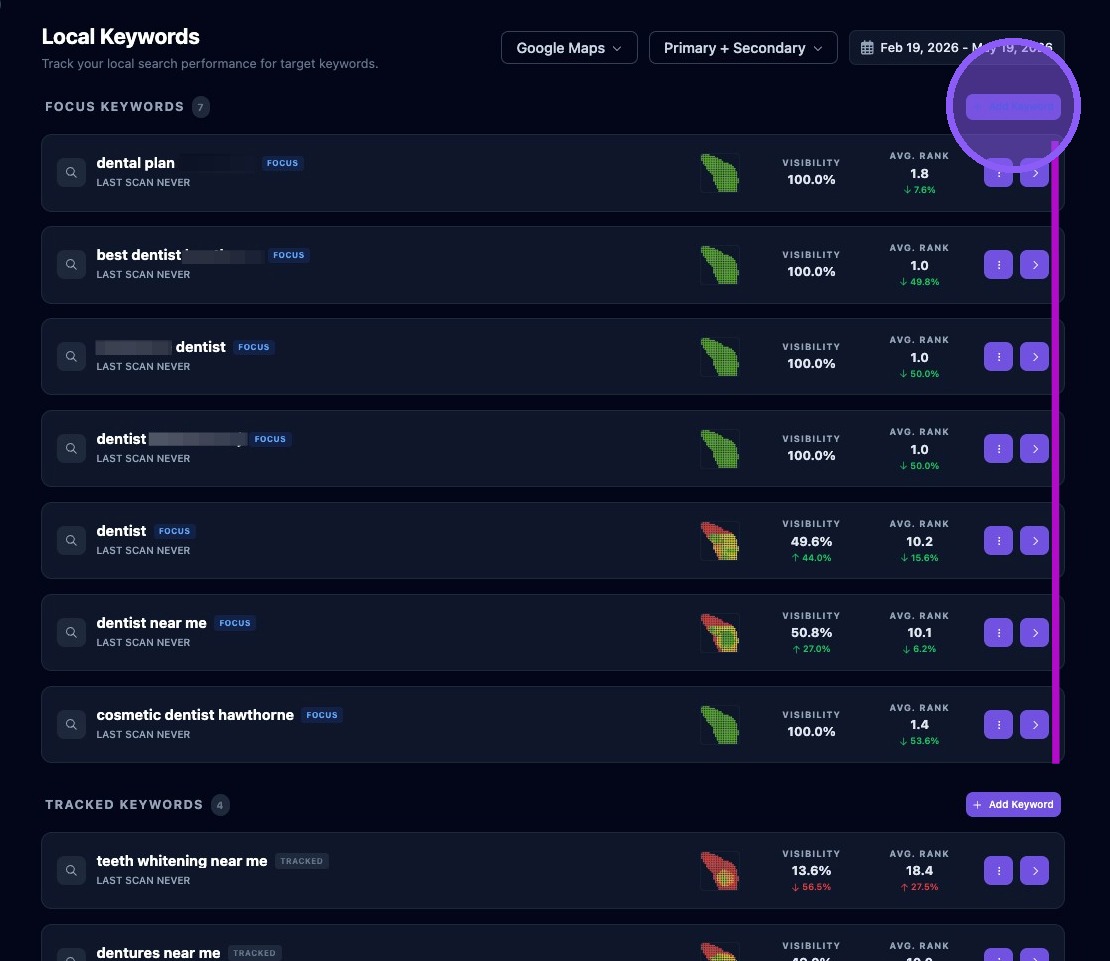
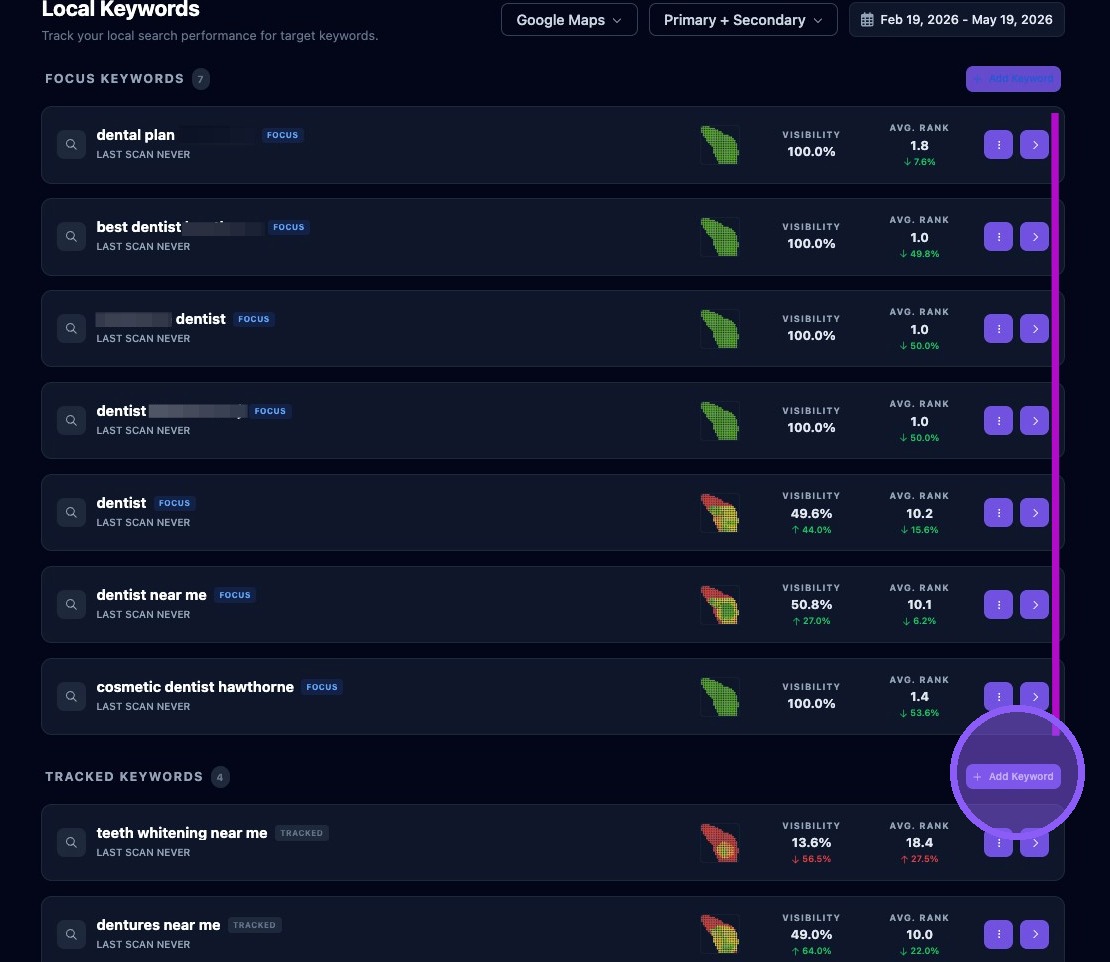
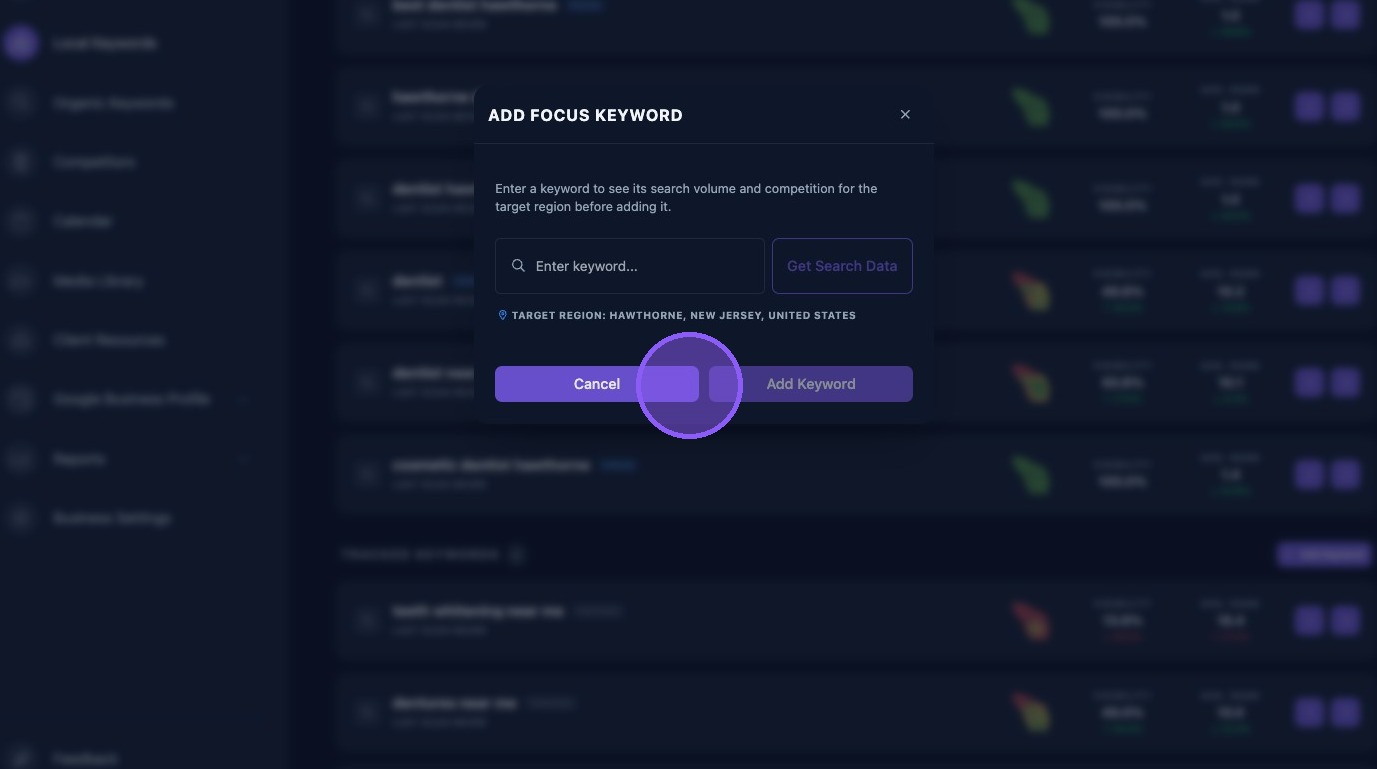
A separate window opens where you can enter the keyword into the text field.
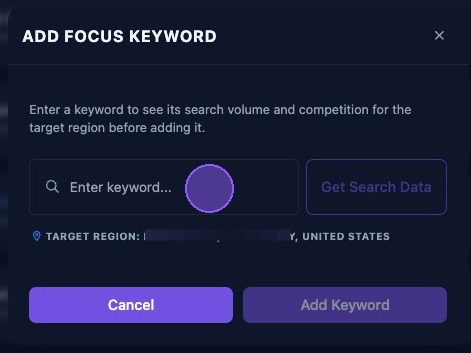
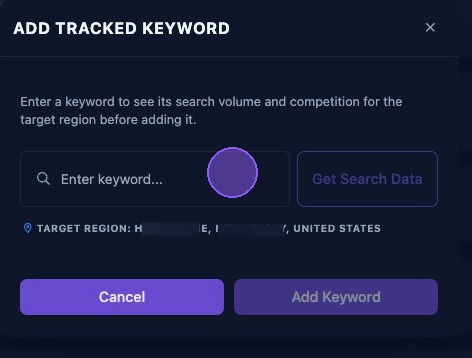
After entering the keyword, click Get Search Data. Aldus Local will perform a test run for the keyword. After a few seconds, the keyword's volume, competitor percentage, and trend metrics will display below the field. You can test different keywords until you find the one you want to add.
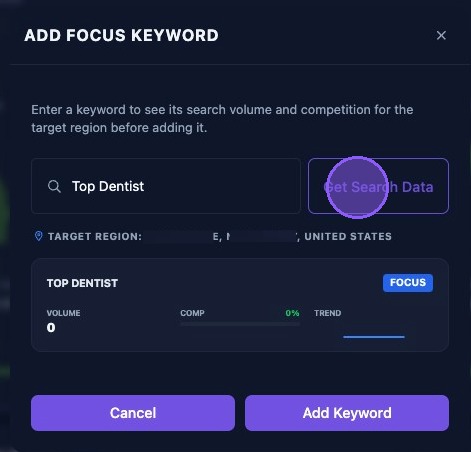
To keep the keyword, click Add Keyword. Click Cancel or the X to exit without adding it.
Re-run a Keyword
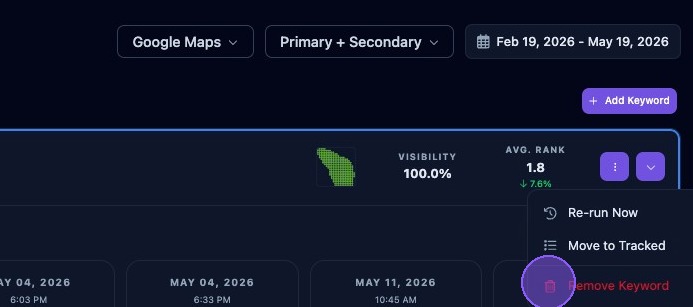
Click the three-dot action icon to access the keyword dropdown menu. Then click Re-run Now to trigger a new search grid map run for the selected keyword.
The run may take several minutes or longer to complete and update the history. When finished, the new run appears on the far right of the history and is marked as the latest run. The Run Now button in the expanded keyword section performs the same action.
Move a Keyword Between Focus and Tracked
Keywords can be moved from one type to the other.
To move a keyword from Tracked to Focus, click the three-dot action icon next to the keyword in the Tracked section. Then click Move to Focus.
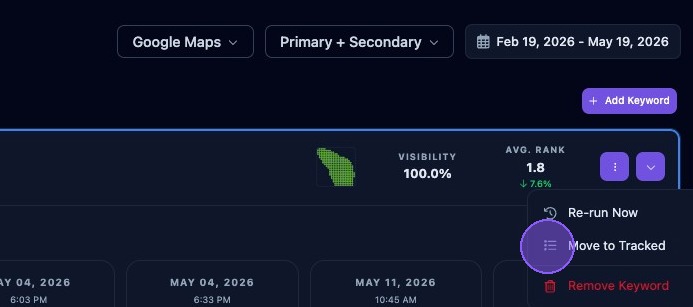
To move a keyword from Focus to Tracked, click the three-dot action icon next to the keyword in the Focus section. Then click Move to Tracked.
Removing a Keyword
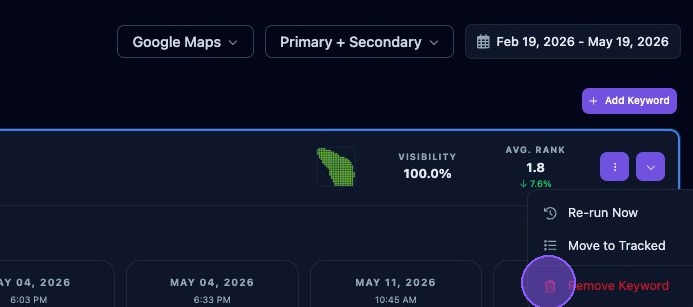
Click the three-dot action icon to access the keyword dropdown menu. Then click Remove Keyword, shown in red with a red trash can icon.
Filtering Local Keywords
Use the three filters at the top of the list to choose which trade area factors to display. Filters can include map engine, trade area, and date range. These filters affect the map view, visibility score, and average rank for each local keyword.
The first filter lets you choose between Google Maps and Snack Pack map engines. Click the dropdown menu to switch between the two map types.
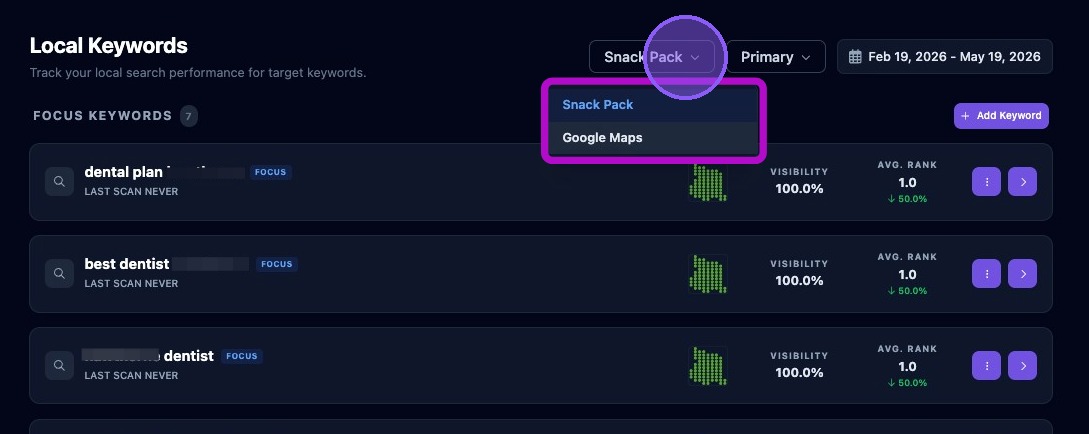
Snack Pack mapping shows ranking visibility for the local pack experience, helping you compare standard Maps rankings against the results customers often see directly in search.
The next filter lets you choose which trade area layers to display. Click the dropdown menu to choose Primary, Primary + Secondary, or All Trade Areas.
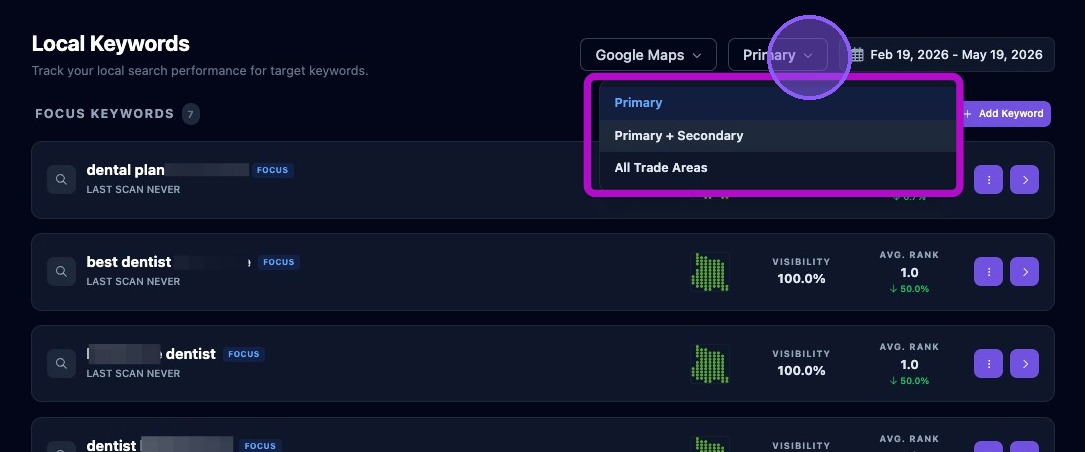
Use Primary + Secondary for most reporting. It usually aligns with how clients expect their core service area to behave.
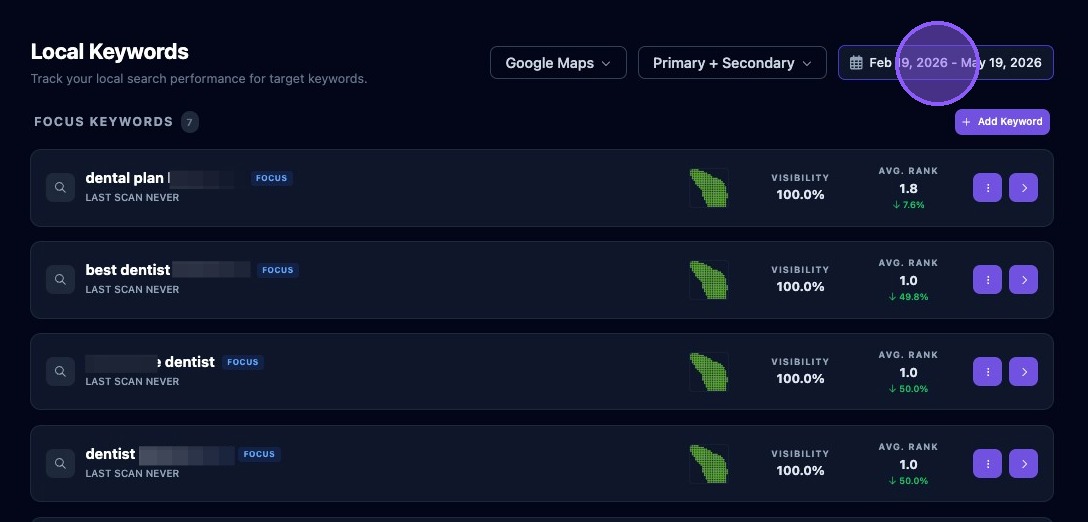
The third filter is the date range. It controls which history items are shown. By default, the system shows the last three months. To choose a new date range, click the current date range to open the date selector.
Available preset range options include:
- Today.
- Yesterday.
- This Week, from Sunday through the current day of the week.
- This Month, from the first day of the month through today.
- Last Month, covering the full previous month.
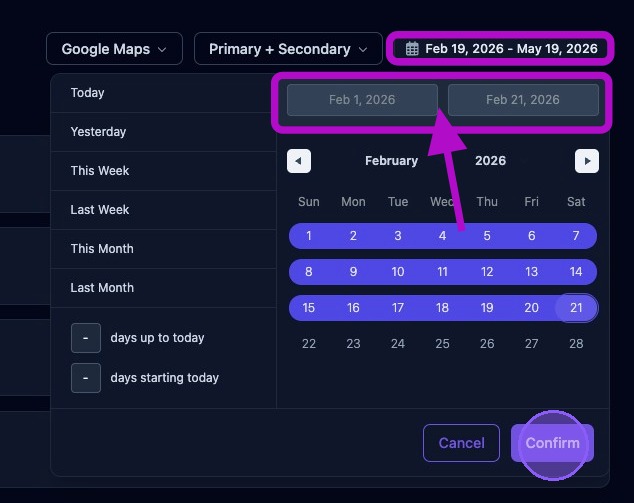
To use a custom range, choose from these options:
- Enter a number of days prior to today to create a range ending today.
- Click a day in the calendar as a start or end date, then drag forward or backward to select a range.
- Hold the Shift key and click another date to select a range.

Check the newly selected date range just above the calendar, below the previous date range displayed above the selector window.
Click Confirm to update all Local Keyword data for the new date range. Click Cancel to return without updating the date range.
If you expand a keyword and then change the date range, the history should refresh. If it does not, collapse and re-expand the keyword to reload the history.
Expanding a Keyword
Click the dropdown arrow, or click anywhere on a local keyword row, to expand it and reveal additional historical maps and information. Click the row again to collapse it.
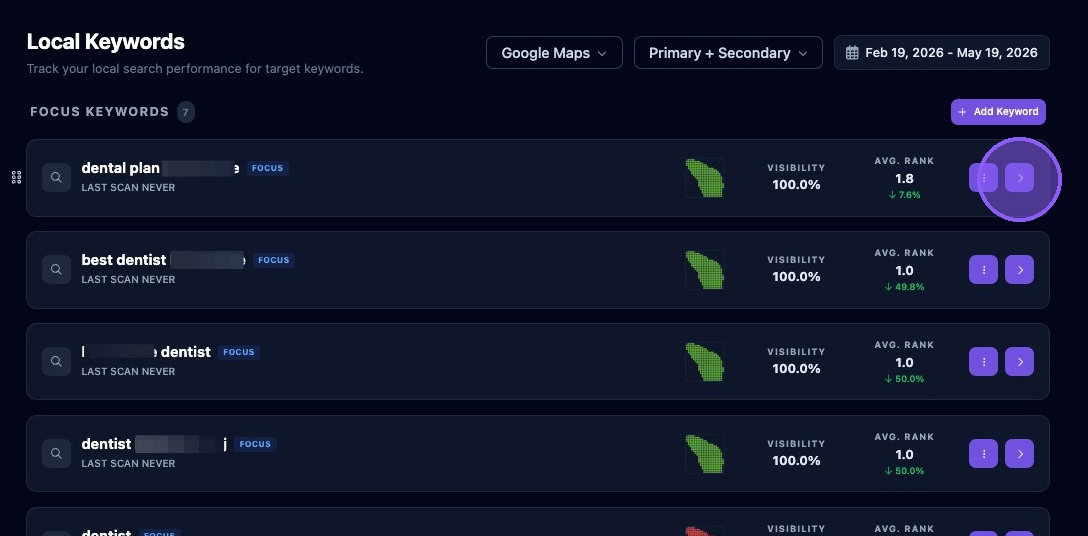
When expanded, each keyword displays a history panel containing all maps that match the current filter settings. The most recent map appears on the far right and is tagged as Latest in green. Older maps progress backward in time to the left.
Use the arrows or slider to scroll through the history. Clicking Run Now performs the same action as Re-run Now.
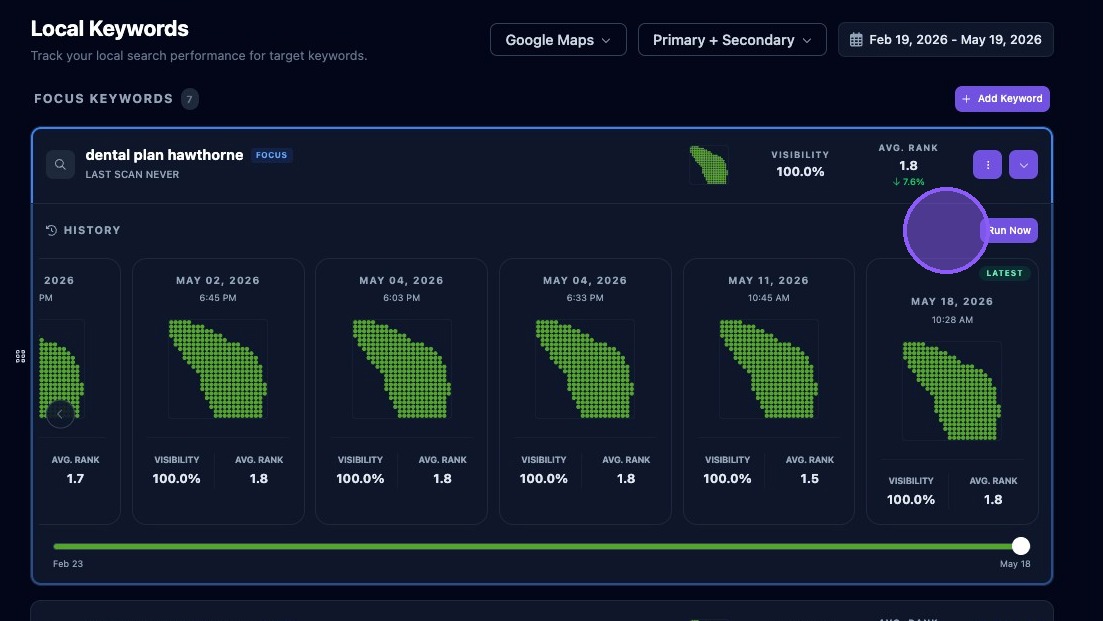
Each map in the history panel displays a color-coded heat map, the date and time the map was run, the visibility score, and the average rank.
Click any map in the history to open it in the search grid map view page, where more detailed mapping information is available.
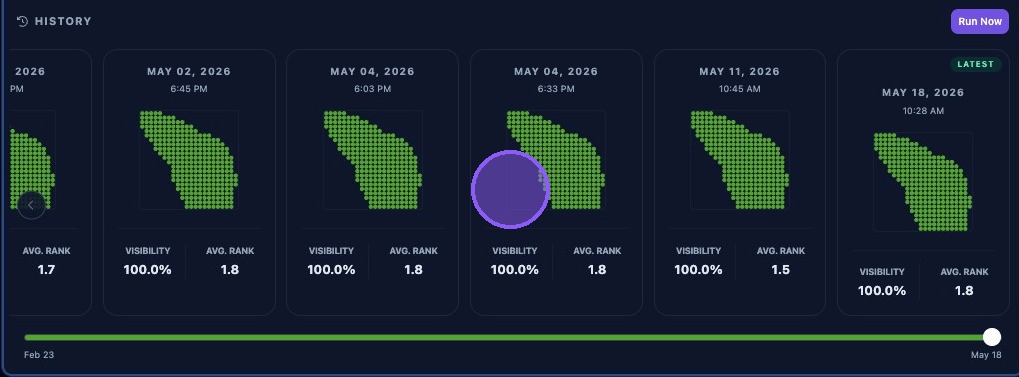
- If maps are missing from history, the maps may not have run yet or the selected date range may exclude them.
- Older map runs from the legacy system may appear if they fall within the selected range and may be marked with a Legacy tag.
- Legacy maps should be reviewed in context with the current trade area filters.