


Website: Search Console
Learn how to view, compare, and customize Google Search Console performance data, including clicks, impressions, CTR, average position, top queries, and search trends.
The Search Console page monitors search queries and indexing once data is available. It shows search performance metrics and trends for the connected website.
Access the Search Console
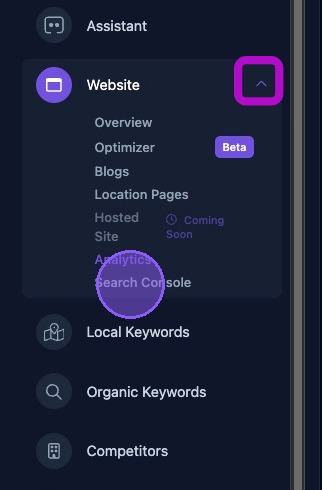
To access Search Console, click the dropdown arrow next to the Website section of the business dashboard. Then click Search Console.
Navigating the Search Console Page
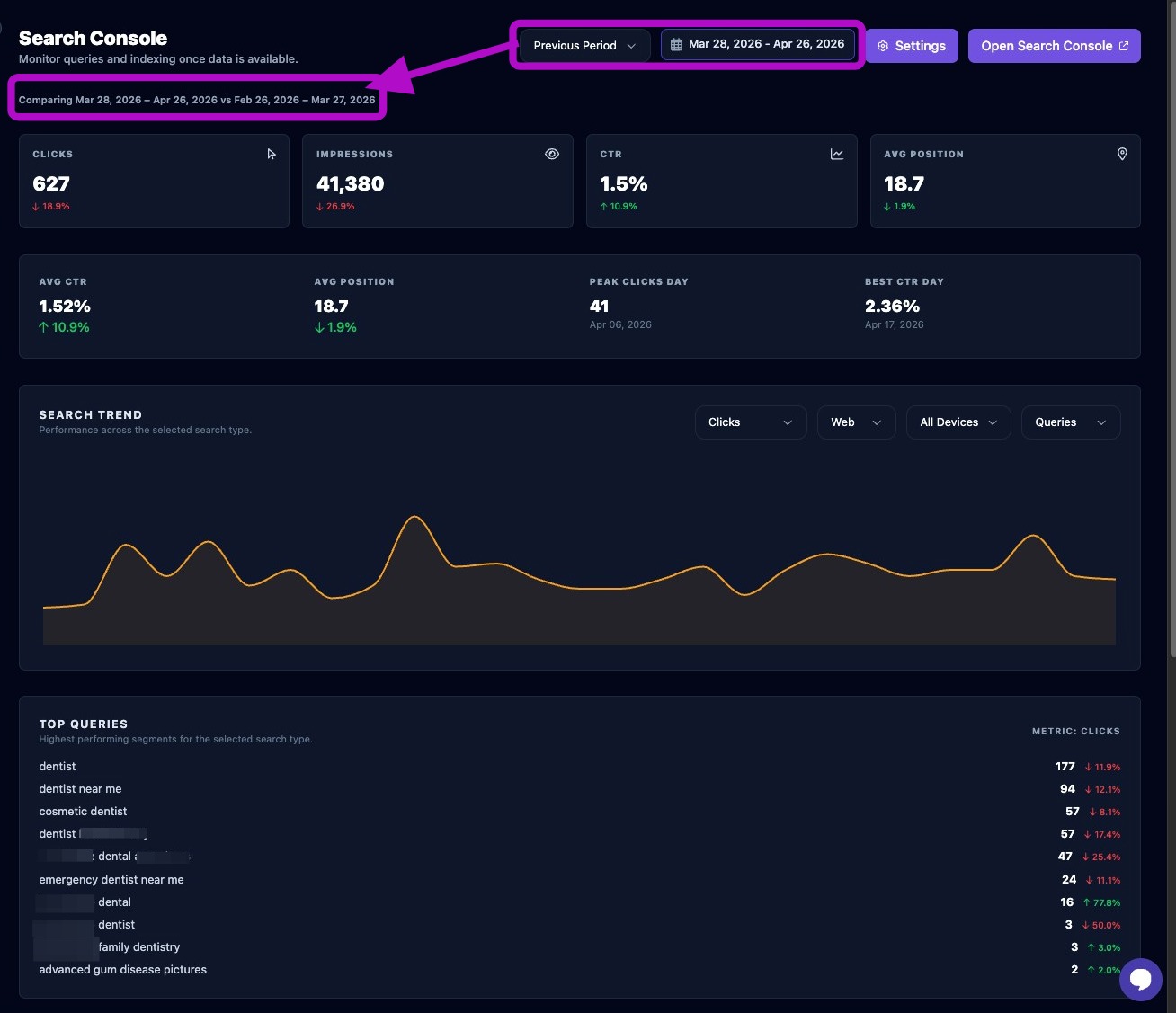
The Search Console page shows search performance data for the connected client website.
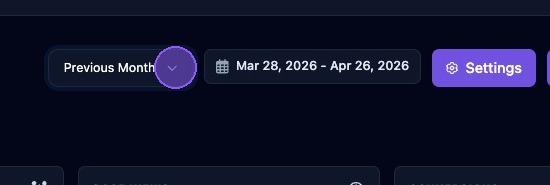
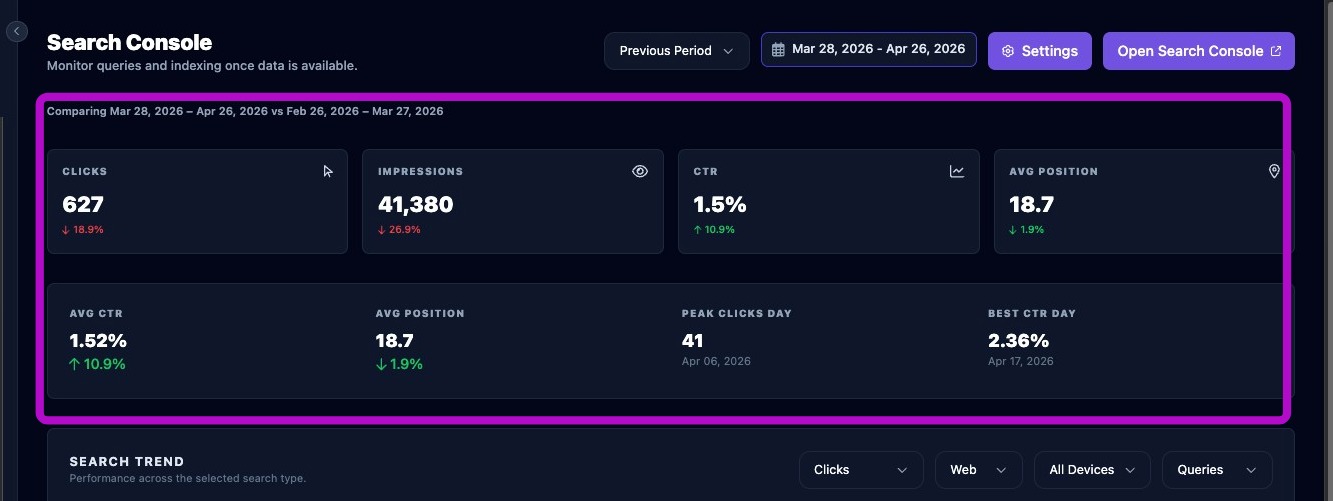
At the top right of the page, you will find the current date range and the date comparison selection. These settings are reflected in the dashboard metrics, comparing the selected date range against the chosen previous range.
Change the Date Range
The date range selector filters which Search Console data is displayed. By default, the system shows the last month. To choose a new date range, click the current date range to open the date selector.
Available preset range options include:
- Today.
- Yesterday.
- This Week, from Sunday through the current day of the week.
- This Month, from the first day of the month through today.
- Last Month, covering the full previous month.
To use a custom range, choose from these options:
- Enter a number of days prior to today to create a range ending today.
- Click a day in the calendar as a start or end date, then drag forward or backward to select a range.
- Hold the Shift key and click another date to select a range.
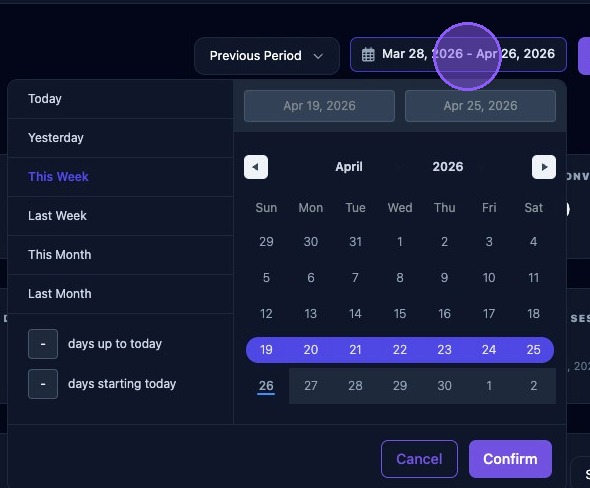
Check the newly selected date range just above the calendar, below the previous date range displayed above the selector window.
Click Confirm to update the performance data for the new date range. Click Cancel to return without updating the date range.
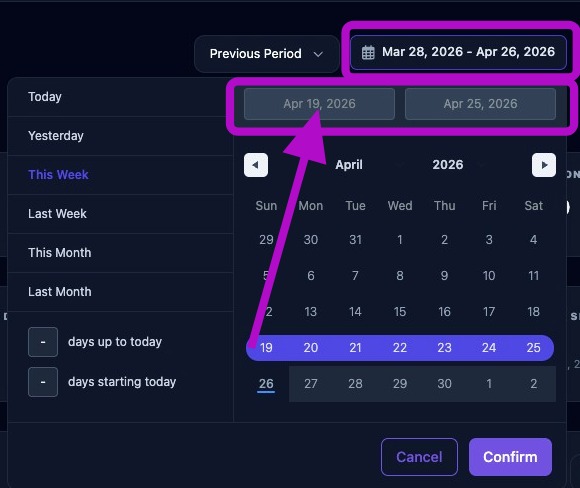
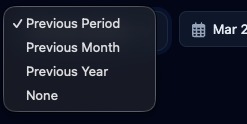
Select the Previous dropdown menu to choose the comparison data option used to show trends.
Comparison options include Previous Period, Previous Month, Previous Year, or None.
Linking a Search Console Site
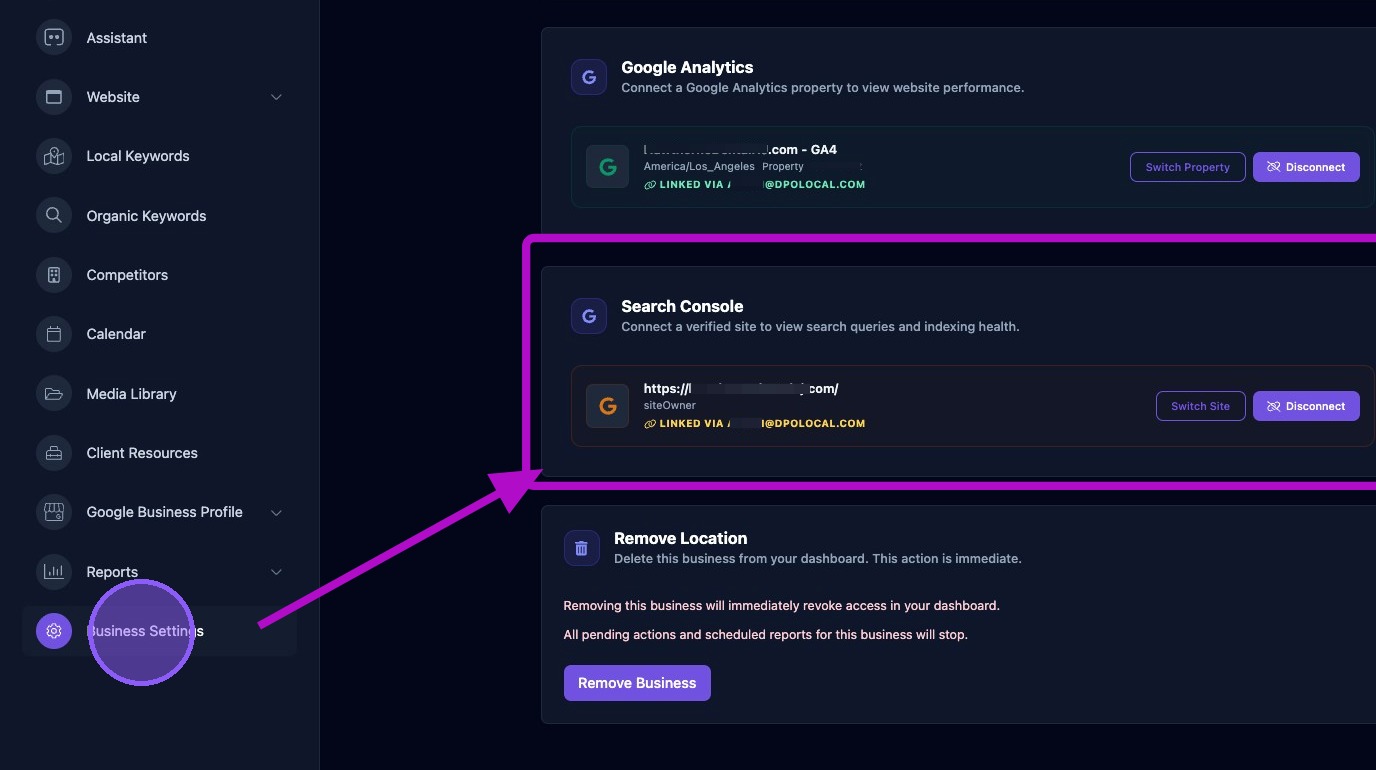
The Settings button at the top of Search Console is a quick link to the Business Settings page.

The Search Console section in Business Settings is where you link the client's site. Enter the site address and click Connect.
Click Disconnect to disconnect a property.
Click Switch Site to switch to a different website.
Opening Google's Search Console Site
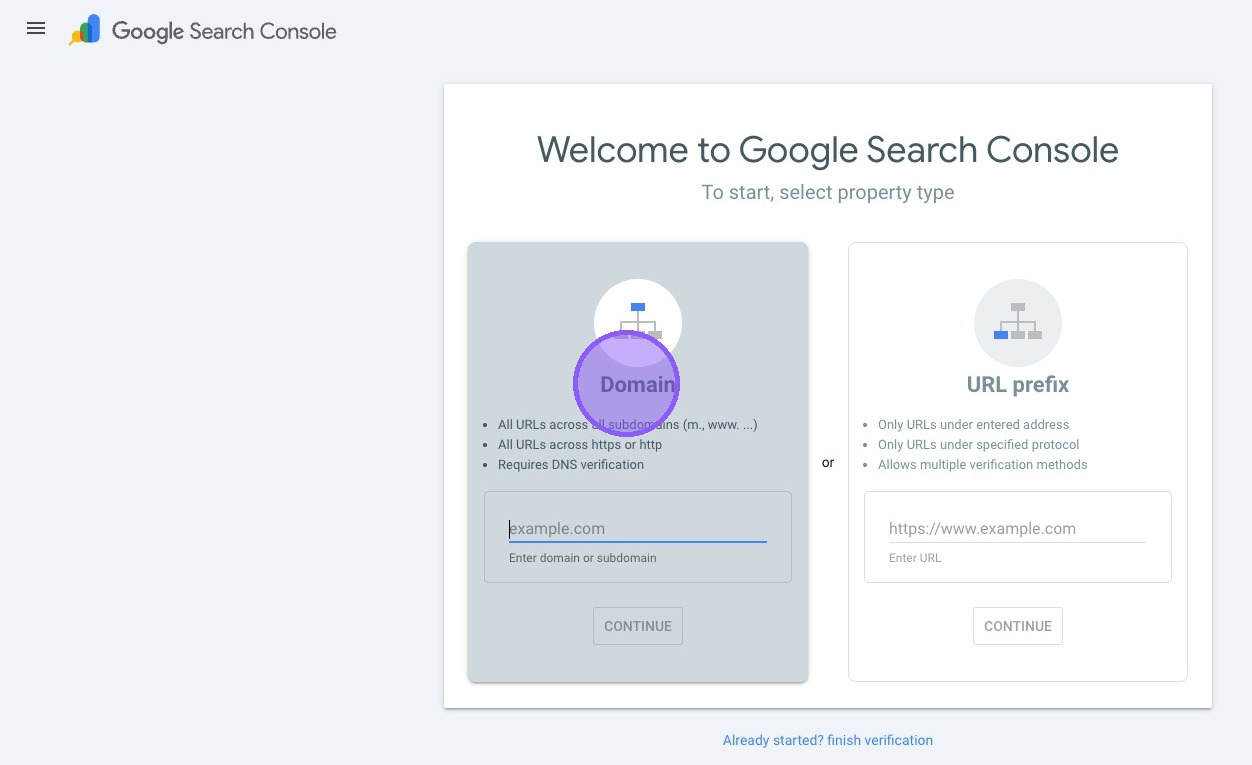
Click Open Search Console to open Google's Search Console site in a new browser window.

Log in using your Google account.
Metrics
Metrics are shown for the selected date range. Each metric includes a percentage trend up, shown in green, or down, shown in red, compared against the selected previous period. Metrics include:
- Clicks.
- Impressions.
- Click-through rate, or CTR.
- Average position.
- Peak clicks day, including date and volume.
- Best CTR day, including date and percentage.
Changing Search Trend Metrics
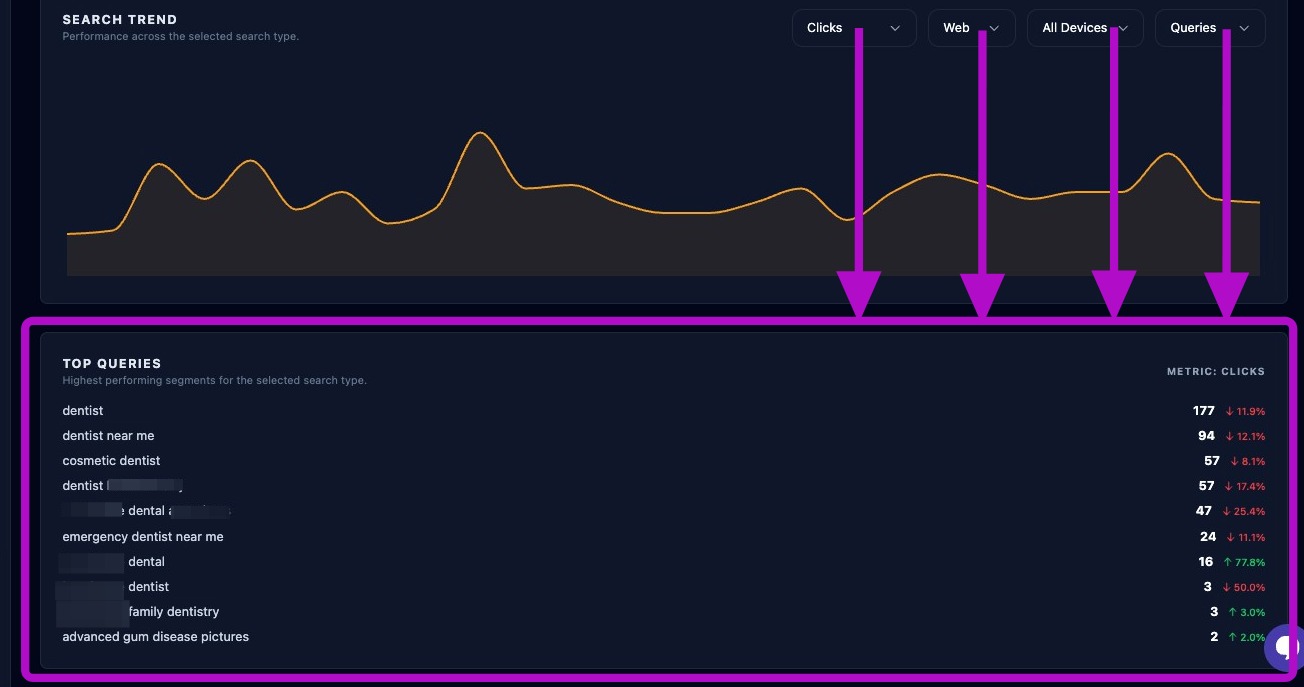
The Search Trend section shows daily performance for the selected metrics. Hover over the graph to display the date and value for each day represented on the graph.
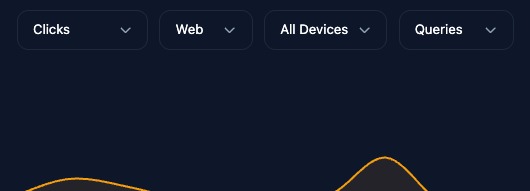
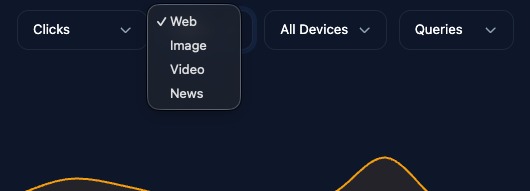
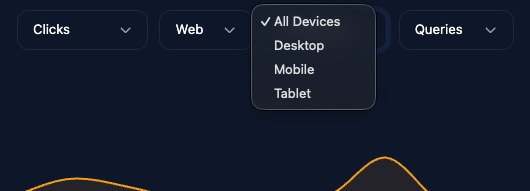
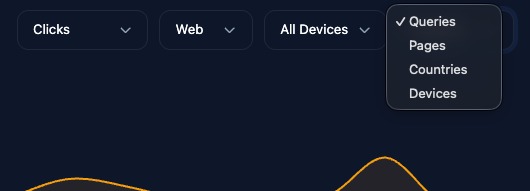
Click the four dropdown menus to change the metrics shown in the Search Trend graph.
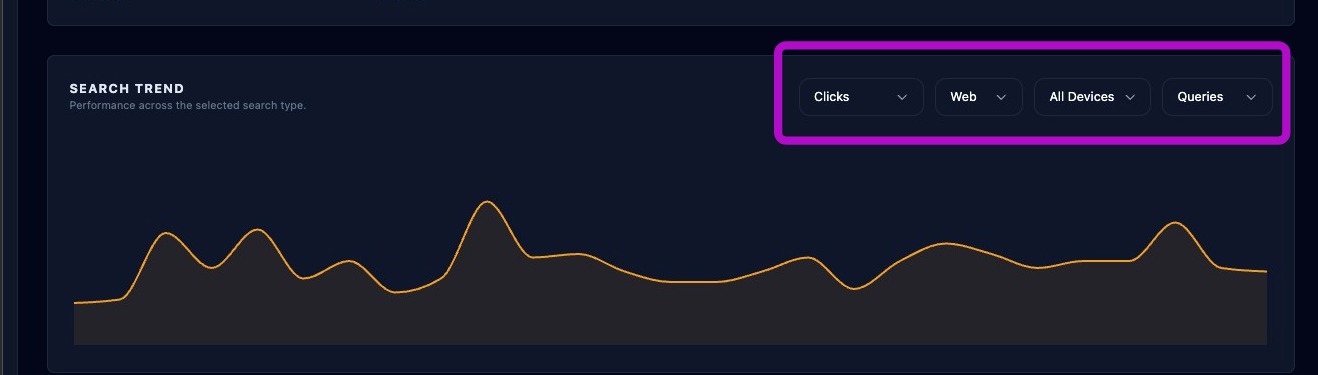
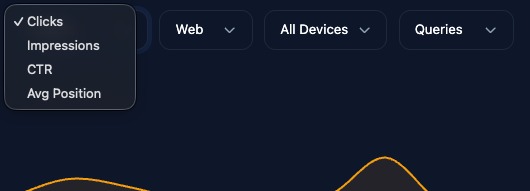
Select the desired metrics from the four dropdown menus:
- Clicks, impressions, CTR, or average position.
- Web, image, video, or news.
- All devices, desktop, mobile, or tablet.
- Queries, pages, countries, or devices.
Highest Performing Segments Display
The last section displays the highest performing segments for the selected search type and date range. Each segment includes a value and a percentage trend up, shown in green, or down, shown in red, based on the selected comparison period.
Any changes to the Search Trend metric selections or date range are reflected here immediately.
Use Search Console trends to identify pages and queries that are gaining or losing visibility. Compare similar date ranges and confirm the correct site property is connected before using the data for reporting.