


Website
Website: Overview
Learn how the Website Overview dashboard centralizes website health, performance scores, optimizer status, blog activity, location pages, and quick actions.
Video Walkthrough
Guide purpose
This guide shows how to use the Website Overview page to spot website issues, review performance and content status, and jump quickly to website tools that help publish or fix content.
How it works
The Website Overview page provides a high-level look at the Website section. It displays data related to the business website, including website health, the website optimizer, blogs, and location pages.
Important
To use website features, make sure the business has the required connections configured:
- Set a valid website URL in Business Settings.
- Connect WordPress if you want direct publishing.
- Link Analytics and Search Console properties if you want traffic data.
Accessing Website Overview
1
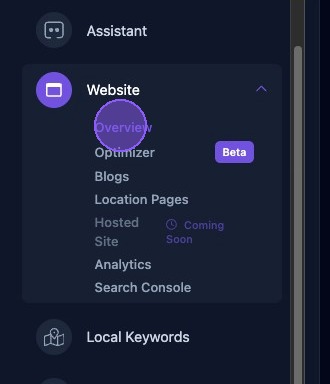
To access the page, click the dropdown arrow next to the Website section of the business dashboard. Then click Overview.
Features of the Website Overview Page
2
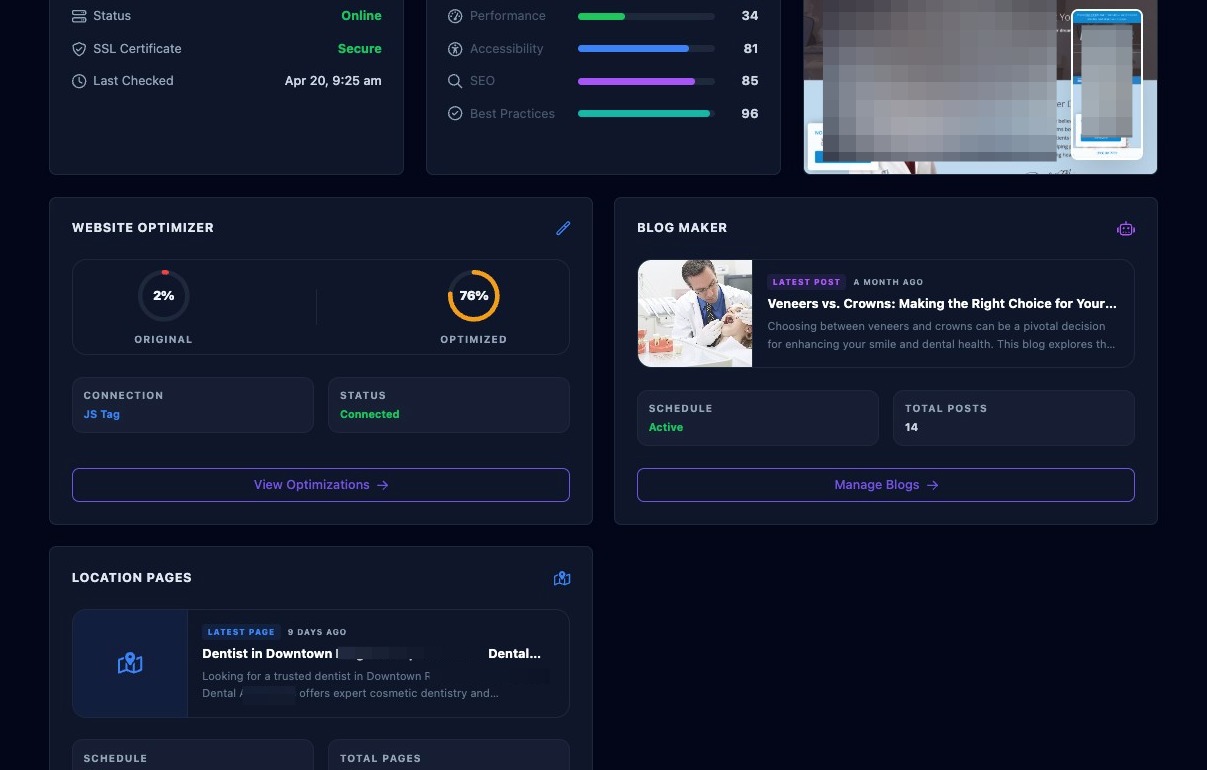
The Website Overview page gives a quick health check for website-related features, including:
- Overall Website Health & Status, including:
- Online status.
- SSL certificate status.
- Date and time the website was last checked.
- Lighthouse Scores, including:
- Performance.
- Accessibility.
- SEO.
- Best Practices.
- A thumbnail of the actual website home page.
- Website Optimizer overview, including:
- Optimization percentage for original and optimized versions.
- Connection type.
- Connection status.
- Blog Maker overview, including:
- Thumbnail of the most recent blog post with date.
- Schedule status.
- Total blog post count.
- Location Pages overview, including:
- Thumbnail of the most recent location page with date.
- Schedule status.
- Total location page count.
Website Overview Quick-Links
3
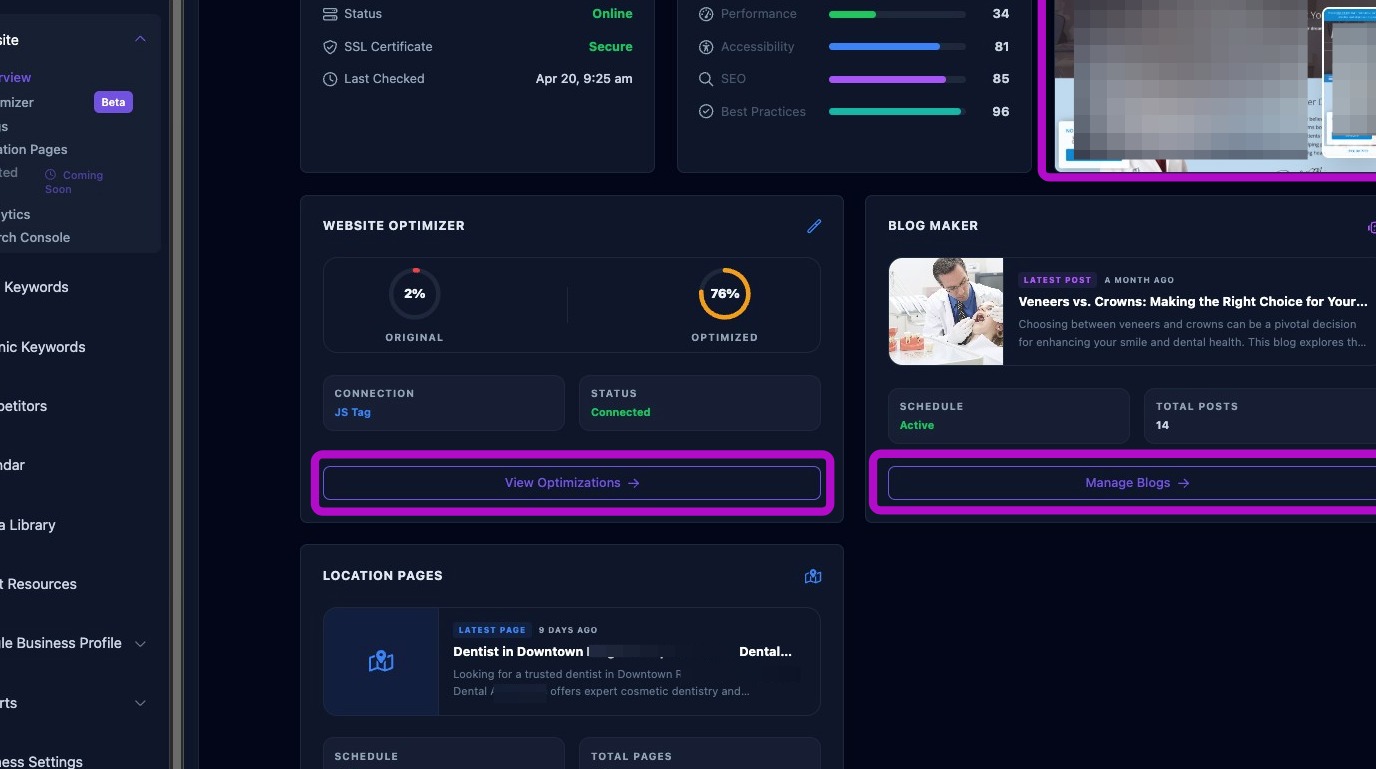
The Website Overview page provides quick-link buttons to:
- Refresh the data in the entire Website section.
- Visit the website by clicking the site thumbnail.
- Open the Optimizer and view optimizations.
- Manage blogs.
- Manage location pages.
Recommended workflow
- Check the optimizer status. If it is disconnected, go to Optimizer.
- Review content counts. If counts are zero, content may not have been generated yet or may be hidden.
- Click Refresh Data if the displayed information appears outdated.
- Use the quick links to jump to Optimizer, Blogs, or Location Pages.