


Google Business Profile: Media
Learn how to manage Google Business Profile photos and videos, including viewing media, deleting images, selecting files from the Media Manager, assigning categories, and uploading new visuals.
Manage Google Business Profile photos and videos regularly to improve business presentation and customer engagement. Use clear, accurate visuals that represent the business well.
Accessing and Navigating GBP Media
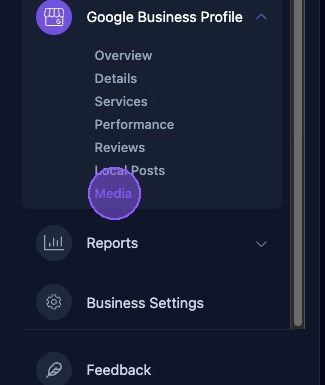
To access media, click Media under Google Business Profile in the dashboard.
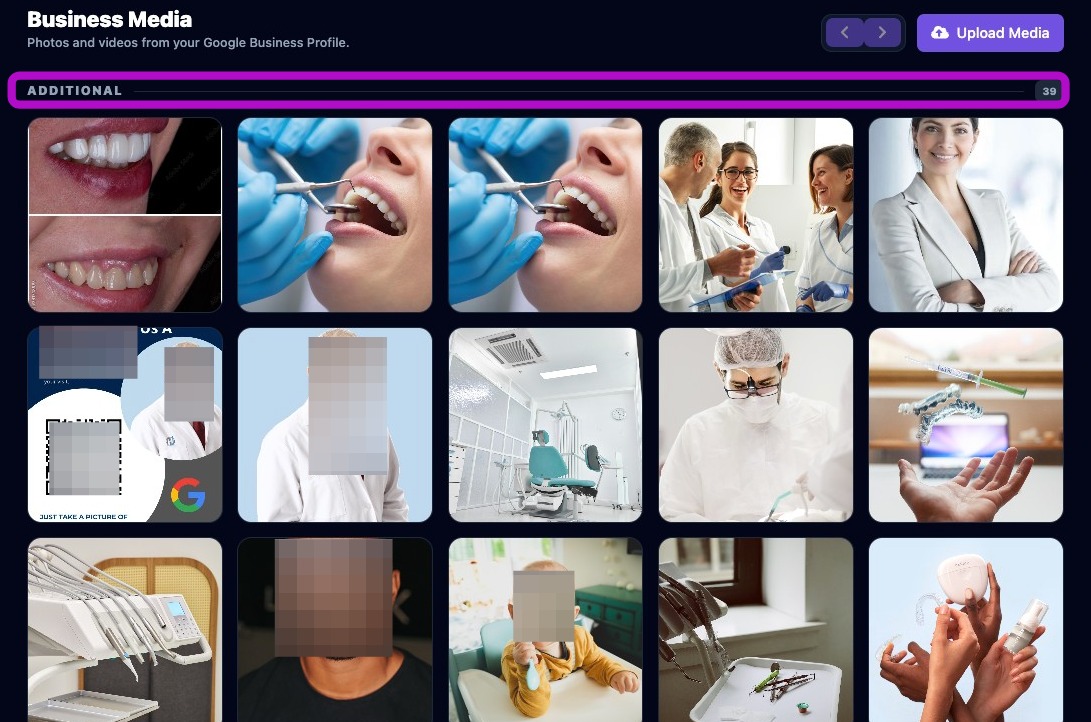
Google Business Profile photos and videos are displayed and sorted by category. A total count for each Google Business Profile category is also shown.
Use the arrow icons to navigate between multiple pages of media.
View an Image Full Size
Hover over a photo to view the upload date and reveal the view and delete buttons. To view a photo full size, click the eye icon in the bottom-right corner of the thumbnail.

Delete an Image from GBP
Click the red trash icon to delete a photo from Google Business Profile media.

Only delete media that is inaccurate, outdated, duplicated, or no longer represents the business. Removing useful visuals may reduce the quality of the public listing.
Upload Images to GBP
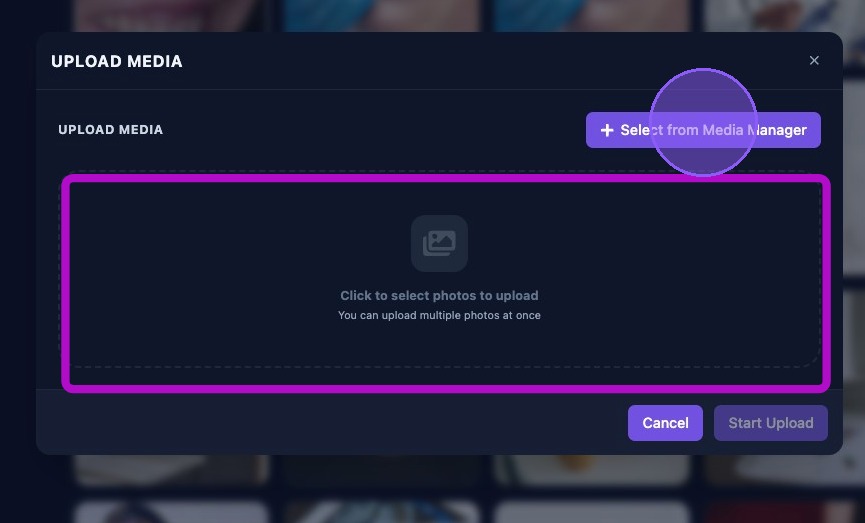
To upload media to Google Business Profile, click Upload Media.

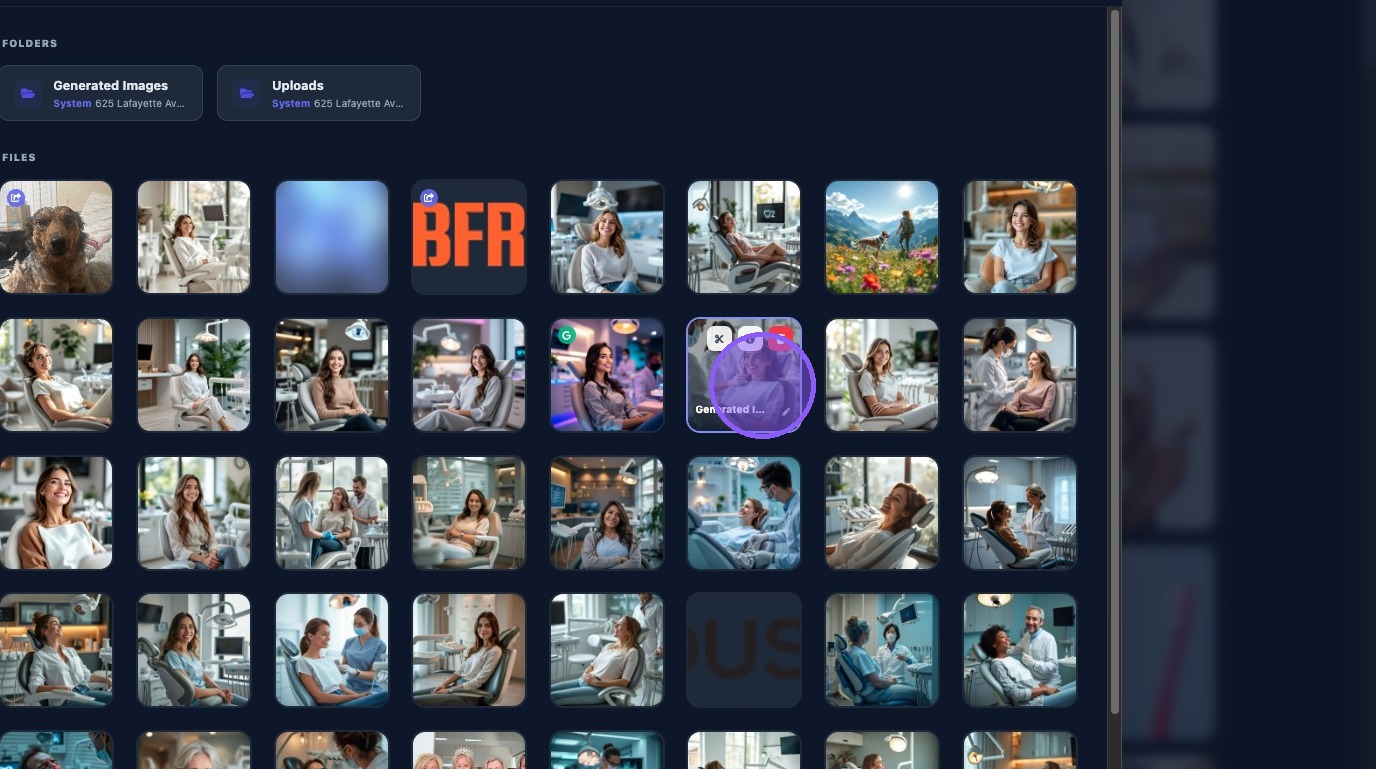
Click Select from Media Manager, or click the empty central upload area, to browse files in the client's Media Manager.
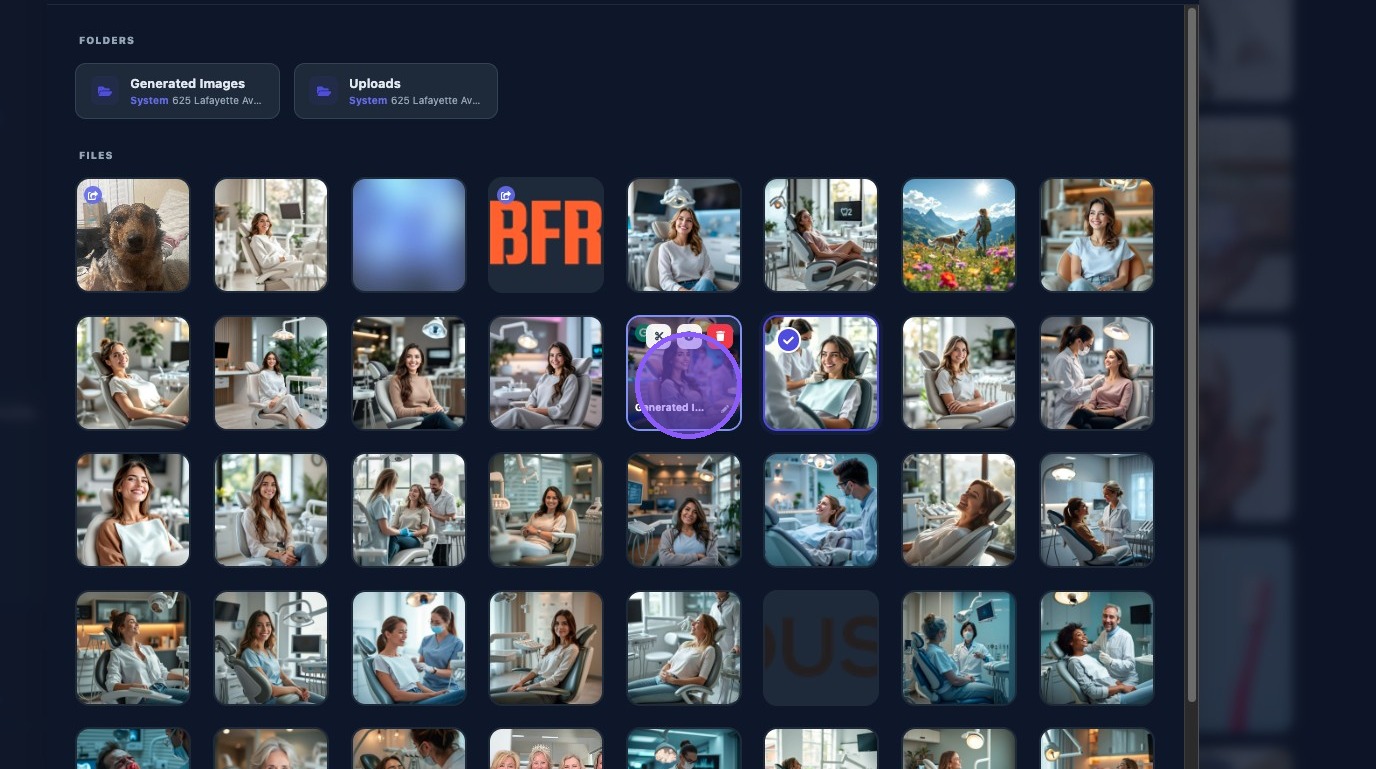
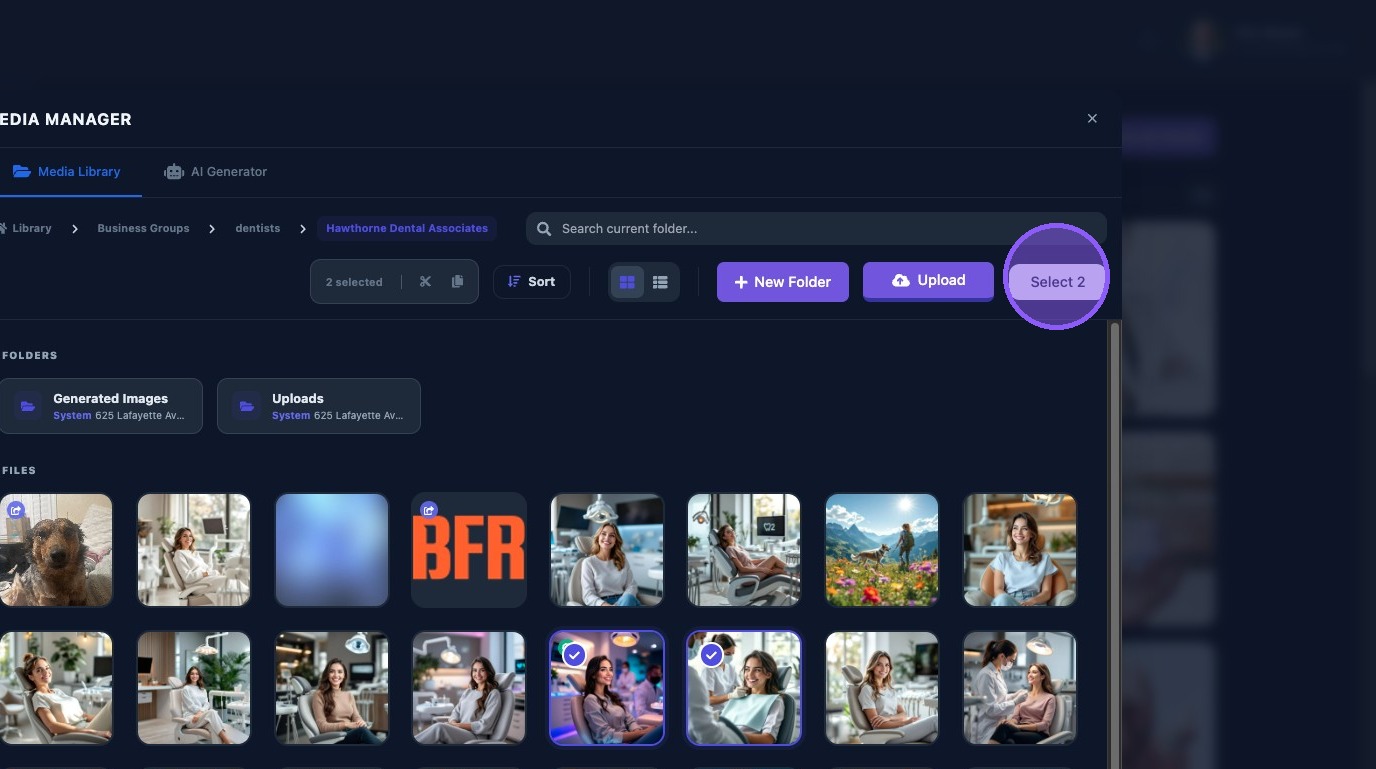
Select the desired images from the Media Library to add them to the Google Business Profile upload queue. When satisfied with the selection, click the Select # button.
Aldus recommends using JPG or PNG images, keeping files under 50 MB, and avoiding blurry or low-resolution images.
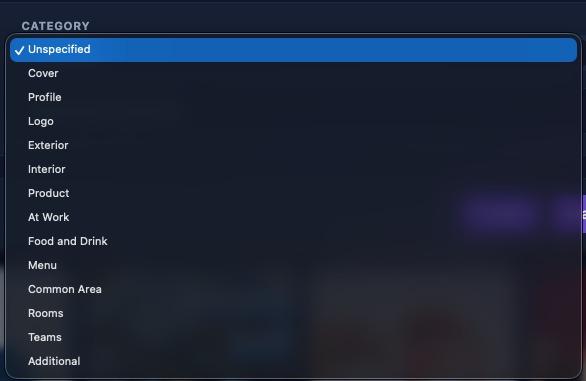
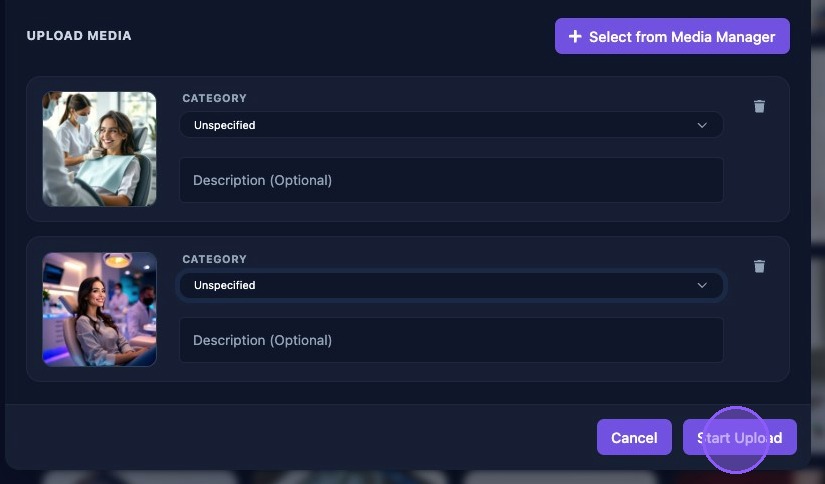
The selected images are displayed before upload. If desired, provide a description for each image. Then click the Category dropdown menu to assign a Google Business Profile category to each image.
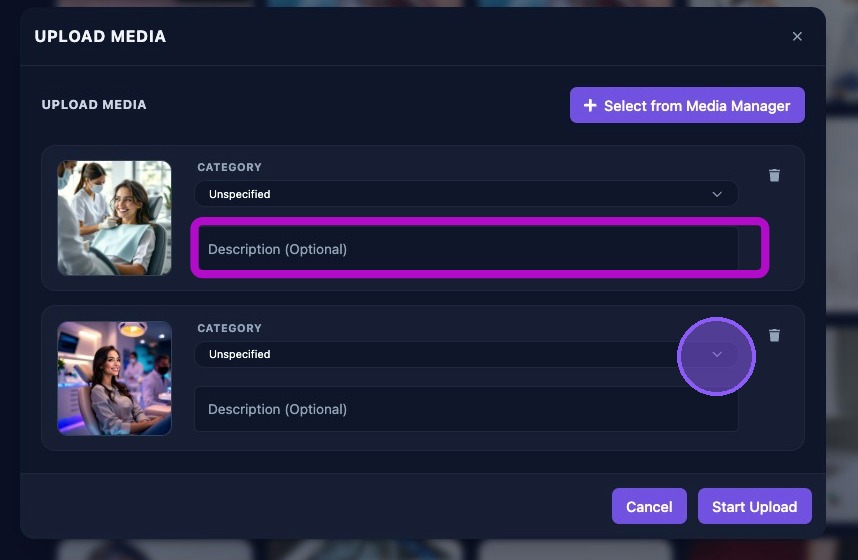
The available Google Business Profile image category choices are shown in the category dropdown.
After selecting a Google Business Profile image category and adding any optional descriptions, click Start Upload to begin uploading the images.
Click Cancel to exit without performing the upload.
Use high-quality JPG or PNG images, keep file sizes under 50 MB, choose the most accurate Google Business Profile category, and add descriptions when they help clarify the image content.