


Google Business Profile: Reviews
Learn how to read, navigate, and respond to Google Business Profile reviews from the Aldus Local dashboard.
The Reviews page is one of the most public-facing areas of the dashboard. It allows you to:
- Read Google reviews.
- Filter and review customer feedback.
- Write and publish responses.
- Edit existing responses.
- Review and approve assistant-generated response suggestions.
Access GBP Reviews
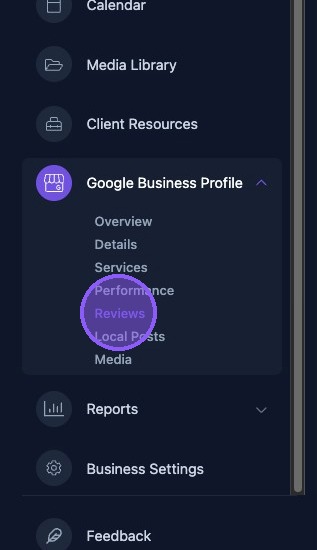
Click Reviews on the dashboard to access the Google Business Profile reviews page.
Navigating Reviews
Reviews are listed chronologically. Each review shows the reviewer's name and avatar, star rating, review text, and posted date.
If a response has already been posted, the review will also display the response and how long ago it was posted.
To navigate the review list, scroll through the reviews and use the Next Page and First Page buttons as needed.
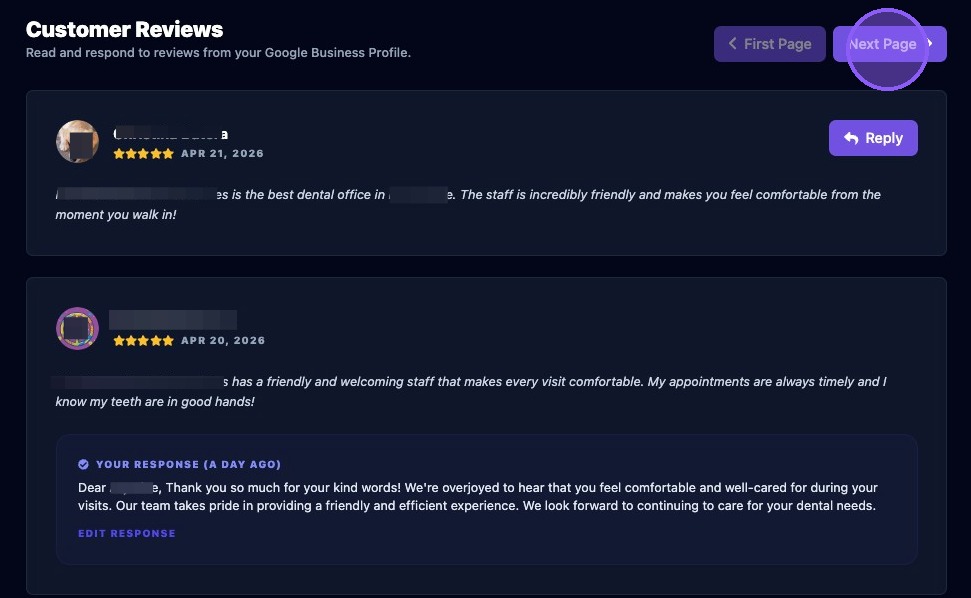
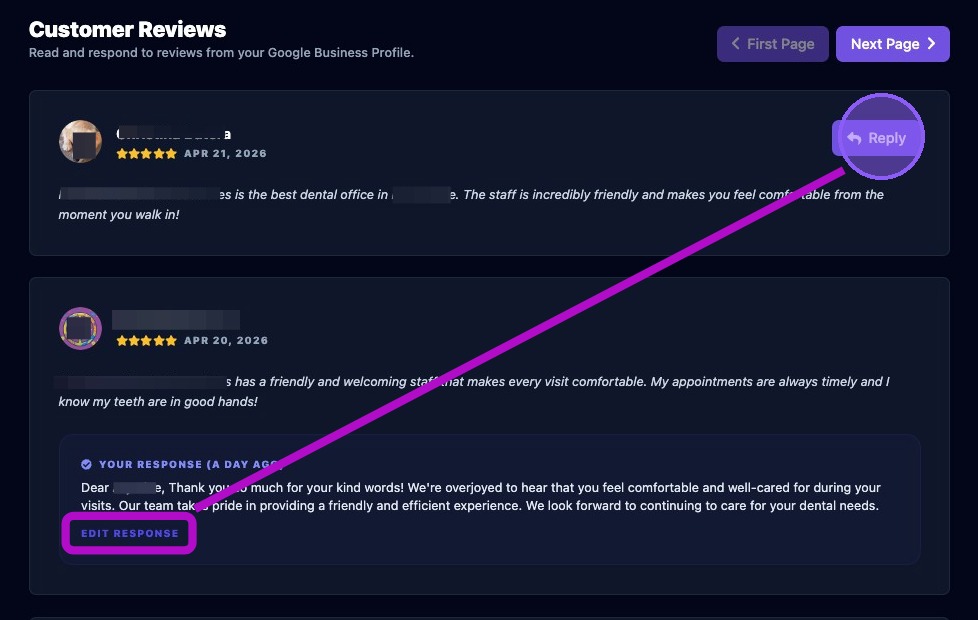
Reviews that do not have a response yet will display a Reply button.
Reviews that already have a response will display an Edit Response button.
Manual Responses
To submit a manual response to a Google Business Profile review, click the Reply button or the Edit Response button.
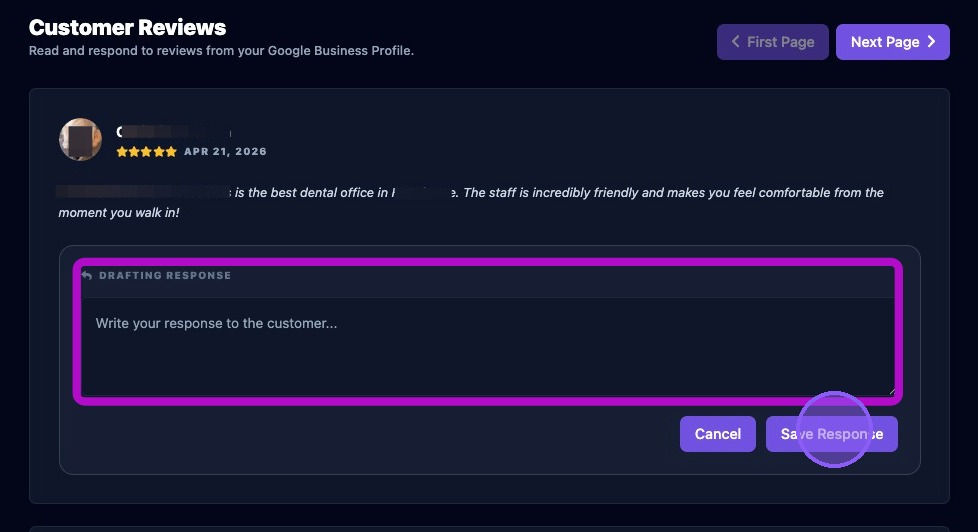
Then manually draft or edit the response. Responses should be professional, short, and personalized. Always thank the reviewer and address their feedback when appropriate.
Click Save Response to close and publish the response. Click Cancel to exit without saving or publishing the response.
If an assistant-suggested response is available, click Edit and Approve, adjust the wording if needed, and then click Save to publish.
Keep review responses concise, professional, and specific to the customer's feedback. Avoid generic replies when possible, and do not include sensitive customer information in public responses.
If a response fails to publish, confirm that the Google Business Profile authentication is active and has the required permissions. If a response already exists, edit the existing response instead of attempting to publish a duplicate.