


Google Business Profile: Managing Services
Learn how to add, edit, and remove services on a Google Business Profile so customers can clearly understand what the business offers.
The Services page lets you manage the list of services shown on a Google Business Profile. Services help customers understand what the business offers and may influence search relevance.
There are two types of services:
- Structured services: Services defined by Google based on the business category.
- Free-form services: Custom service entries added for the business.
Structured services may sometimes appear as “job type id” placeholders until they are resolved. Refresh the page or report the issue if the service name does not display in a human-readable format.
Accessing the GBP Services Page
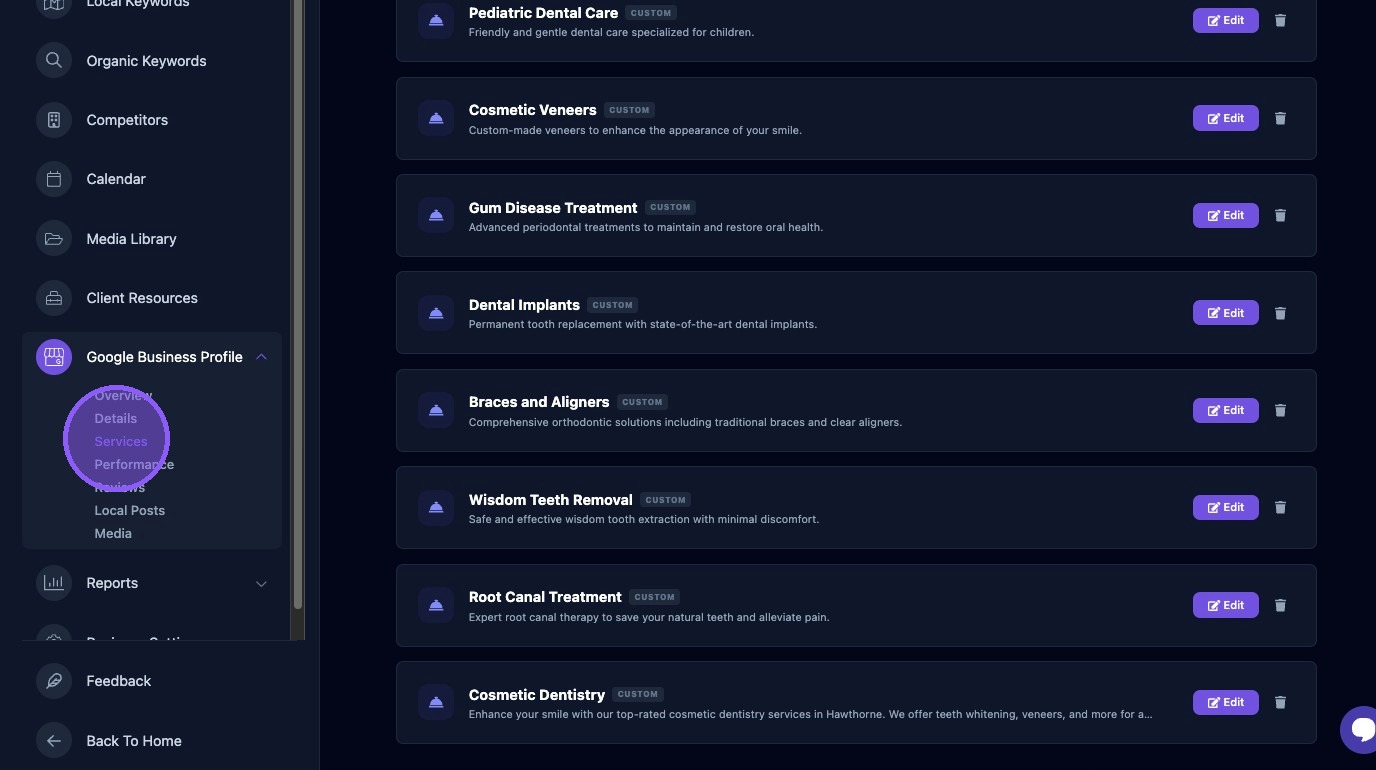
To access Google Business Profile services for a business, click Services on the dashboard. A list of the services shown on your client's Google Business Profile will be displayed.
Each listed service displays the service name, service type, and a description preview of up to the first 130 characters.
Add a Service
Use clear, customer-friendly service names and descriptions. Google Business Profile service validation rules generally require:
- Short, clear service names.
- No keyword stuffing, such as “best dentist.” Google may reject overly promotional service names.
- Descriptions written as complete, helpful sentences.
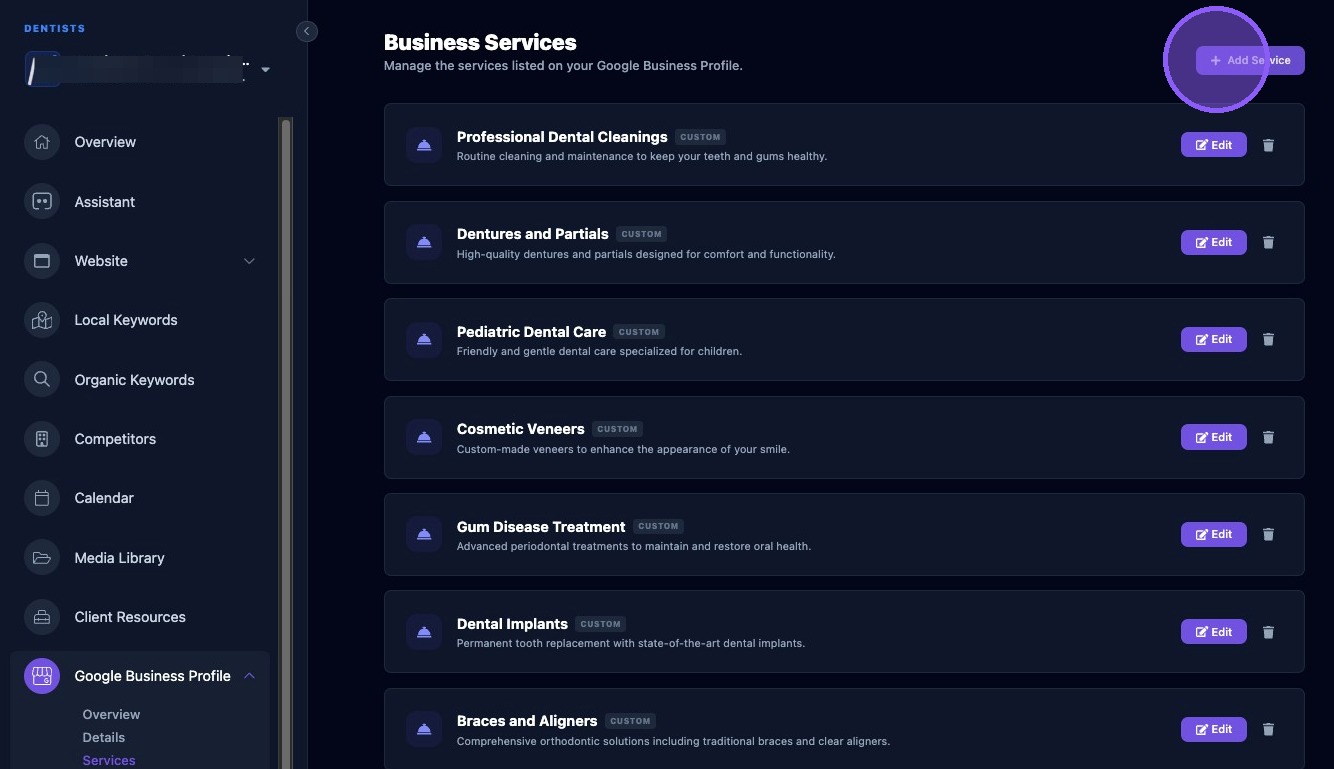
To add a service, click Add Service. A new edit window will appear.
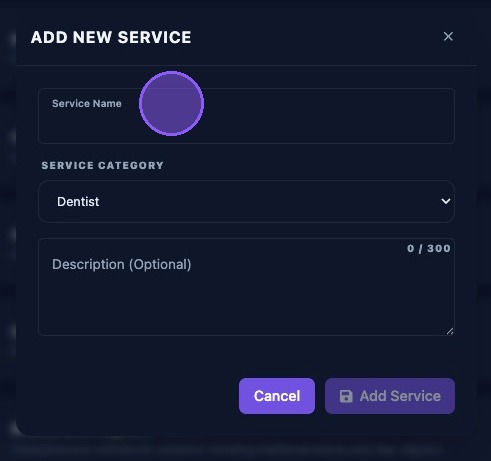
Enter a name in the Service Name field. After the service name is entered, the system will indicate whether it is valid for Google Business Profile.
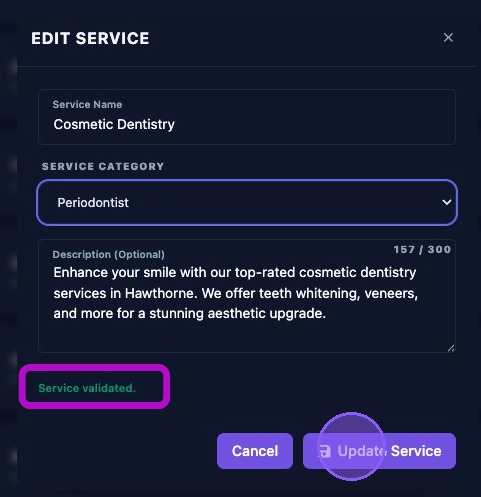
If the service is validated, a green Service Validated status message will appear at the bottom of the page.
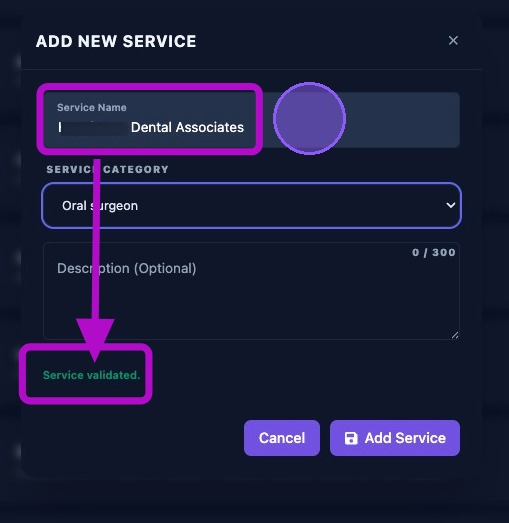
Next, select a Service Category from the dropdown menu. The available selections are based on the client's primary Google Business Profile category.
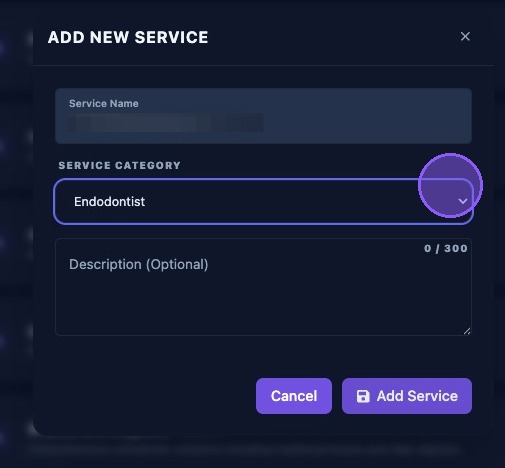
If appropriate, add a description in the Description (Optional) field. Service descriptions have a 300-character maximum.
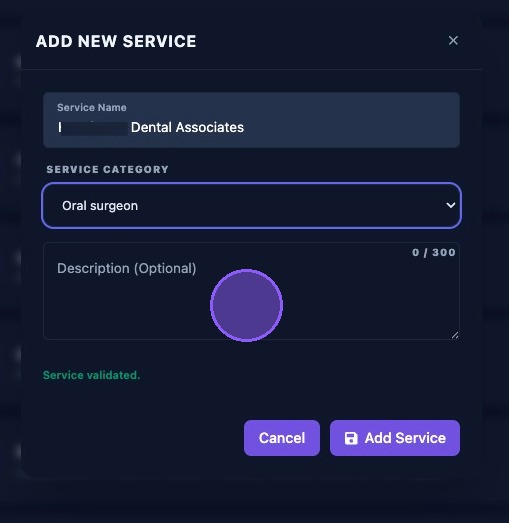
After completing the entries and receiving the green Service Validated message, choose one of the following options:
- Click Add Service to save the service to Google Business Profile and close the window.
- Click Cancel or the X to exit the window without saving the service.
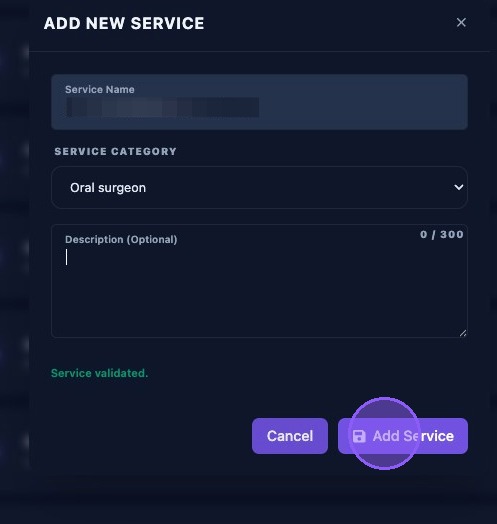
Edit a GBP Service
To edit an existing service, click Edit.
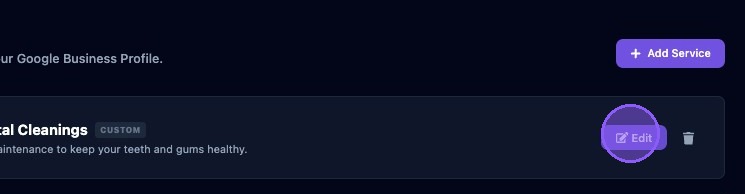
Update the service name or description. If you need to change the Service Category, select a new category from the dropdown menu. Check for service validation before saving.
Click Update Service to save your changes, or click Cancel or the X to exit without saving.
Remove a GBP Service
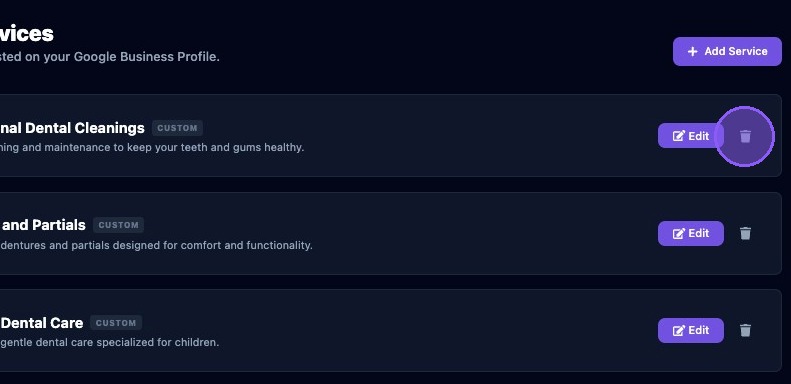
To remove an existing service, click the trash can icon. The service will be removed from the list.
Only remove services that no longer apply to the business. Removing relevant services may reduce the clarity of the listing for customers searching for specific offerings.