


Google Business Profile: Business Details
Learn how to safely edit core Google Business Profile fields, including the business name, contact information, address, service area, categories, hours, and description.
The Details page controls the core fields on the Google Business Profile listing. This section is especially sensitive because changes are public and subject to Google validation. When a field is updated, Aldus Local sends an update mask to Google Business Profile so only the edited fields are changed.
Business detail sections on this page include:
- Business name and category.
- Description.
- Address and service area.
- Phone and website.
- Hours.
Accessing GBP Details
To access the Google Business Profile sections, click the dropdown arrow in the business dashboard.
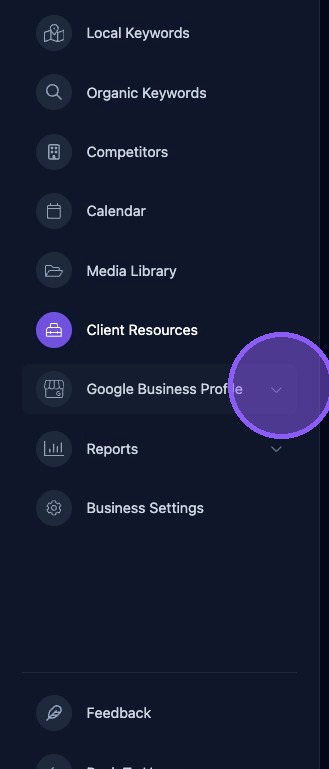
A dropdown list of Google Business Profile sections will appear for access from the dashboard.
Click Details to open the business details section.
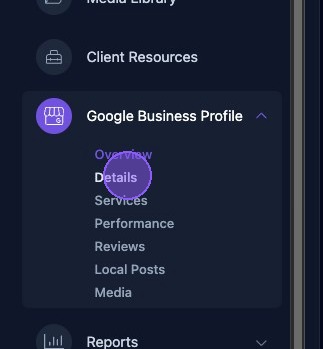
GBP General Details and Description
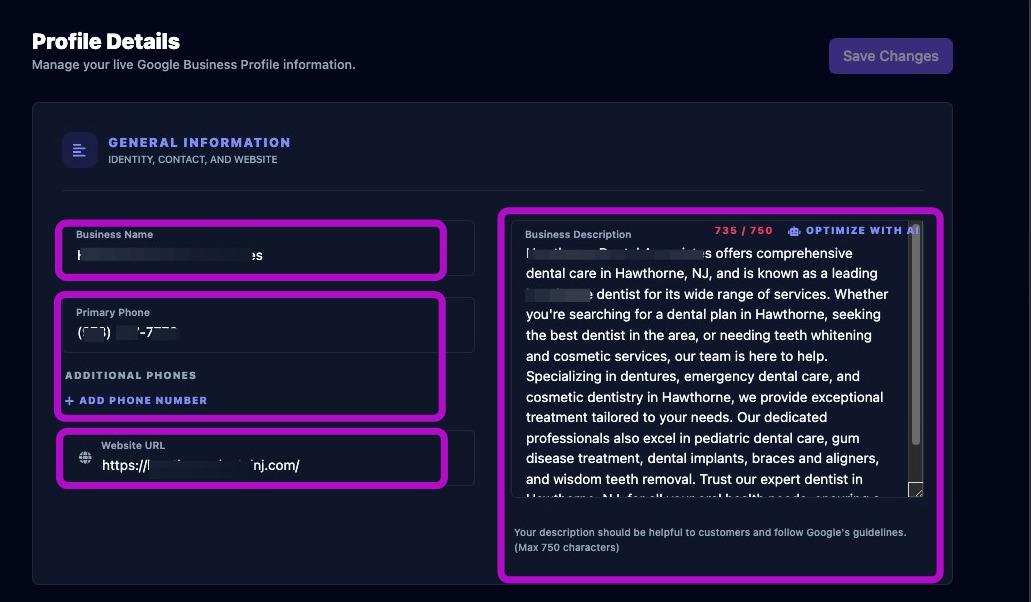
In the General Information section, you can update your client's Google Business Profile business details, including:
- Business name: This should match the official business name. Avoid keyword stuffing, which Google may reject.
- Primary phone: Use the primary business line. Format the number with the country code when possible.
- Additional phones: Add any additional phone numbers customers may use to contact the business.
- Website: Provide the full website URL, including https://. This may be used for call-to-action defaults and review tools.
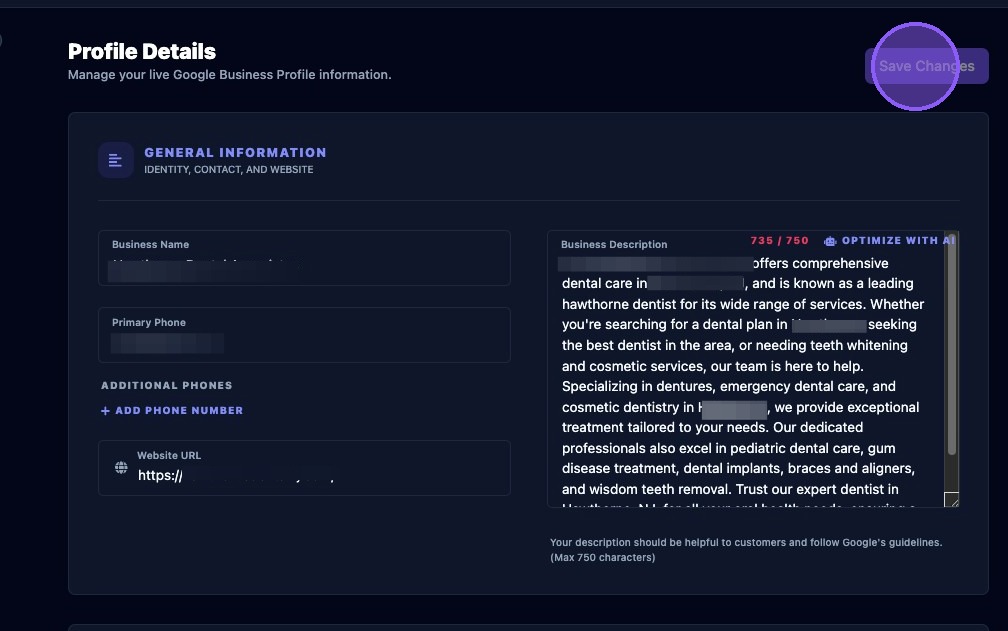
- Description:The description should be helpful to customers and follow Google's guidelines.
- The description is limited by Google Business Profile character rules, with a maximum of 750 characters.
- Keep it concise and focus on the main services, service area, and what makes the business unique.
Location, Address, Storefront, and Service Areas
In the Location & Address section, Google Business Profile location information includes:
- The business address, including address line 1, address line 2, city, state or province, postal code, and region code.
- The address must be a valid street address.
- The address is used to anchor the listing in Google Maps.
- A map of the calculated trade area is displayed next to the address information.
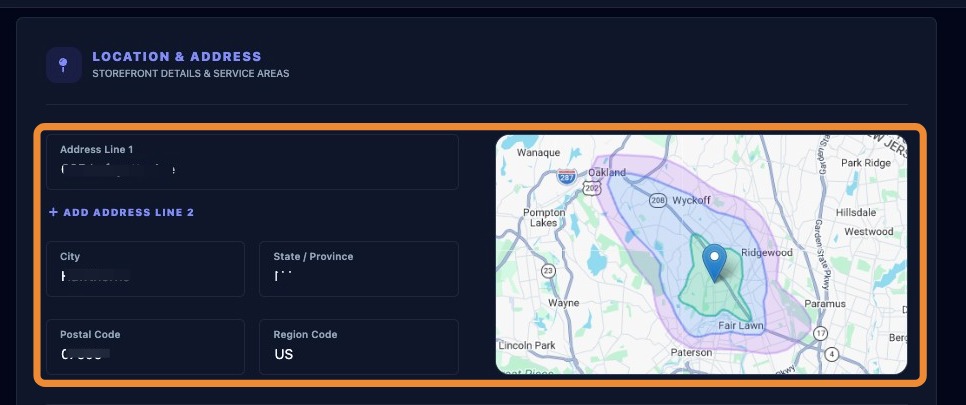
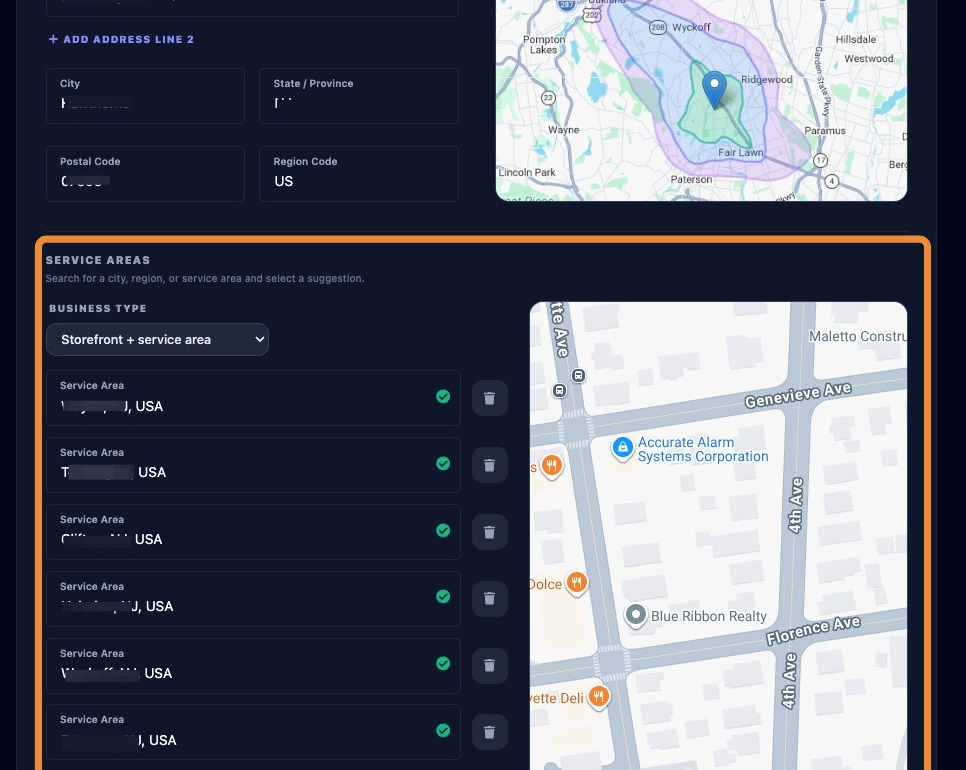
The Location & Address section also includes a list of service areas served by the business. A map of the business location appears next to the service area list.
To change the Business Type, select one of the following options from the dropdown menu:
- Storefront Only.
- Storefront + Service Area.
- Service Area Business (no storefront).
- If the business is service-area only, you may see a service area editor instead of a public address.
The business service areas are listed below the business type. A green check mark next to a service area means it is a valid Google location.
To add a service area, click Add Service Area at the bottom of the list. Then search for a city, region, or service area and select a suggestion.
To delete a service area, click the trash can icon next to the service area.
GBP Categories
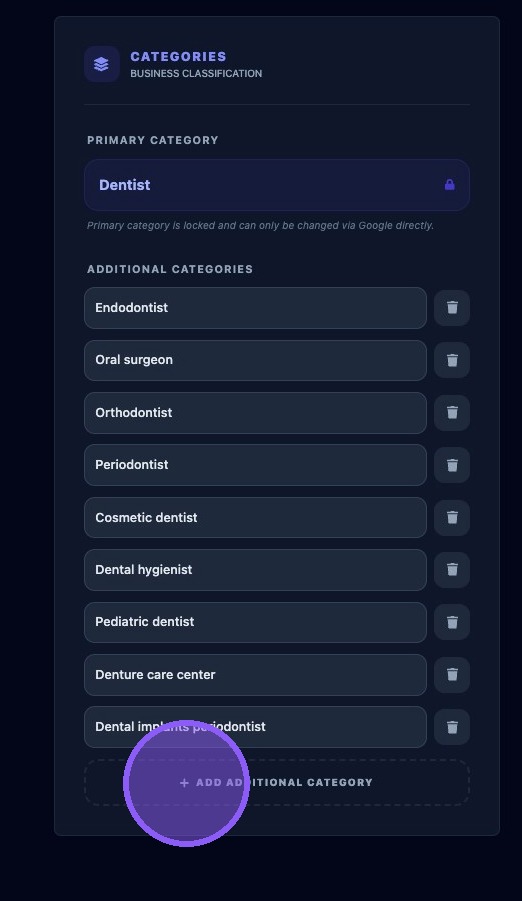
The client's Google Business Profile categories are listed here. The primary category is shown separately, followed by the list of additional categories.
The primary category shown should match the Google Business Profile primary category. The primary category is locked in Aldus Local and can only be changed directly in Google. Changing this in Google can affect search rankings.
Additional categories can be added by clicking Add Additional Category. To delete a category, click the trash can icon next to the category.
Categories can influence how a business appears in Google Search and Maps. Use categories that accurately describe the business, and avoid adding unrelated categories just to target additional keywords.
Business Hours
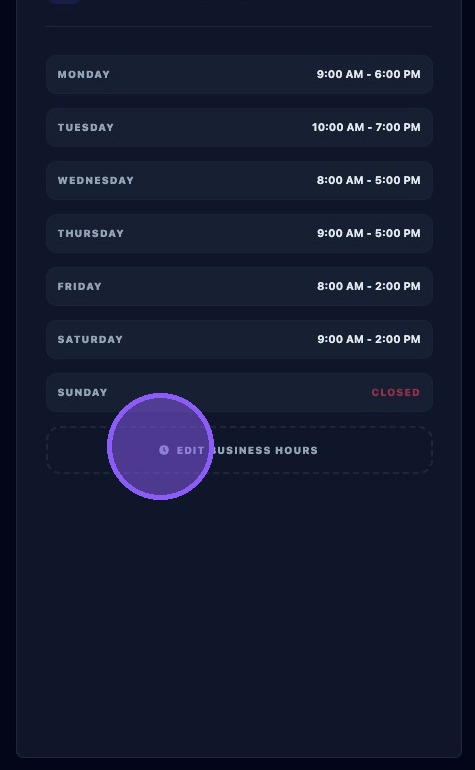
Adjust business hours by clicking Edit Business Hours.
Hours are set per day. You can add open and close times for each day and mark a day as closed. Use exact hours whenever possible, because incorrect hours often lead to customer complaints.
Saving Changes
Make sure to save after making any edits. To save updates to Google Business Profile, click Save Changes at the top of the details window, then wait for confirmation.
If validation fails, fix the affected field and save again.
Common validation issues include:
- Invalid argument: One of the values is not accepted by Google.
- Update rejected: Google may reject category or name changes if they violate guidelines.
- Fields revert: Google Business Profile may override fields based on Google's data sources. Check again after 24 hours.
Because Google reviews and validates profile updates, some changes may not appear immediately or may be rejected. Review the confirmation message after saving and recheck sensitive fields after Google has processed the update.