Business Assistant: Google Business Profile Media Upload
This guide explains how to let Autopilot automatically schedule and upload photos to your Google Business Profile, how to approve or discard those suggested uploads, and how to set monthly targets so uploads are paced evenly. It also explains duplicate-avoidance checks, what happens if no images exist, and a quick tip on using high‑quality photos to boost local trust and search presence.
If Autopilot is enabled, uploads will execute automatically on schedule. If disabled, you must approve each task manually.
These tasks are automatically created by Autopilot when:
- The monthly upload target is not met.
- There are available images in the Uploads folder.
- There are not too many pending upload tasks already.
Aldus duplicate image avoidance tracks when an image was last used and avoids re-uploading the same image repeatedly. If duplicates happen to appear, check whether the "used-at" timestamps are being recorded. Then verify that images are not being pulled from outside the Uploads folder.
Important: If there are no available images, no upload tasks are created.
Approve or Discard Autopilot Google Business Profile Image Uploads
Navigate to the dashboard of a business.
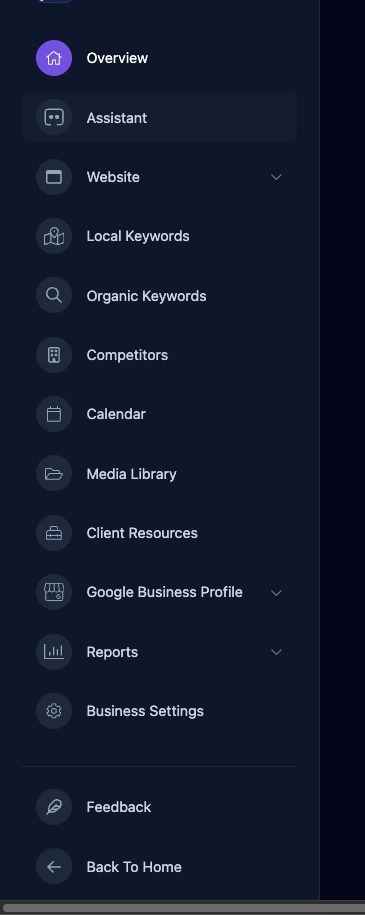
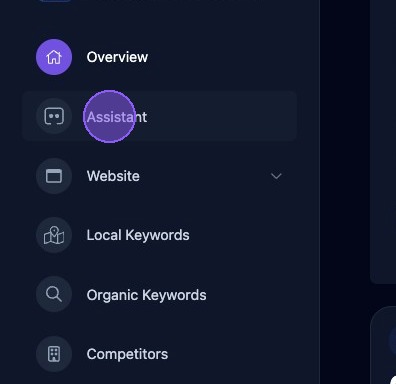
Click "Assistant".
Scroll down your list of Business Assistant Autopilot tasks until you locate a task titled "Upload photo to Google Business Profile".
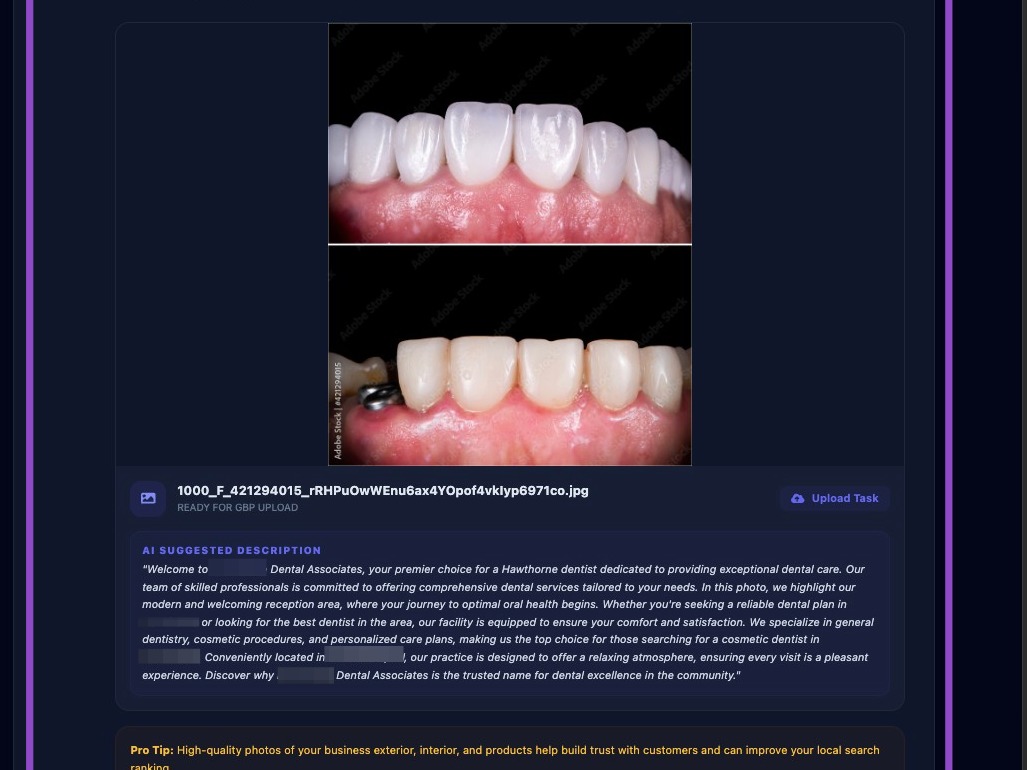
Note that the photo file name is referenced from the business "Context Images" which is found in the Assistant settings.
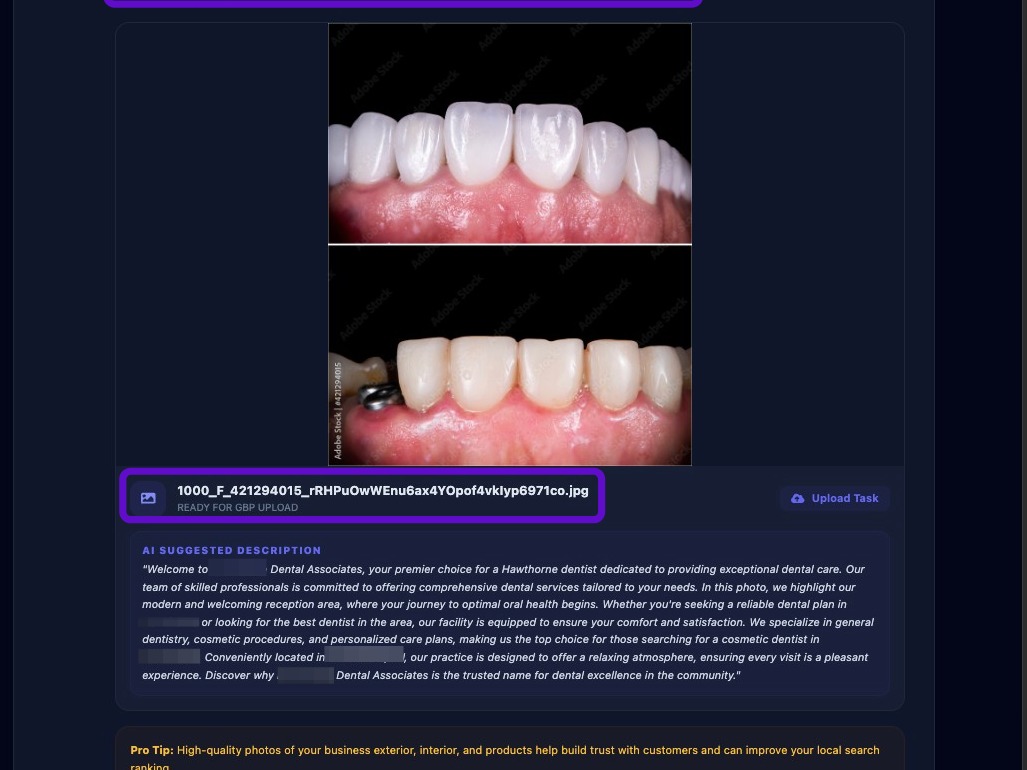
Important: Clicking “Upload to Google” uploads the image immediately. Review the suggested upload carefully before approving it, or click “Discard” if you do not want to upload the image.
Click the "Upload to Google" button and the photo will immediately be uploaded to the business’s Google Business Profile. Or choose "Discard" to not accept the image upload suggestion.
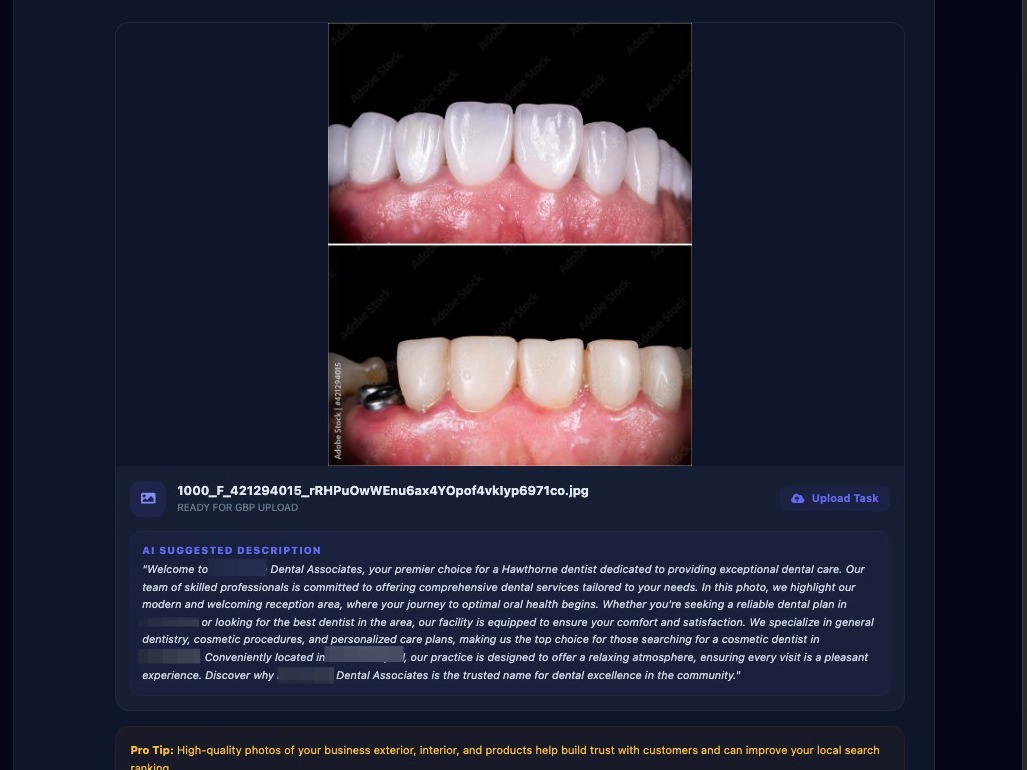
Pro tip: Using high-quality photos of your business exterior, interior, and products helps build trust with customers and can improve your local search ranking.
How to enable Autopilot for Image Uploads
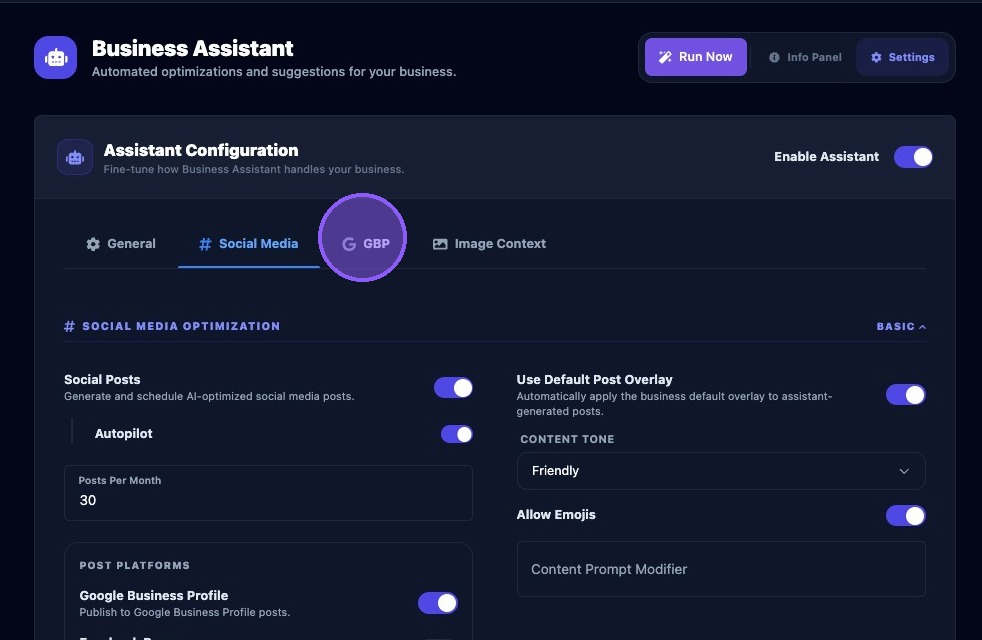
Click the settings button at the top of the Business Assistant section.

Then click the Google Business Profile tab to access Autopilot settings.
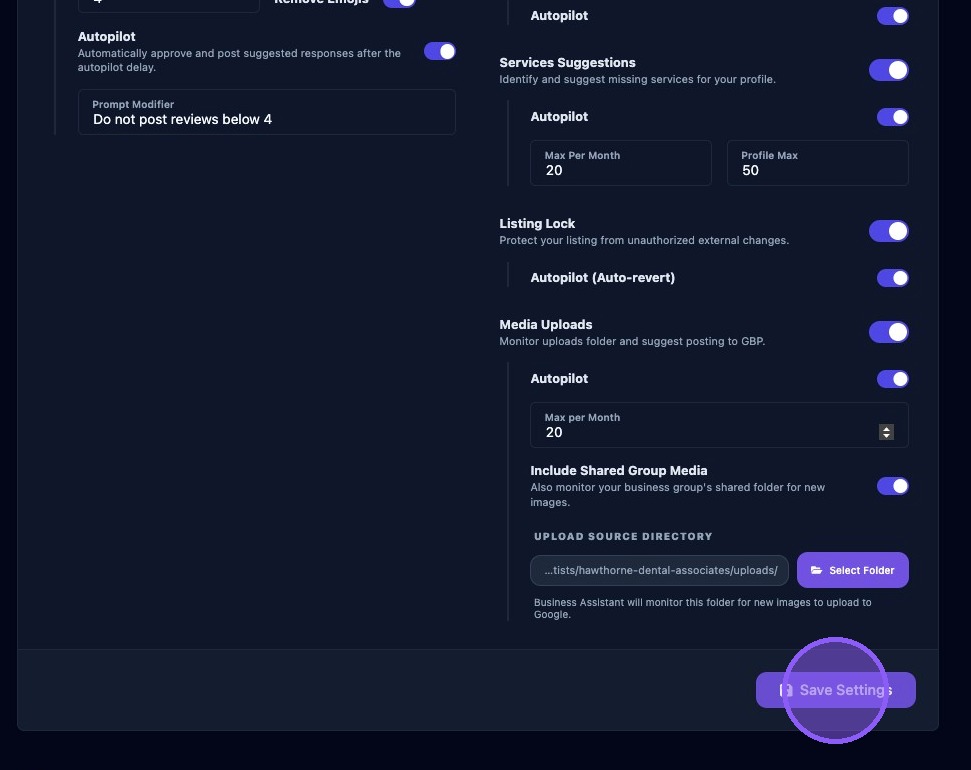
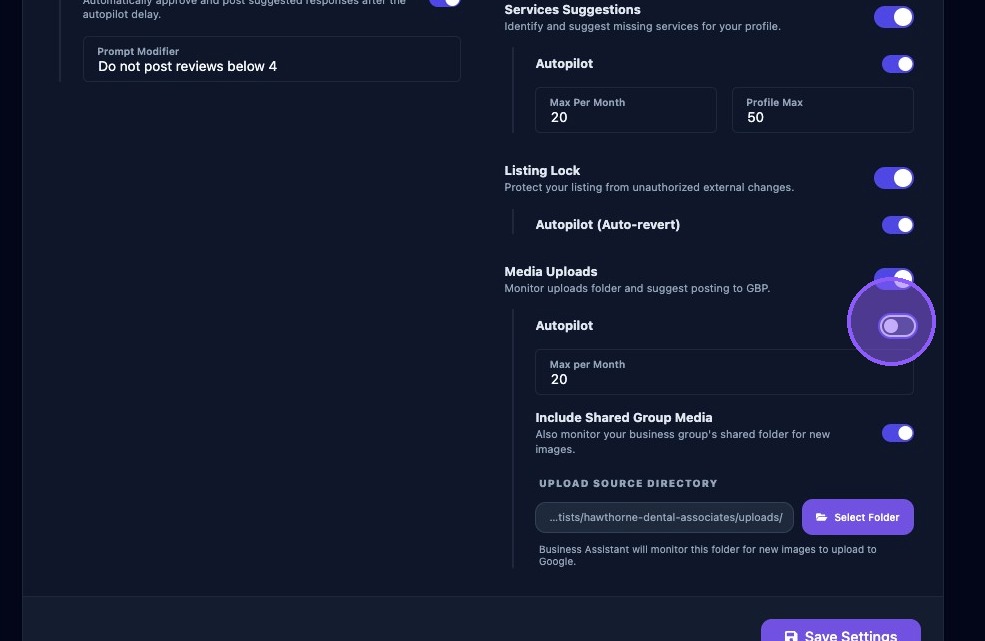
Enable "Media Uploads" by clicking on this toggle.
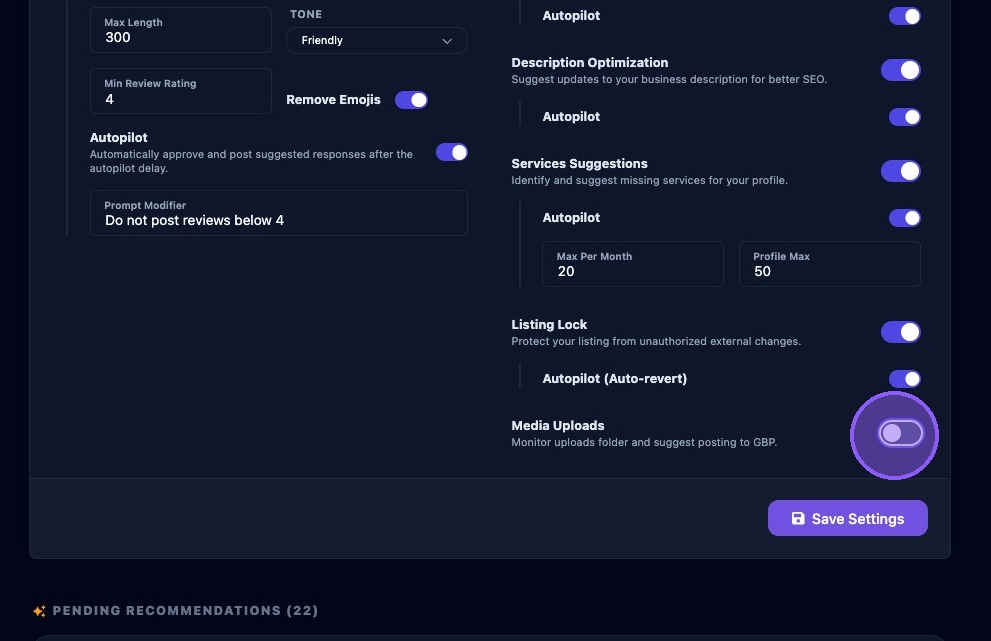
Next, enable "Autopilot" by clicking on this toggle.
How to Set Monthly Upload Target
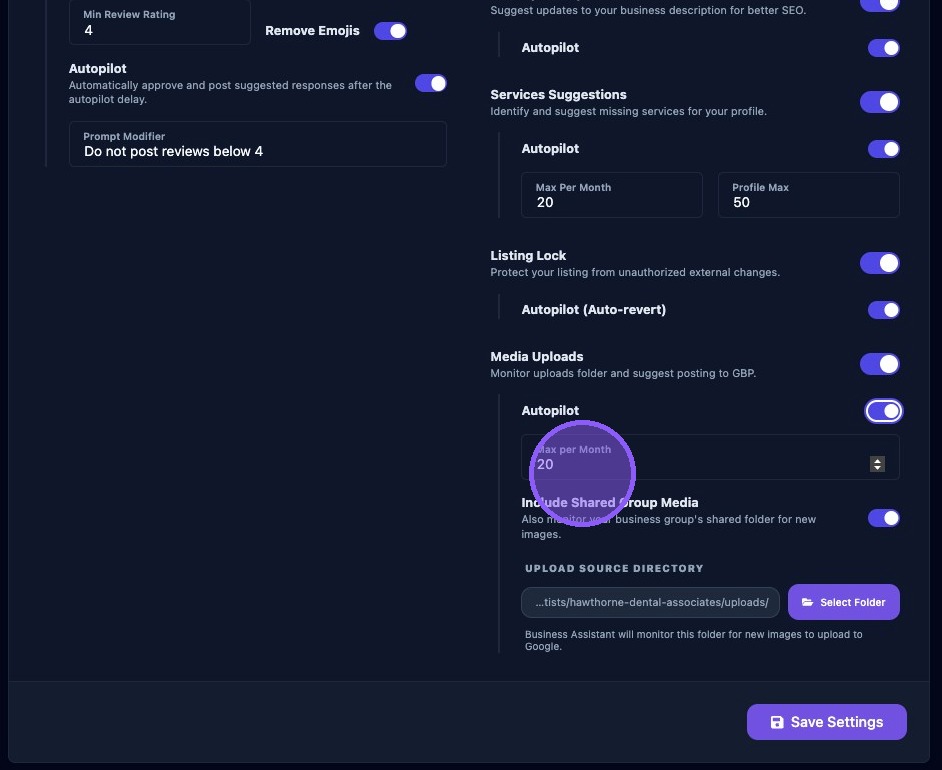
Then click in the "Max per Month" field and enter the maximum number of image uploads per month.
This setting controls how the targeted number of uploads is scheduled each month. It does not upload everything at once. Instead, the scheduler spaces them out evenly across the calendar.
For example:
- 4 uploads per month = roughly 1 per week.
- 8 uploads per month = roughly 2 per week.
- 30 uploads per month = roughly 7 per week (or 1 per day).
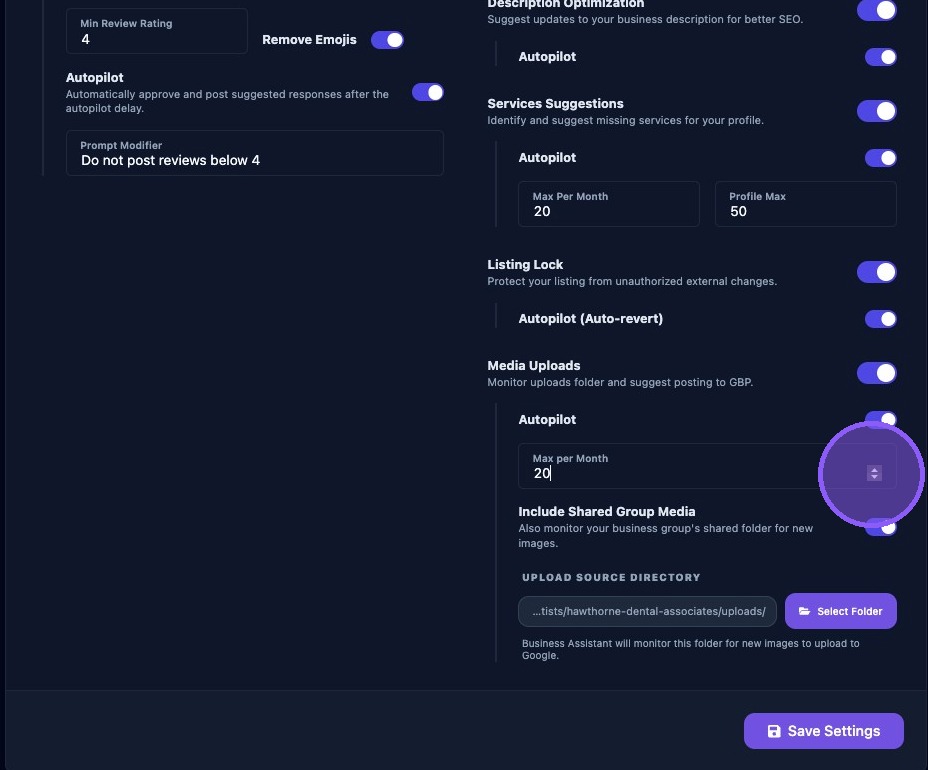
It is best practice to also enable "Include Shared Group Media" and use the client’s uploads. You should only enable AI images here if the business explicitly allows AI photos.
If Autopilot is enabled, image uploads execute automatically. If disabled, you must approve each task manually.
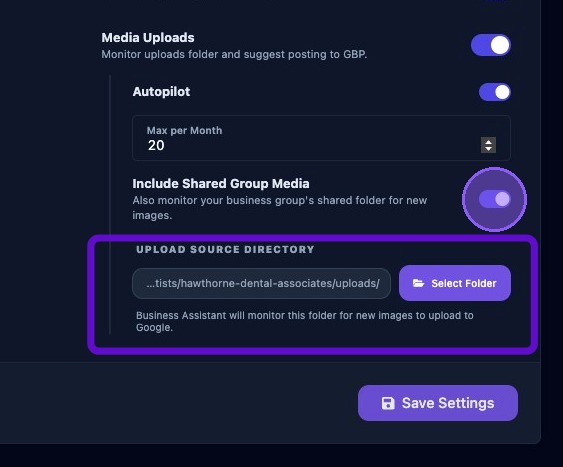
When you're done click the "Save Settings" button.