Business Assistant: Google Business Profile Service Suggestions
This guide shows how the Assistant generates strategic service-change suggestions from competitor lists, keywords, and site relevance, and teaches you to quickly validate, approve, or discard add/update/remove tasks to keep your Google Business Profile accurate and competitive. It also explains setting Autopilot so suggestions run appropriately without constant noise. Follow it to ensure suggested services are relevant, non-duplicate, and well-worded before they affect your listing.
How service suggestion tasks are generated:
The Aldus system first examines three data sources:
- Competitor Service Lists.
- Local keywords for demand signals.
- Website summaries for relevance.
Aldus Assistant then applies these rules:
- Do not suggest duplicates (case-insensitive match).
- Ignore structured "job type ID" placeholders.
- Do not exceed configured caps for the number of tasks created.
The Assistant then creates service suggestion tasks that either:
- Add a Service: Suggests a new service the business does not list.
- Remove a Service: Suggest removing low-value or duplicate services.
- Update a Service: Suggest improved descriptions for existing services.
How to Review Autopilot Service Suggestion Tasks
Navigate to the dashboard of a business.
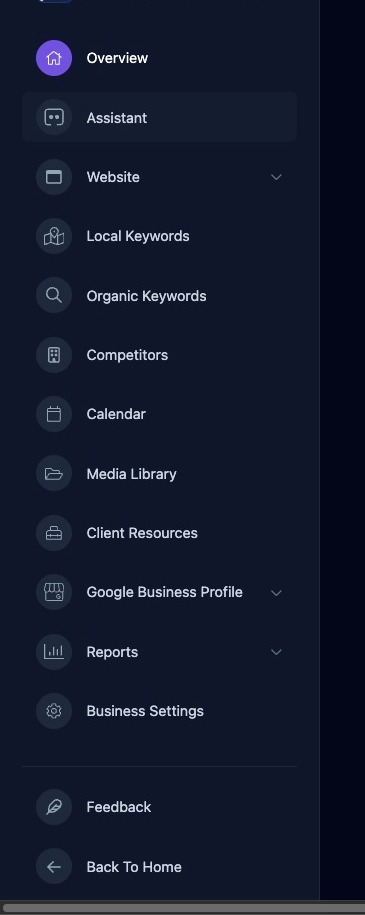
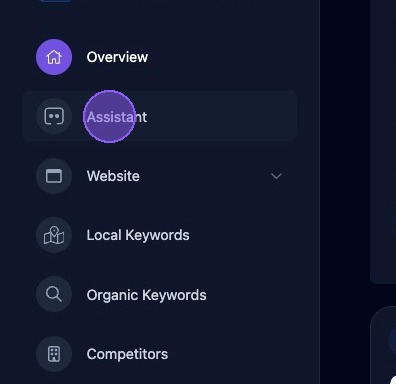
Click "Assistant".
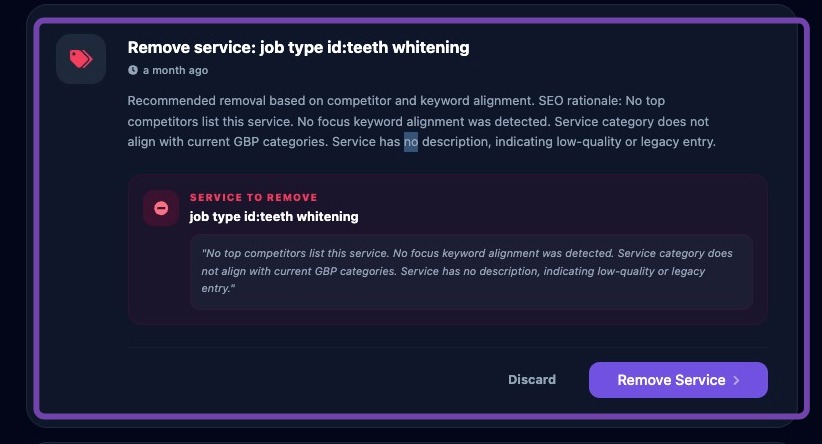
Scroll down your list of Business Assistant Autopilot tasks until you locate a task titled "“Add Service,” “Remove Service,” or “Update Service.”
Important: Service changes can affect the public Google Business Profile listing. Review each suggestion carefully before approving it.
Reviewing Service Suggestions
To review an Add Service Task Suggestion:
- Open the task.
- Confirm the service is truly offered by the business.
- Review the description for accuracy and tone.
- Approve the service addition suggestion by clicking "Add Service", or click "Discard" to delete the suggestion and not add the service.
To review an Update Service Task Suggestion:
- Open the task.
- Compare old vs new description.
- Approve the service update suggestion by clicking "Update Service", or click "Discard" to delete the suggestion and not update the service.
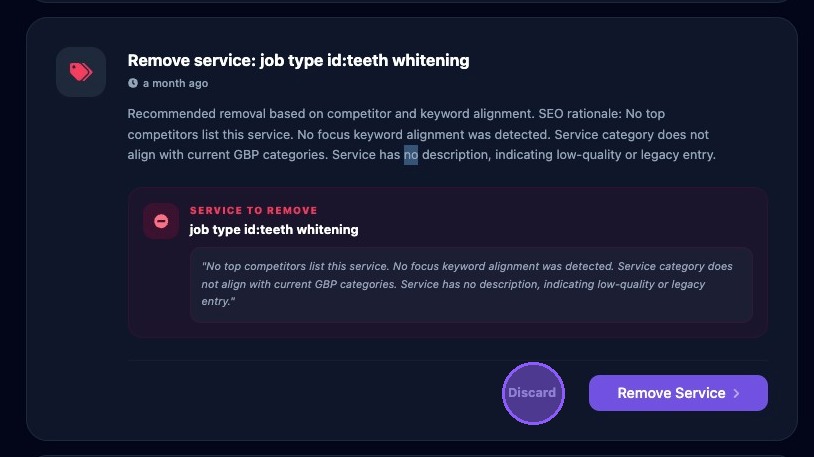
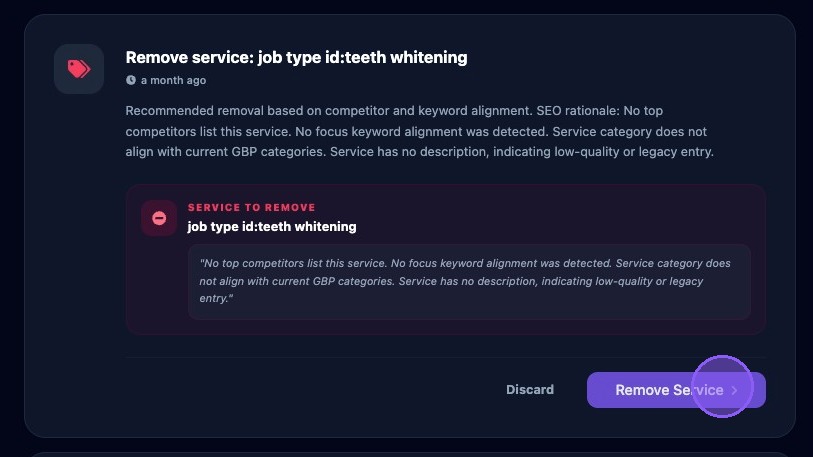
To review a Remove Service Task Suggestion:
- Open the task.
- Verify the service is irrelevant or duplicate.
- Approve the service removal suggestion by clicking "Remove Service" and the service will be removed from the Google Business Profile.
- If the service is not a duplicate and is relevant, click "Discard" to delete the suggestion and keep the service.
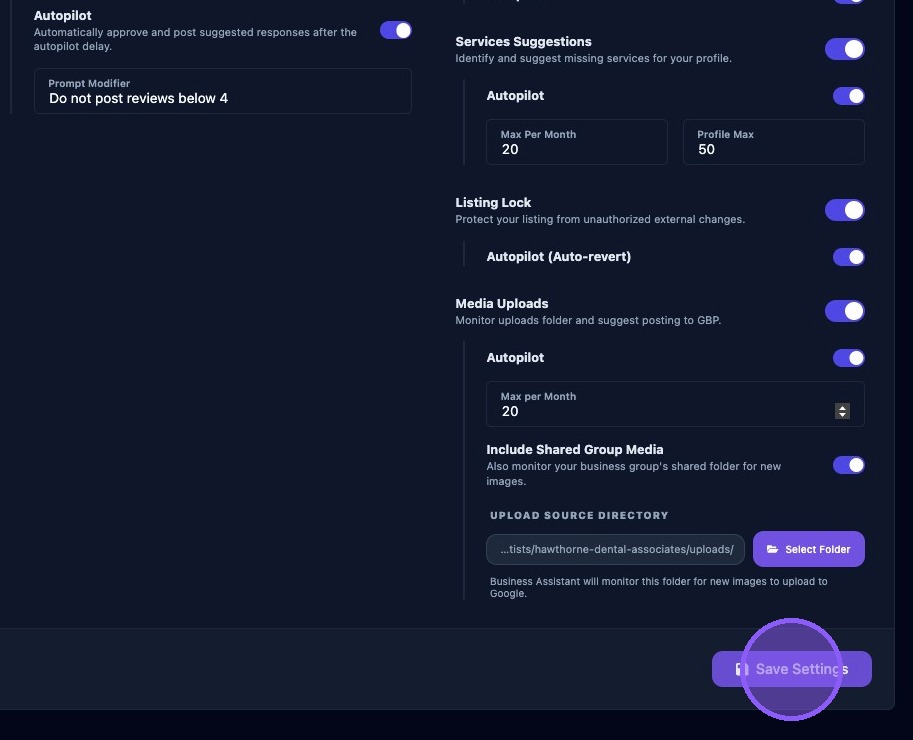
Autopilot and Settings for Service Suggestions
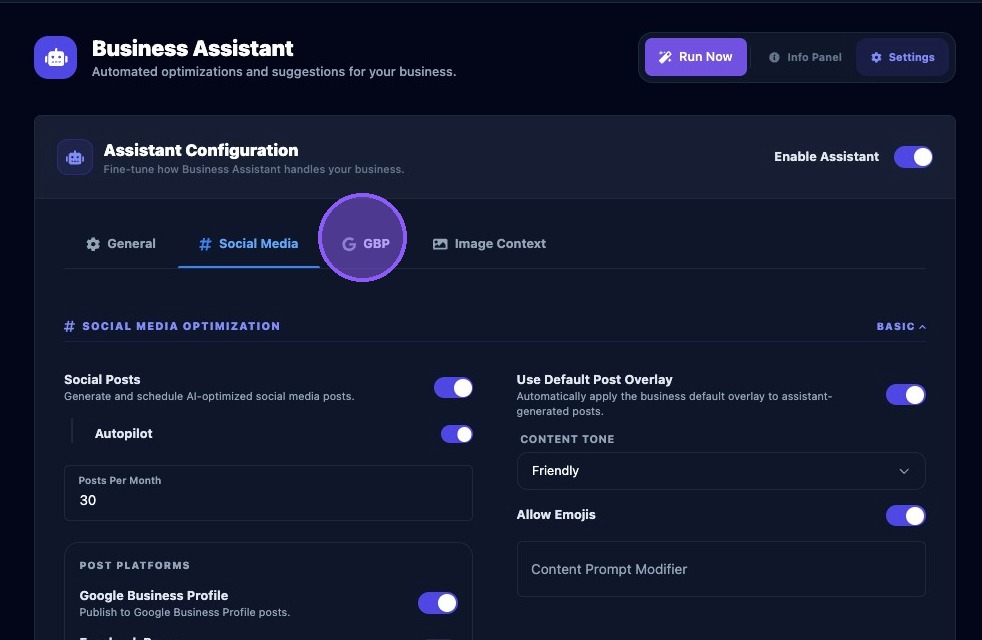
Click the settings button. at the top of the Business Assistant section.

Then click Google Business Profile to access Autopilot settings.
Click the "Service Suggestions" toggle button to enable.
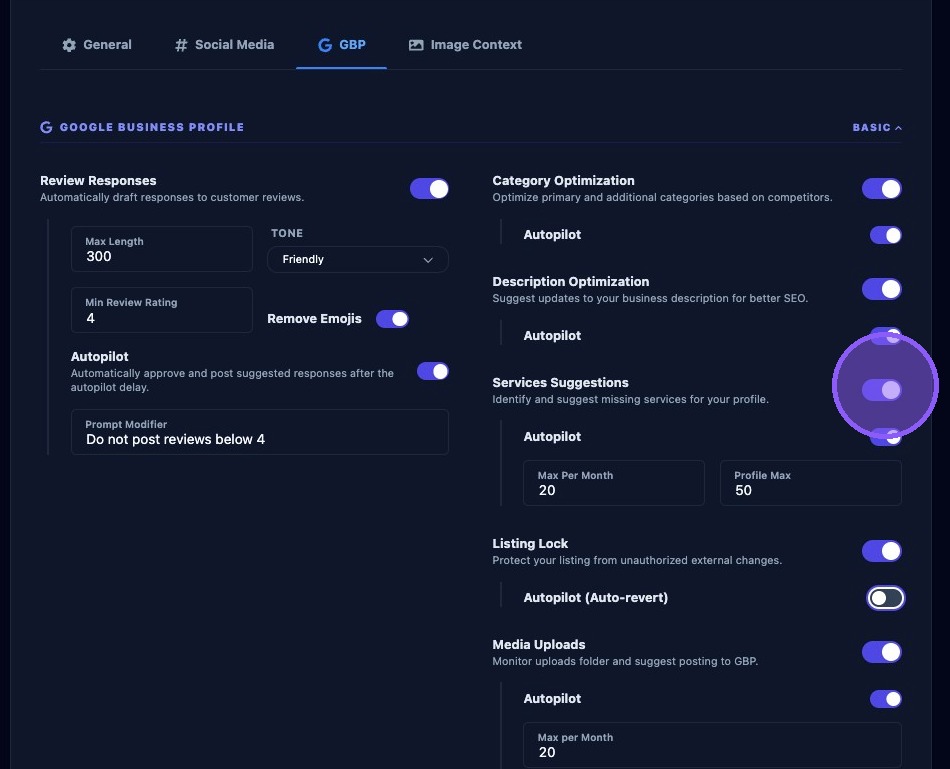
Then click "Autopilot" for Service Suggestions.
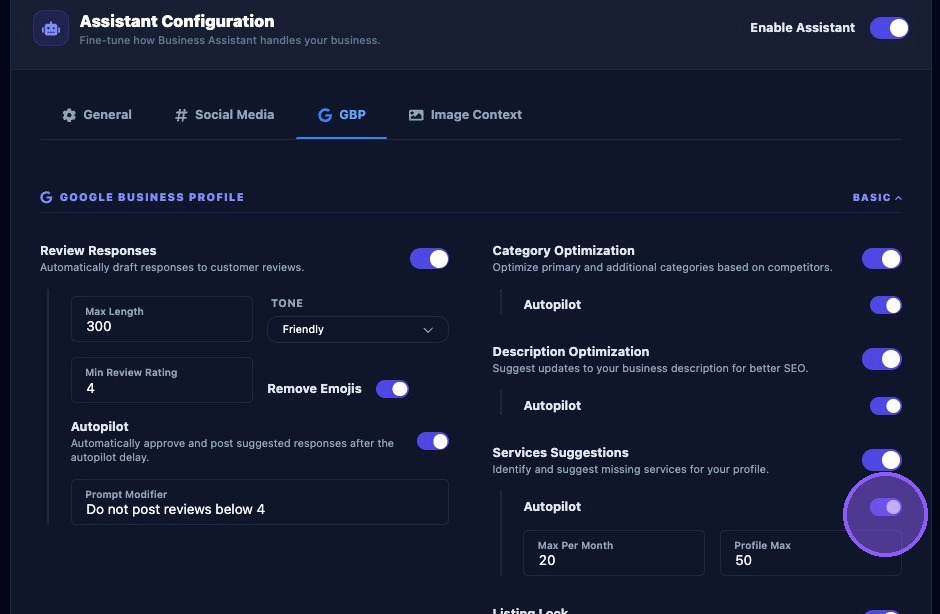
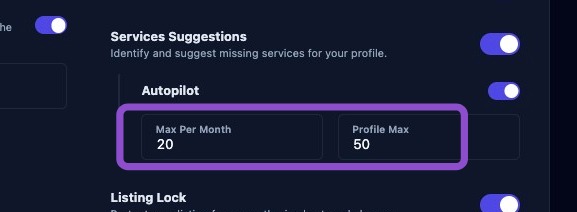
Set monthly caps by entering values in the "Max Per Month" field and "Profile Max" field.
When you're done click the "Save Settings" button.