Business Assistant: Google Business Profile description Updates
This guide shows how to safely review automated Google Business Profile description suggestions so you can decide whether to edit, approve, or discard them. It explains when suggestions are generated, where to find pending Autopilot tasks in the Assistant, and how to compare before-and-after text to ensure the tone matches your brand. Follow it to avoid unintended public changes and use suggestions only when they truly improve your listing.
These tasks are strategic changes and should be rare and only created when data indicates improvement potential.
The system generates a Google Business Profile description suggestion when:
- Competitor analysis suggests a stronger description would help rankings.
- The business is not already a top performer.
- The monthly cooldown window has elapsed.
Accessing Google Business Profile description Update Tasks
Navigate to the dashboard of a business.
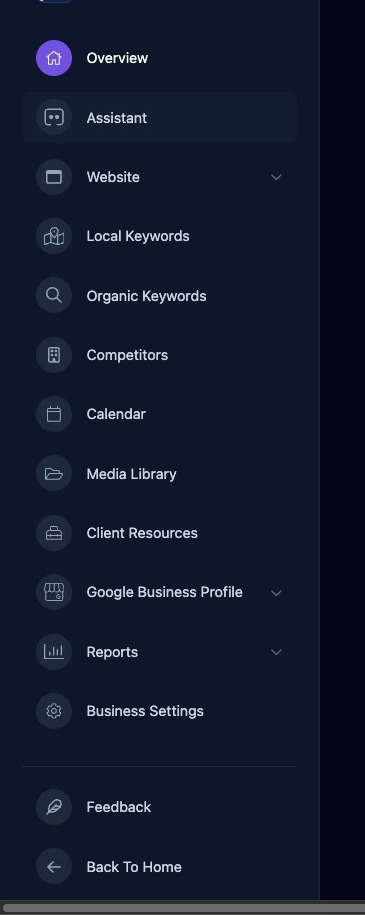
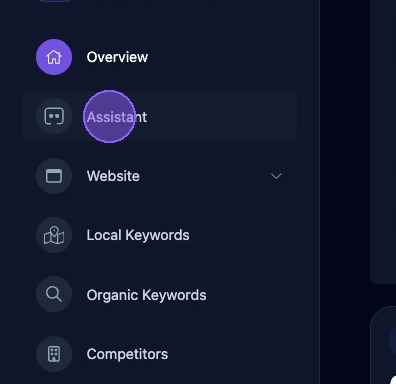
Click "Assistant".
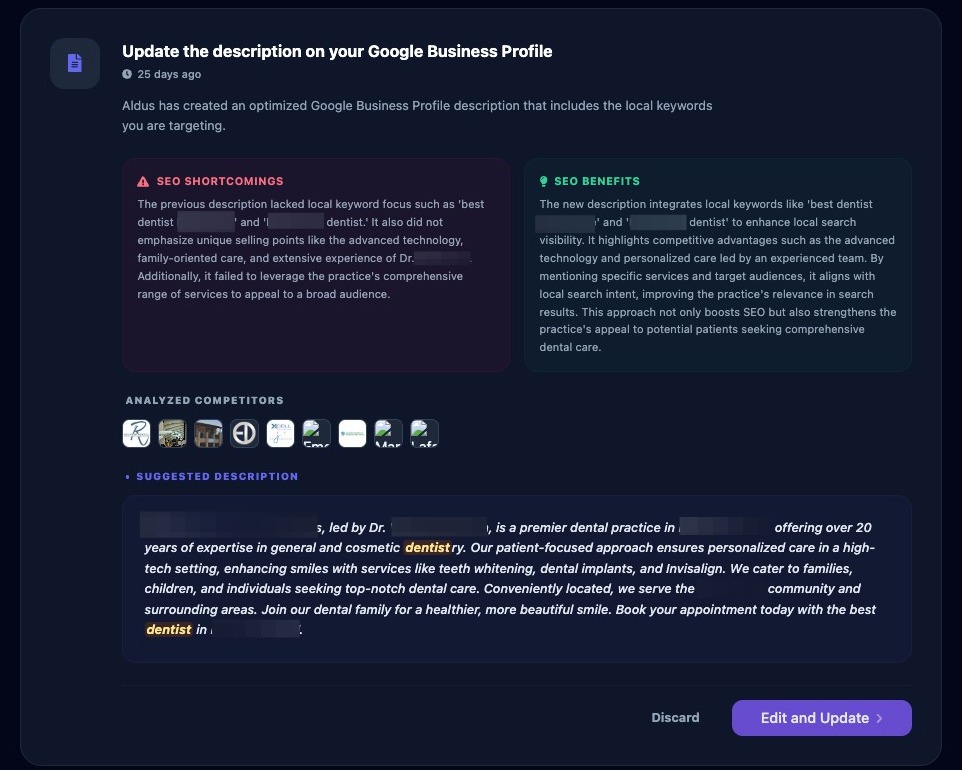
Scroll down the list of Autopilot tasks until you find a task titled "Update the description on your Google Business Profile".
Managing a Google Business Profile description Task
Open the task by clicking "Edit and Update" to review, edit, and approve the suggestion.
You can also "Discard" the Google Business Profile description suggestion if the suggestion does not align with the brand. A discarded suggestion should not return until the cooldown period passes.
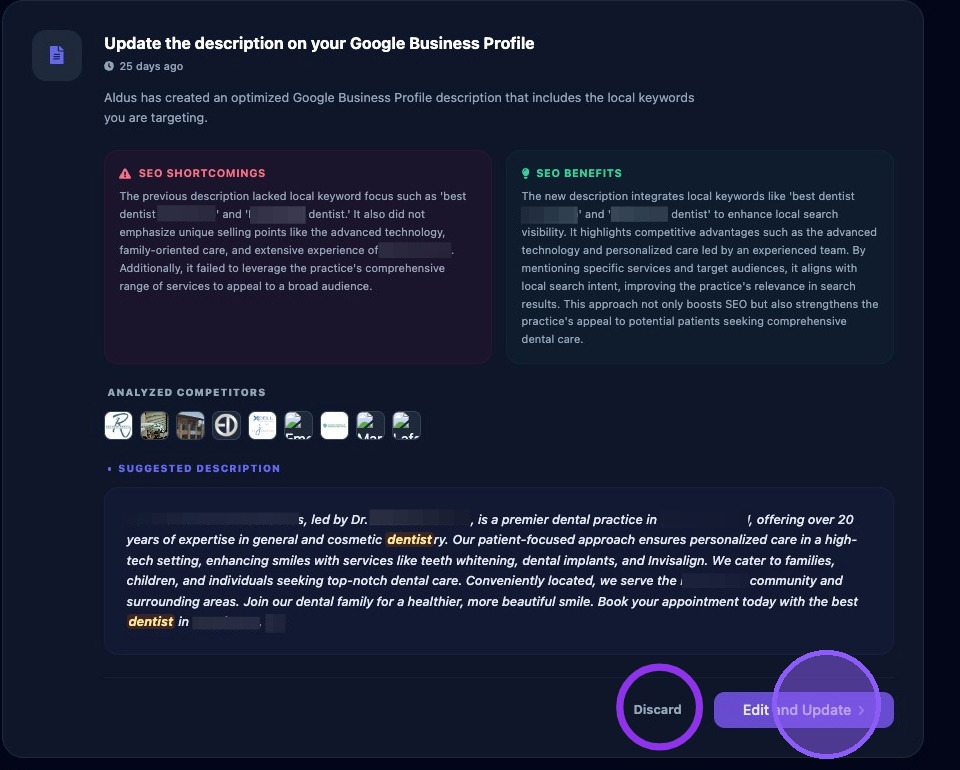
Approving changes updates the Google Business Profile description immediately. You should only approve the description update if you are comfortable changing the public listing of the business.
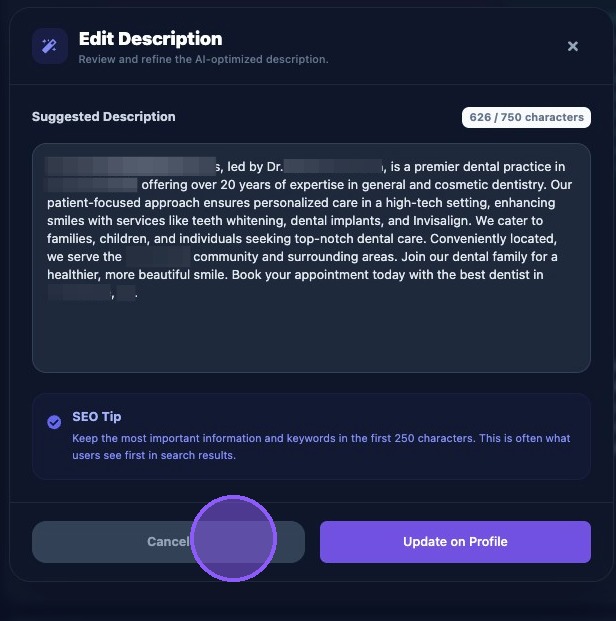
Review the suggested description carefully. Confirm that the new text matches the brand voice.
Approve changes to the Google Business Profile description by clicking "Update on Profile".
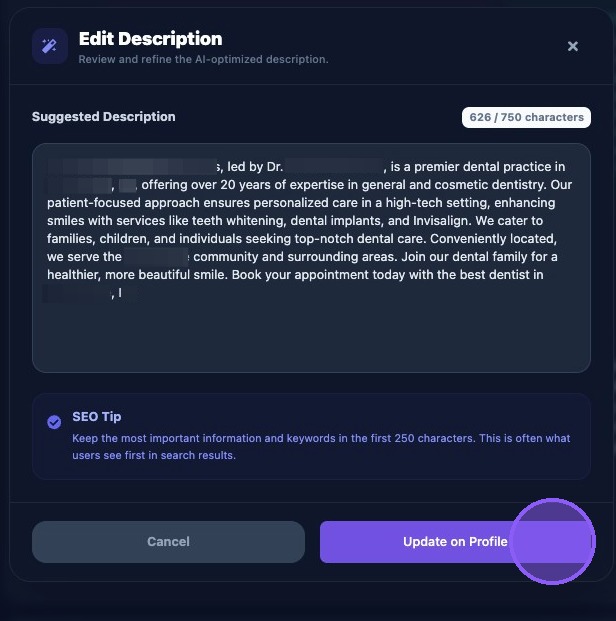
Click "Cancel" if you want to return to the Business Assistant without updating the Google Business Profile description or discarding the Autopilot task in the task list.