Business Assistant: Google Business Profile Category Suggestions
This guide shows how to safely review monthly automated suggestions to update your Google Business Profile categories so you can improve visibility without making careless or off-brand changes. It explains where to find the Autopilot task, how suggestions are generated (competitor/visibility analysis), steps to vet primary and secondary categories, and how to accept or discard recommendations knowing changes are public and the task will not reappear until the cooldown.
The Aldus system generates suggestions by comparing competitor categories and market visibility to determine whether the current categories are underperforming. These are strategic changes and should be reviewed carefully.
Rules used by the system:
- Do not suggest a primary category change if visibility is strong.
- Prefer the category most commonly used by top competitors.
- New suggestions should not appear constantly and should be limited to once per month.
Accessing Google Business Profile Category Suggestions
To access the Google Business Profile category suggestions, navigate to the dashboard of a business.
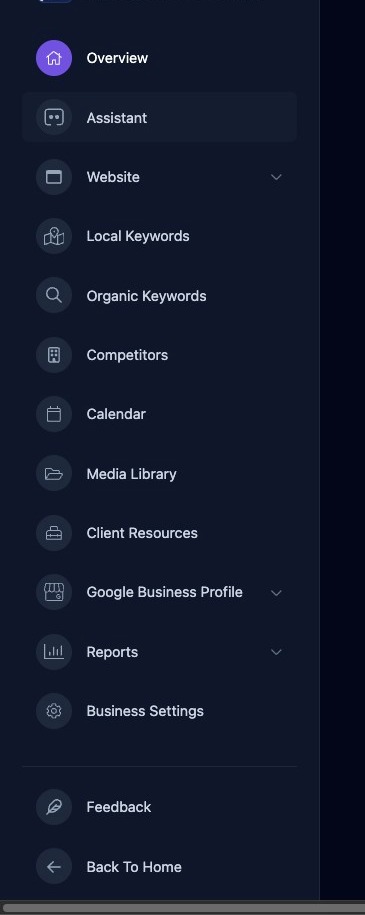
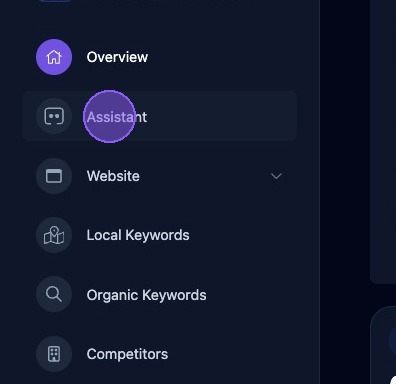
Next, click "Assistant".
Scroll down your list of Business Assistant Autopilot tasks until you find a task titled "Optimize your Google Business Profile Categories".
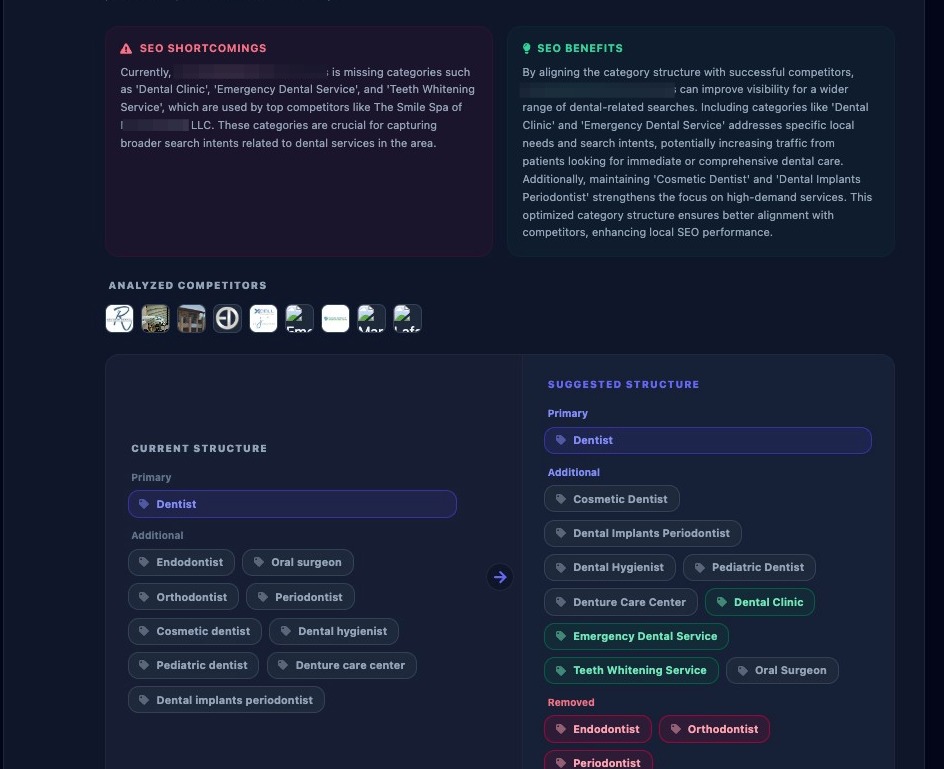
Category Suggestion Review
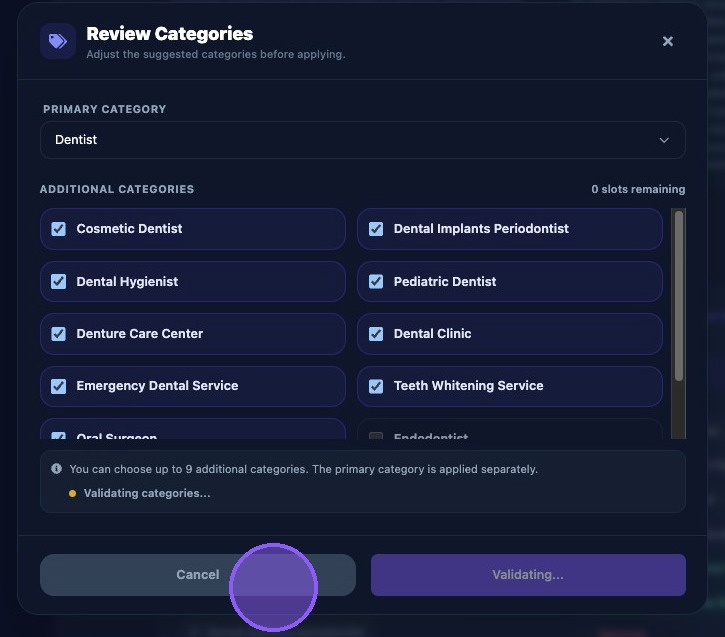
Open the task, then choose either "Review & Update" or "Discard" the Google Business Profile Category Suggestions. Clicking "review & Update" will open a pop-up window to perform the review.
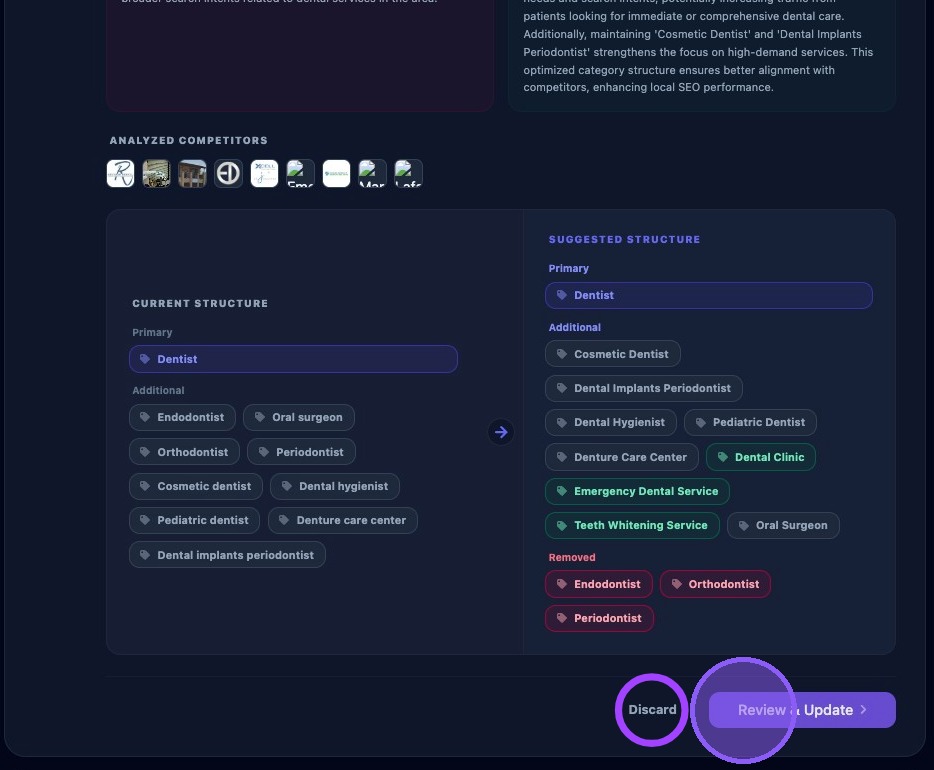
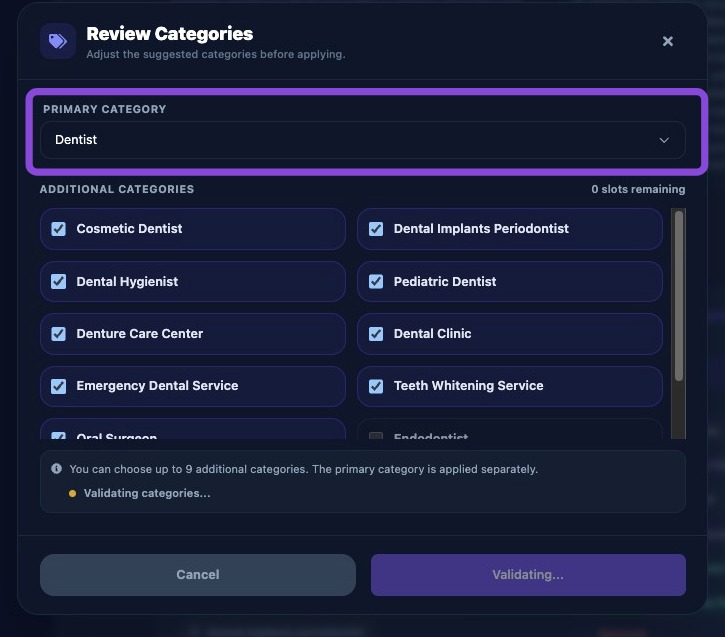
Within the category review window, first confirm the proposed primary category matches the business.
Note that the primary category suggestions for top performers should be blocked.
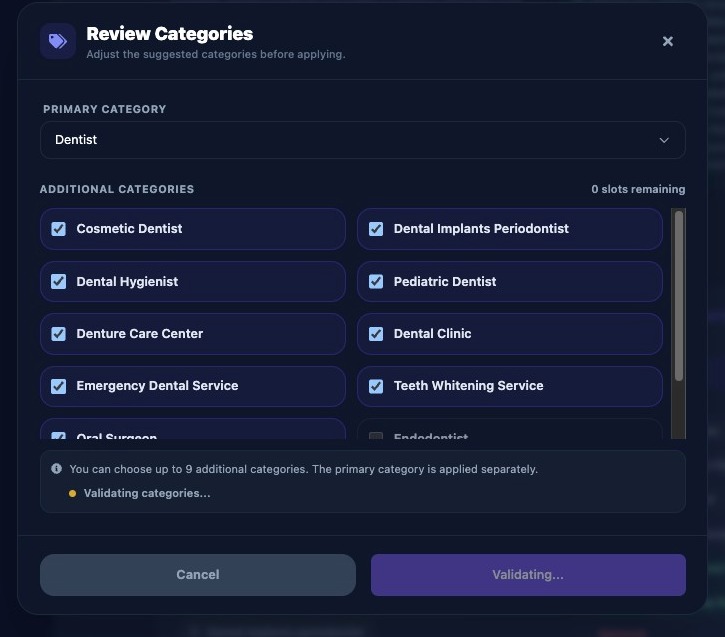
Next, review the suggested competitor category breakdown carefully, and select each one you would like to use by checking the box next to it (up to nine).
Discard any suggestions that are off-brand or irrelevant. The task should not regenerate until cooldown passes.
Unrelated category suggestions may mean that competitor data is incorrect or incomplete.
Approving changes updates the Google Business Profile category list.
This action results in a public listing change.
Approve changes to the Google Business Profile category list by clicking "Update Categories".
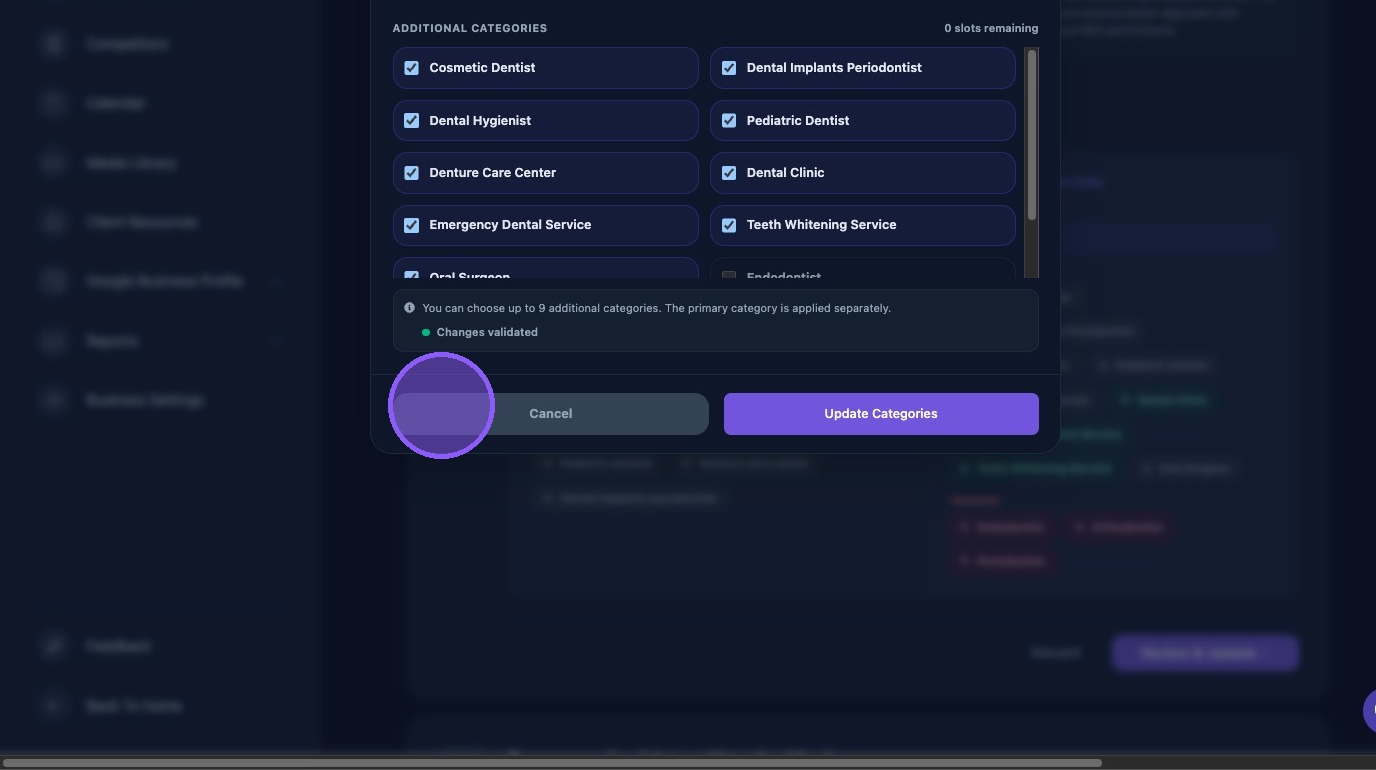
Cancel the Review
Click "Cancel" or "X” if you want to return to the Assistant without updating categories or discarding the suggestion task from the task list.