Business Assistant: Business Assistant Autopilot Settings
This guide explains how to safely enable and configure Autopilot in the Business Assistant so routine, low-risk tasks (like social posts and Google Business Profile image uploads) run automatically while sensitive actions remain manual. It shows setup steps, common failure points, and best practices (start with social posts, monitor the first week, keep calendar checks). Follow it to avoid unwanted changes and ensure automation behaves as expected.
The recommended Autopilot task types are:
- Social Posts
- Google Business Profile tasks
- Image Uploads
The task types that should stay manual are:
- Listing Lock
- Google Business Profile Categories
- Google Business Profile Services
- Google Business Profile Description updates
How Aldus autopilot works:
- The Assistant creates a task.
- If autopilot is enabled for that task type, the system schedules it immediately.
- The autocomplete runner then claims the task when it is due.
- Then the task executes and the task status is updated to Approved.
If a task fails, it is marked failed in metadata and will not be retried unless explicitly reset.
Common Autopilot pitfalls you may encounter are:
- Autopilot does not run if the autocomplete worker is not enabled.
- Autopilot does not reattempt failed tasks automatically.
- Autopilot tasks still respect schedule windows.
Best practices:
- Start with Social Posts only.
- Monitor the first week of executions before enabling other types.
- Keep calendar checks on to avoid over-posting.
Accessing Autopilot Settings
Navigate to the Dashboard of a Business.
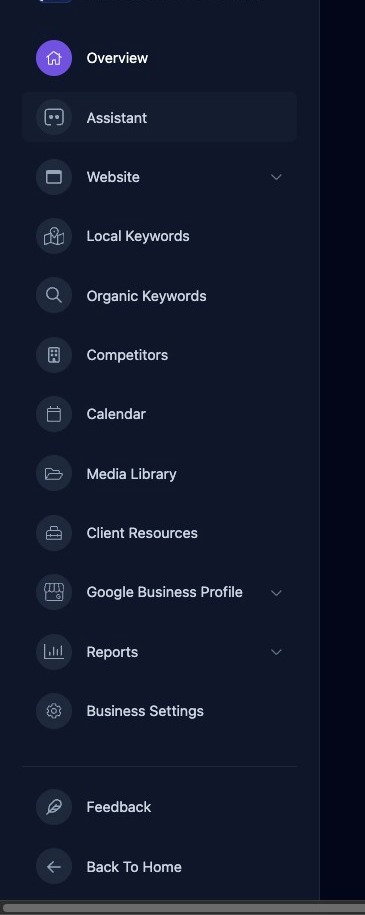
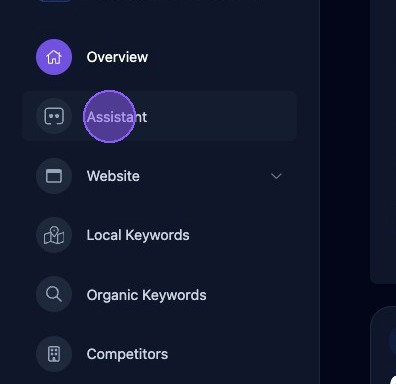
Click “Assistant”.
Assistant Info Panel
Click the “Info Panel” button to display or hide additional Assistant information and the date and time of the last analysis and current Assistant mode.
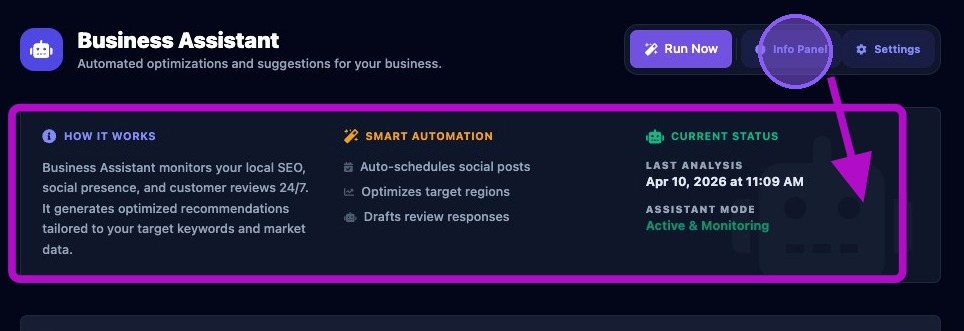
Click the “Settings” button to display the "Assistant Configuration" section containing four additional setting tabs.
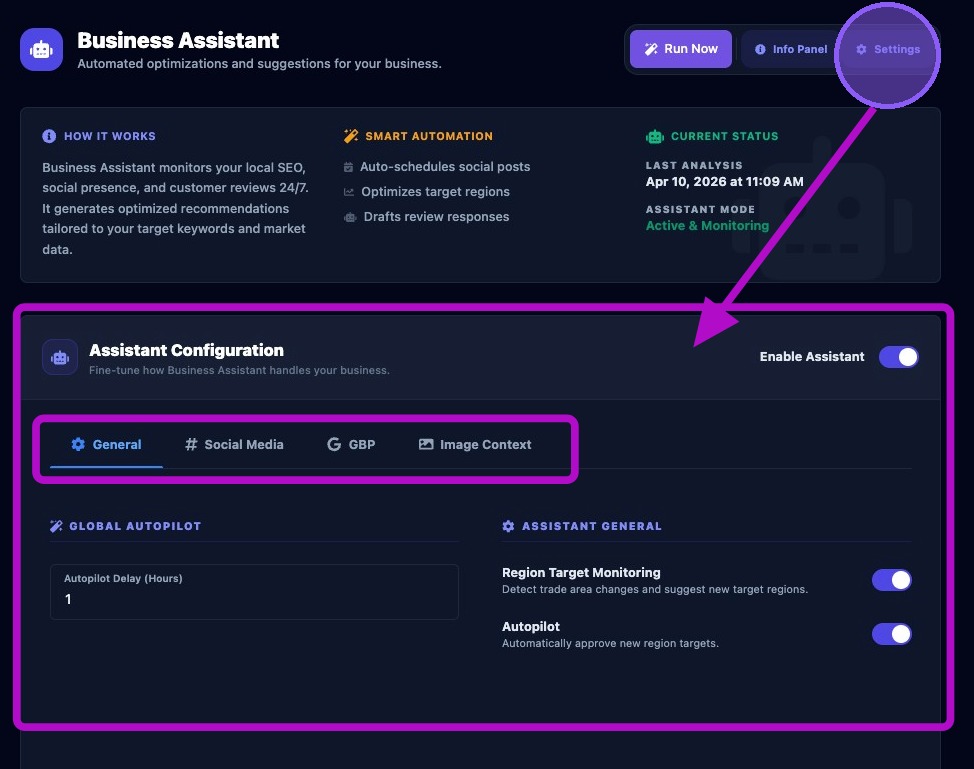
The “Enable Assistant” toggle at the top controls the entire Assistant for this business. Make sure it is turned on in order to enable and access Autopilot settings for the selected business.
When the Assistant is enabled, task generation resumes based on the next scheduled run.
When the Assistant is disabled, no new tasks are generated and existing tasks remain visible. Also, Autopilot will not run, even if Autopilot is enabled.
When to use this function:
- When you want to pause all automation for a specific business.
- When a business is being audited.
- When a business is being reconfigured.
- Or any time you do not want to generate new tasks.
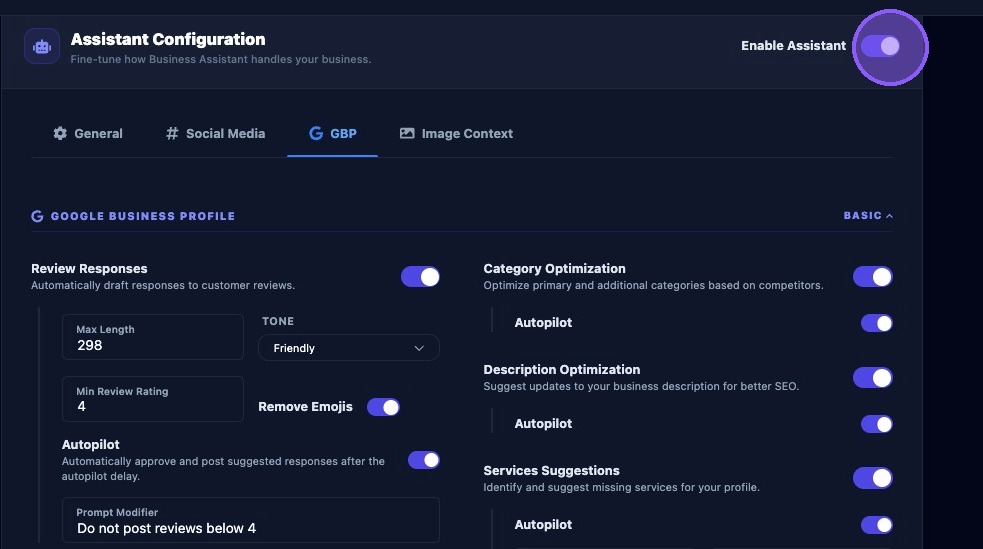
Get into the habit of saving after every section.
Most changes on this page are not applied until you click Save. If you navigate away without saving, changes are lost.
After adjusting settings:
- Click Save.
- The next Assistant run will use the new settings.
- Existing tasks remain unchanged.
Autopilot for Social Media Posts
Click the “Social Media” tab under Assistant Configuration.
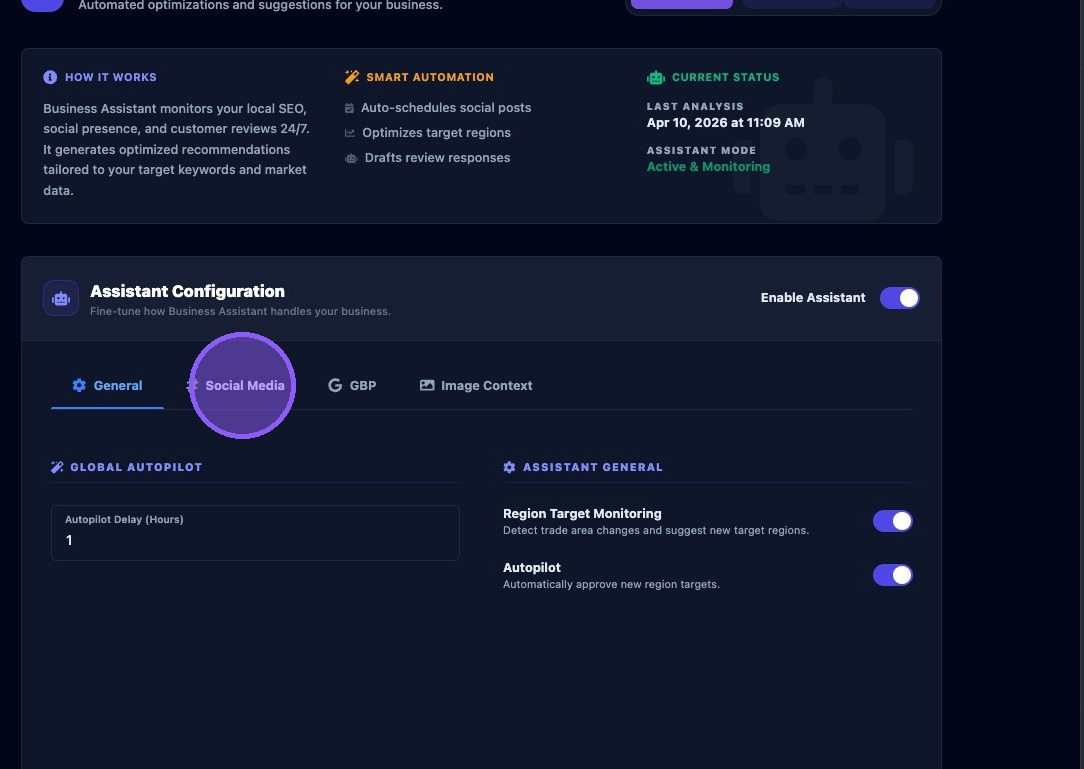
Click “Autopilot” to toggle Autopilot for social media posts on or off.
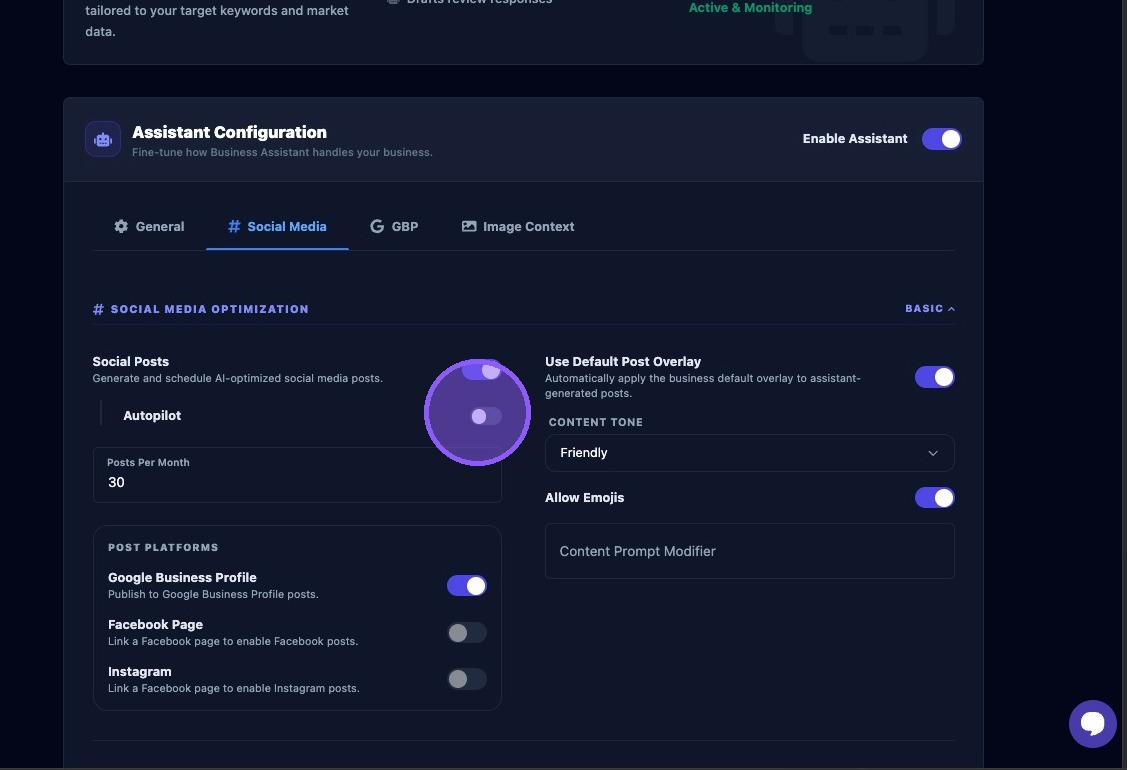
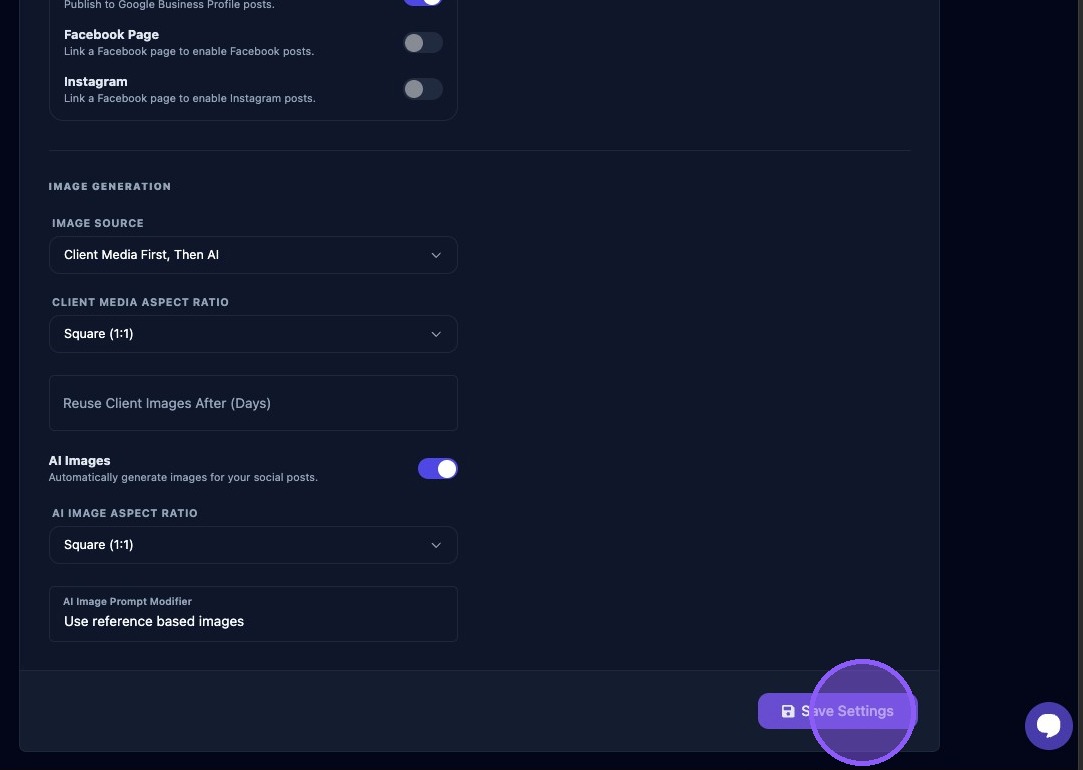
Scroll down to the bottom of the settings section and click "Save Settings”.
Autopilot for Google Business Profile Tasks
Click the "Google Business Profile" tab under Assistant Configuration.
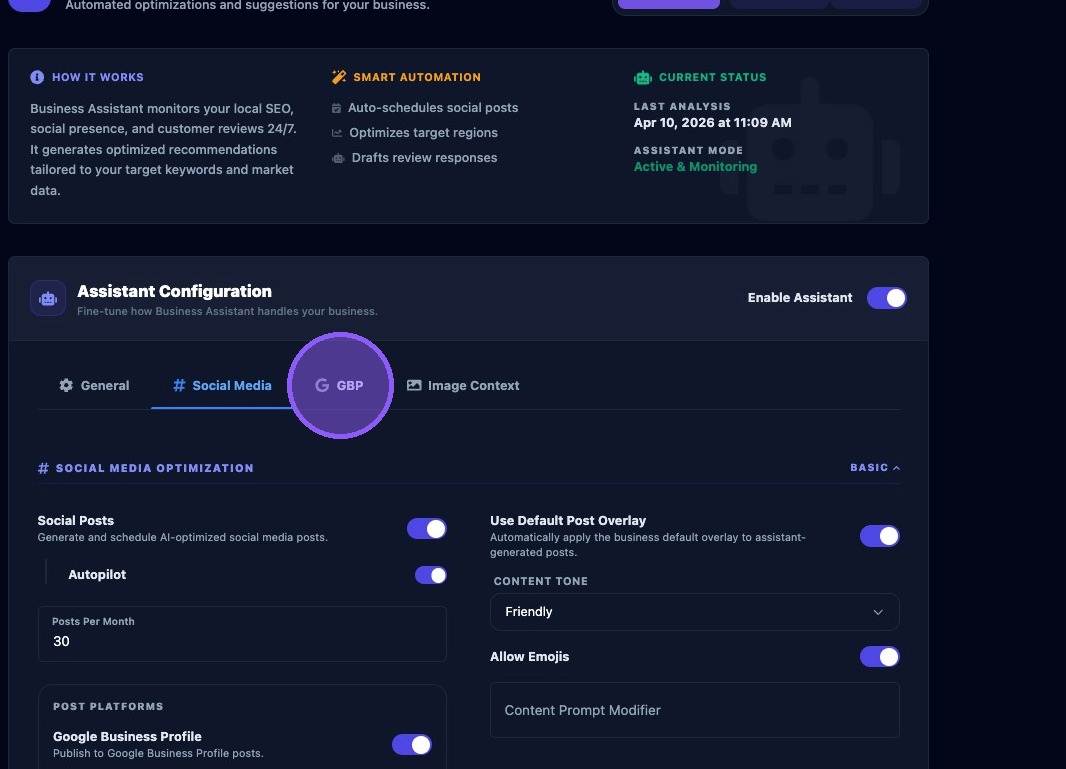
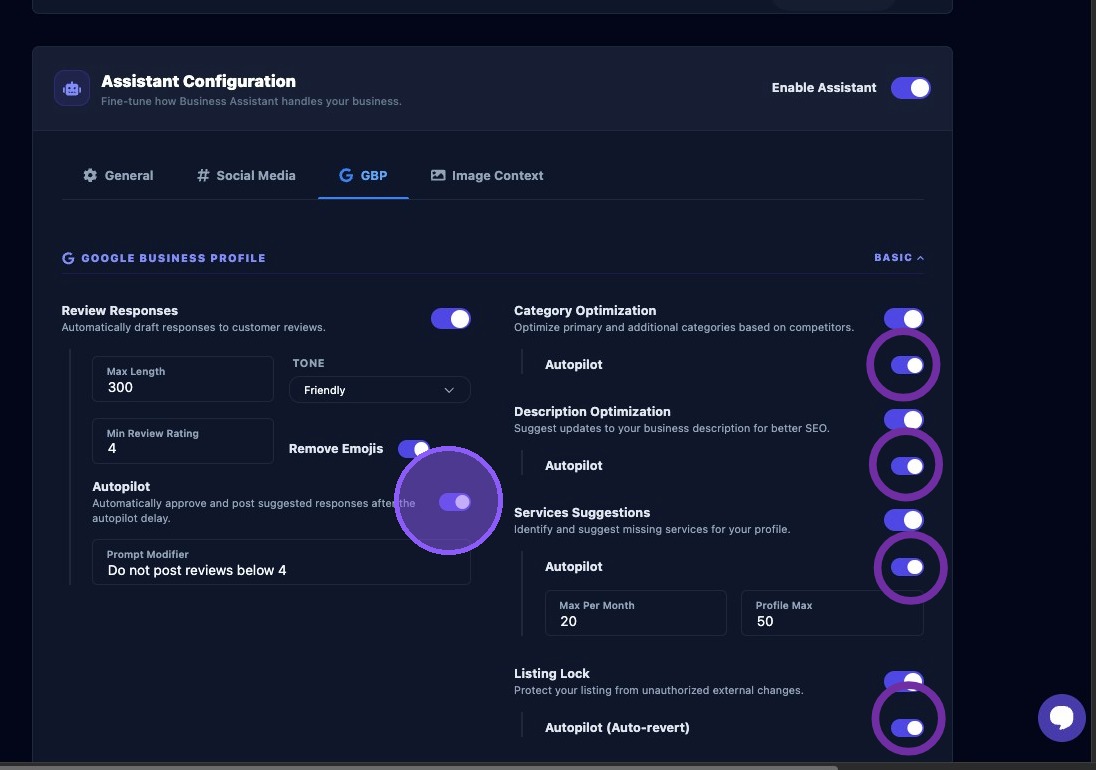
Use these toggles to enable or disable Autopilot on various Google Business Profile tasks:
- Review Responses: (Automatically approve and post suggested responses to customer reviews after the autopilot delay).
- Category Optimization (Optimize primary and additional categories based on competitors).
- Description Optimization (Suggest updates to your business description for better SEO).
- Services Suggestions (Identify and suggest missing services for your profile).
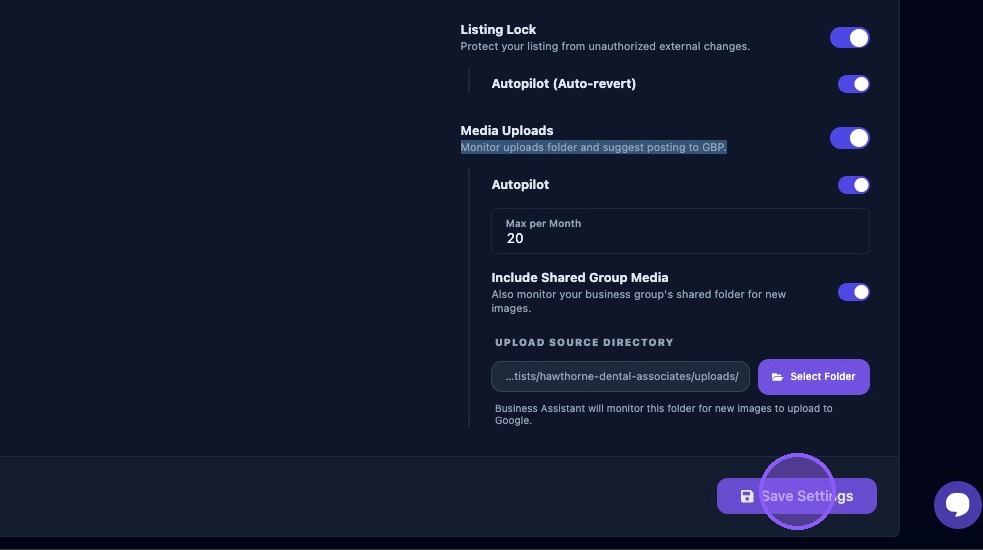
- Listing Lock (Protect your listing from unauthorized external changes with auto-revert).
- Media Uploads (Monitor uploads folder and suggest posting to Google Business Profile).
Scroll down to the bottom and click "Save Settings”