Businesses: Business List & Filters
The Business List is the primary directory of all locations in your organization. It is where you search, filter, and prioritize locations before diving into detailed work. For agencies managing many businesses, this page is where daily triage happens. This guide provides steps for navigating your Business List in Aldus Local.
Accessing and Using the Business List
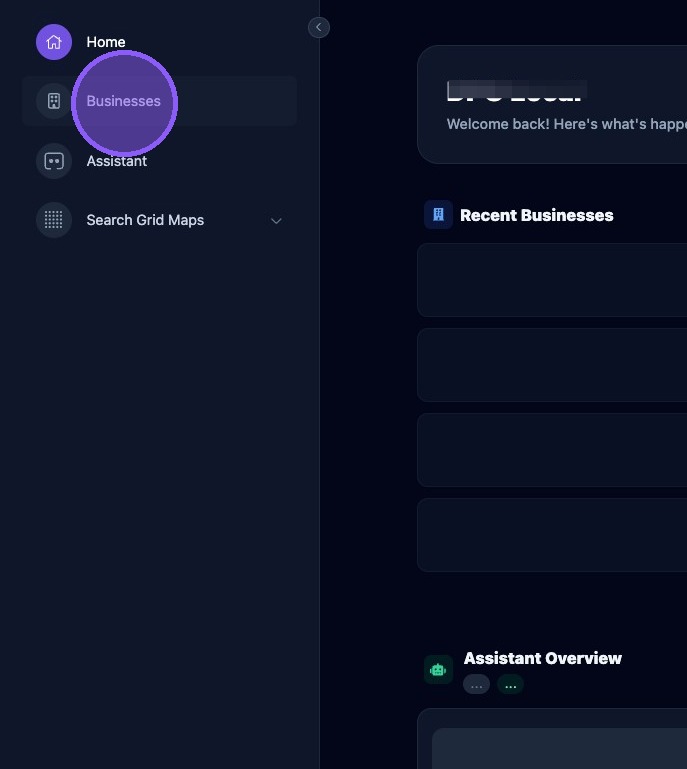
From the "Home" screen, click businesses.
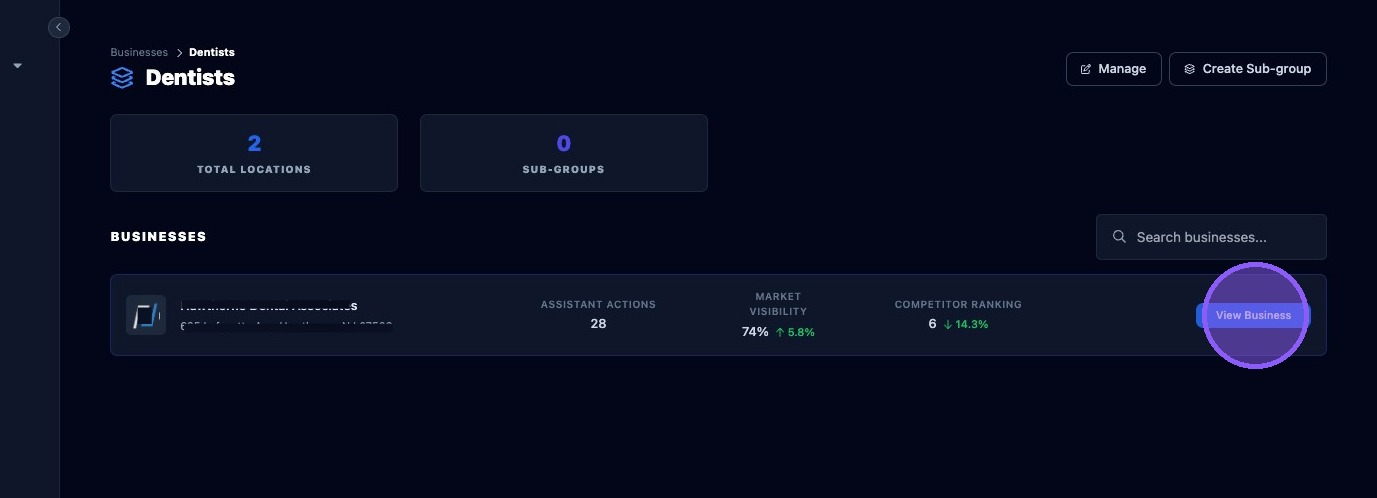
Click “View Business” to view individual locations.
Each business appears as a row or card with the most important summary data. Typical items shown include:
- Business name and address
- Status, such as Enabled, Initializing, or Disabled
- Market visibility percentage
- Competitor rank
- Last updated information
The list is designed so you can decide quickly where to focus. For example, low visibility or high competitor rank (meaning worse performance) often indicates the business needs attention.
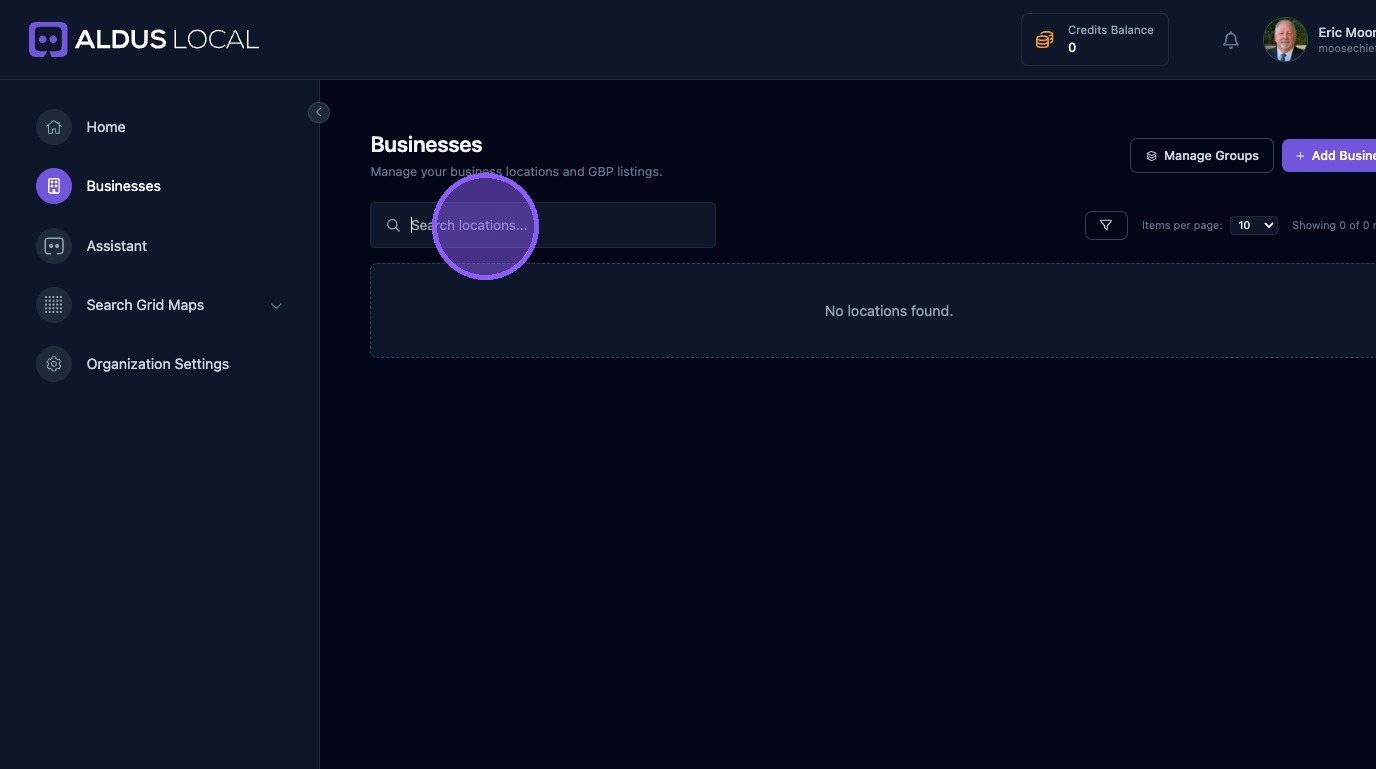
Click in the "Search locations..." field to filter the business list in real time. You can search by:
- Business Name
- Address (street, city, state)
- Phone number
Search is case-insensitive. You can enter partial values. Example: typing “Panorama” will find any business in Panorama City.
If your list is large, always search first before scrolling.
The Status filter controls which businesses appear based on their lifecycle state.
- The Enabled filter shows businesses that are fully active. Scheduling, assistant runs, and data refreshes operate normally. Use this filter when you want to review only active clients.
- Initializing businesses are still onboarding. Some features may be missing or incomplete until setup finishes. Use this filter to identify businesses stuck in setup or to track onboarding progress.
- Disabled businesses are paused. Tasks will not generate and data refreshes may be stopped. Use this filter when auditing archived or paused clients.
Sorting controls the order of businesses in the list. Common sorts include:
- Market visibility sorts by visibility to surface the best or worst performing locations. High visibility means the business appears in top positions for many tracked keywords.
- Competitor rank sorts by rank to highlight locations performing poorly. Lower numbers mean better rankings. If you see rank improvements showing red arrows, that is incorrect and should be reported.
- Updated date sorting helps you to see the most recently refreshed businesses.
Sort preferences are saved in your browser. If you switch computers or clear cache, the sort may reset.
Interpreting performance metrics:
- Market visibility is typically a percentage from 0 to 100. It represents how often the business appears in the top results across tracked keywords.
- 80%+ usually indicates strong performance.
- 40%–60% indicates moderate performance.
- Below 30% indicates significant opportunity.
- Competitor rank is an average position. Lower is better.
- Rank 1–3 = strong.
- Rank 4–10 = moderate.
- Rank 11+ = weak.
- A decrease in competitor rank (e.g., from 10 to 7) is a positive trend.
Some versions include quick action buttons on each business row. These can include:
- Open business
- Run setup
- View assistant tasks
- Open reports
If quick actions are not visible, click the business name to open the dashboard.
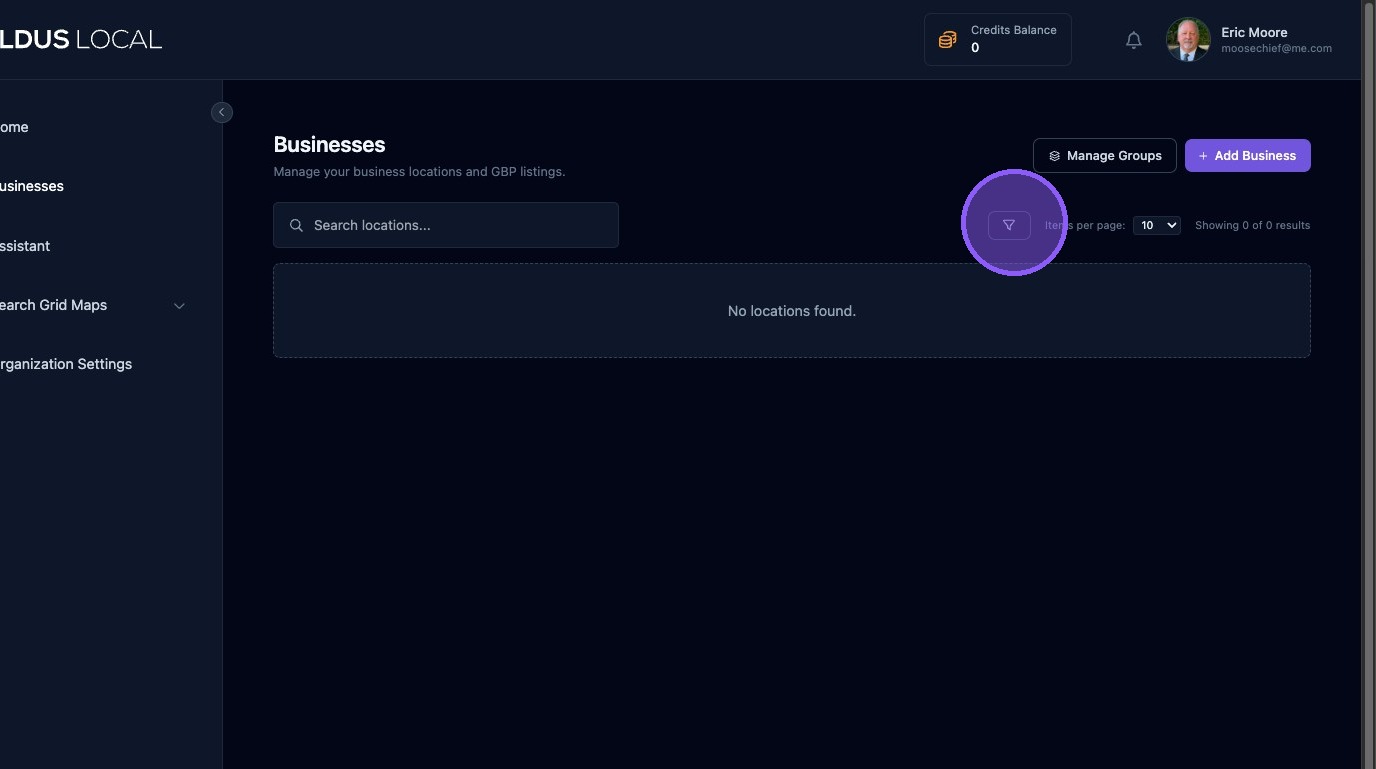
Click the list options icon.
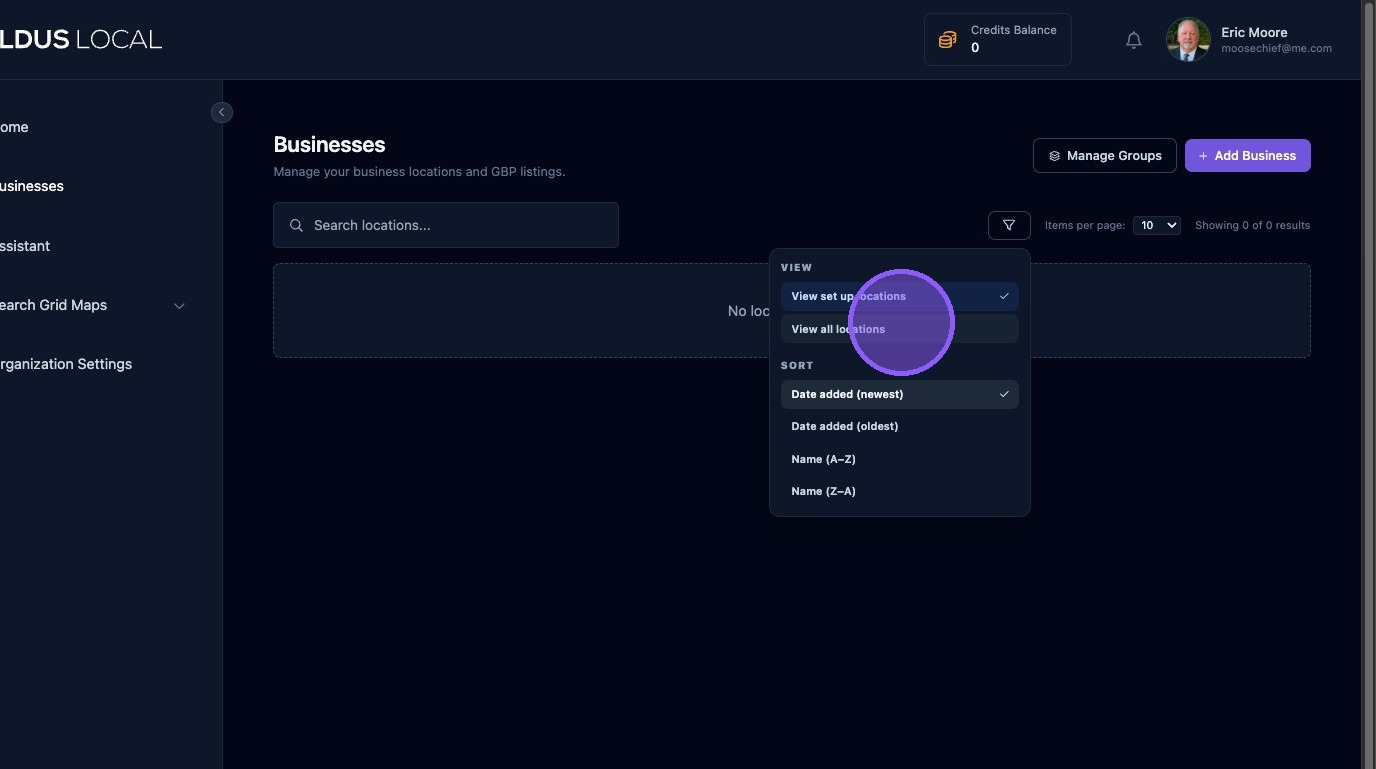
Click “View all locations.”
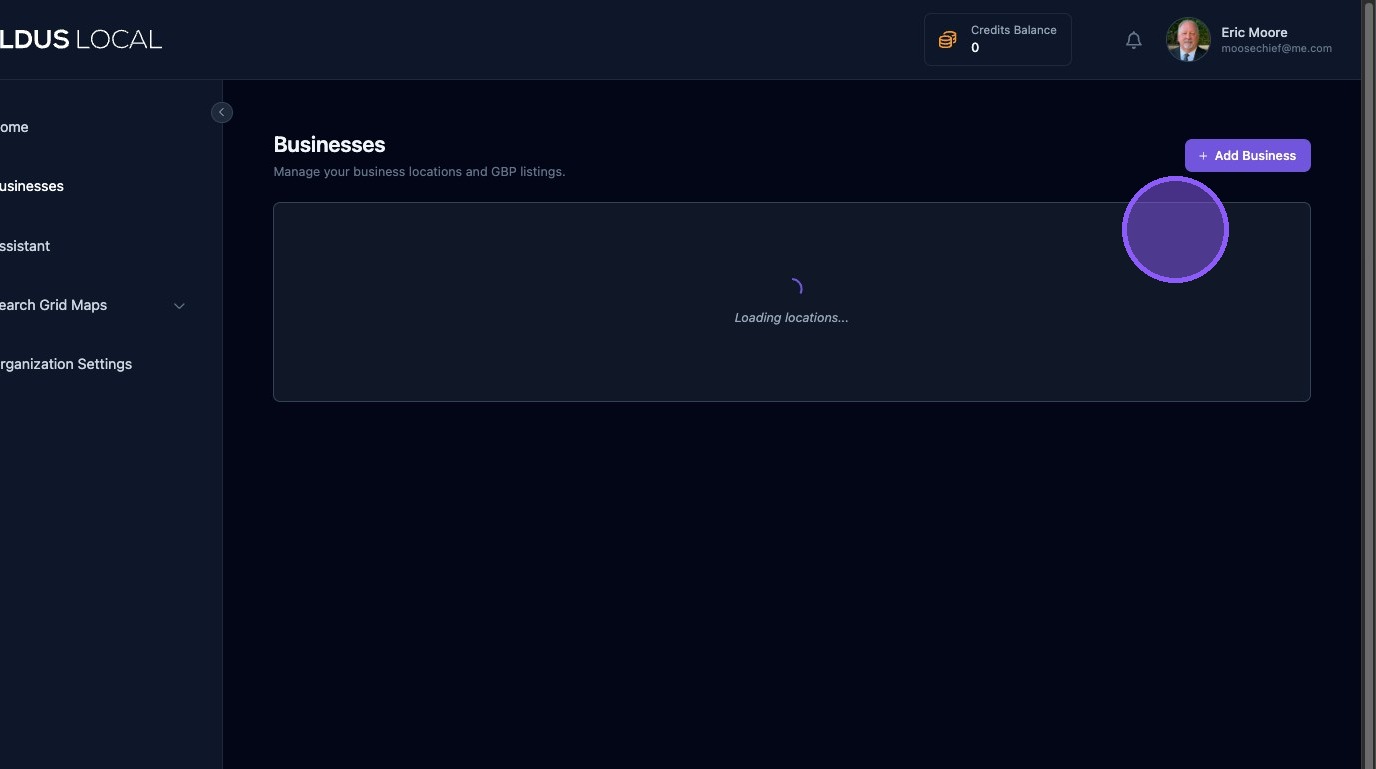
Select the “100” option to show more locations per page.
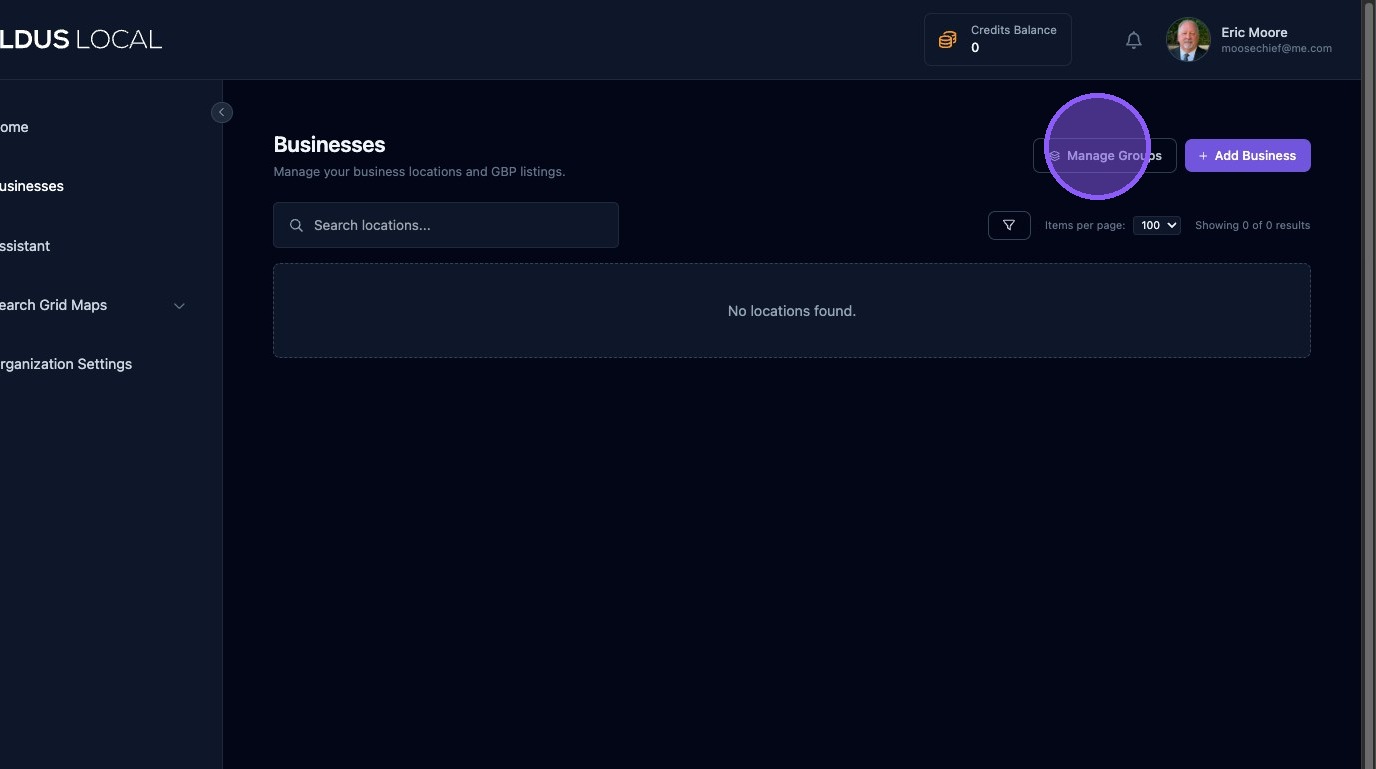
If your organization uses Business Groups, you can group locations by brand, region, or client portfolio. Groups appear as a filter on the business list and help reduce clutter when managing dozens or hundreds of locations. Click the "Manage Groups" button to get started.
Click "Click “New Group” to create and manage groups for multiple business locations."
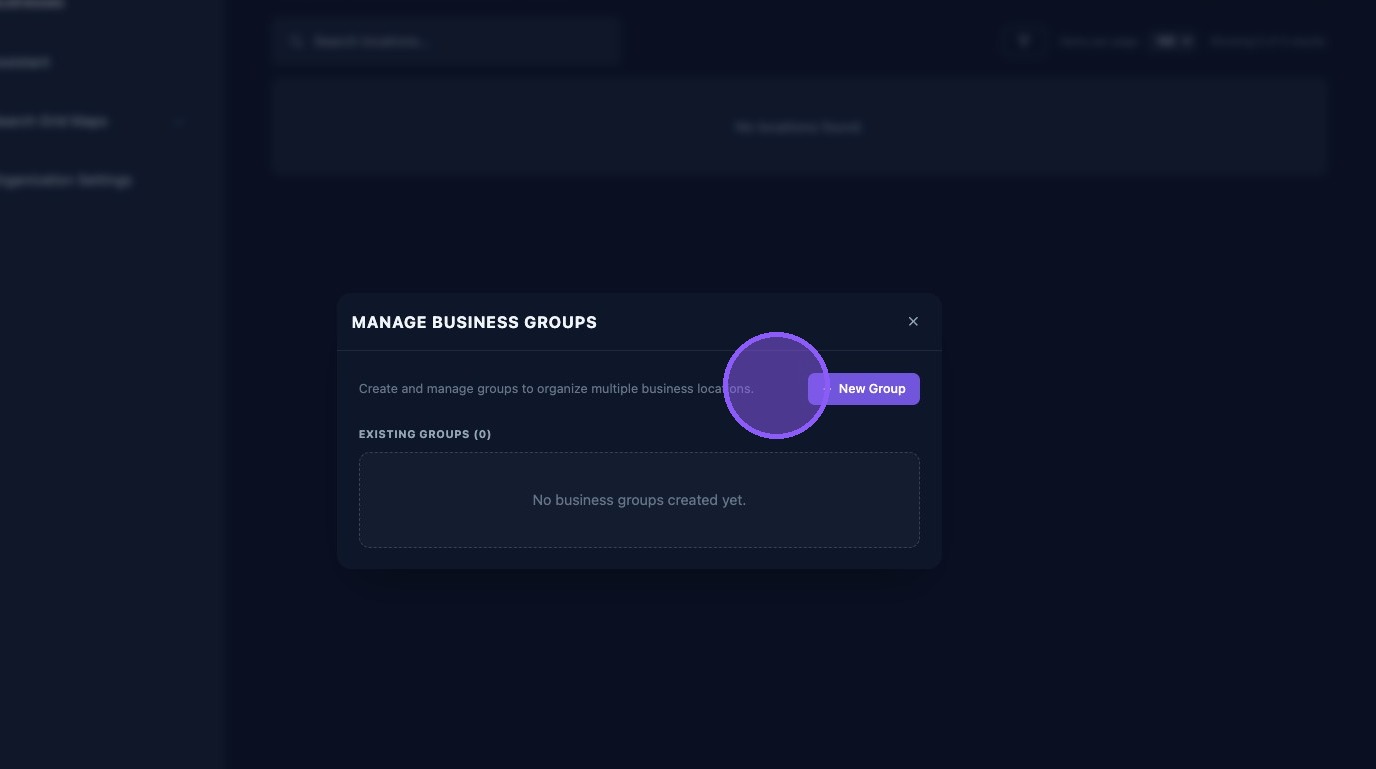
Enter the group details.
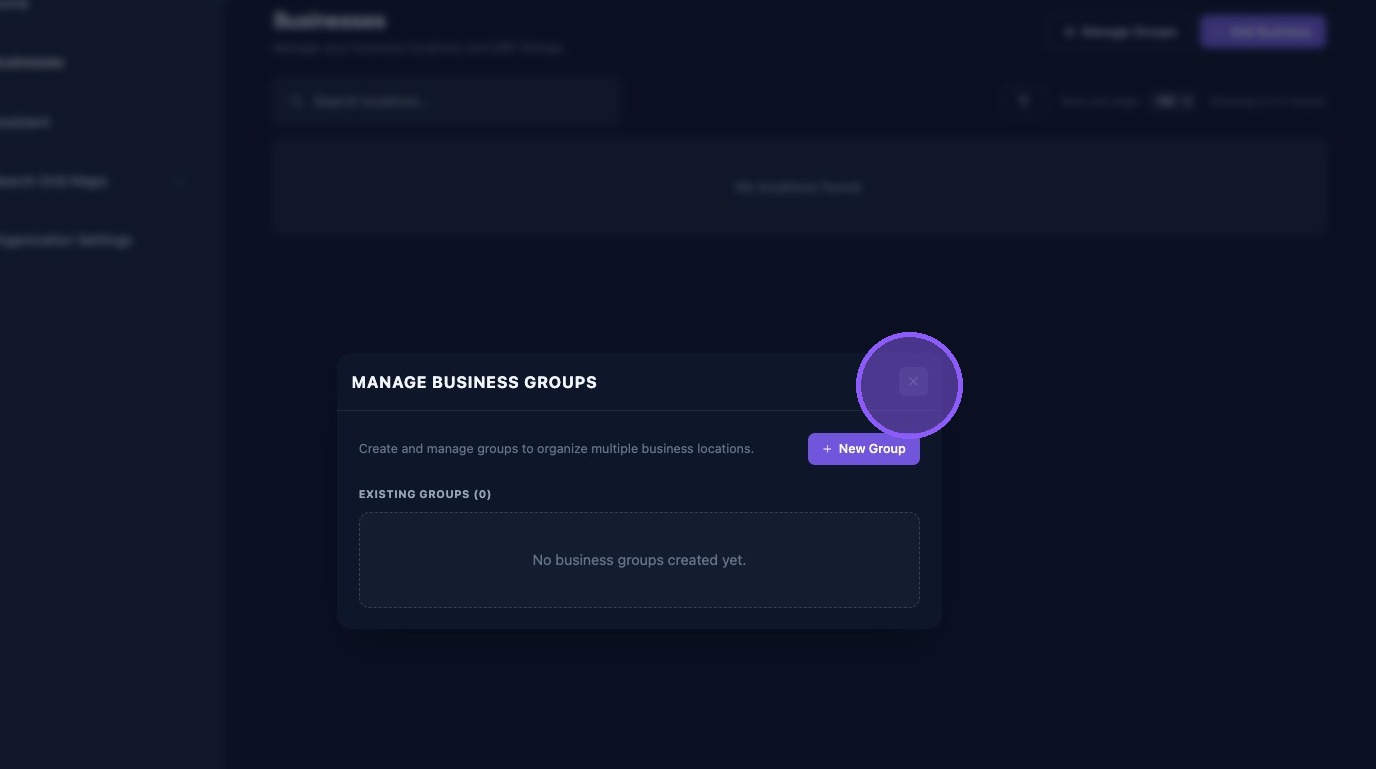
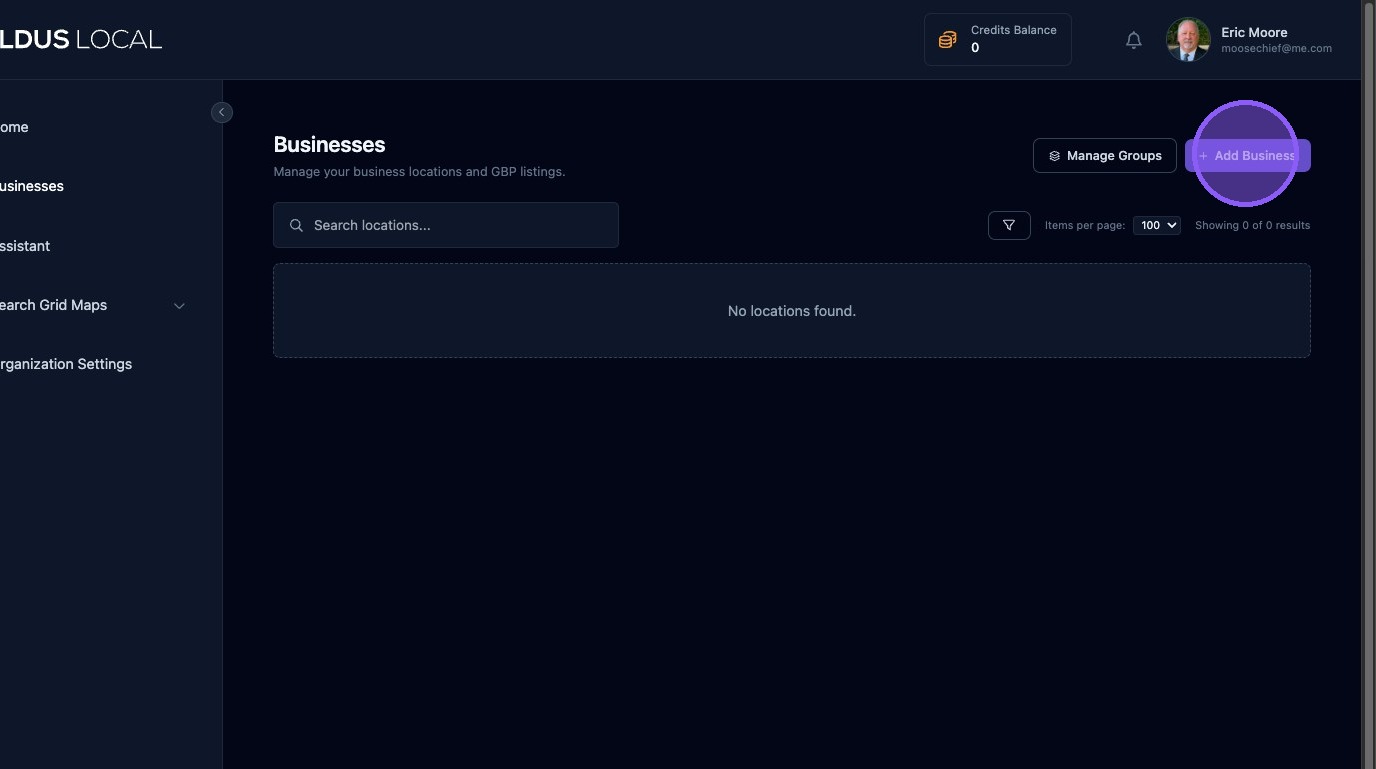
Click “Add Business.”
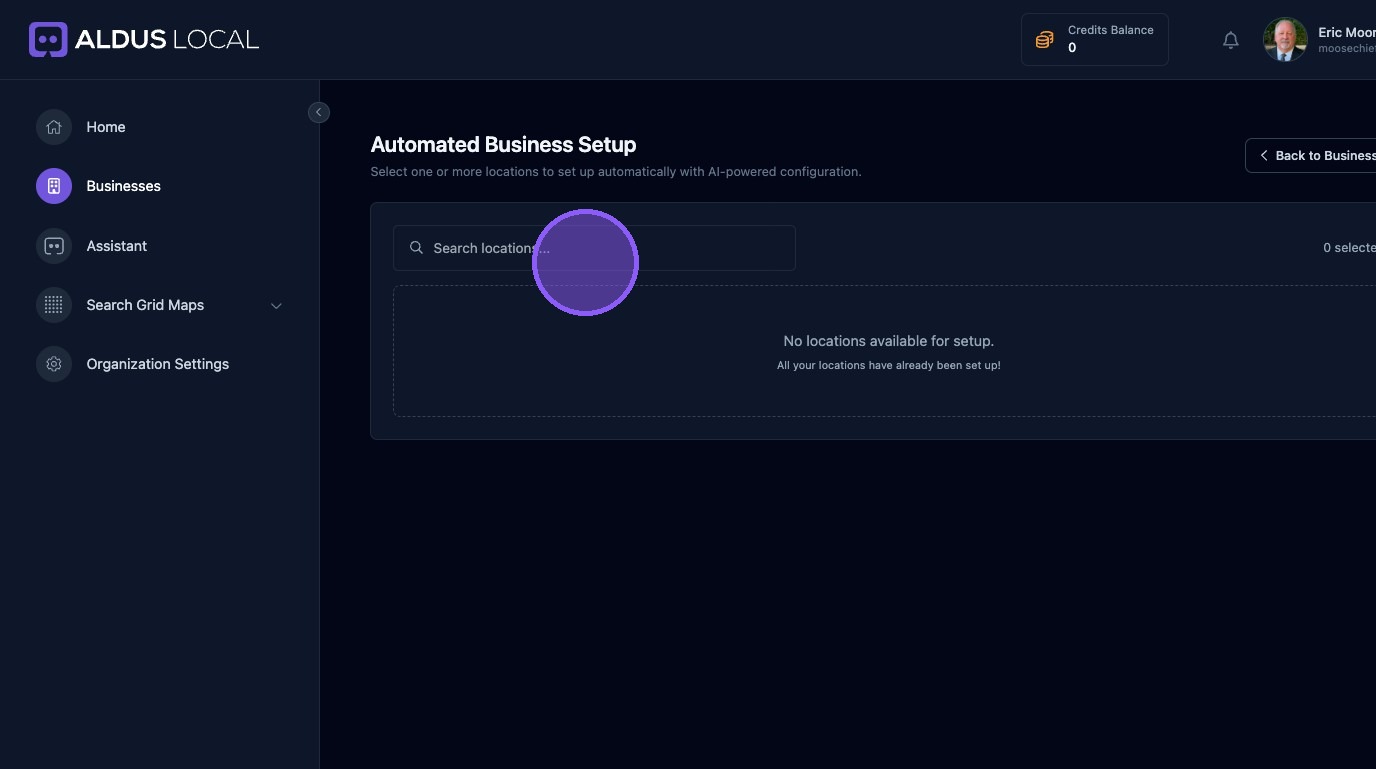
Click the “Search locations...” field to search for businesses to add.
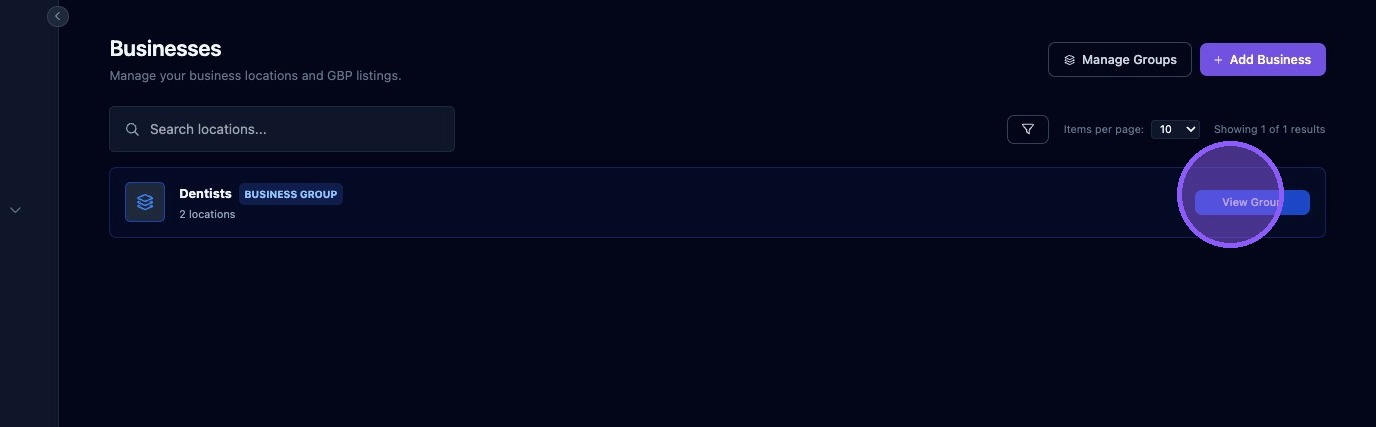
Business Group filter: If you have set up Business Groups, click "View Group".
If your organization uses Business Groups, the group filter appears in this panel. Selecting a group limits the list to only businesses assigned to that group.
This is critical for agencies managing multiple portfolios or regions. It helps reduce the noise of a large list and allows staff to focus only on the locations they own.
If the group filter is not visible, groups may not be enabled. Ask an Owner or Manager to confirm.