Organization: Authentications
This guide explains how to connect and manage Google and Facebook/Instagram authentications so your platform can access Google Business Profile listings, Search Console, Analytics, and social pages—without them, data features will be empty. It shows how to add accounts, enable extra Google scopes (Search Console and GA4) via re‑authentication, and verify connected properties. It also covers Facebook/Instagram linking and troubleshooting when Instagram is not linked to its Facebook page.
Authentications connect third-party accounts to the platform. Without these, most data features will not work.
Every business depends on the organization’s authentications. The business settings only select which authentication to use. If the authentication itself is missing or lacks permissions, data will be empty.
Providers supported:
- Google (Google Business Profile listings, social posts, Search Console, Analytics)
- Facebook (Facebook pages and Instagram)
Accessing Organization Authentications Settings
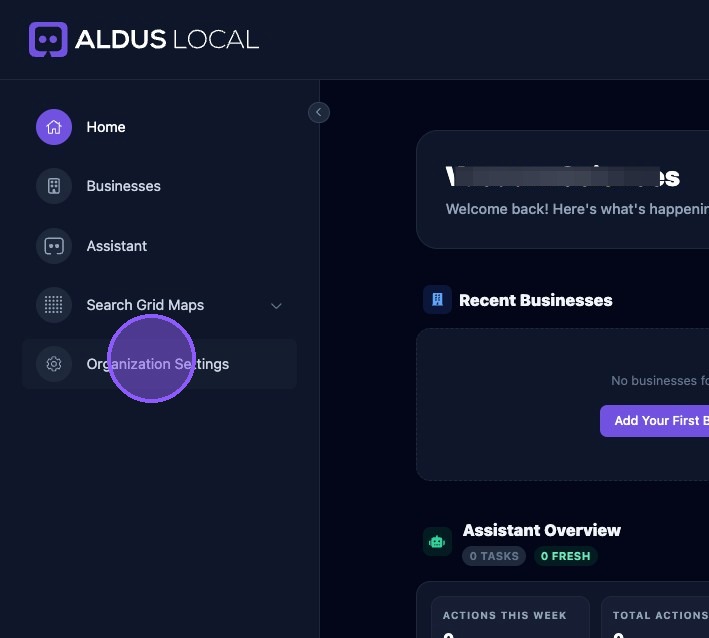
From the Organization’s home page, click “Organization Settings.” Scroll down to the “Authentications” section, where you will find two subsections for Google Accounts and Facebook/Instagram Accounts.
Google Authentications
Google Authentication connects your Google Business Profile locations and can optionally enable Search Console and Analytics data.
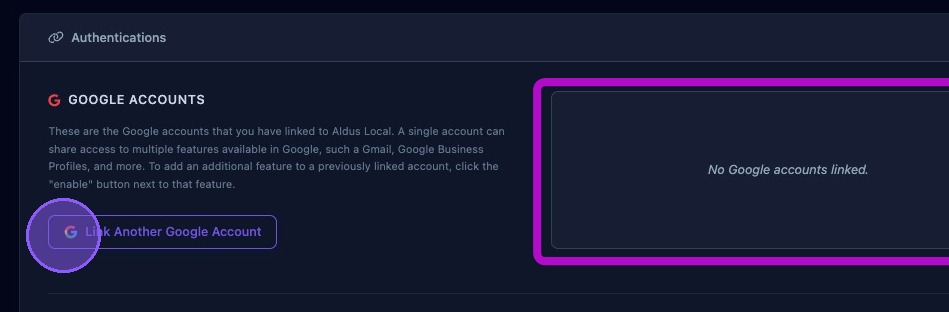
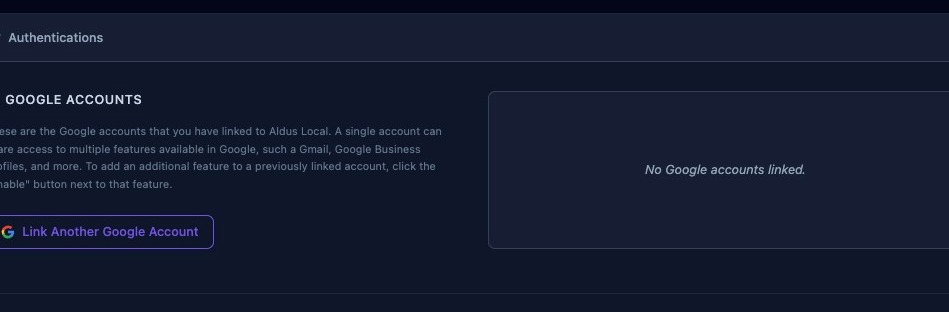
The box on the right displays the available GBP location accounts that you have linked to Aldus Local and their status. A single account can share access to multiple features available in Google, such as Gmail, Google Business Profiles, and more.
To add a Google account:
- Click “Link Another Google Account”
- Sign in to Google
- Approve permissions for GBP and complete the OAuth flow.
- Click “Save”
- Confirm that the provider card shows connected status.
Once Google Business Profile locations are connected, Google authentications can be expanded with extra scopes:
- Search Console
- Once enabled, select a property at the business level in the Search Console page.
- Google Analytics
- Once enabled, select the GA4 property in the Analytics page for the business.
To add an additional feature to a previously linked account:
- Click the “Enable” button next to that feature.
- Click “Reconnect”
- Complete the Google OAuth flow again.
Enabling these does not automatically grant access. The Google account must already have permissions in Search Console or Analytics. When you toggle a scope, you must re-authenticate so the new permissions are granted.
Verifying access: After connection, check the property lists:
- Google Business Profile locations should appear.
- Search Console sites should appear.
- Analytics properties should appear.
If any list is empty, the account does not have access to those properties.
Facebook and Instagram Authentications
Facebook authentication connects pages and linked Instagram accounts so you can publish posts from the platform.
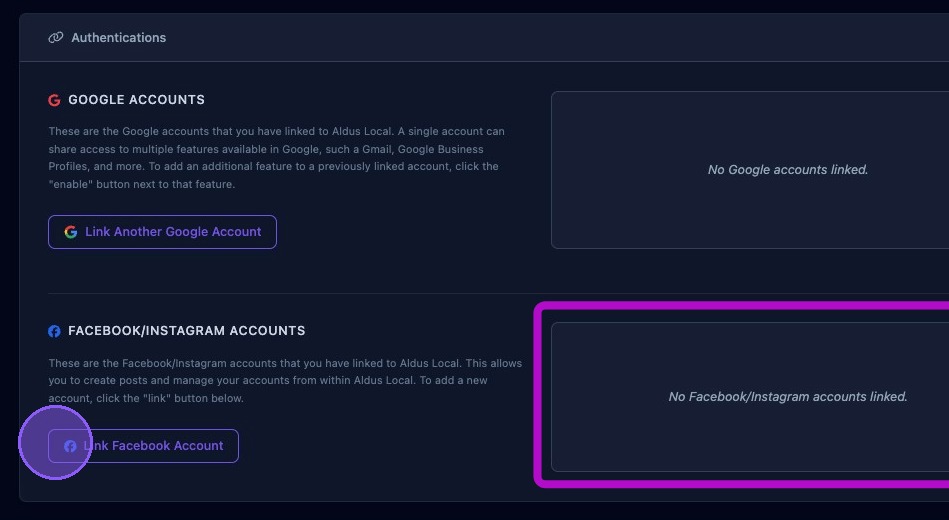
The box on the right lists the authenticated Facebook and Instagram pages.
To connect a Facebook account:
- Click “Link Facebook Account”
- Sign in to Facebook
- Grant access permissions to the correct pages.
- Click “Save”
- Confirm that the page card shows connected status.
Instagram availability: Instagram posting requires the Instagram account to be linked to the Facebook page. If Instagram is not linked, it will appear disabled. To fix:
- Open Meta Business Suite.
- Link the Instagram account to the page.
- Reconnect in the platform.