Organization Settings
Organization Settings: Email Reply-To
This guide quickly shows how to set a default Reply-To email for your organization so scheduled reports use a consistent sender address. It explains where to find and enter the default Reply-To in the Email Settings section, and how to save it. Use it to streamline report delivery and reduce manual changes for each report.
Video Walkthrough
Guide purpose
This guide quickly shows how to set a default Reply-To email for your organization so scheduled reports use a consistent sender address. It explains where to find and enter the default Reply-To in the Email Settings section, and how to save it. Use it to streamline report delivery and reduce manual changes for each report.
Accessing Organization Email Settings
1
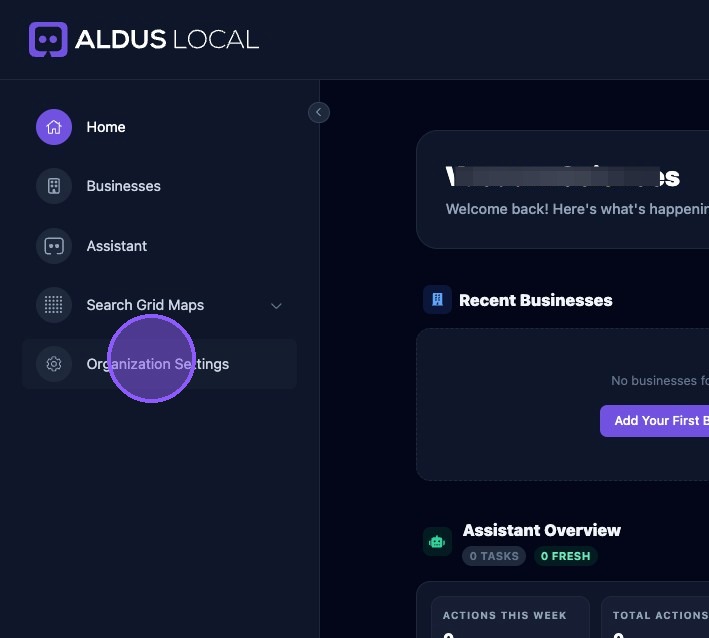
From the Organization home page, click "Organization Settings".
Setting Default Reply-To Address
2
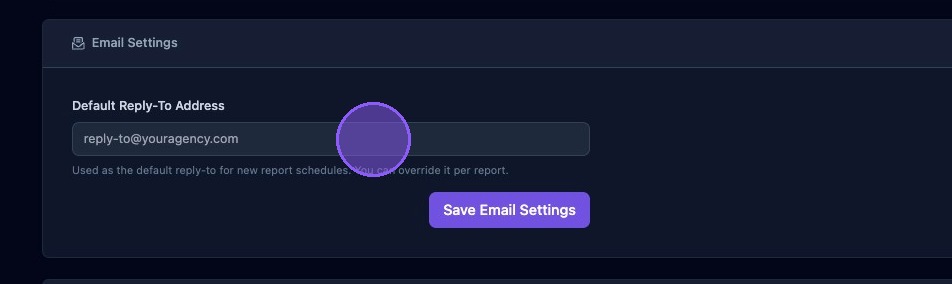
Scroll down to the “Email Settings” section of the organization settings page. Here, you can enter your organization’s default Reply-To email address. This email address is used for new report schedules and can be changed in each individual report.
To save the default Reply-To address, click the “Save Email Settings” button.