Organization Settings: Branding
This guide explains how to centrally control your organization’s visual identity so your login pages, reports, portals, and public tools present a consistent, professional brand. It warns about immediate, system-wide effects of changes (like custom domains and cached assets) and shows how to set names, logos (light/dark), favicons, primary colors, dashboard domains, and enable full white‑labeling. Follow it to avoid visibility errors and downtime when updating branding.
Accessing Branding on the Organization Settings Page
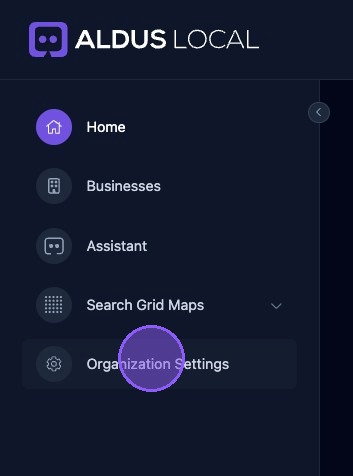
To access branding settings from the Organization home page, click on "Organization Settings" in the dashboard on the left.
The Branding Section
Branding plays a crucial role in shaping the perception of your organization, both internally and externally. It encompasses various elements such as login and signup pages, review tool pages, portals, report covers and headers, hosted websites, and public tools like the review request page.
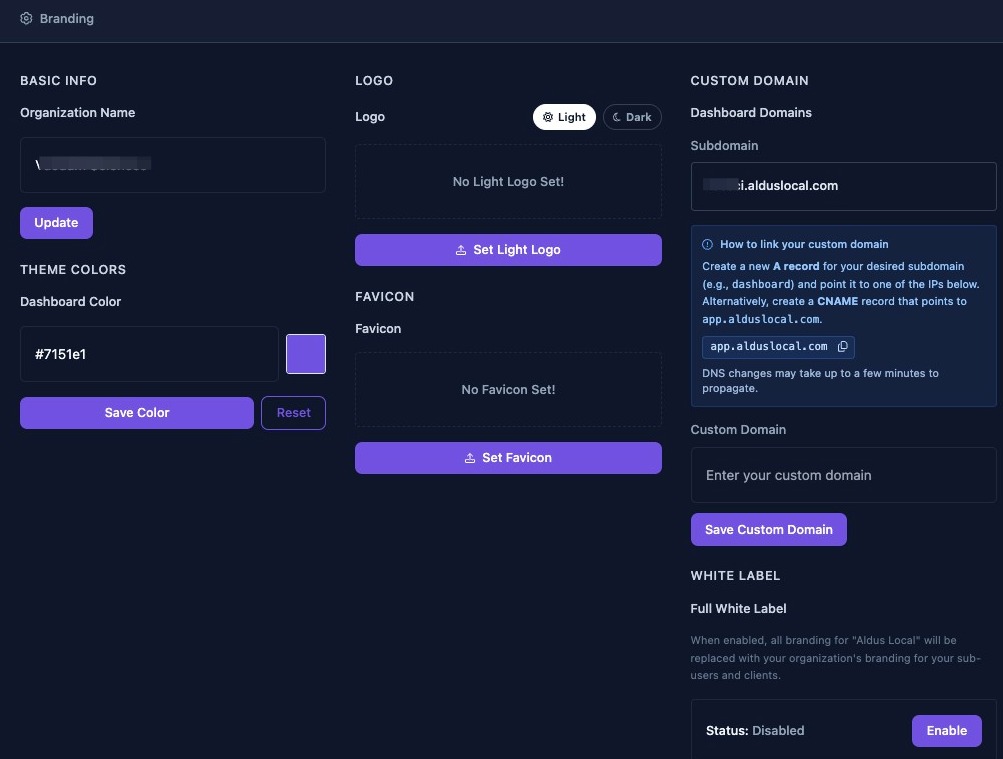
The Branding section encompasses several key components, including white labeling, organization identity, domains, logos, favicons, and primary colors.
It is important to remember that changes made in the branding section will impact every business. For example:
- A mistake in the custom domain can affect all login pages.
- Missing branding can impact reports, portals, and review tools.
Changes to organization settings take effect immediately, but some pages may need a refresh to update branding assets. For example, login pages might still display cached icons for a short period.
Setting Your Organization Name
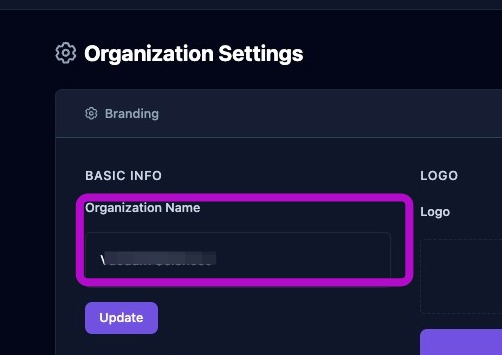
The first step is to set the organization name by clicking the organization name field and entering the name. Once updated, the organization name will appear in:
- The Dashboard header
- On login and signup pages
- On all client portal pages
- On all report headers and covers
Make sure to choose the official agency or company name you want your clients to see. Avoid adding legal suffixes to the organization name, unless they are part of the brand identity you want to display publicly.
Upload Your Organization Logo
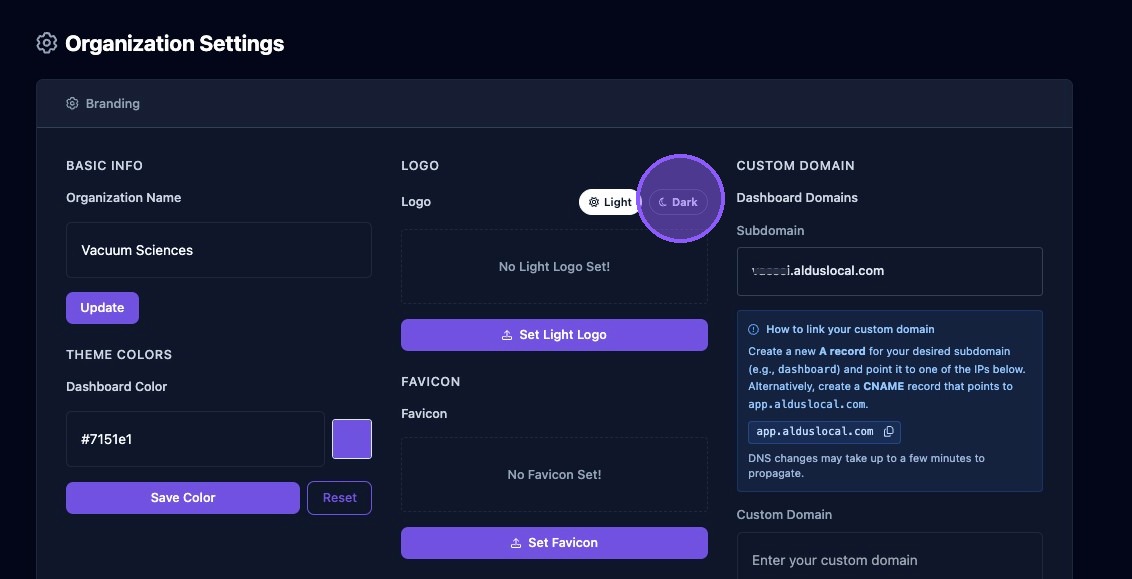
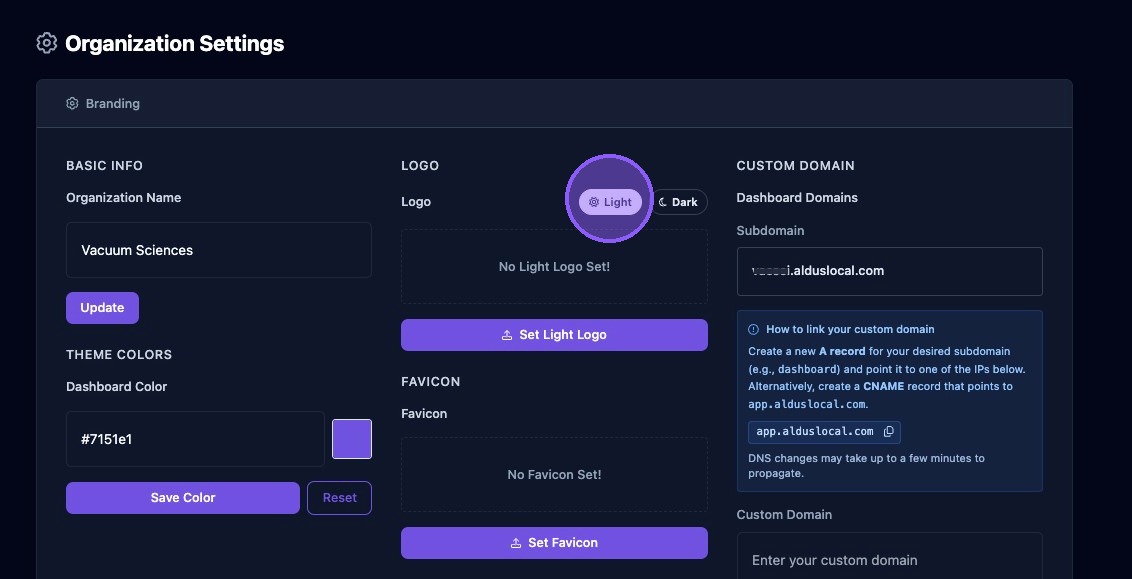
You can upload organization logos to support different backgrounds.
- The Light logo is used on dark backgrounds.
- The Dark logo is used on light backgrounds.
If you do not upload light and dark versions, the light logo is used everywhere. This can cause visibility issues if the logo color blends into the background.
To upload your organization logo:
- Click the toggle to select which logo you want to upload, light or dark.
- Click the button below that says "Set Light Logo" or "Set Dark Logo".
- This will open your operating system's upload window to select your logo image.
- Click "Upload" or "Save" button.
Set Primary Theme Color
The primary color is used for accents, buttons, and highlights on white‑label pages. It also affects report styling.
Use a high‑contrast color that works well on both light and dark backgrounds.
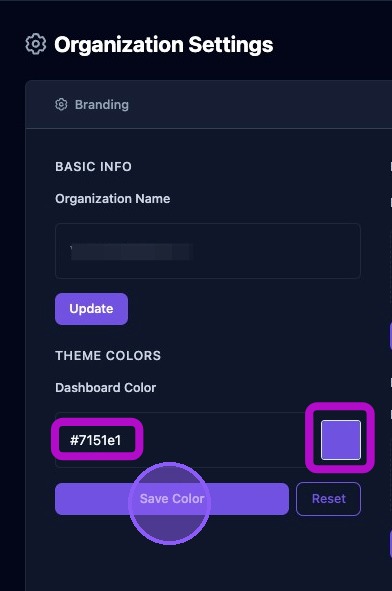
Set your theme color by typing in a hex number for the color in the text area here.
Alternatively, you can click on the color swatch and pick a new color using the color picker (click the swatch a second time to close the picker).
Click "Save Color" to save your changes. Or click "Reset" to not save your changes and revert to the original color.
Upload Your Organization Favicon
The favicon is the small icon displayed in browser tabs and link previews. It is also used in mobile browser bookmarks.
It is recommended that favicons be 32 pixels by 32 pixels, or 64 pixels by 64 pixels saved in PNG format. Keep the icon simple for clarity.
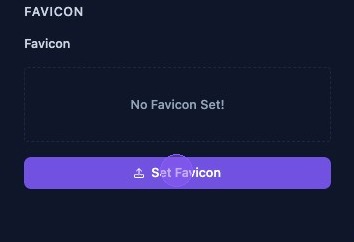
To upload your favicon, click the "Set Favicon" button. This will open your operating system's upload window to select your favicon image. Click "Upload" or "Save".
Set Dashboard Domain
In the next steps you will learn how to set the dashboard domain by entering either:
- an Aldus Local subdomain
- or a custom domain
To set an Aldus Local subdomain:
The subdomain creates a branded login URL in this format: youragency.alduslocal.com
Rules:
- Lowercase letters, numbers, and hyphens.
- Must be globally unique.
- Changing the subdomain will change the login URL immediately.
If you change the subdomain, notify your team and update bookmarks.
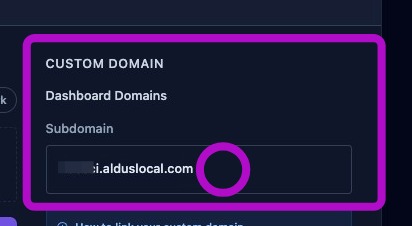
A custom domain can replace the Aldus Local subdomain entirely and provides a fully white‑labeled login experience. An example of a custom domain is:
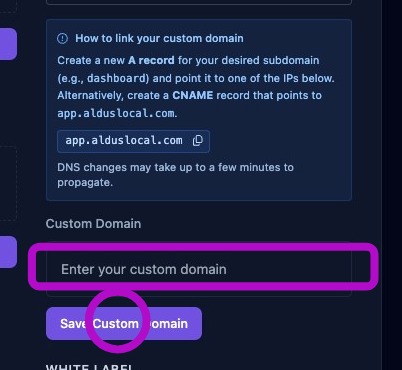
To set a custom domain:
- Enter the domain in the field.
- Follow the DNS instructions shown on screen. This typically requires creating either:
- A new A record for your desired subdomain (e.g., dashboard) and point it to one of the IPs app.alduslocal.com
- Alternatively, create a CNAME record that points to app.alduslocal.com
- Click "Save Custom Domain"
- Wait for DNS propagation, which can take minutes to hours.
- Click "Verify" once the DNS record is in place.
After verification, SSL certificates are issued automatically. If verification fails, double‑check DNS records.
DNS changes may take from a few minutes to several hours to propagate.
Enabling White Label Branding
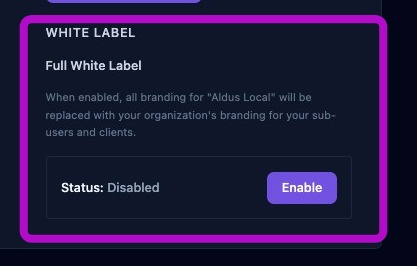
To replace all branding for “Aldus Local” with your organization’s branding for your team members and clients, enable Full White Label by clicking on the “Enable” button.
When enabled, the following changes occur:
- Aldus Local branding is removed from client-facing pages.
- The organization’s logo and colors are used instead.
- The organization’s branding may also appear in navigation and client-facing areas.
If the toggle is off, the system may display “Aldus Local” in certain contexts, such as portal pages or email previews.