


Getting Started: Invitations
This guide explains how invitations control access—distinguishing full organizational invites (for dashboard access) from client portal invites (limited client view). It shows the simple steps recipients follow to create accounts or sign in, and highlights common failure modes (expired/used tokens and wrong domains) with clear fixes. Use it to avoid invite setup errors and ensure people land in the right environment.
Tip: Invitations are the primary method of granting access. They ensure that users are associated with the correct organization and (if applicable) the correct client portal.
There are two major invitation types:
- Organizational invites for internal users.
- Client Portal invites for client-facing users
Organizational Invitations
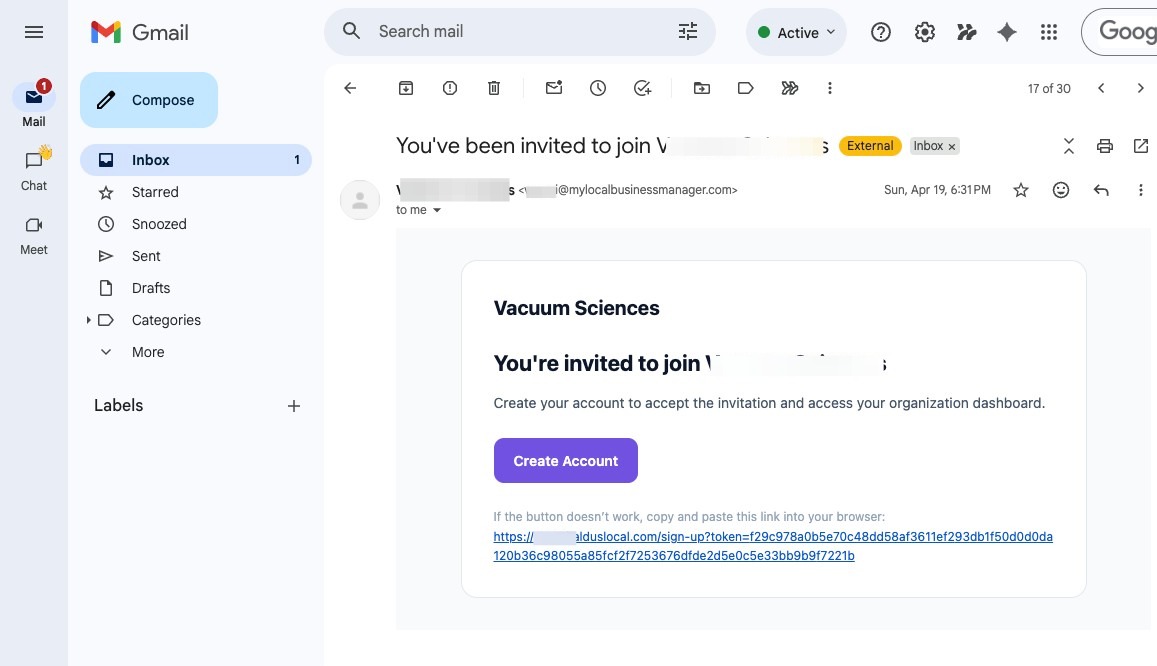
Organization invitations grant access to the dashboard itself. To accept an invitation email, open the email and click the "Create Account" button. If the button doesn't work, copy and paste the URL link at the bottom of the email into your browser.
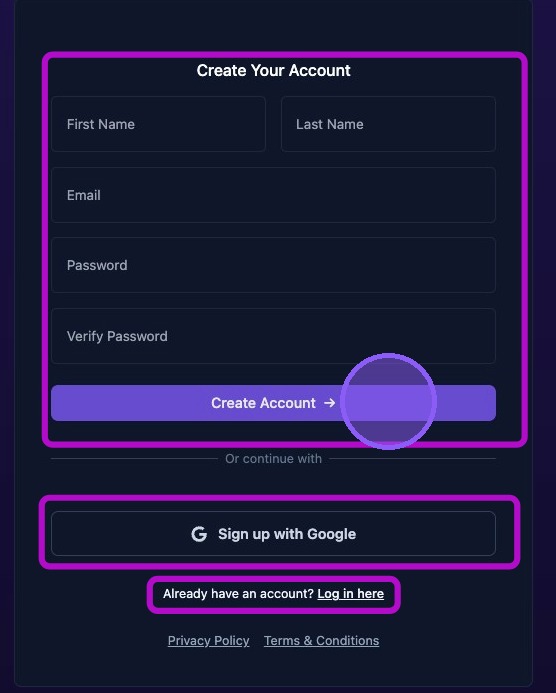
The link will open a new window in your browser to create your Aldus account. Then either:
- Enter your name and password then click "Create Account →" button.
- Or click the "Sign up with Google" button to use your Google account for verification and login.
If you already have an account you can click the "Log in here" button to return to the Aldus Login window.
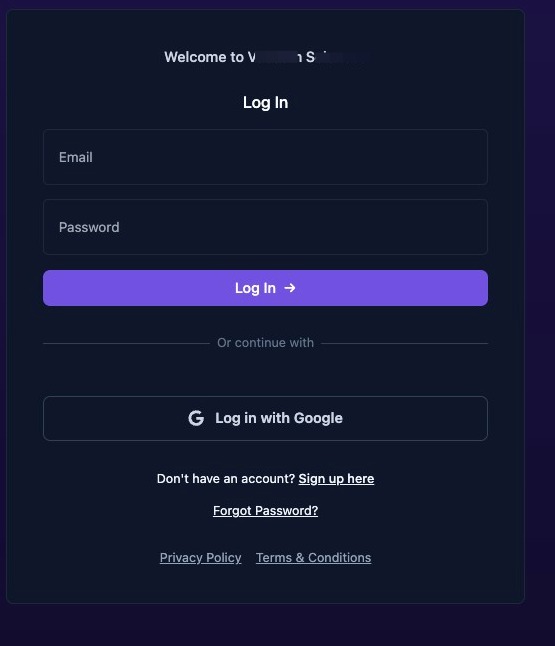
After creating your account, you may need to log in. Enter your email and password and click the "Log In" button.
Or if you signed up with your Google credentials, click on the "Log In with Google" button.
If your credentials are correct, you will be redirected to the dashboard home or directly to the business you were invited to manage.
To learn how to send and resend, organizational invites, and manage users, see theOrganizational Users Guide.
Alert: Common issues with organization invites:
- If the invite link expired or is already used, ask the admin to resend the invitation.
- Invitations for white‑labeled organizations should use the agency domain. If the wrong domain is loaded, check with admin for correct domain. If the invite link uses the default domain, ask for a new invite.
Client Portal Invitations
Tip: Client portal invites are separate from dashboard invites. They grant access only to the client portal, not the full dashboard. It allows clients to view only those elements you wish them to see as configured in the Client Portal Settings.
To learn more about Client Portal settings and how to send and resend, Client Portal invitations see theClient Portal guide.
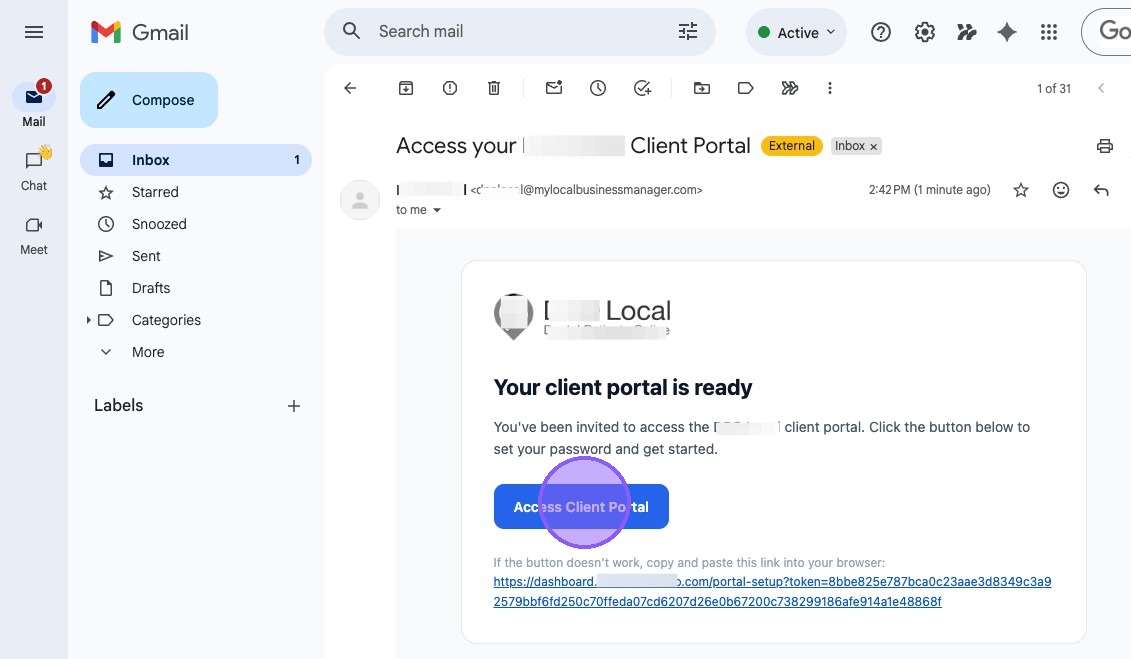
The client will receive an emailed invite that looks like this. To accept the client portal invitation, the client opens the email and clicks the "Access Client Portal" button. If the button doesn't work, copy and paste the URL link at the bottom of the email into your browser.
When the client clicks on that link, they are taken to the White Labeled Portal Setup webpage, where they enter their first and last name, set a password, and click on "Complete Setup" to access the client portal. The client may have to log in to the portal after completing the setup step.
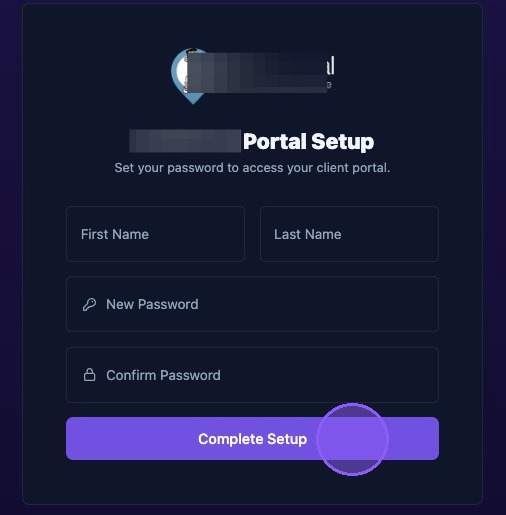
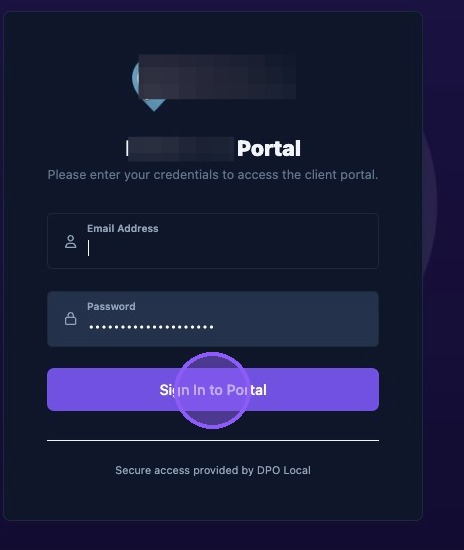
If a client already has an account to access the portal, they are presented with a sign in window instead of a set up page.
Alert: Common issues with portal invites:
- If an "invite not found" message is received, then the token has expired or has already been used. Ask for a new invite.
- If the portal setup link uses the wrong domain, ask your admin to regenerate the invite with the correct domain.