

Getting Started: Account Sign Up, Sign In and Password Reset
Made by Eric Moore with Scribe
This guide quickly shows how to access your agency’s Aldus Local login page from the invite email and what the login window should look like. It explains creating a new account (email/password or Google), signing in (email/password or Google), and how to use “Forgot Password?” to recover access if you can’t log in. Follow it to avoid common setup and access errors.
Tip: Most users are invited by an administrator, so you may not need to create a new account manually.
Tips for internal teams:
- Bookmark the correct login URL for your organization.
- Keep a shared admin account for emergencies.
- If you manage multiple agencies, log out before switching domains.
Alert: Make sure to use the correct URL. The platform supports white‑labeled domains. The correct login URL depends on your organization’s branding:
- If your agency has a custom domain, use that domain.
- If your agency uses a subdomain, use that subdomain.
- If you are not sure, ask your admin for the correct URL.
Using the wrong URL can show incorrect branding or even block login because your account is scoped to a different domain.
Accessing the Log In Window
1. To sign up, log in, or reset your password, navigate to the login link provided in the invite email from Aldus Local for your account.
The URL in your browser should reflect your agency's branding and the login window should display "Welcome to YOUR AGENCY" at the top.
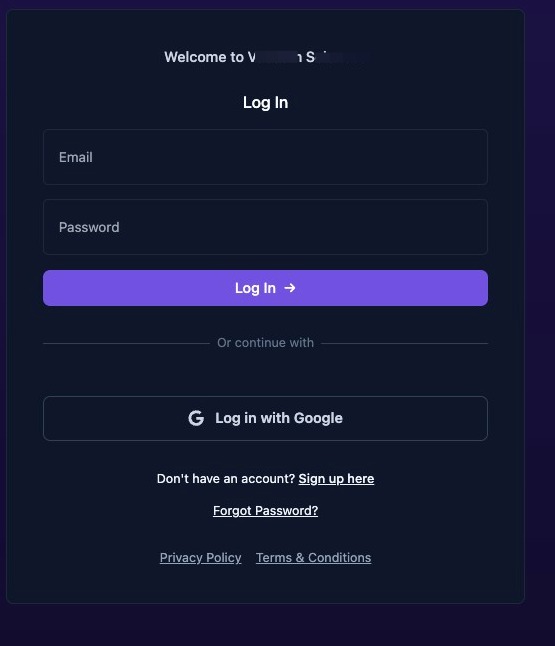
Aldus Local Log In
2. To log in, enter your email and password and click the "Log In" button.
Or if you signed up with your Google credentials, click on the "Log In with Google" button.
If your credentials are correct, you will be redirected to the dashboard home or directly to the business you were invited to manage.
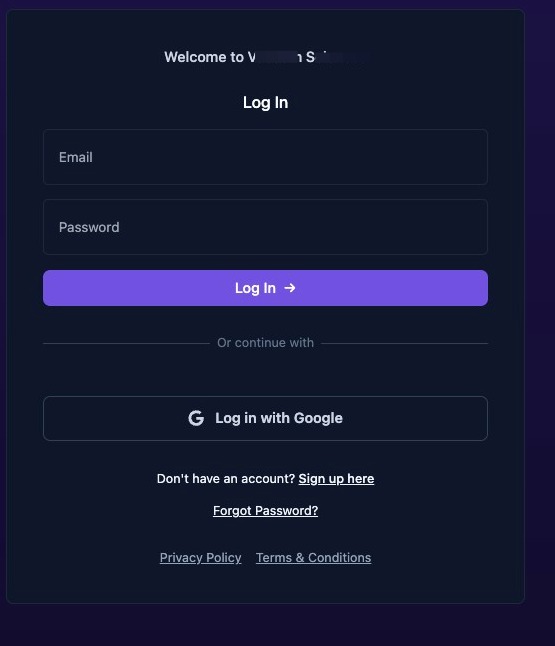
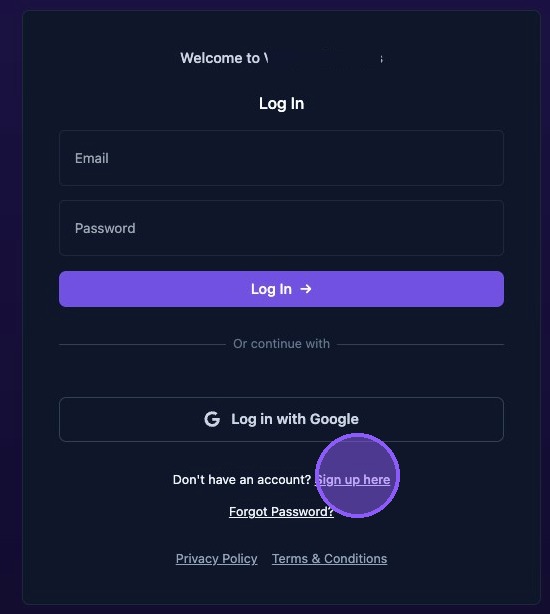
Sign Up
3. Most organizations use invitations, but if self‑sign‑up is enabled, or if this is the first time logging in to Aldus Local, you may need to create an account by clicking on the "Sign up here" button first.
Verify your email if prompted.
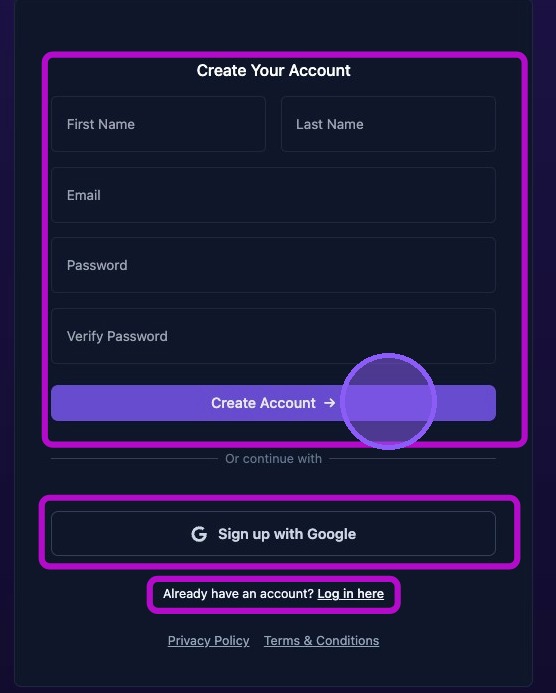
4. You will be presented a new window to create your Aldus account. Then either:
- Enter your name and password then click "Create Account →" button.
- Or click the "Sign up with Google" button to use your Google account for verification and login.
If you already have an account you can click the "Log in here" button to return to the Aldus Login window.
Password Reset
Alert: Common login errors and fixes for invalid username or password:
- Double‑check spelling and capitalization.
- Use the same email you were invited with.
- Reset your password if needed.
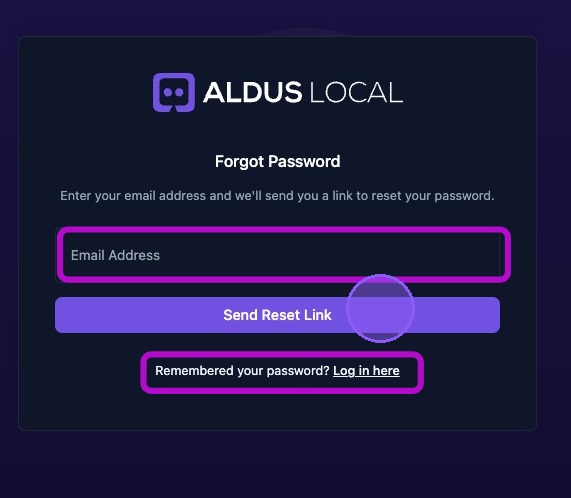
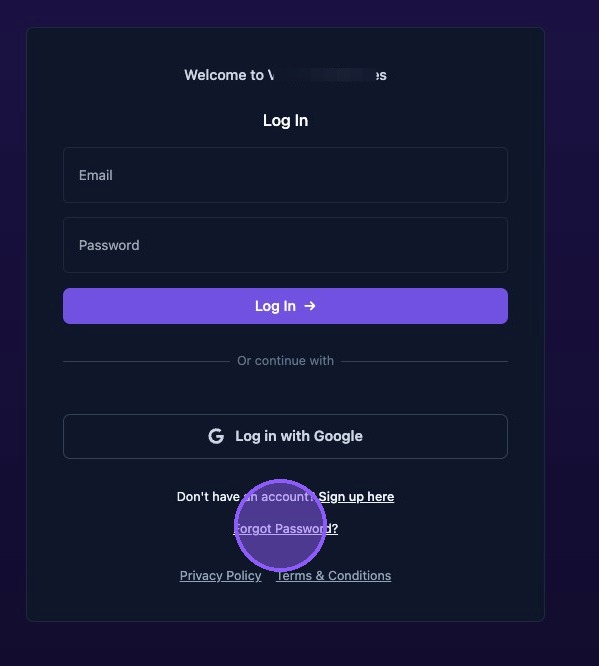
5. Password reset lets you recover access to the dashboard when you cannot log in. Reset if you see an “invalid username or password” error and are certain you have the correct email.
To reset, click the "Forgot Password?" on the log in page.
6. On the next screen, enter your email in the "Email Address" field.
If you remembered your password, you can click the "Log in here" button to return to the Aldus Login window.