


How To Use The Multi Location View Tool
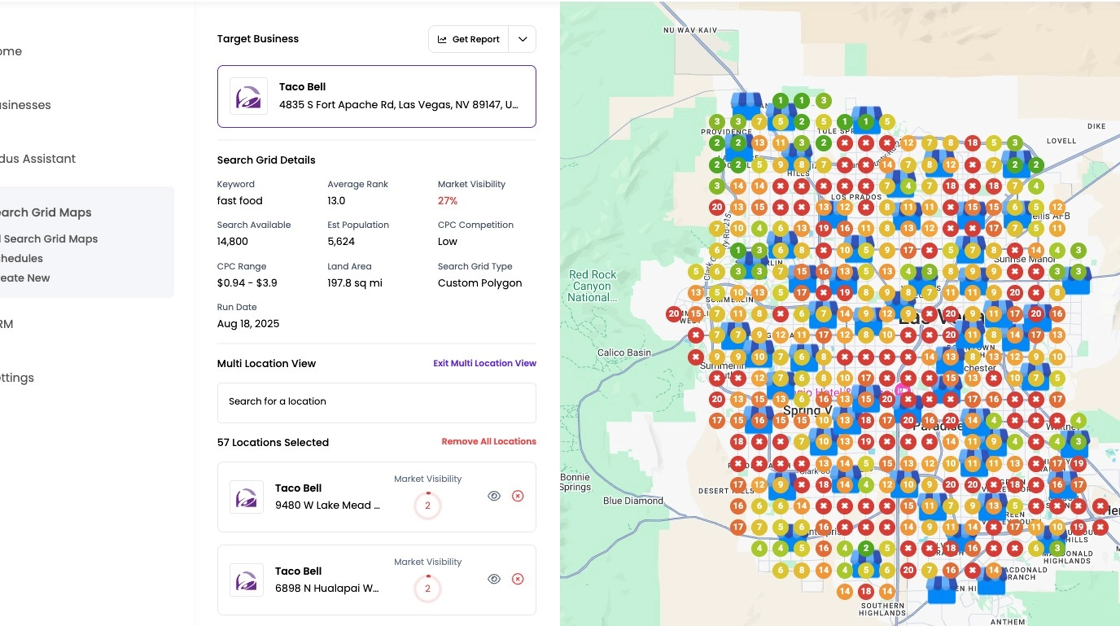
The Multi Location View Tool allows you to visualize the ranking performance of multiple businesses in a single trade area. In this example, we run a Search Grid Map for the keyword "fast food" and define a trade area polygon to cover the entire city of Las Vegas. The using the Multi Location View Tool, we are able to see the ranking performance of different fast food franchises, such as Taco Bell or Chick-fil-a, for the entire city.
1. Navigate to the Search Grid Map tool in your dashboard

2. Click "Create New"

3. Search for a target business

4. In this example, we search for a random Taco Bell location.
5. Click the desired target location.

6. Optionally click the Map Type selection dropdown

7. We are choosing "Custom Polygon" so we can manually target a large area.

8. Enlarge the map so we can see the whole area.

9. We can see the entire city of Las Vegas here.

10. Start drawing your polygon by clicking on the map.

11. Continue clicking on the map to draw our polygon trade area

12. Continue clicking on the map to draw our polygon trade area

13. Continue clicking on the map to draw our polygon trade area

14. To complete the polygon, click the point you started with to close the shape.

15. Minimize the map

16. We can see our completed shape here, and the ranking points that will be gathered when we run the map.

Tip: Tip! Adjust the "Point Density" slider to increase or decrease the density of points in your polygon shape. You may want to use more points when checking a large trade area. Each point is 1 dashboard credit, per keyword. (ie a map with 200 points for 5 separate keywords would be 1,000 credits).
17. Click here to add a target keyword, or multiple keywords, to get rankings for.

18. Type your desired keyword
19. Click "Add Keyword", and wait for the keyword data to load

20. Click "Run Now"

21. When your map is complete, click here to view the map

22. Click the dropdown caret, next to "Get Report"

23. Click "Enable Multi Location View"

24. You have enabled Multi Location View mode

25. You can remove business locations by clicking the X button next to it.

26. To search for businesses, click "Search for a location".

27. Type the name of the Businesses/Chain that you wish to view
28. We can see "Taco Bell" appears to have 57 ranking locations in the city of Las Vegas. Click "Add All Results" to view the rankings for all 57 locations combined.

29. Here we can see the combined rankings for all of these locations.

30. You can click the eye icon next to a particular location to hide their rankings from the results.

Tip: Tip! Notice that as you add/remove and hide locations, the average rank and market visibility will be updated to reflect all of the locations you have selected.
31. You can click they eye with a slash to un-hide this location from the results.

32. This tool helps us visualize the rankings for all of the Taco Bell locations in Las Vegas.
Tip: Tip! Use this functionality to help a client visualize where best to place a new location when expanding their business.
33. To exit the Multi Location view, click the "Exit Multi Location View" button.

34. Celebrate! You're now ready to use the Multi Location View feature.
